Introduction
The Windows Login (Healthcare) application enables secure and passwordless authentication for Windows-based healthcare environments. The Tenant Admin can download the installer directly from the Tenant Admin Portal and install it on supported Windows systems.Prerequisites
- You must have access to a Tenant Admin account.
- You have local administrator access on the Windows machine.
- Check System Requirements. For more information, refer: Windows Login App (Healthcare) - Hardware and Software Requirements
Steps to download Windows Login** **App
- Log in to Tenant Admin Portal.
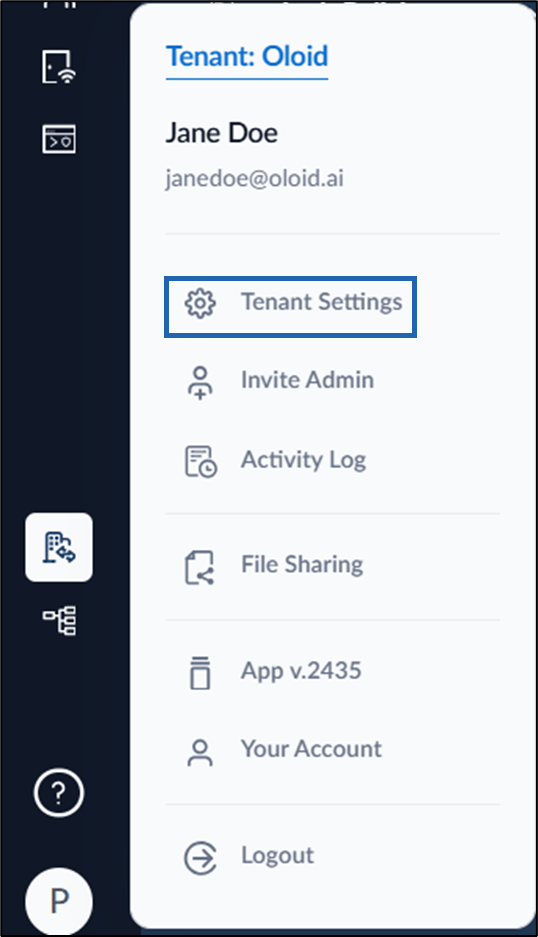
- On the homepage of the portal, click User profile icon on the bottom left corner of the menu panel.
- The user profile menu is displayed.
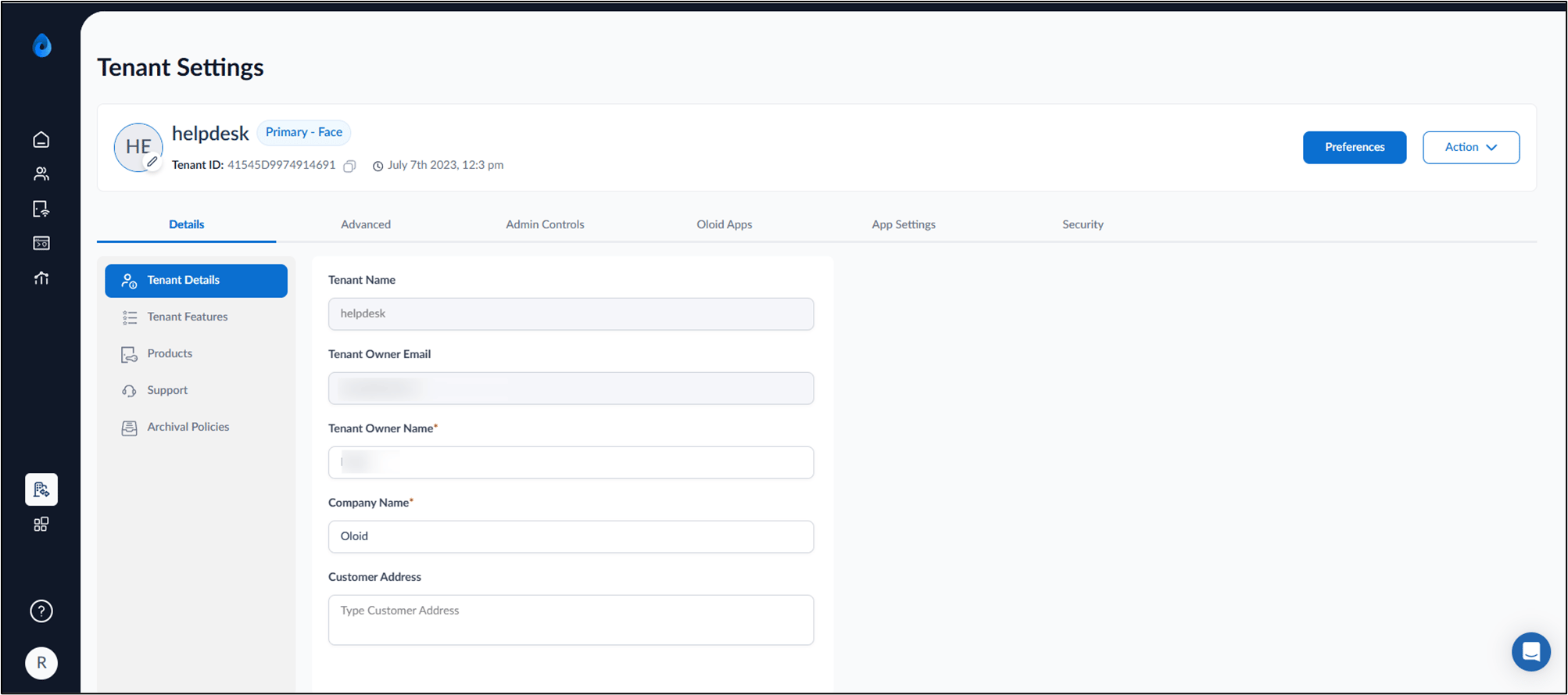
- Select Tenant Settings.
- Go to Oloid Apps tab > Windows Login (Healthcare).
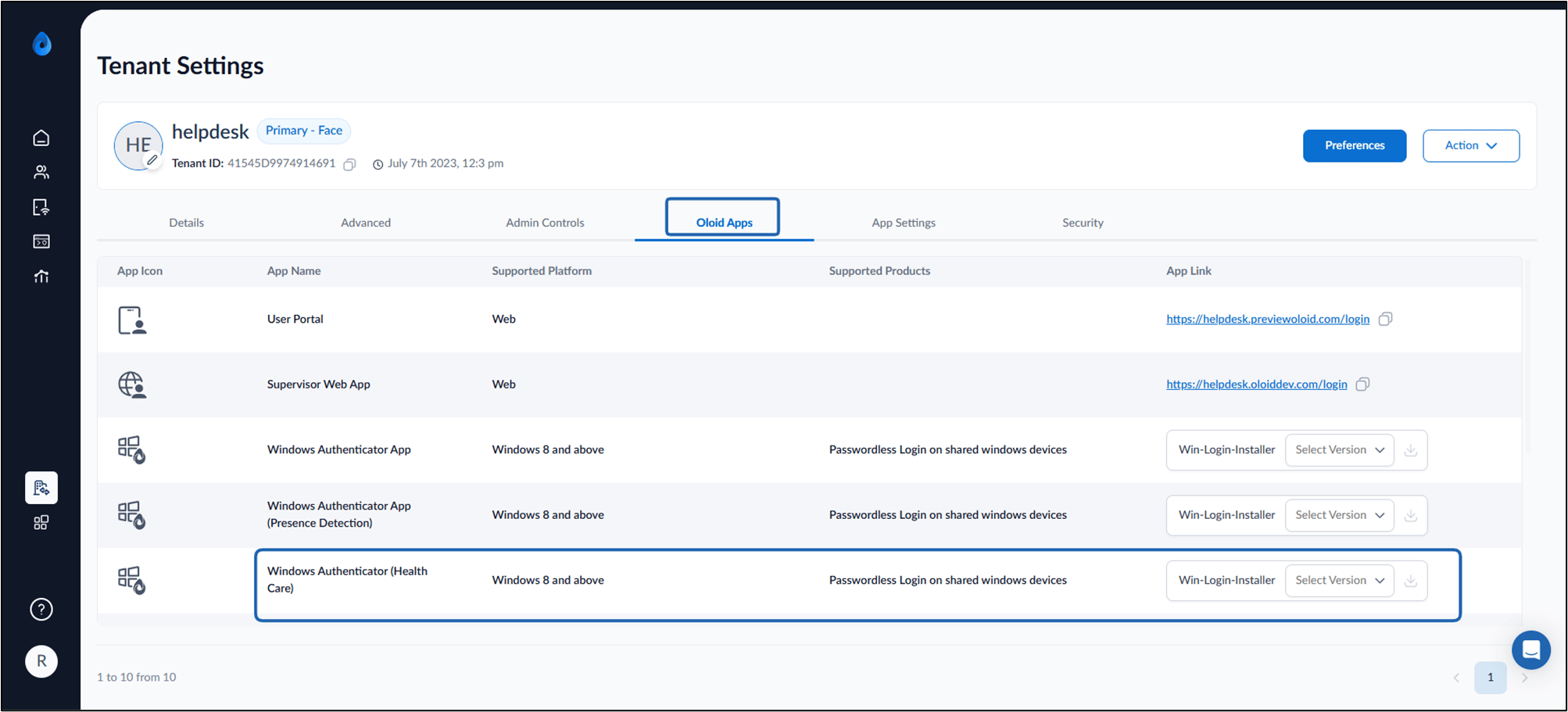
- Select the preferred version from the Win-Login-Installer dropdown list, then click the Download button


Steps to install Windows Login** **App
-
Download Windows Login Healthcare file on your system.
Note: Select the version as advised by your Oloid Rep.

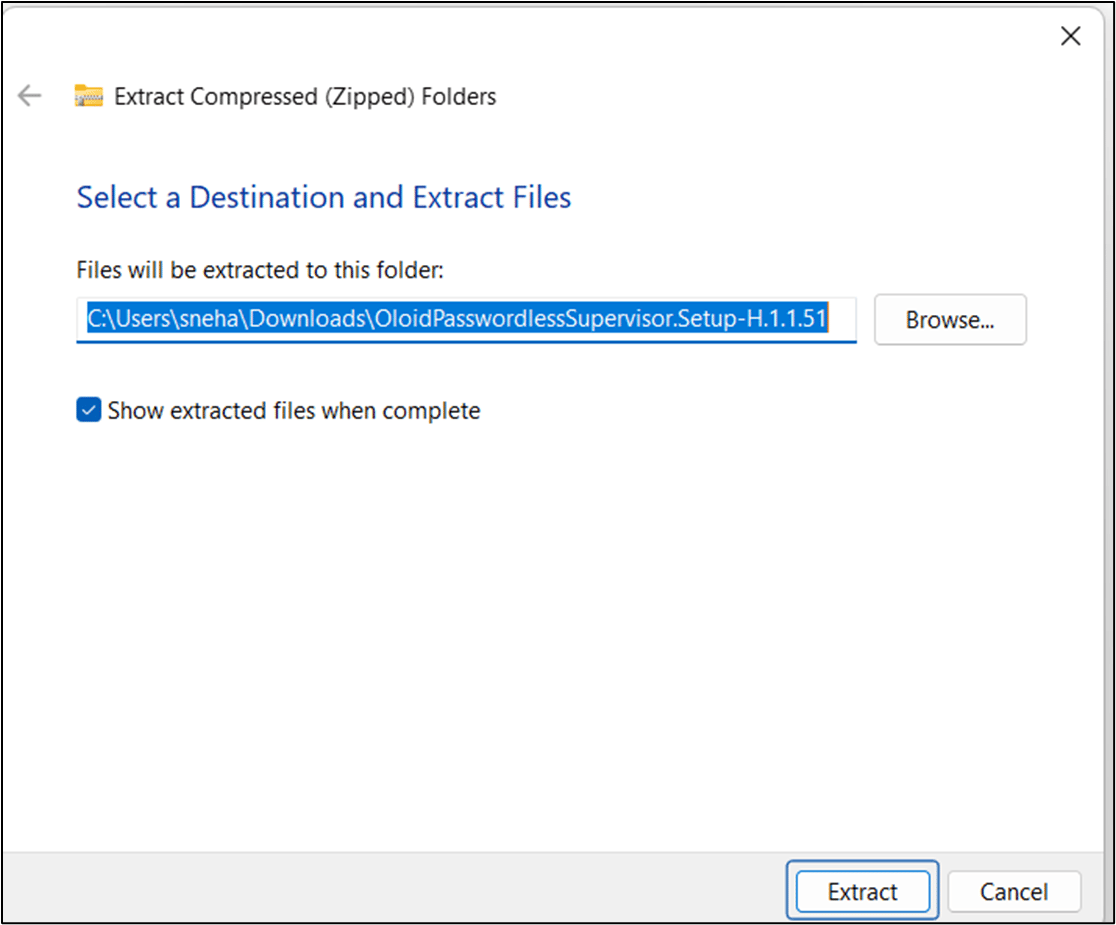
- Right-click and select Extract All > OloidPasswordlessSupervisor.Setup.zip file.
-
The extract folder pop-up is displayed, click Extract.
-
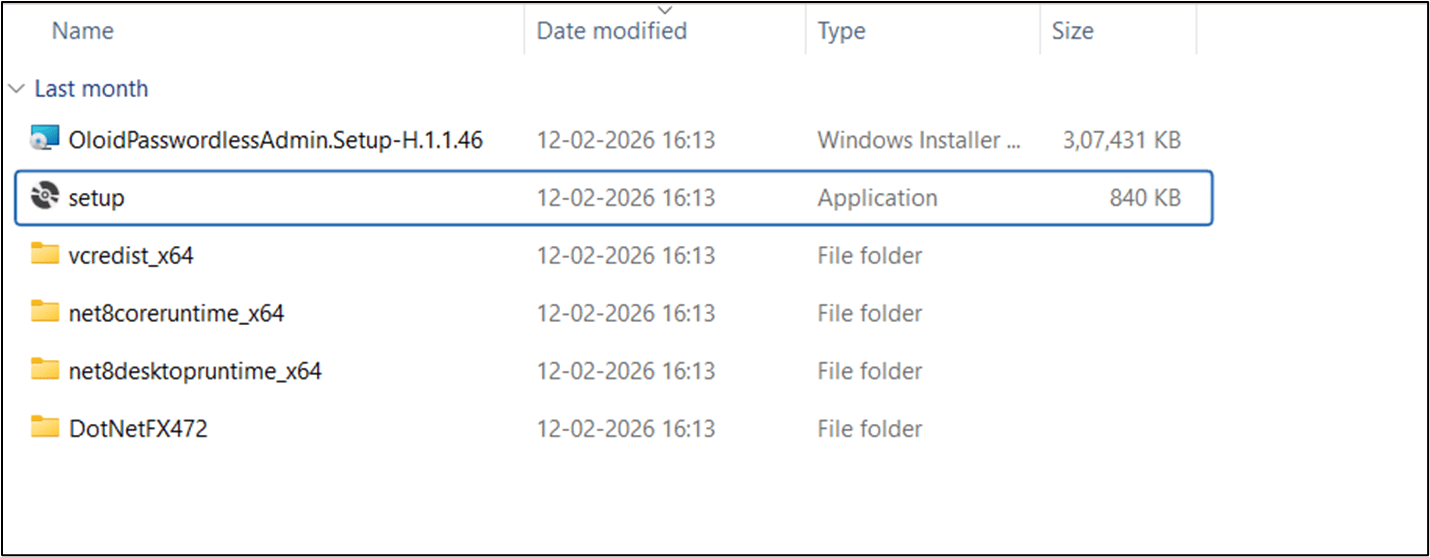
Open the extracted folder and Double-click on setup.exe file.
-
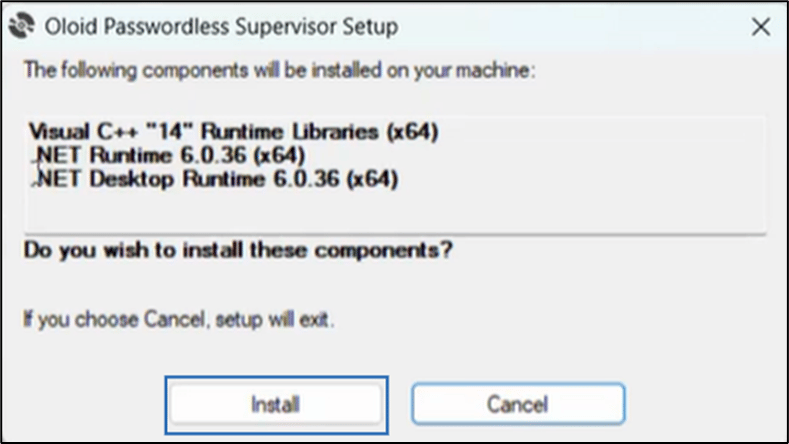
Review the listed components and click Install to proceed.
Note: If any of the files are missing, the application prompts to install the missing component.
-
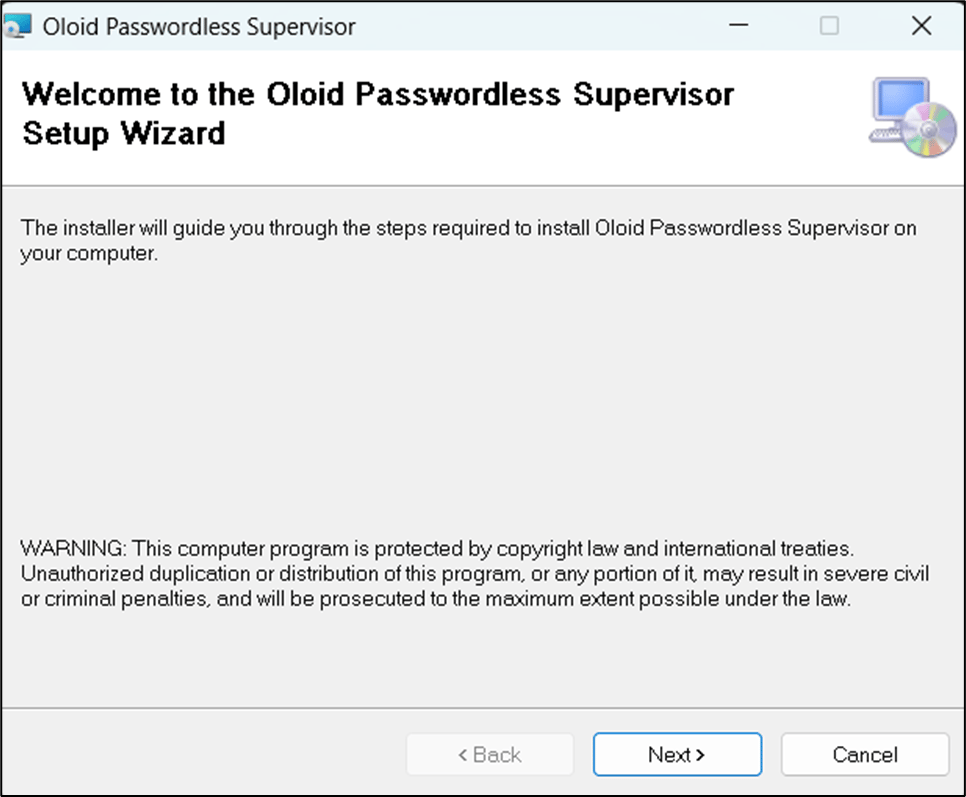
On the Oloid Passwordless Supervisor Setup wizard, click Next.
-
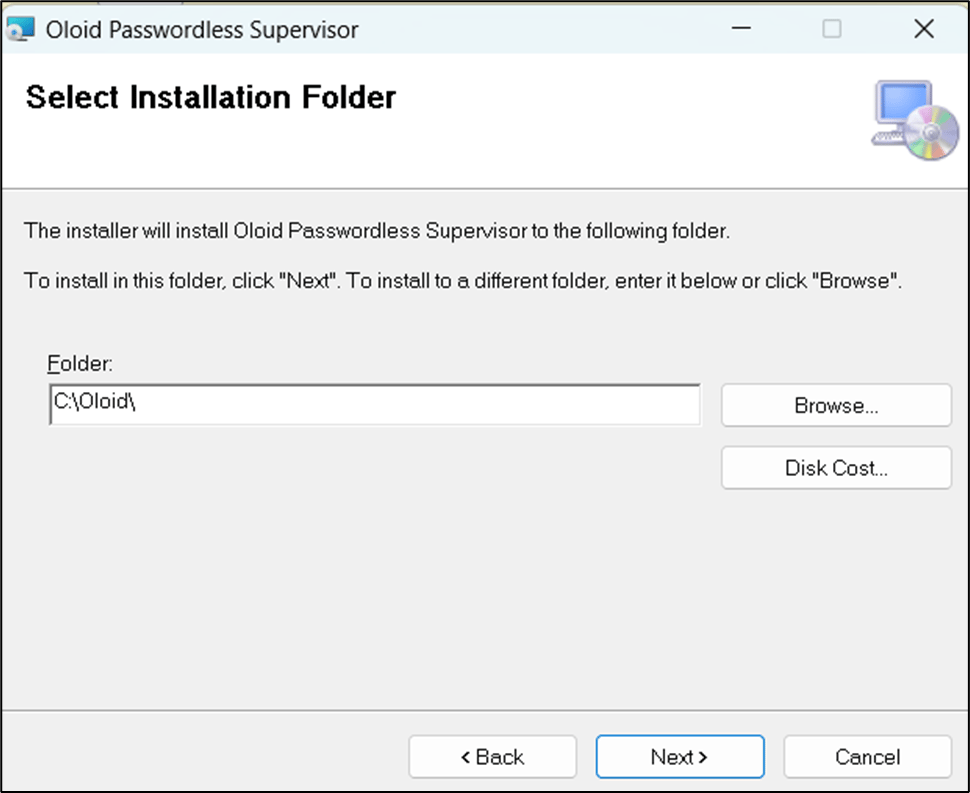
Use the default path to install the application and click Next.
-
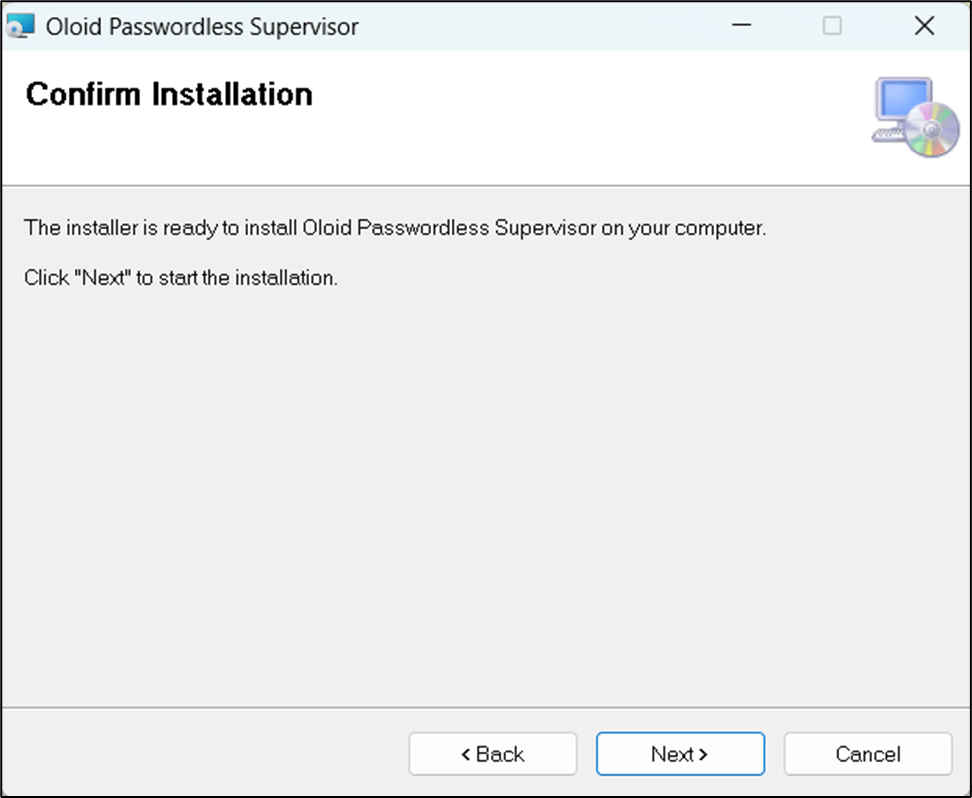
Click Next to confirm the installation.
-
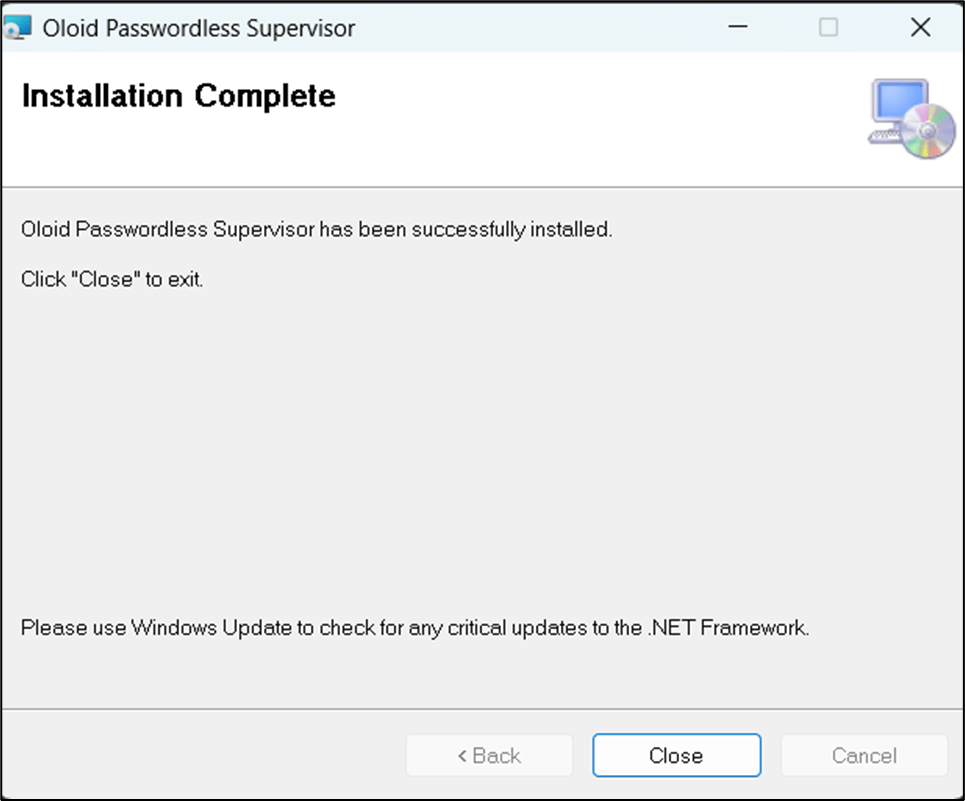
Click Close after the installation is complete.