

Using Network Diagnostics
To view diagnostics and download report:-
Double-click on Supervisor app

-
Click More Options > Network Diagnostics.
 Note: Type Custom URL in the text field and press Enter. (Optional)
-
Do the following:
- Click Diagnose to refresh the URLs.
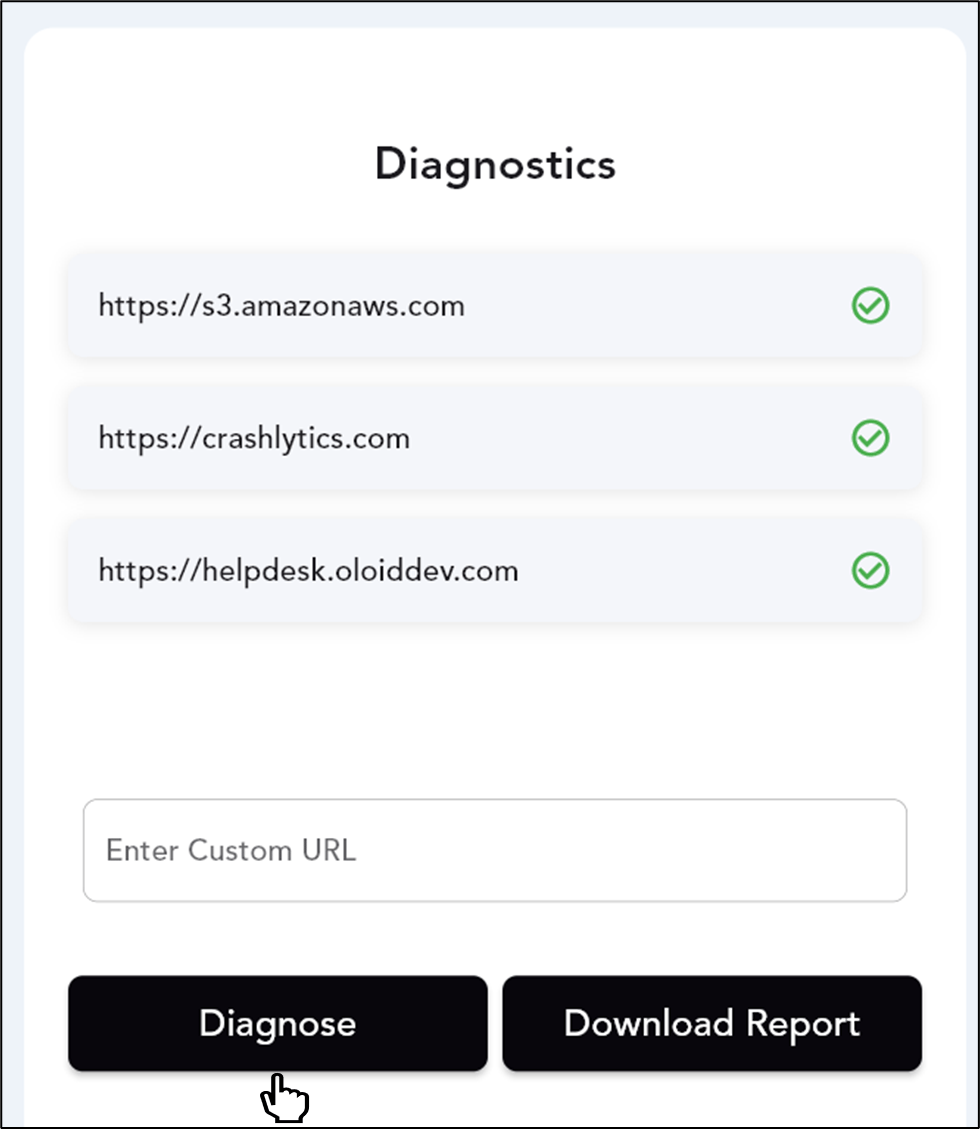
- Click Download Report to download the diagnostic report.
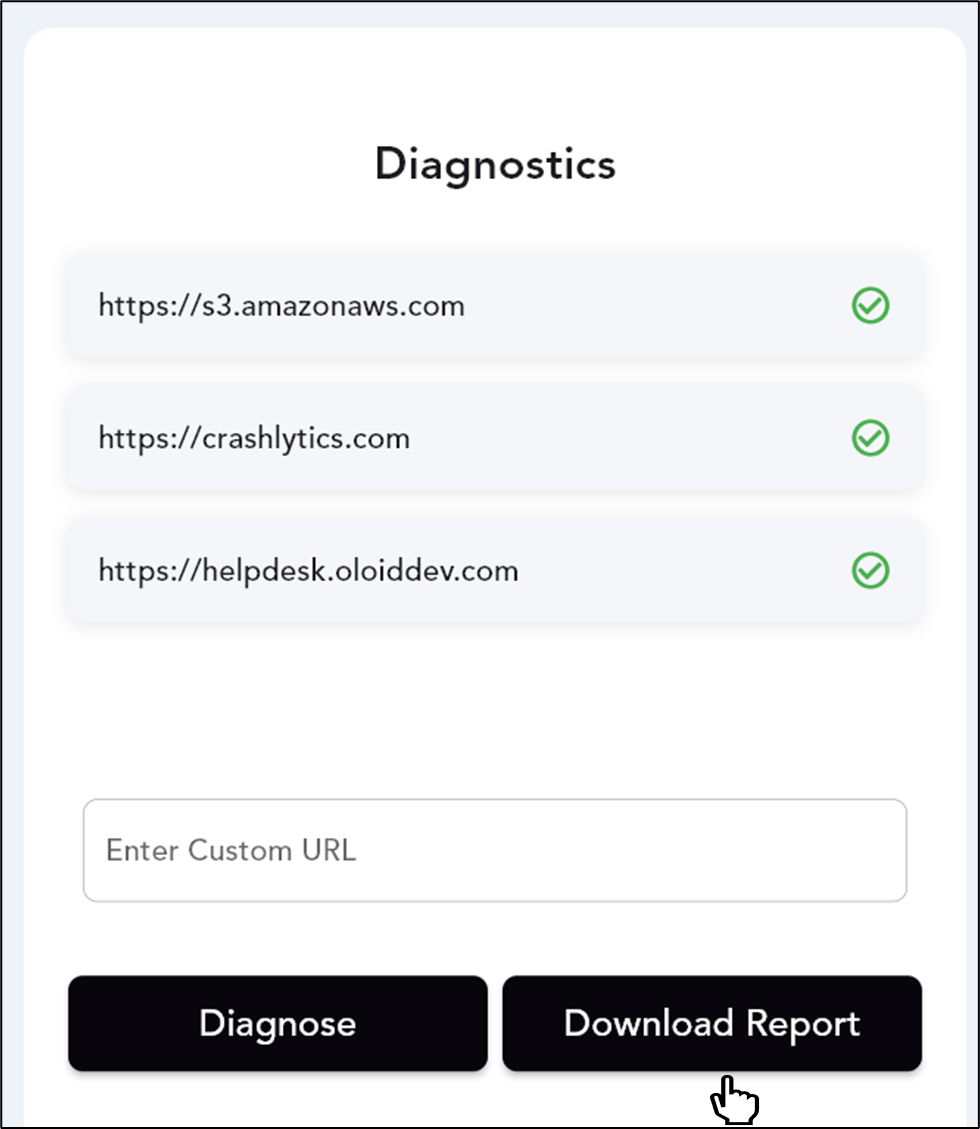
- Click Diagnose to refresh the URLs.
Using Settings Feature
-
Double-click on Supervisor app
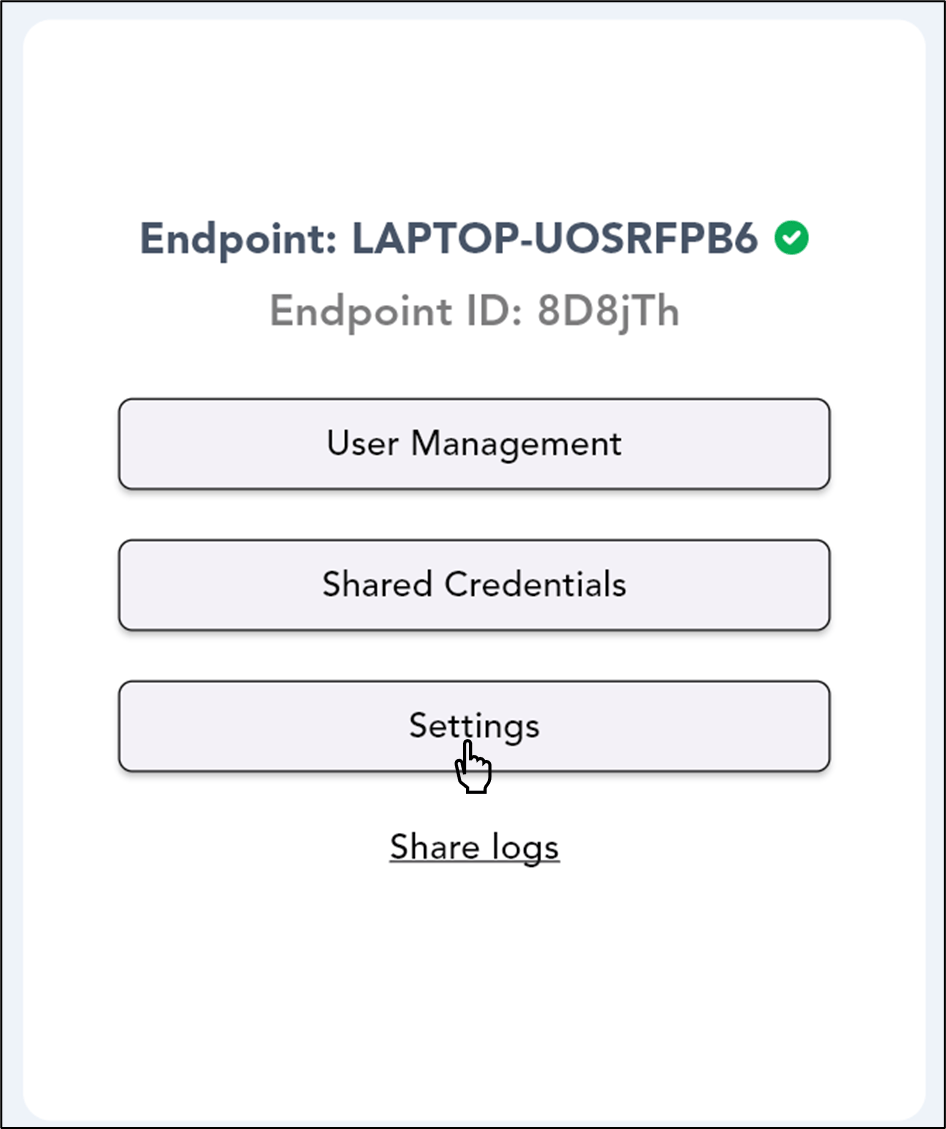
- Log in to Supervisor App. The Admin Home screen opens.
-
Click Settings.
-
Click Diagnostics.
-
The Diagnostics screen opens. You can view all the active URLs.
Note: Type Custom URL in the text field and press Enter. (Optional)
-
Do the following:
- Click Diagnose to refresh the URLs.
- Click Download Report to download the diagnostic report.
- Click Diagnose to refresh the URLs.