Introduction
The Enroll Badge feature in the Supervisor App allows Admins and Supervisors to enroll a badge for an existing user by scanning it with a connected badge reader. Once enrolled, the badge can be used as a credential for passwordless authentication with Windows Login.Prerequisites
- Ensure the endpoint is paired with the Windows Login application. For more information, refer: Windows Login - How to manually pair the Supervisor App
- Log in to the Supervisor App using an Admin or Supervisor account. For more, refer How to log in to Supervisor App
- Ensure the Badge option is enabled for the application in the Tenant Admin Portal to make the Enroll Badge option available in the Supervisor App. Refer to How to enable badge option for Supervisor App.
- Ensure a supported badge reader is connected to the system.
- Ensure the user exists in the Tenant Admin Portal. Refer: Windows Login - How to Add a User
Steps to Enroll Badge
- Log in to Supervisor App. For more, refer How to log in to Supervisor App The Admin Home screen is displayed.
-
Click Enroll Credential.

-
Click Enroll Badge.

-
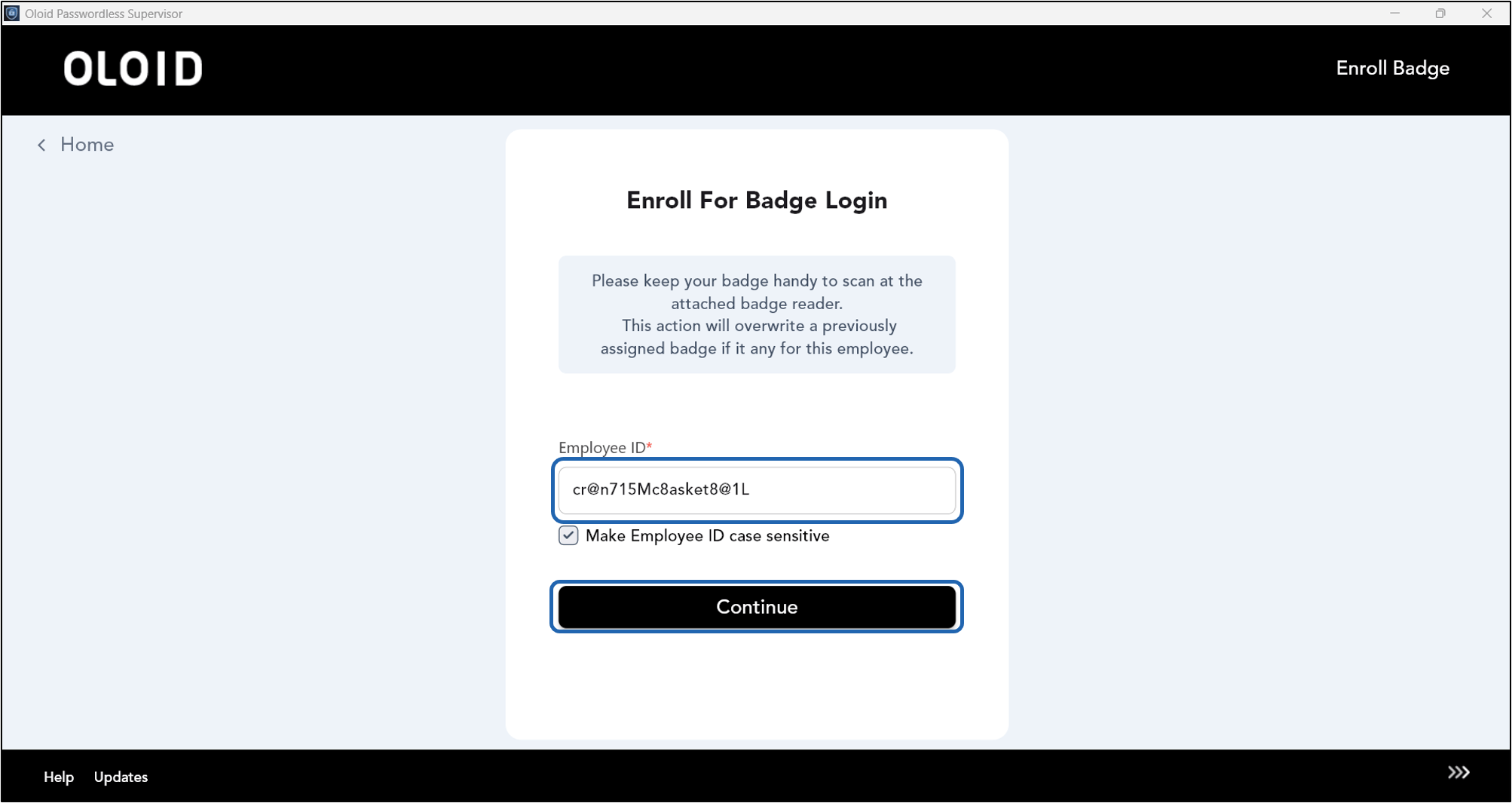
Enter Employee ID.
Note: The Employee ID is the user’s Primary ID in the Tenant Admin Portal. Select the Make Employee ID case sensitive checkbox to enforce case-sensitive matching. (Optional)
-
Click Continue.
-
Do the following:
- Scan your badge in the Badge Reader. The scanned badge number is auto-populated on the Scan Badge to Edit field.
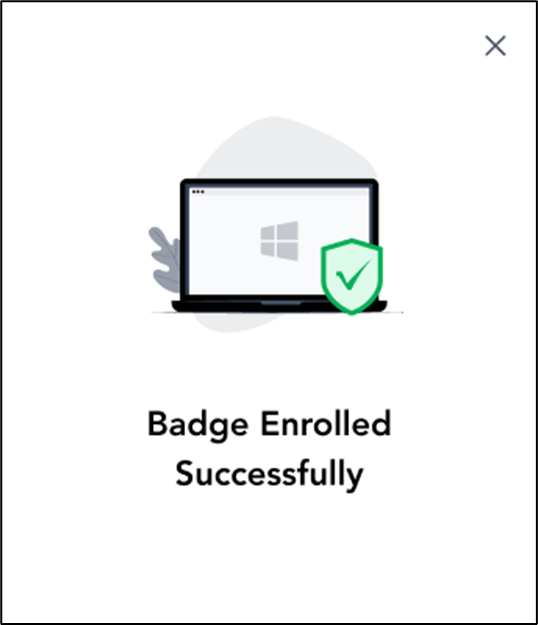
- Click Submit.