Introduction
The Two User Authentication reauthentication workflow in the Windows Login application requires verification from two users before granting access to Epic workflows. These workflows are configured in the Tenant Admin Portal.Prerequisites
- You must have access to Tenant Admin account.
- The Windows Login application must be created in the Tenant Admin Portal, for more information refer: How to create and configure Application Type - Passwordless
Steps to Configure Two User Authentication
- Log in to the Tenant Admin Portal.
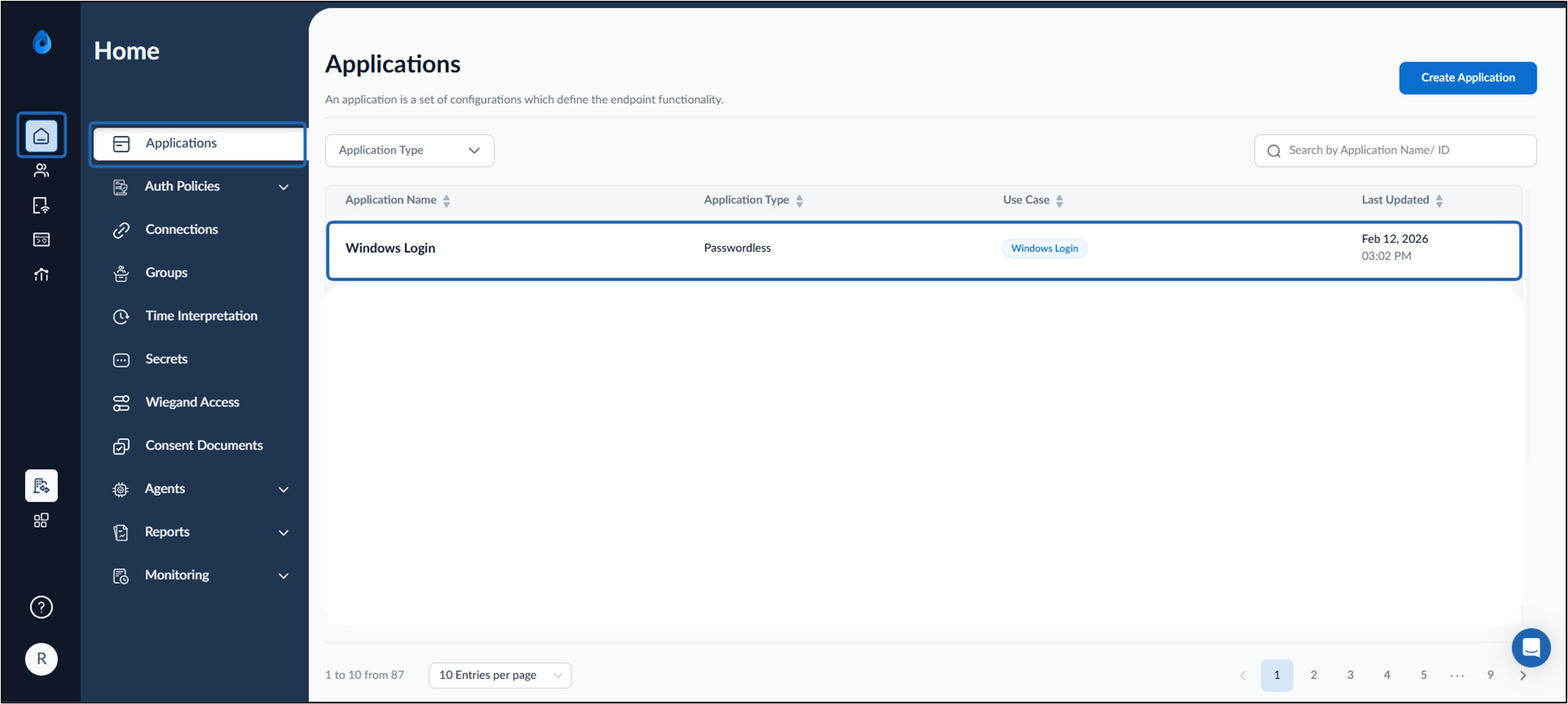
- On the Applications page, select the preferred Windows Login application.
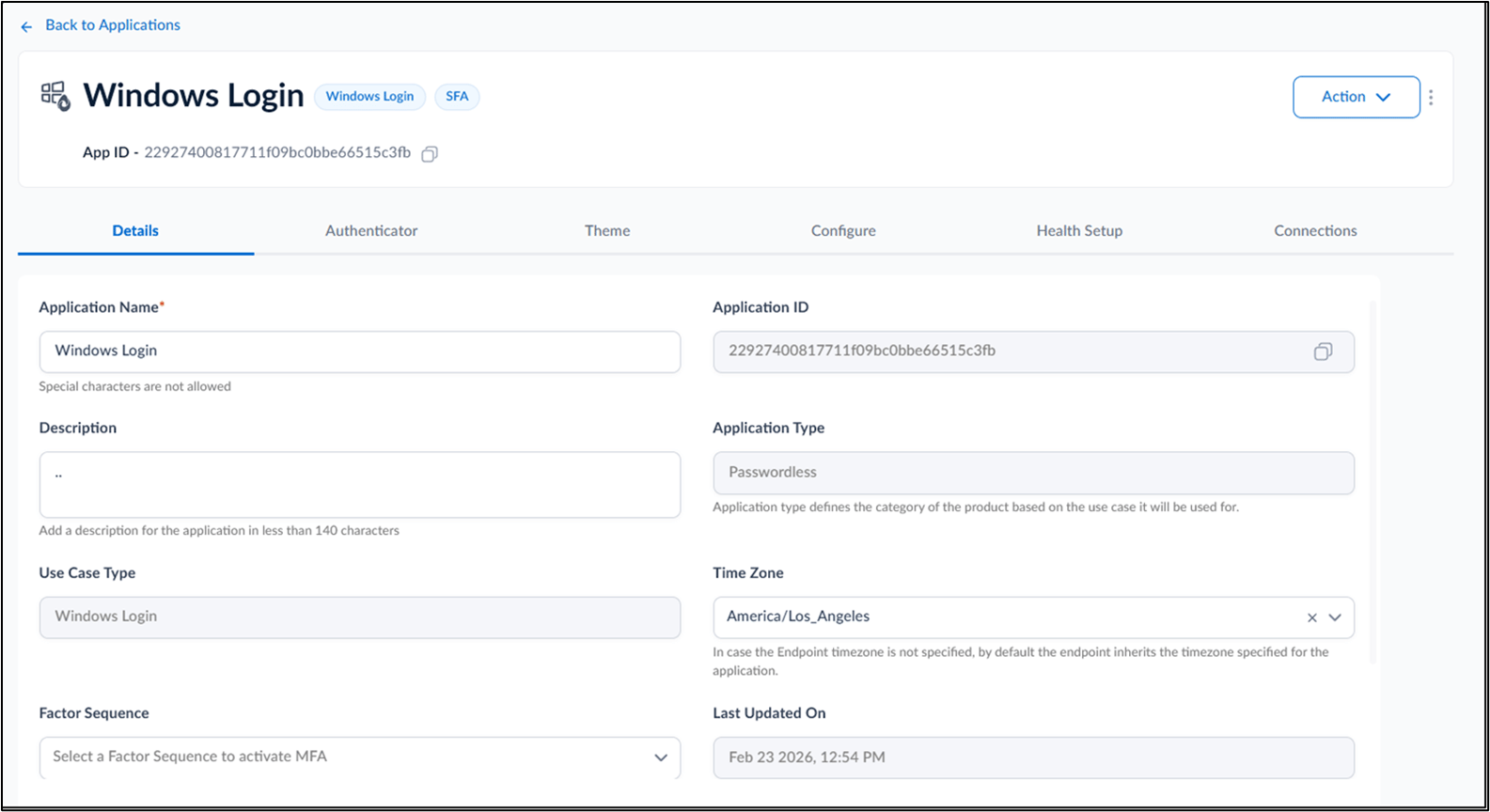
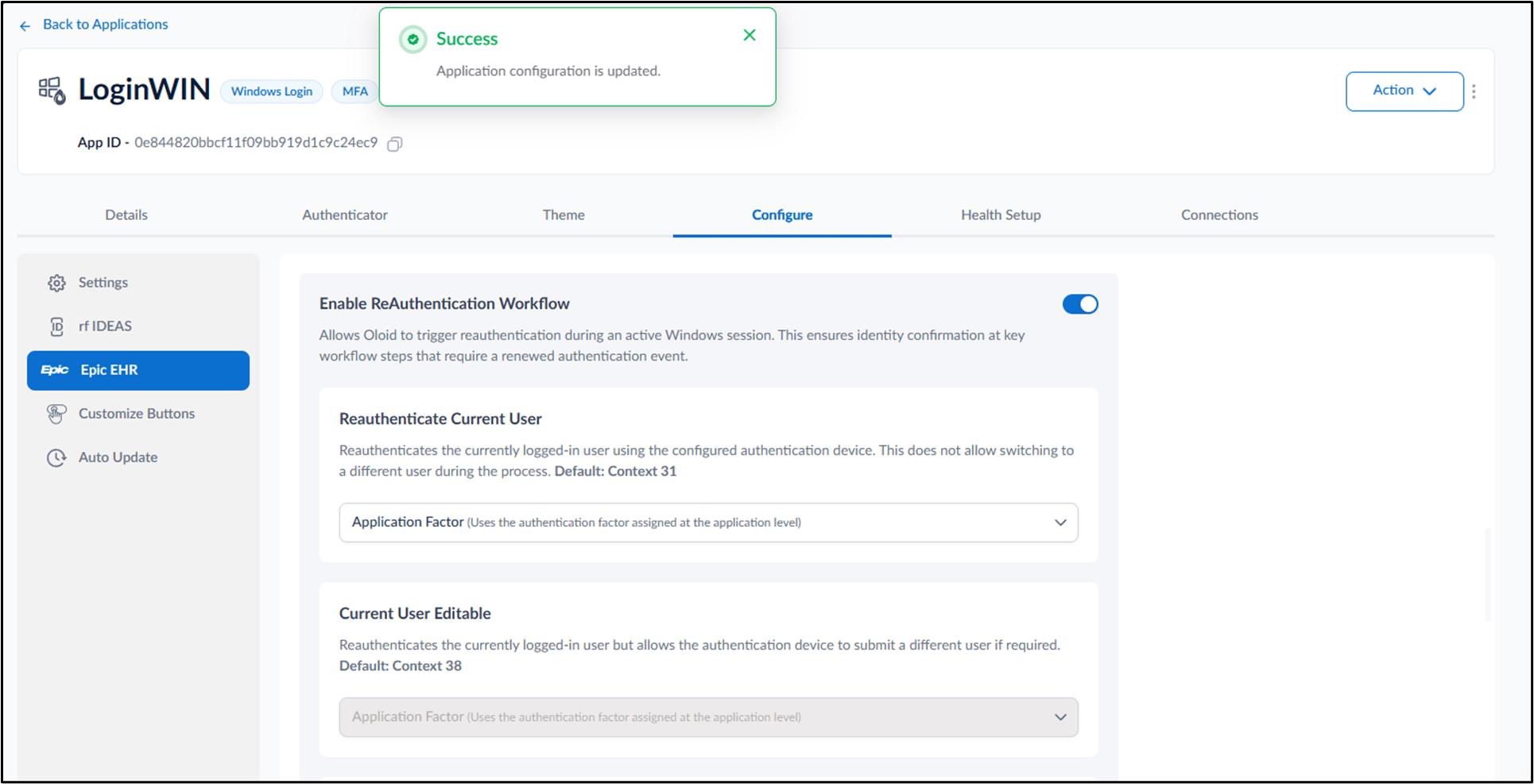
- Click Configure tab> Epic EHR .
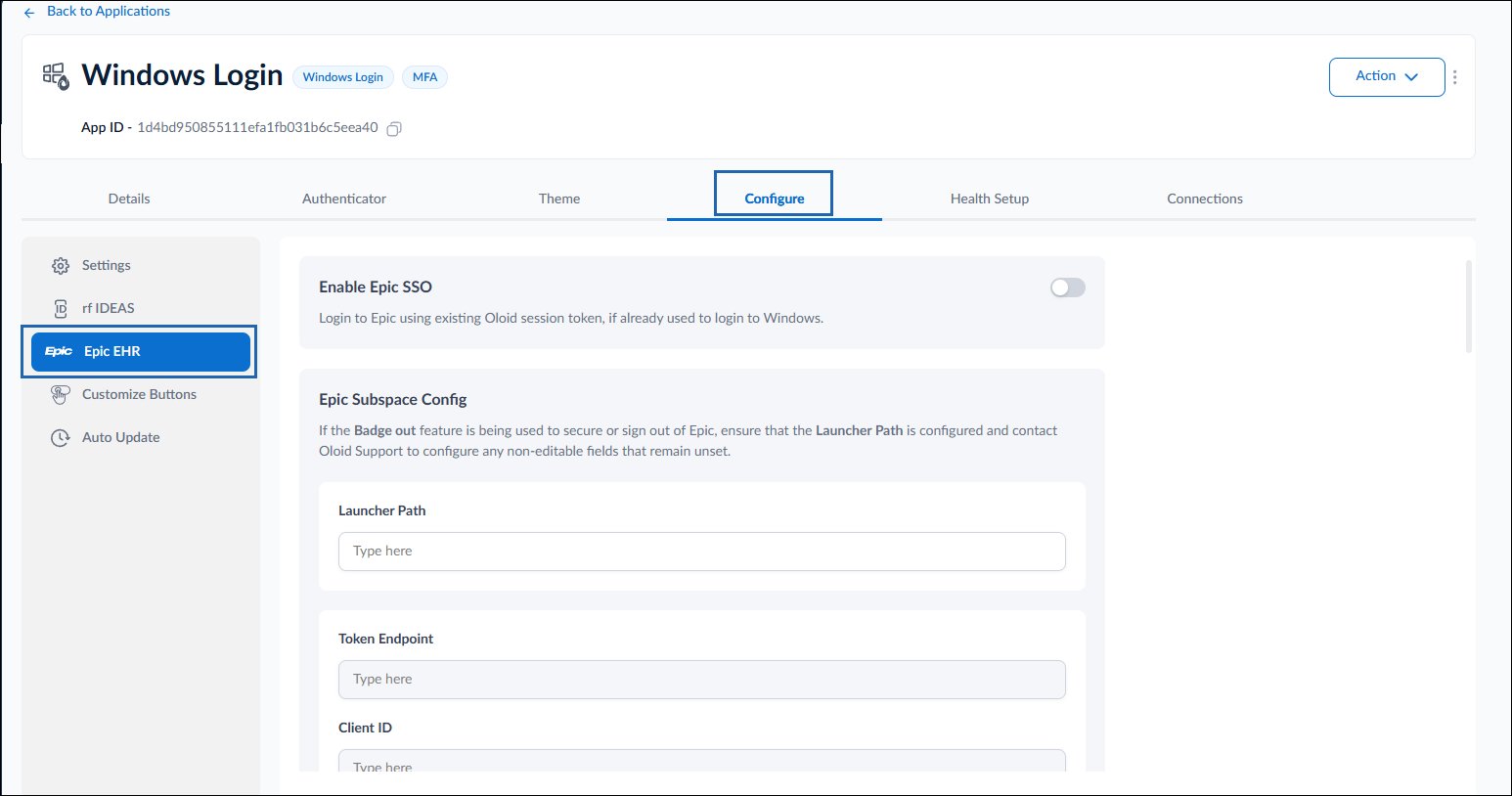
- Do the following:
-
Turn on Enable Reauthentication Workflow toggle button.

-
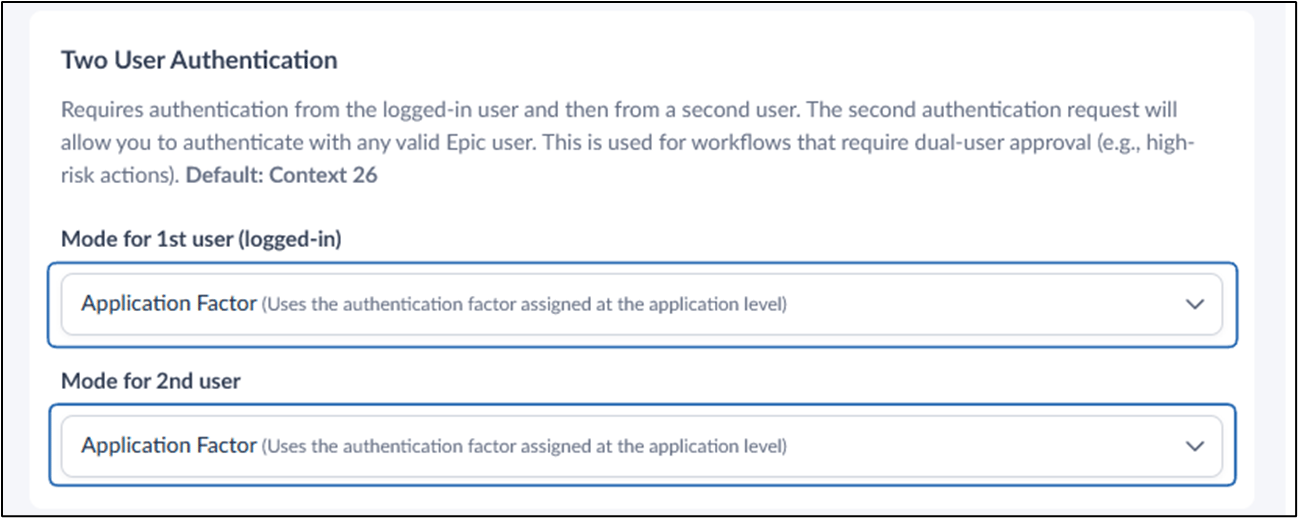
Select mode for Two User authentication:
- Under Mode for 1st user, select the authentication factor from dropdown.
- Under Mode for 2nd user, select the authentication factor from dropdown.
-
Click Save.
Application Factors: Uses authentication factors assigned at application level. First Factor Only: only reauthenticates using the first authentication factor configured. Second Factor Only: only reauthenticates using the second authentication factorNote: Users can select one of the available reauthentication modes from dropdown:
-
Turn on Enable Reauthentication Workflow toggle button.