Introduction
The Reauthentication Workflow allows Tenant Admins to enforce additional authentication during an active Windows session for applications integrated with Epic EHR. This ensures that user identity is re-verified before performing sensitive actions or continuing access.Prerequisites
- You must have access to Tenant Admin account.
- The Windows Login application must be created in the Tenant Admin Portal, for more information refer: How to create and configure Application Type - Passwordless
Steps to Configure Re-authentication Workflow
- Log in to the Tenant Admin Portal.
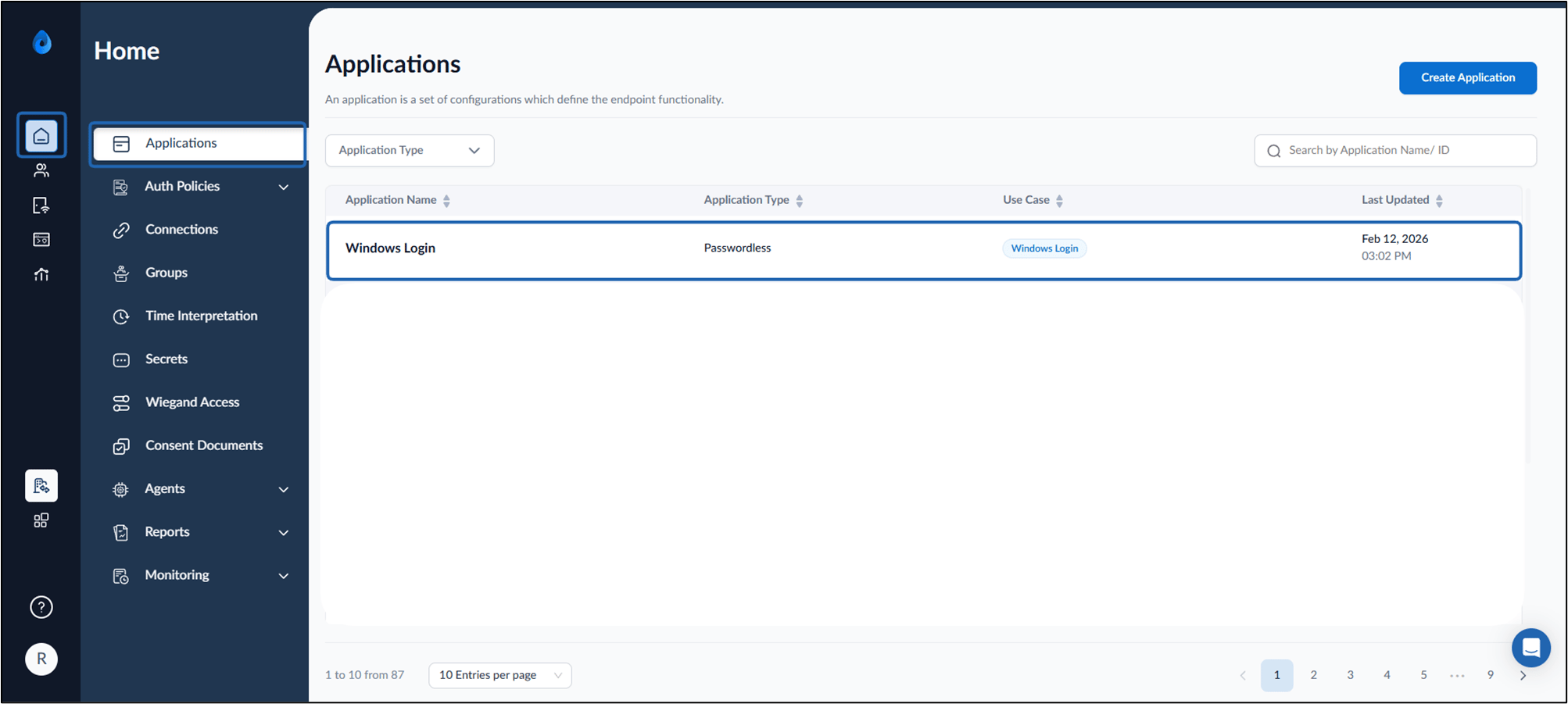
- On the Applications page, select the preferred Windows Login application.
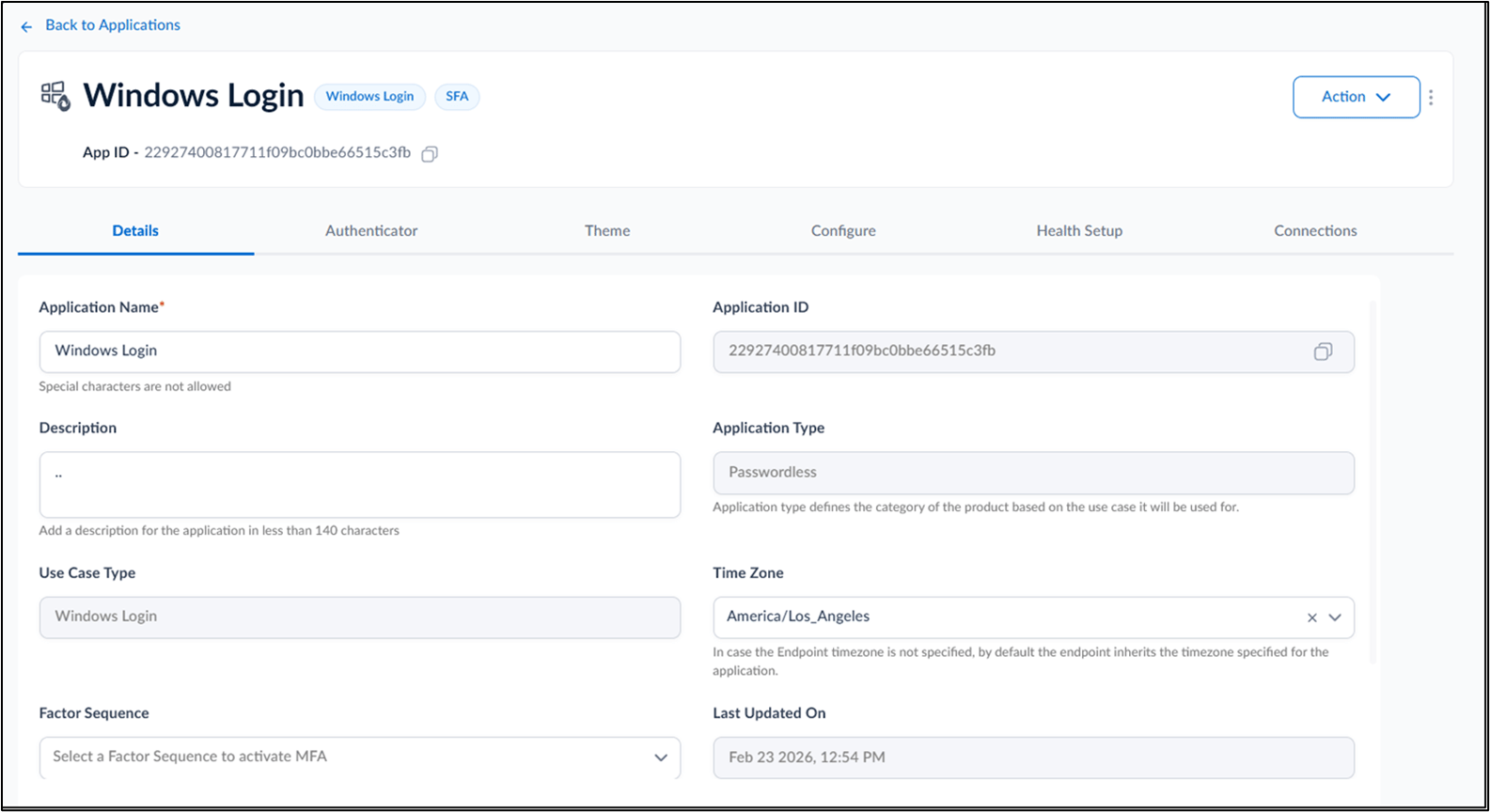
- Click Configure tab> Epic EHR .
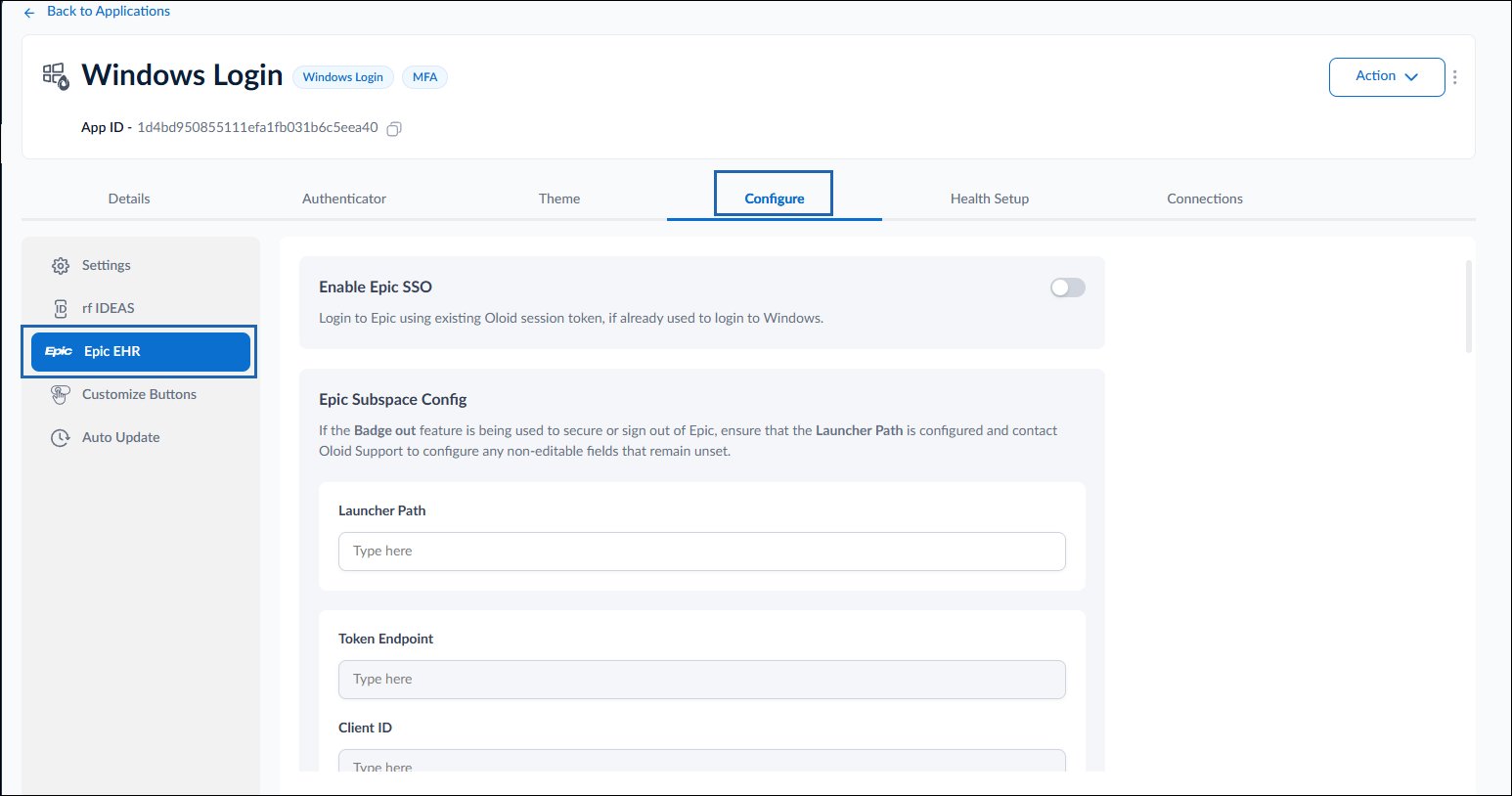
- Configure the following:
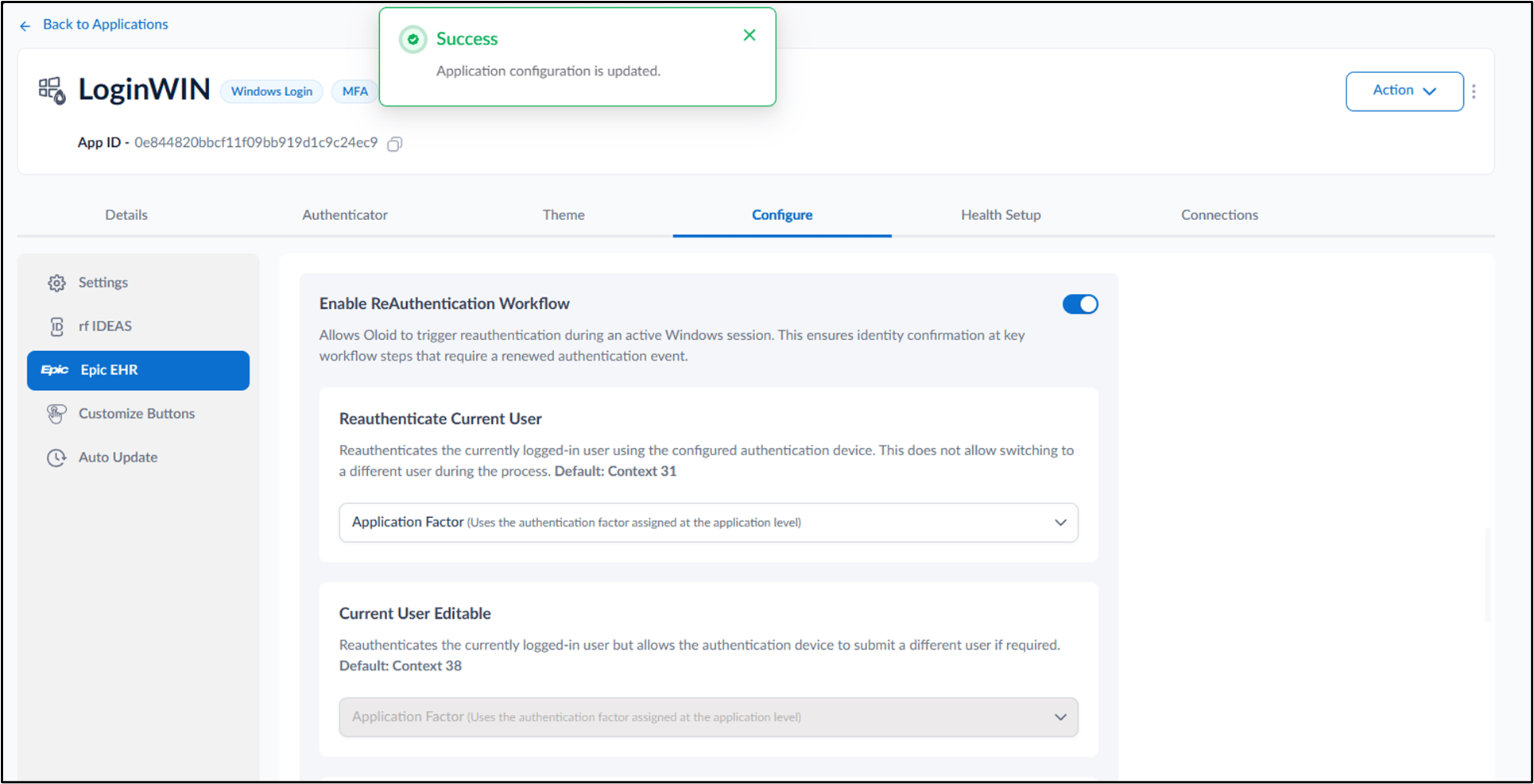
- Enable Reauthentication Workflow
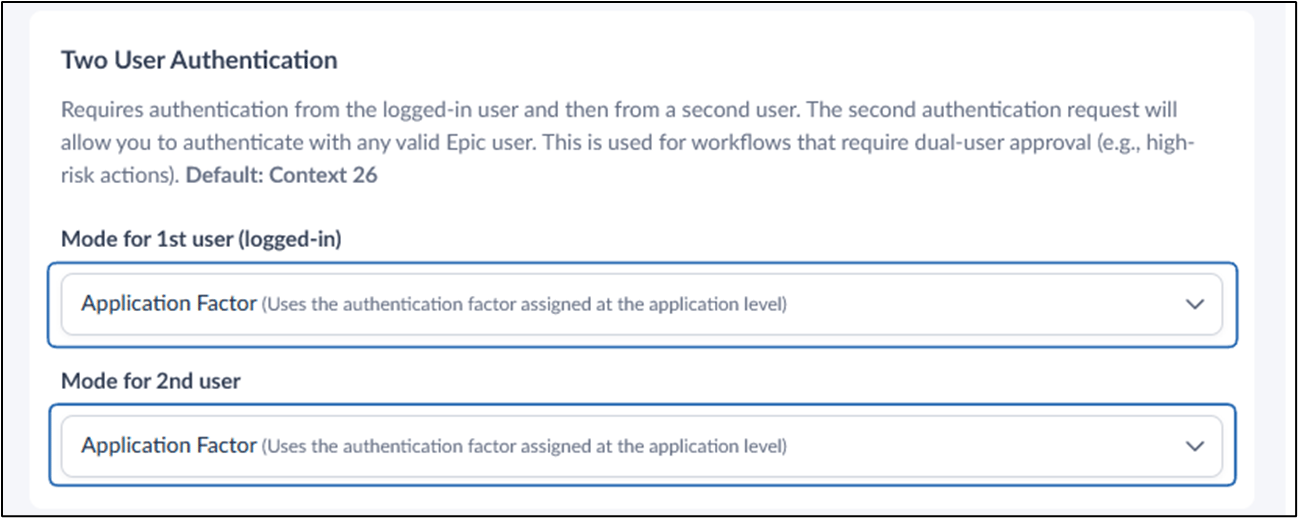
- Configure Two User Authentication
- Reauthentication Current User (Second Factor)
- Click Save. The Reauthentication workflow is successfully configured.
Enable Reauthentication Workflow
- Turn on Enable Reauthentication Workflow toggle button.
- Select one of the available reauthentication modes from dropdown: Application Factors: Uses authentication factors assigned at application level. First Factor Only: only reauthenticates using the first authentication factor configured. Second Factor Only: only reauthenticates using the second authentication factor configured.
- Click Save.
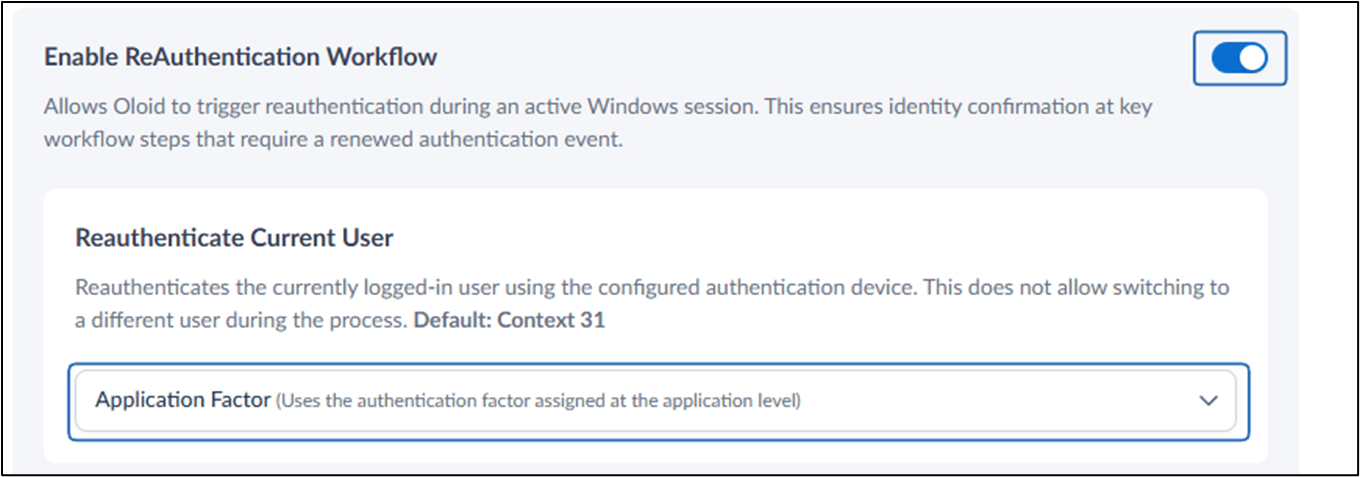
- Do the following:
- Select Reauthenticate Current User.
- From the Application Factor dropdown, choose the authentication factor assigned at the application level.
- Click Save.
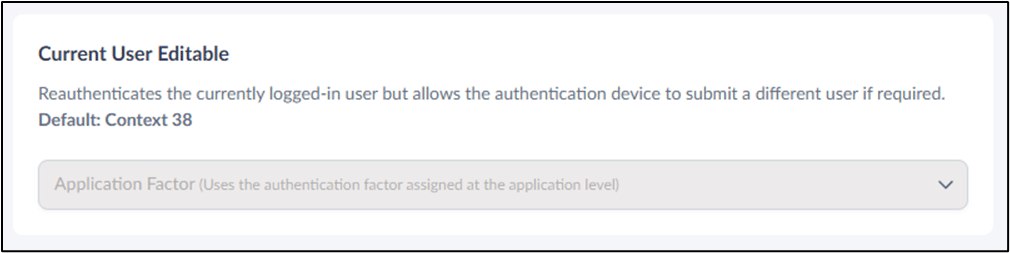
Current User Editable
Reauthenticates the currently logged-in user but allows the authentication device to submit a different user if required.Note: The default factor for this authentication is set to application factor and cannot be changed.
Configure Two User Authentication
- Under Mode for 1st user, select the authentication factor from dropdown.
- Under Mode for 2nd user, select the authentication factor from dropdown.
- Click Save.
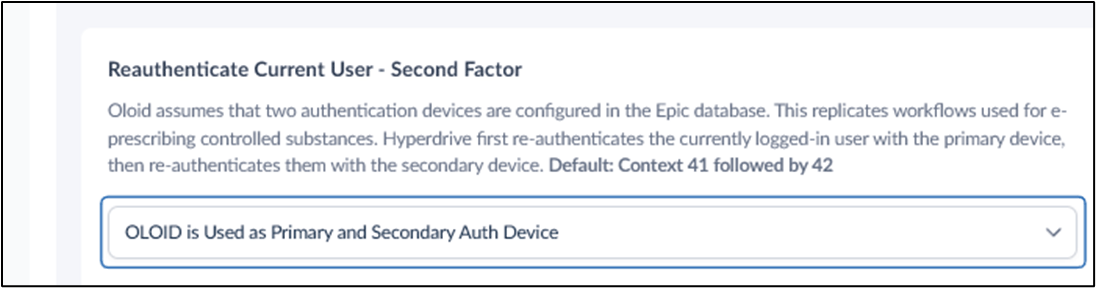
Reauthenticate Current User - Second Factor
- Select Reauthenticate Current User - Second Factor.
- From the Application Factor dropdown, choose the authentication factor assigned at the application level:
- OLOID is Used as Primary and Secondary Auth Device
- OLOID is Used as Primary Authentication Device
- OLOID is Used as Secondary Authentication Device
- Click Save.
Configure Factors
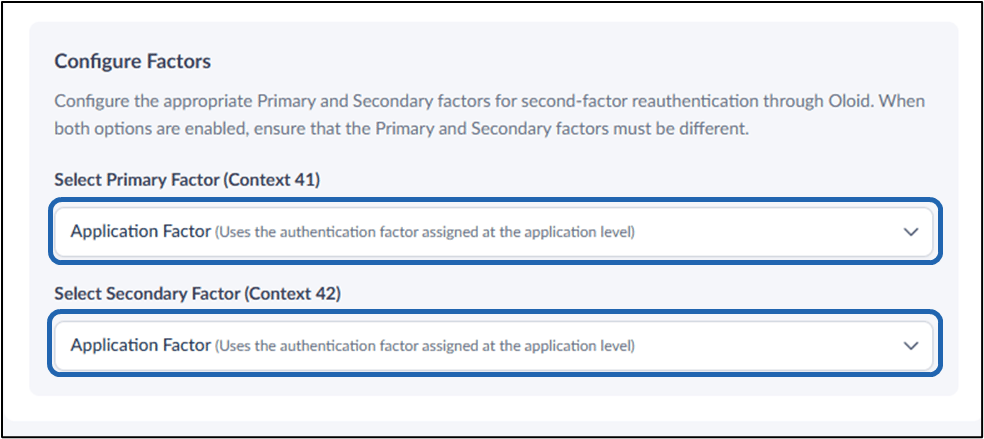
Configure the appropriate Primary and Secondary factors for second-factor reauthentication through Oloid. To configure factors, do the following:- Under Select Primary Factor, select the authentication factor from dropdown.
- Under Select Secondary Factor, select the authentication factor from dropdown.
- Click Save.
Note: When both options are enabled, ensure that the Primary and Secondary factors must be different.