Introduction
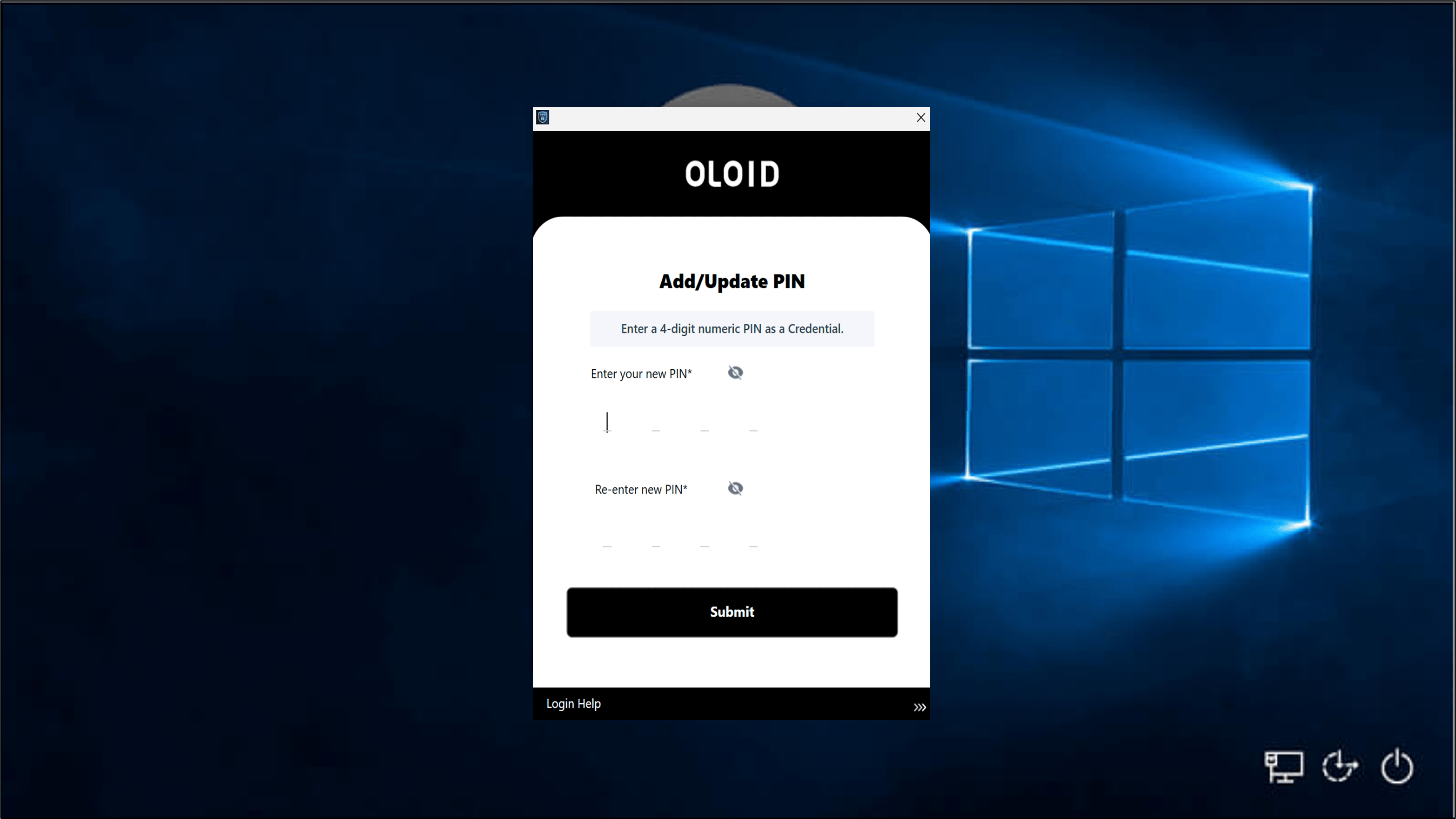
This document explains how users can reset their PIN credential in Windows Login if they have forgotten their existing PIN. The Forgot PIN feature allows users to securely reset their PIN directly from the Windows Login screen after authenticating with another credential such as a Badge.Prerequisites
- The Forgot PIN toggle must be enabled and configured in the Tenant Admin Portal. For more, refer to How to Enable Forgot PIN Link in Windows Login Application
- The Badge reader is connected to the Windows device.
- The user must have a valid Badge credential assigned.
Steps to Reset PIN from Windows Login Screen
- On the Windows lock screen, do the following:
- Click Sign-in options.
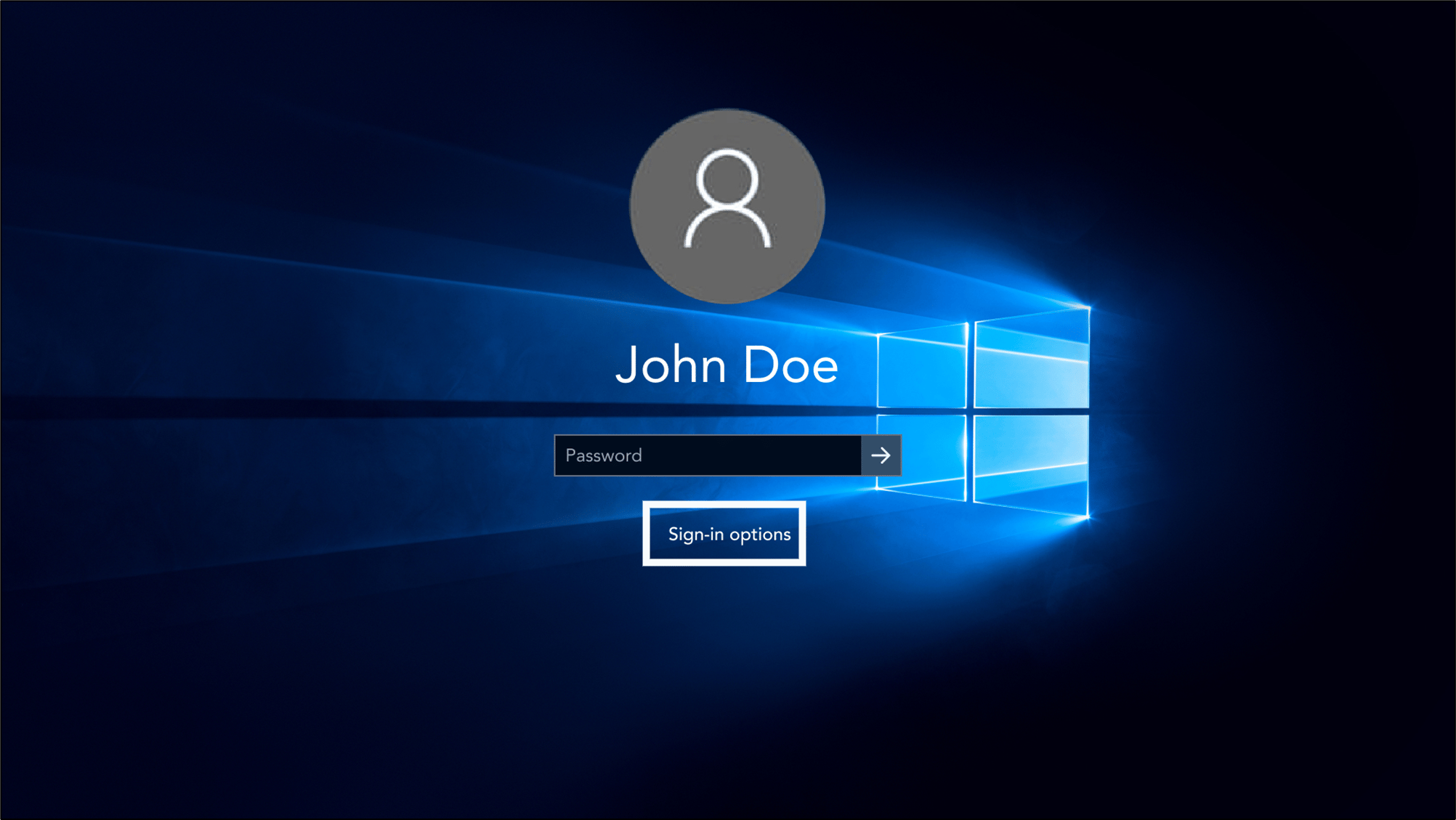
- Select Windows login app.
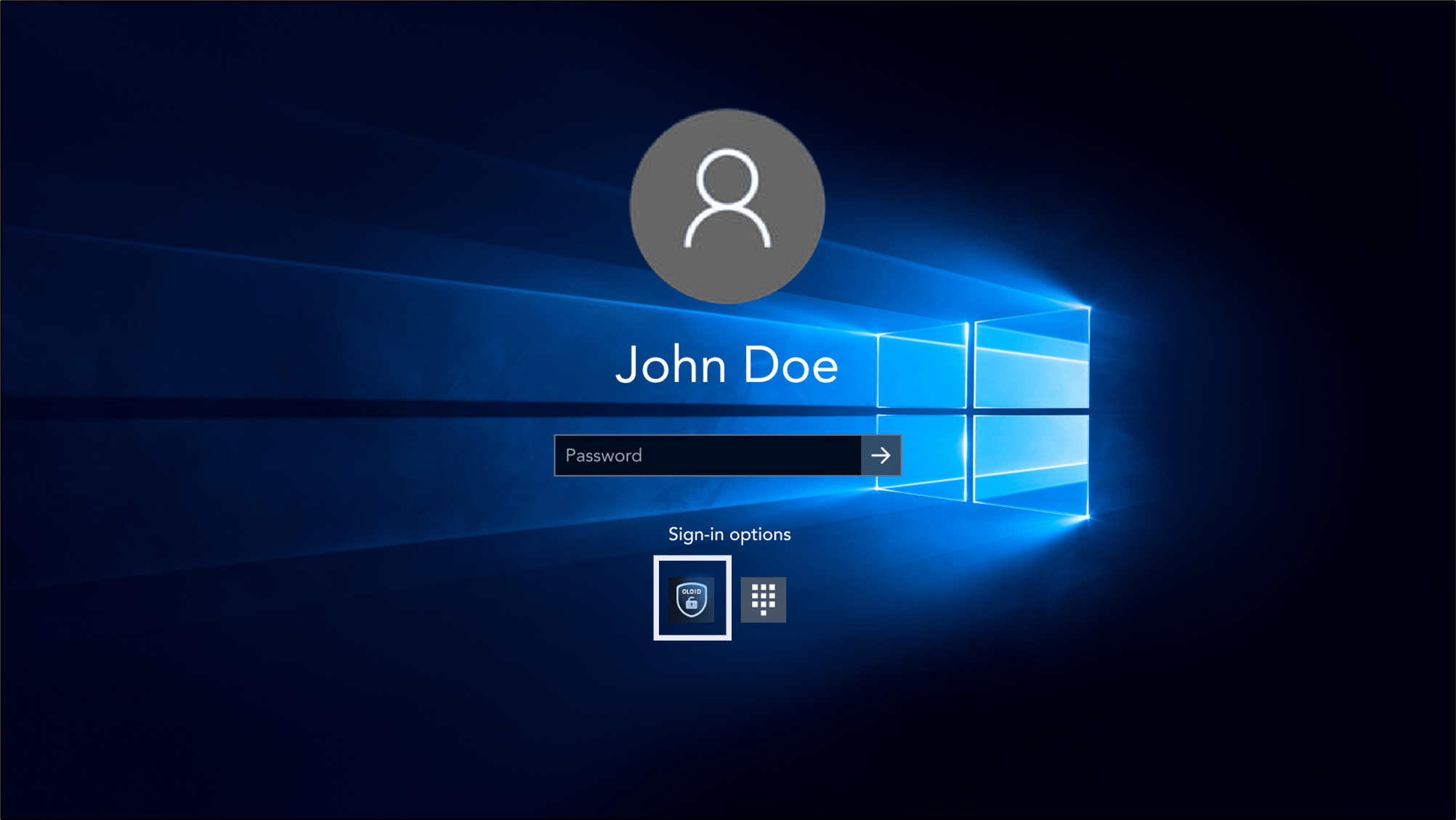
- Select Login with OLOID.
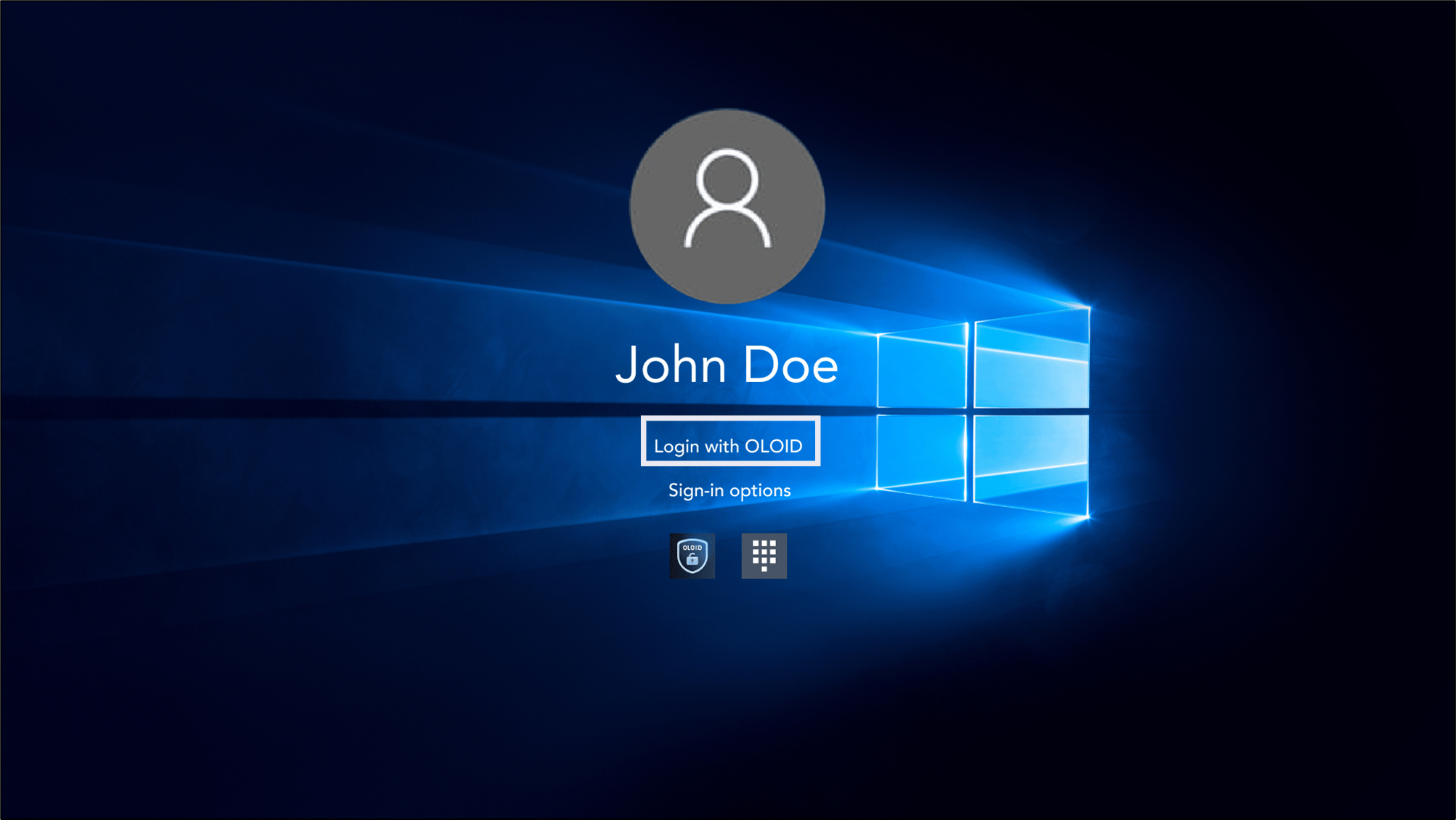
- Click Sign-in options.
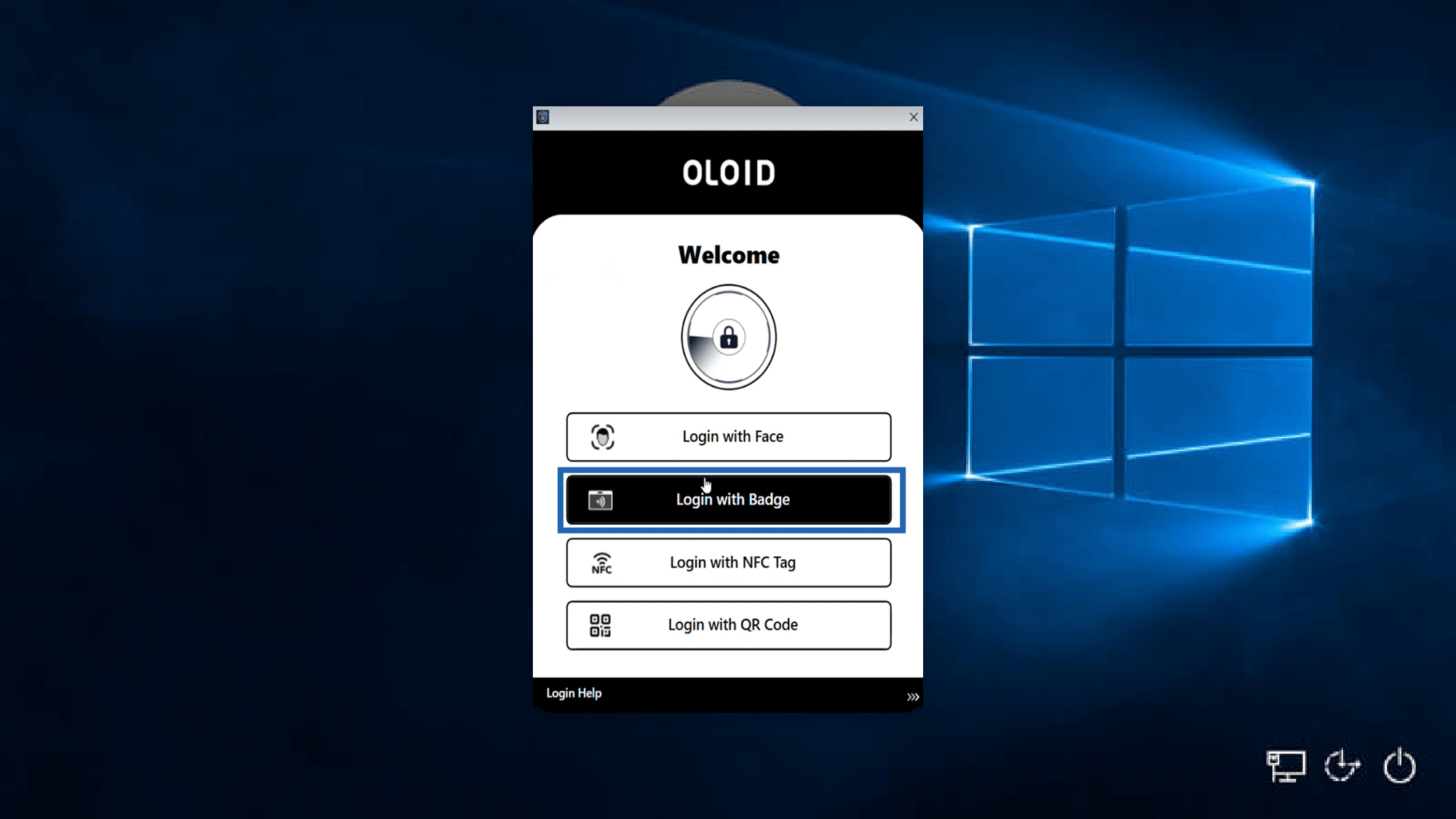
- On the Welcome page, Click Login with Badge.
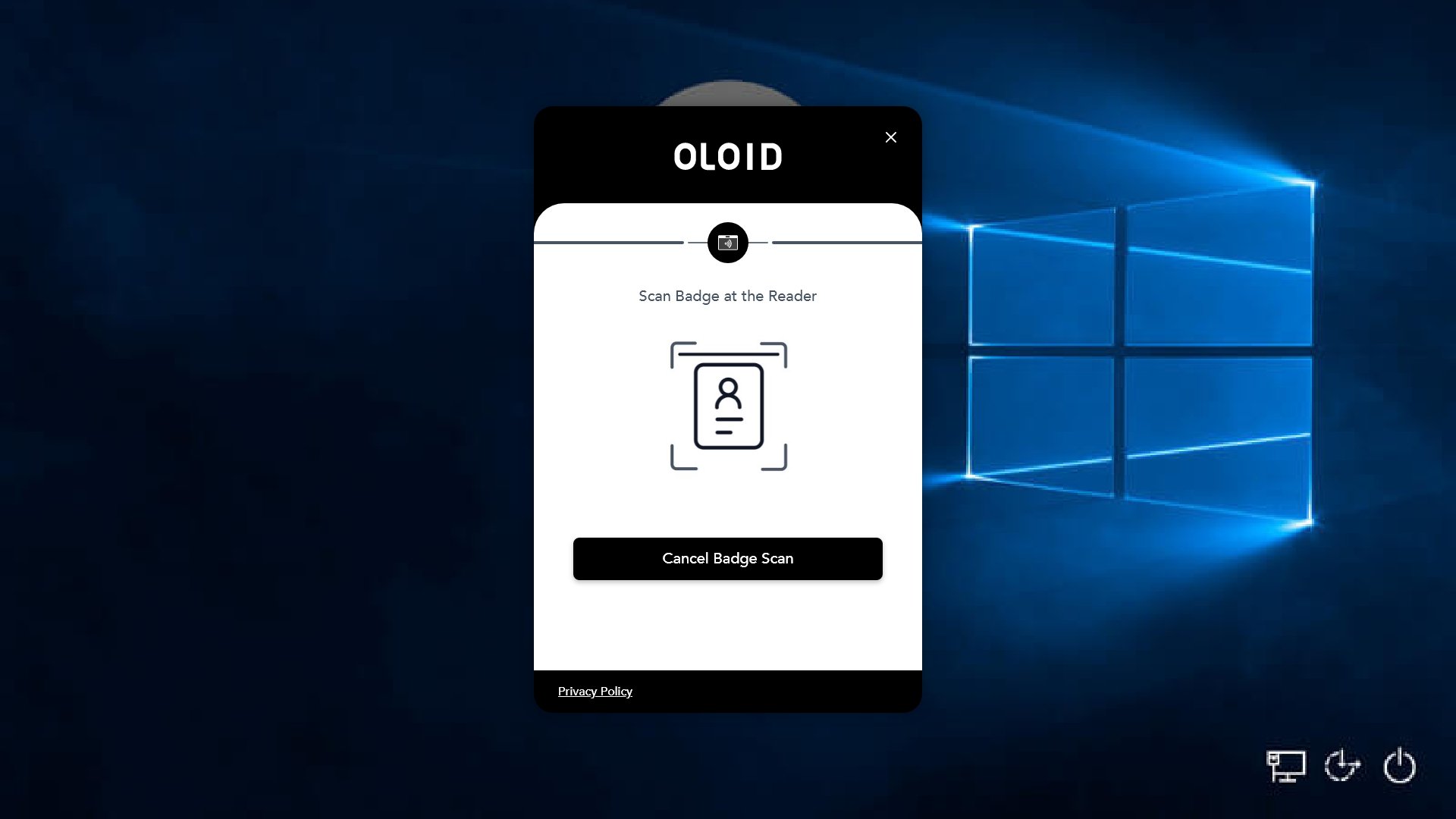
- Tap the Badge on the Badge Reader to scan it.
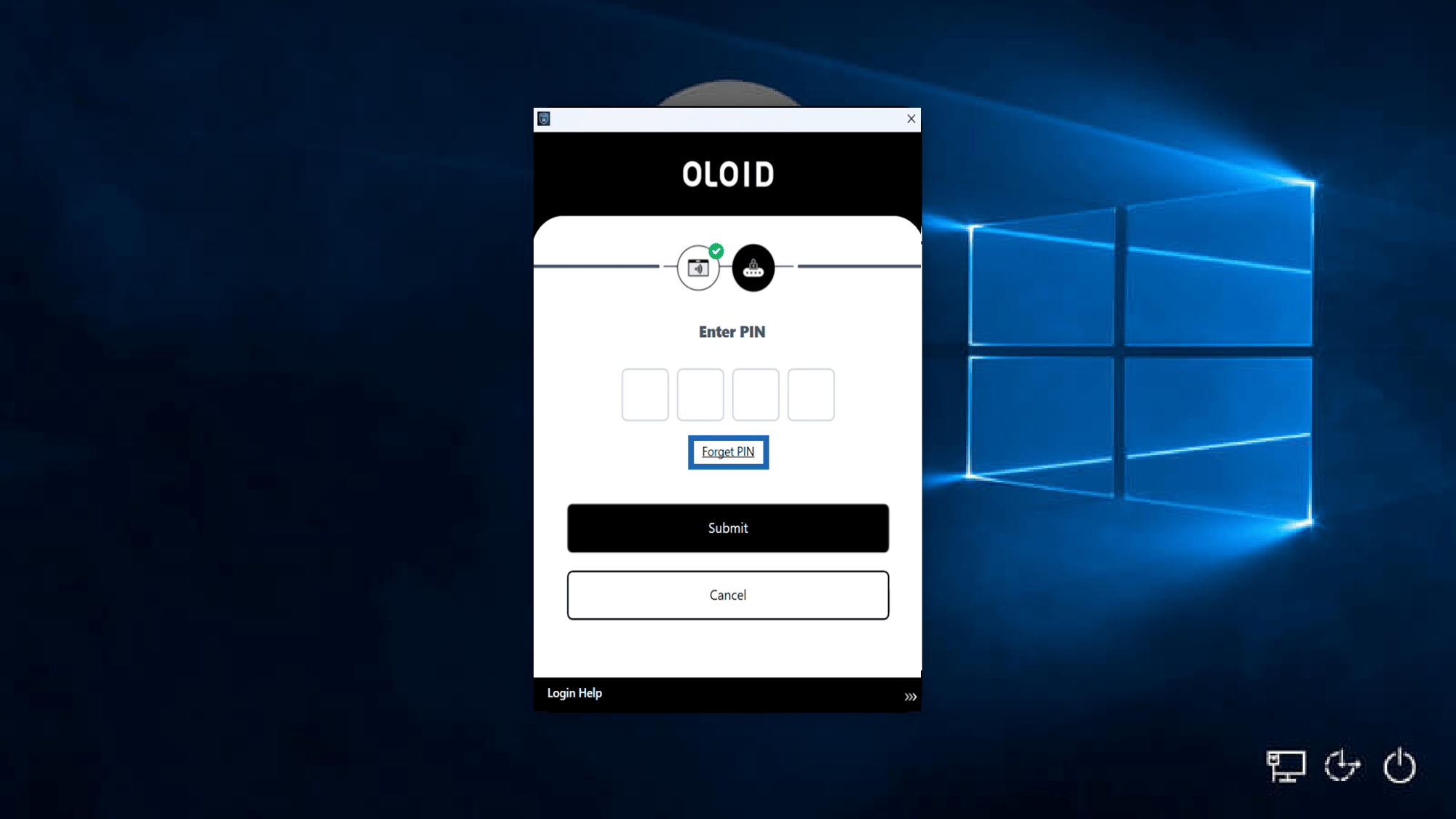
Note: Depending on how the Tenant Admin configured the feature, one of the following occurs:
Option 1: Show Popup
A popup message appears with instructions to reset the PIN.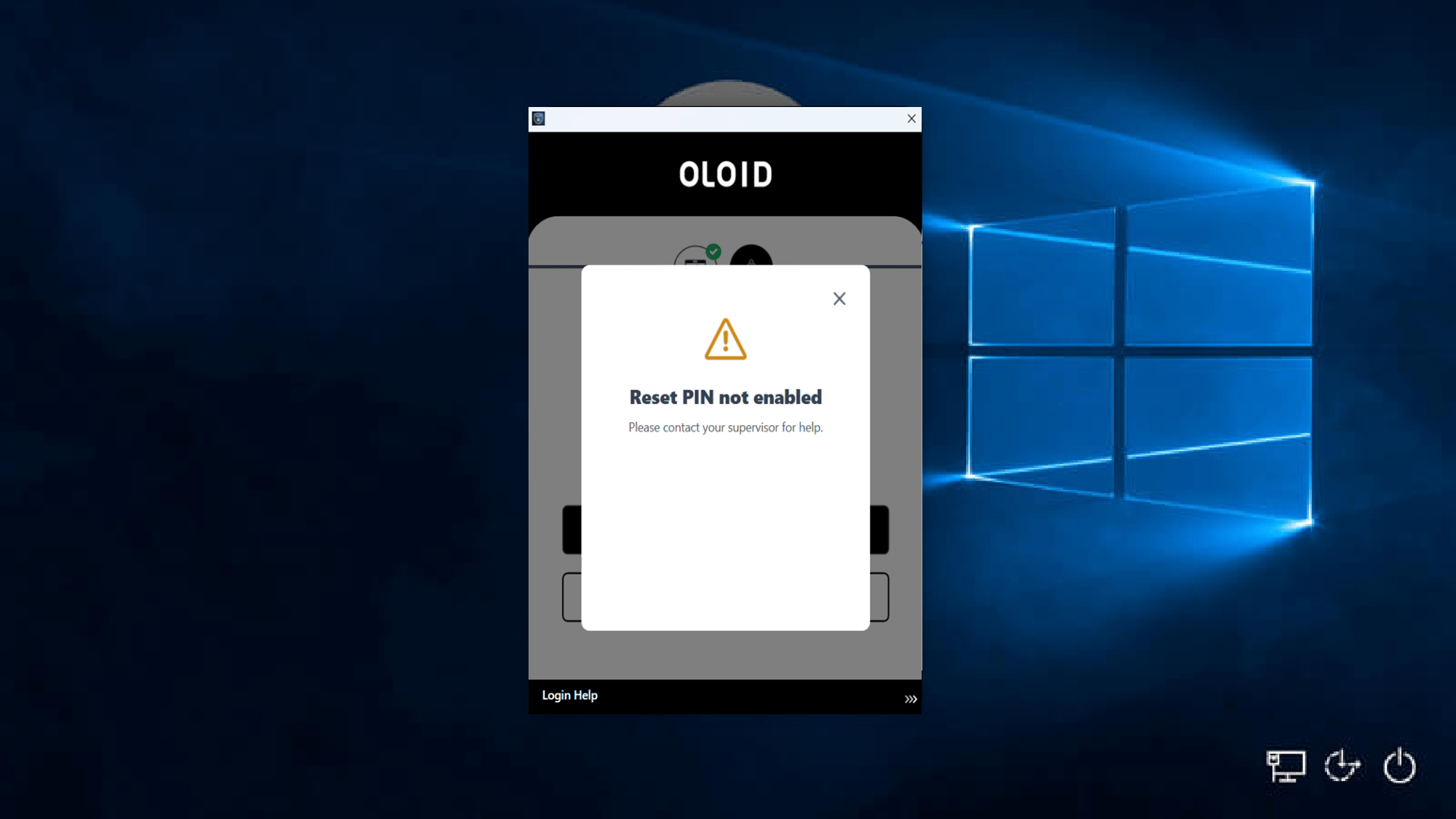
Option 2: PIN enrollment using Windows credential verification
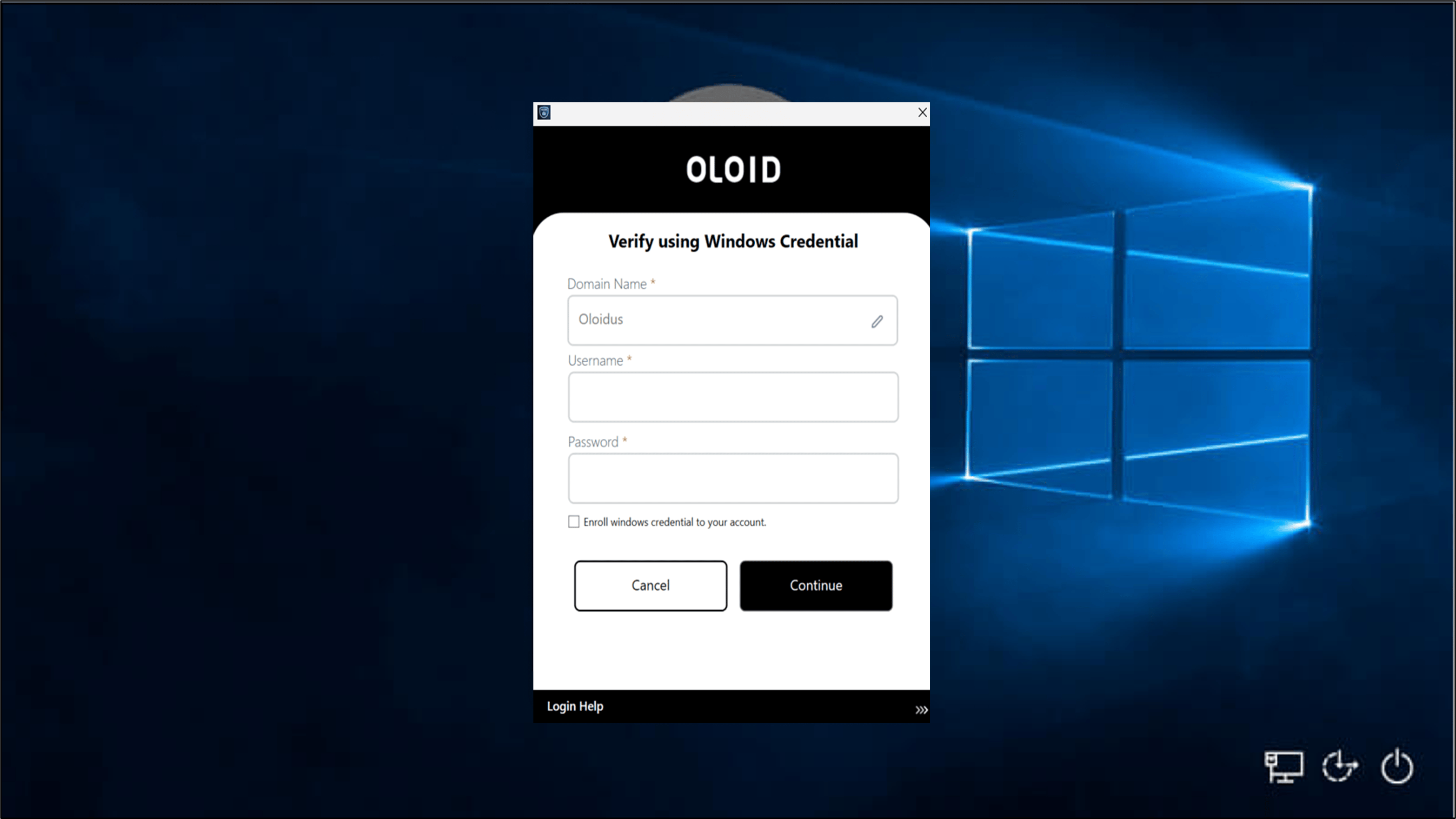
- The system redirects you to the Verify using Windows Credential page. From this page, reset your PIN following the Windows credential management process. The Verify using Windows Credential screen is displayed.
- Do the following:
- Enter Domain name.
- Enter Username.
-
Enter Password.
Note: Use your Windows account password.
- Select Enroll Windows credential to your account. (Optional)
-
Click Continue.
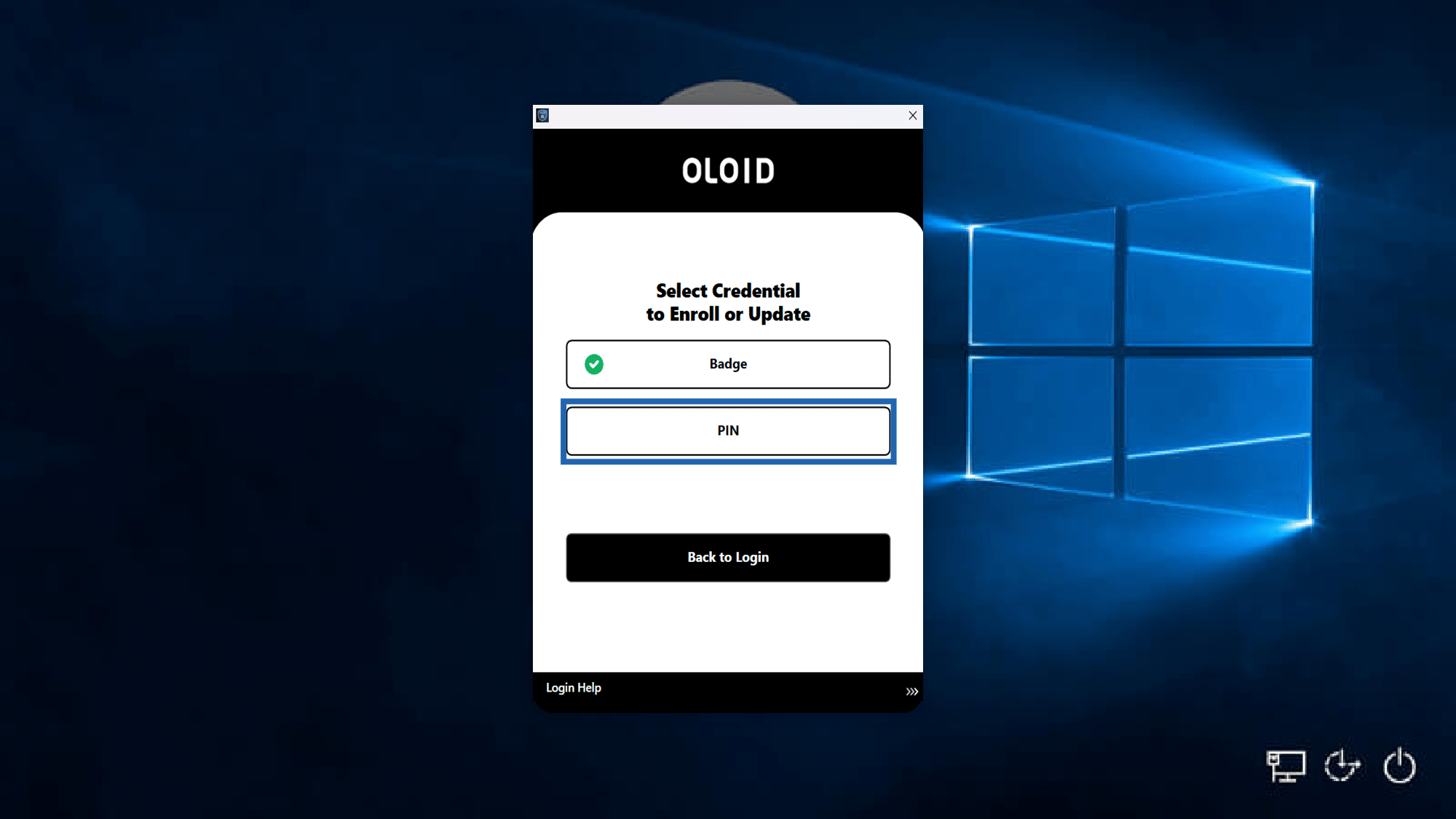
- Click PIN.
- Do the following:
- Enter new PIN.
- Re-enter new PIN.
-
Click Submit.
Note: You can configure PIN credentials in the Tenant Admin Portal. For more details, refer to How to configure PIN