Introduction
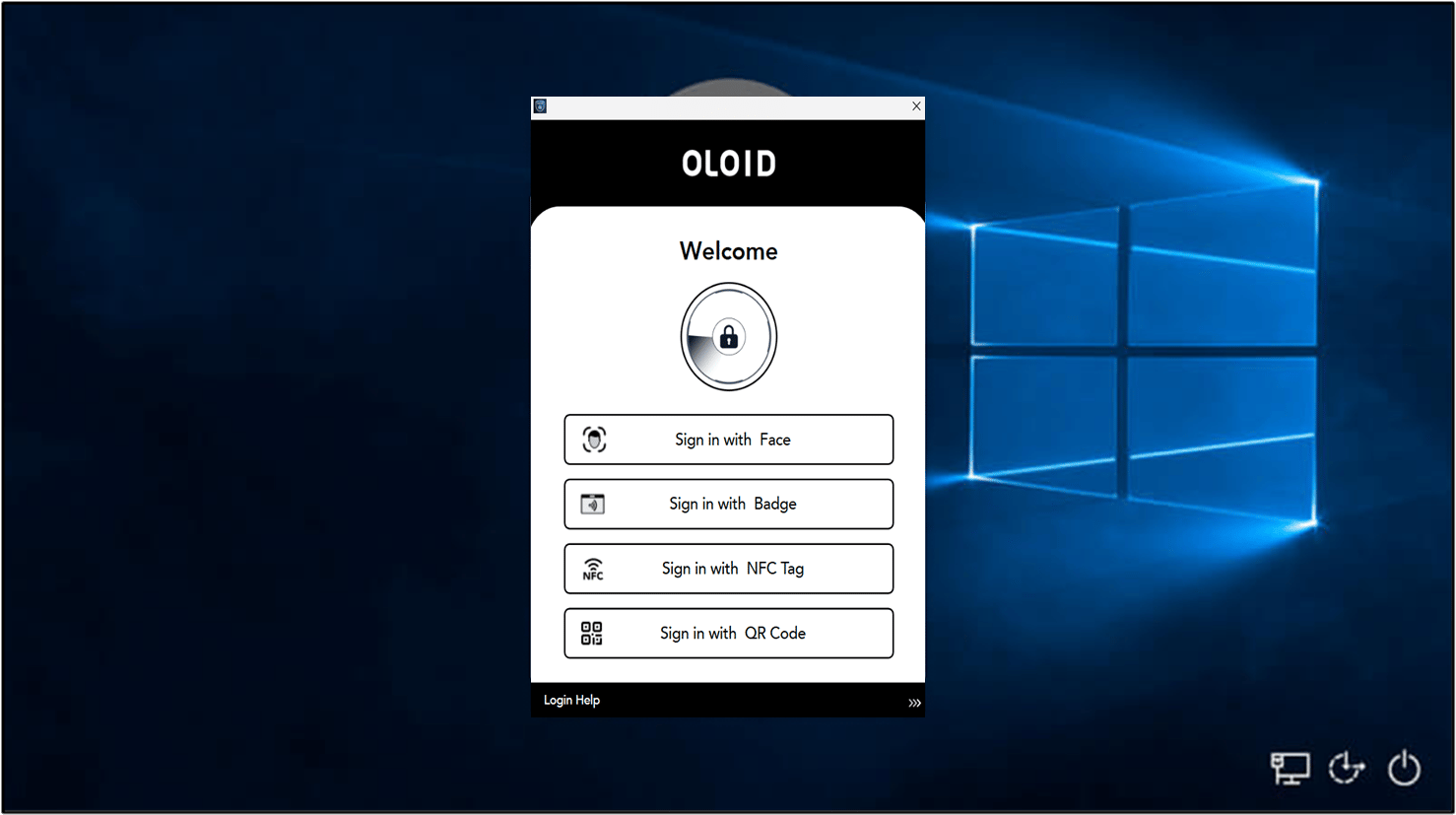
The Customize Buttons section allows Tenant admin to rename the authenticator button label displayed on the Windows Login app.Prerequisites
- You must have Tenant Admin Access.
- Windows Login Application must be created in the Tenant Admin Portal. For more information, refer: How to create and configure Windows Login application in the Tenant Admin Portal
Steps to configure Customize Buttons
- Log in to the Oloid Portal.
-
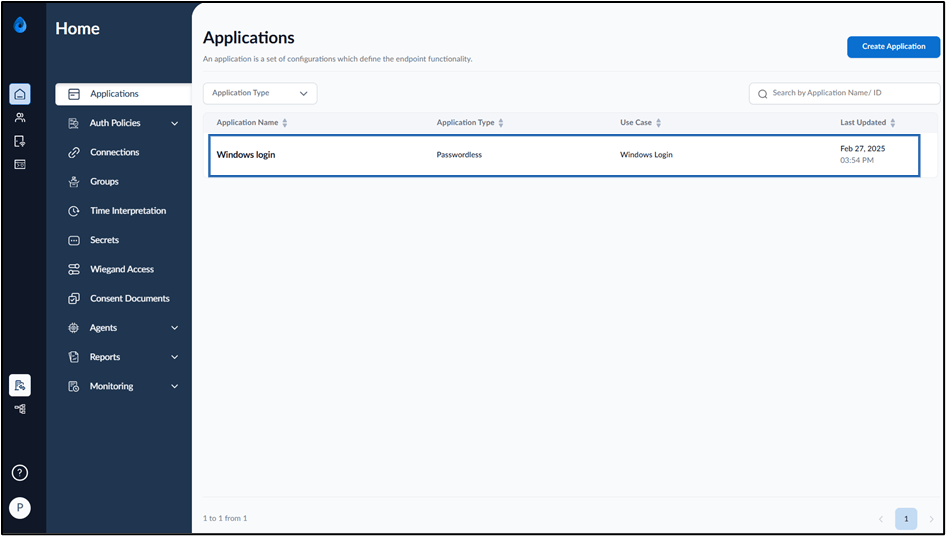
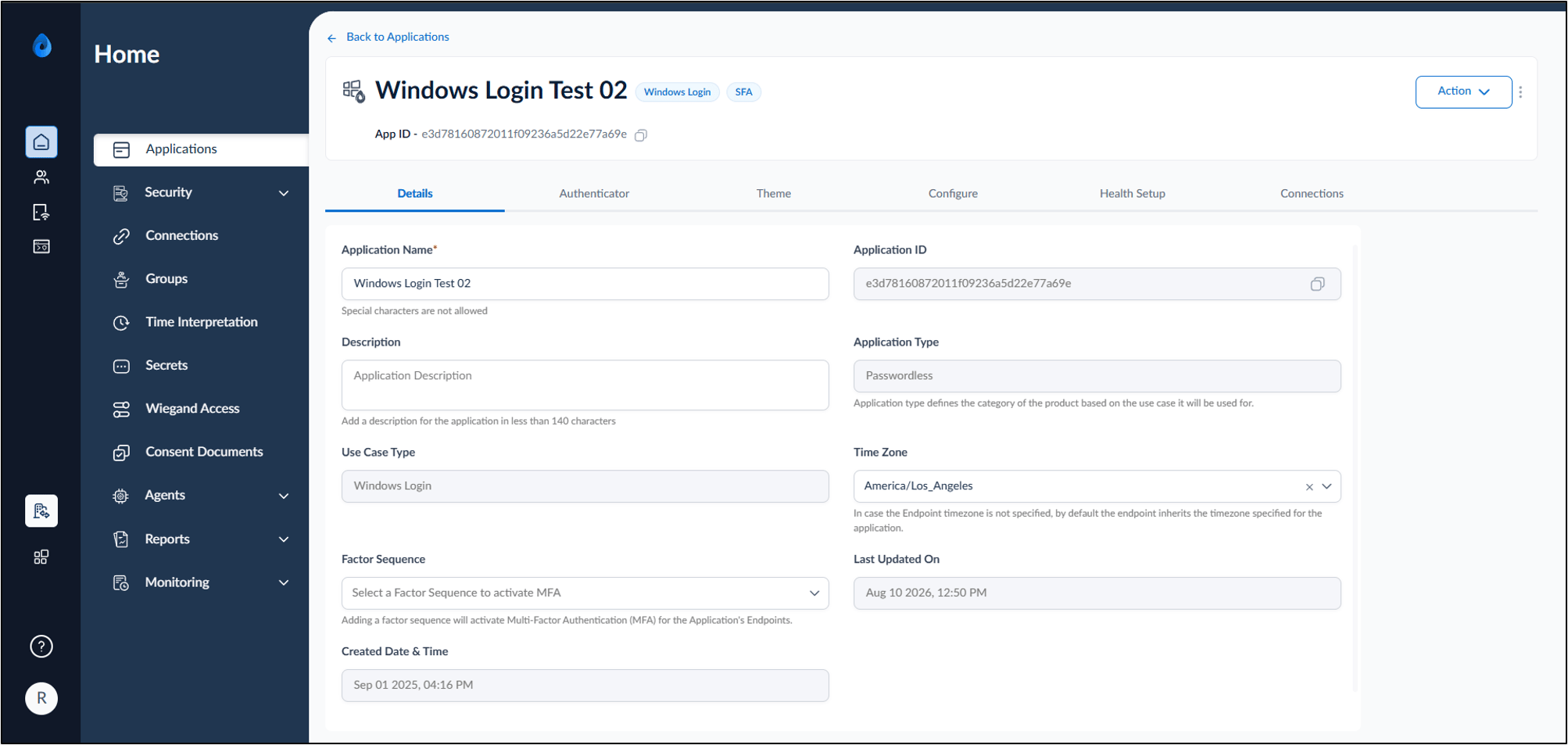
On the Applications page, select the application paired in the Supervisor App (Windows Authenticator App).
-
Go to Configure > Customize Buttons tab.

-
In Button Label field, enter the text to be displayed on the Windows Login app.
Example- Sign in with, Login with, Authenticate with.

-
Enable Badge Options toggle to allow badge assignment through the Supervisor App.
After enabling Badge option, select one of the following modes: Default: Enroll Badge + PINNote: You must enable Badge Credential in the Authenticator tab of the Windows Login application.
- Enroll Badge Only Select this option to enroll badge using the Supervisor App.
- Enroll Badge + PIN Select this option to enroll badge with PIN credential using the Supervisor App.
-
Click Save.

 Note: This note applies only to Windows Login Version 1. In the Windows Authenticator app, you must sync the configuration for the function to work. For more details, refer How to sync configuration in Supervisor App
Sample screen for customized button