Introduction
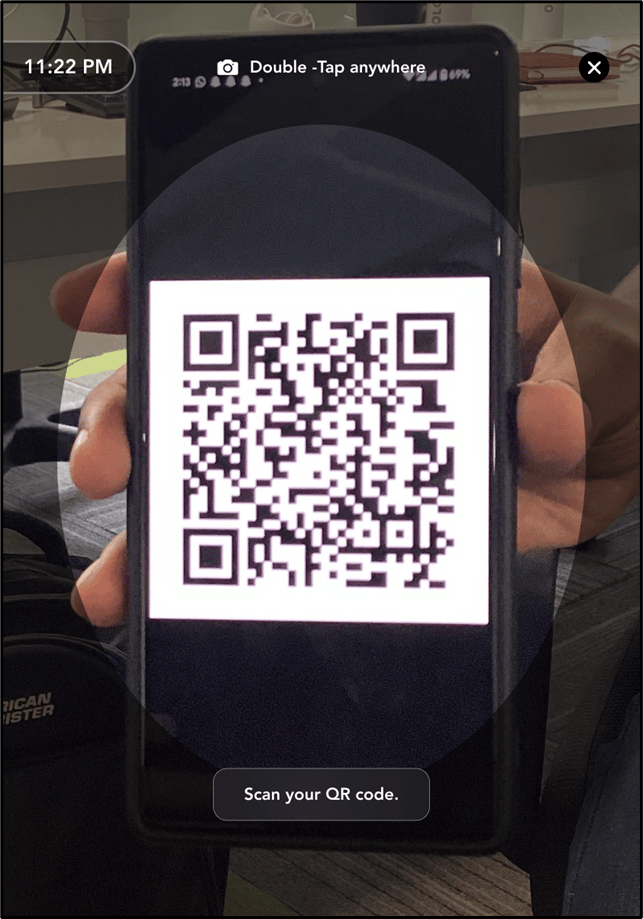
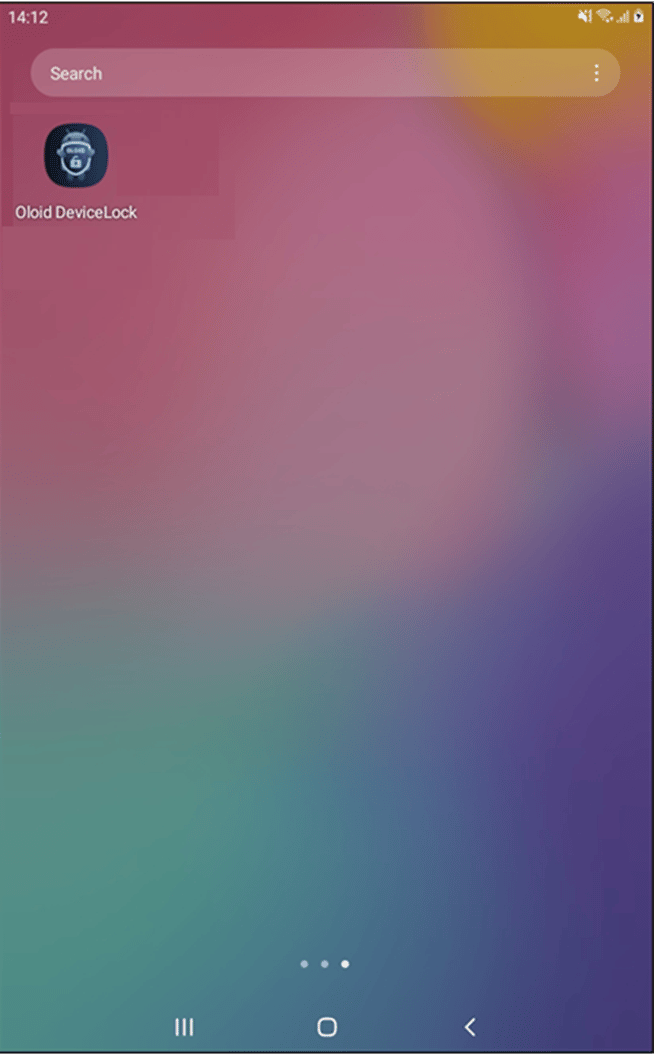
The Oloid DeviceLock app enables users to securely unlock their Android devices using QR credential. After successful authentication, the device unlocks and redirects to the device home screen.Prerequisite
A valid QR code must be assigned to you.Steps to Unlock the Device
-
Press the Power button or tap the screen on your device.
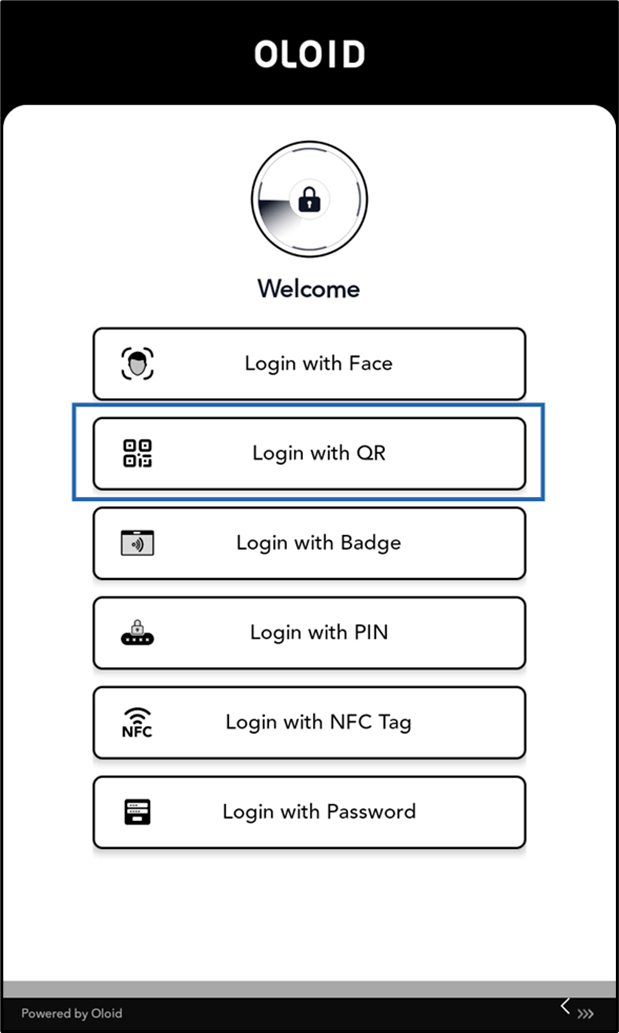
The Welcome screen is displayed.Note: The Device Lock app is displayed automatically, as it always runs in Kiosk Mode.
-
Tap Login with QR.
Note: You will only see the authentication methods (Face, Badge, PIN, QR Code and NFC/ID) enabled for you. Button names may vary based on configuration. Contact Support if no authentication method appears.