Introduction
The Enroll Credential process in the Windows Login app allows users to securely register authentication methods such as Face, Badge, PIN, or NFC for passwordless access.Prerequisites
- In Tenant Admin Portal, you must enable Allow Credential Updates and Enrollment to enroll credentials in Windows Login app. For more details, refer to How to enable Allow Credential Updates and Enrollment in Windows Login application
- Ensure the Enable Windows default domain toggle is turned on. For more details, refer to How to enable Windows Default Domain for Windows Login application in the Tenant Admin Portal
- Make sure either the user’s Primary ID or email ID matches your System Account Name.
Steps to enroll credential in Windows Login app
- Launch the Windows Login app.
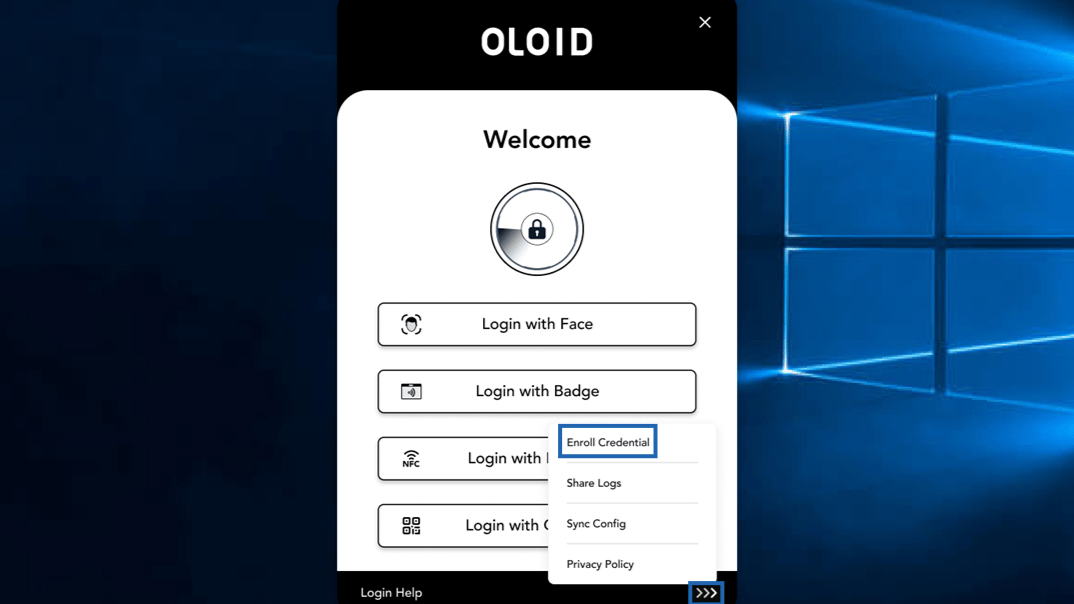
- Select More
 options > Enroll Credential.
- Do the following:
- Enter Domain Name Enter your Windows domain name.
- Enter Username. Use your Windows account username.
- Enter Password. Use your Windows account password.
- Select Enroll Windows credential to your account. (Optional)
- Click Continue.

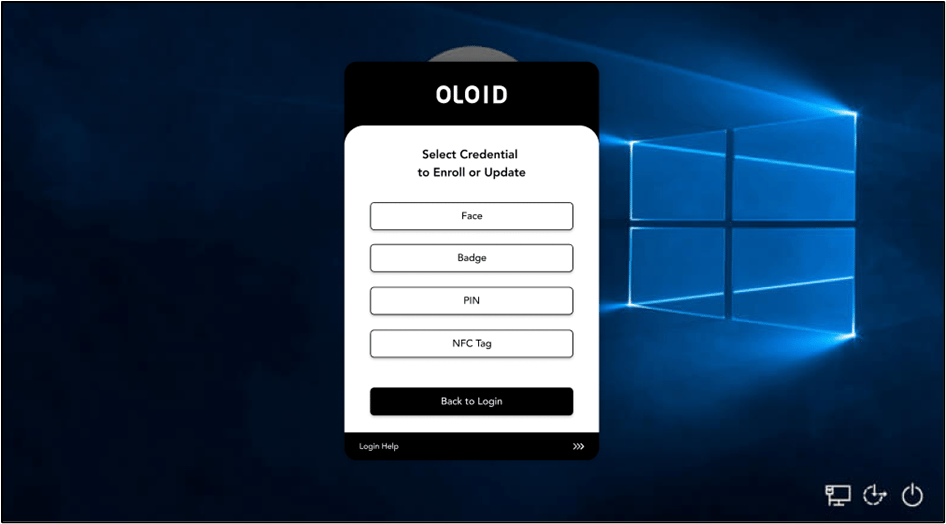
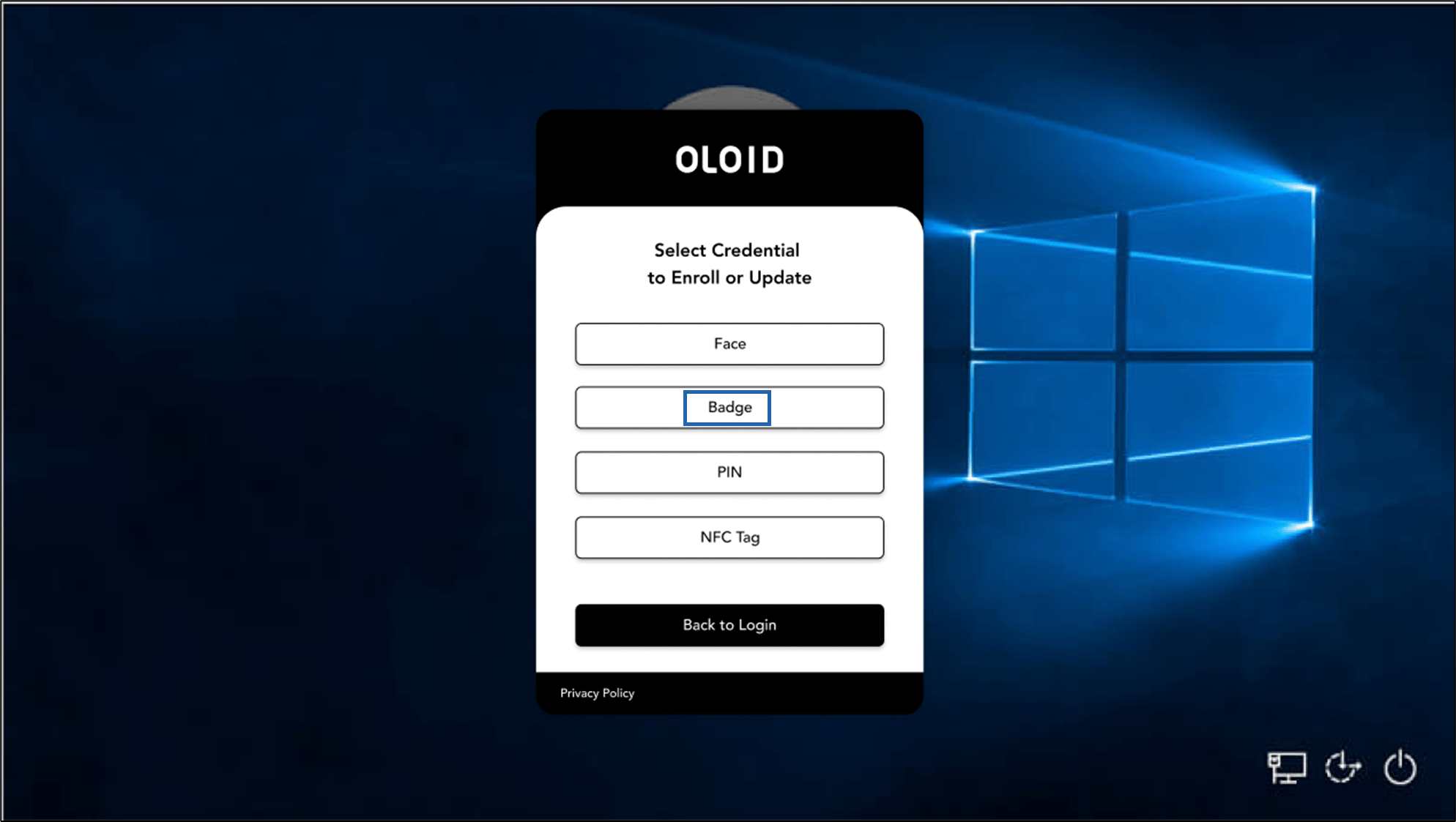
- Select any of the preferred credentials to enroll.
Enroll Face
-
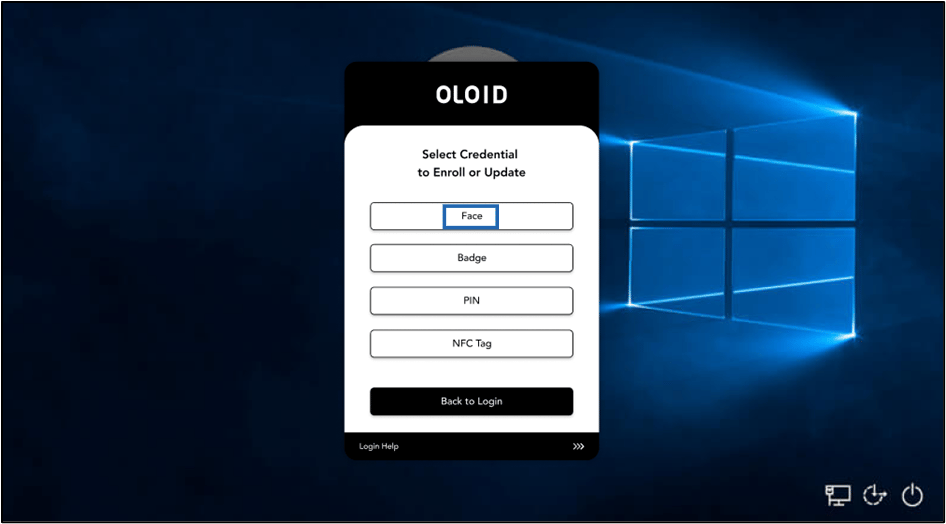
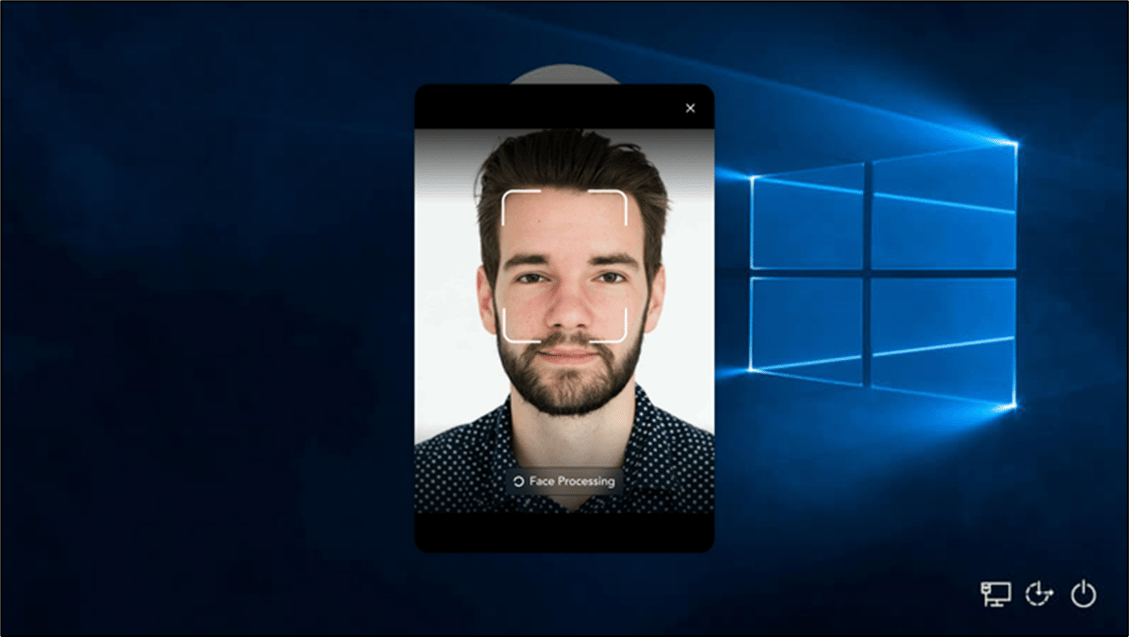
Select Face.
Note: If connection is enabled, user consent is requested before uploading the picture.
-
Place your face in front of the camera for facial authentication.
-
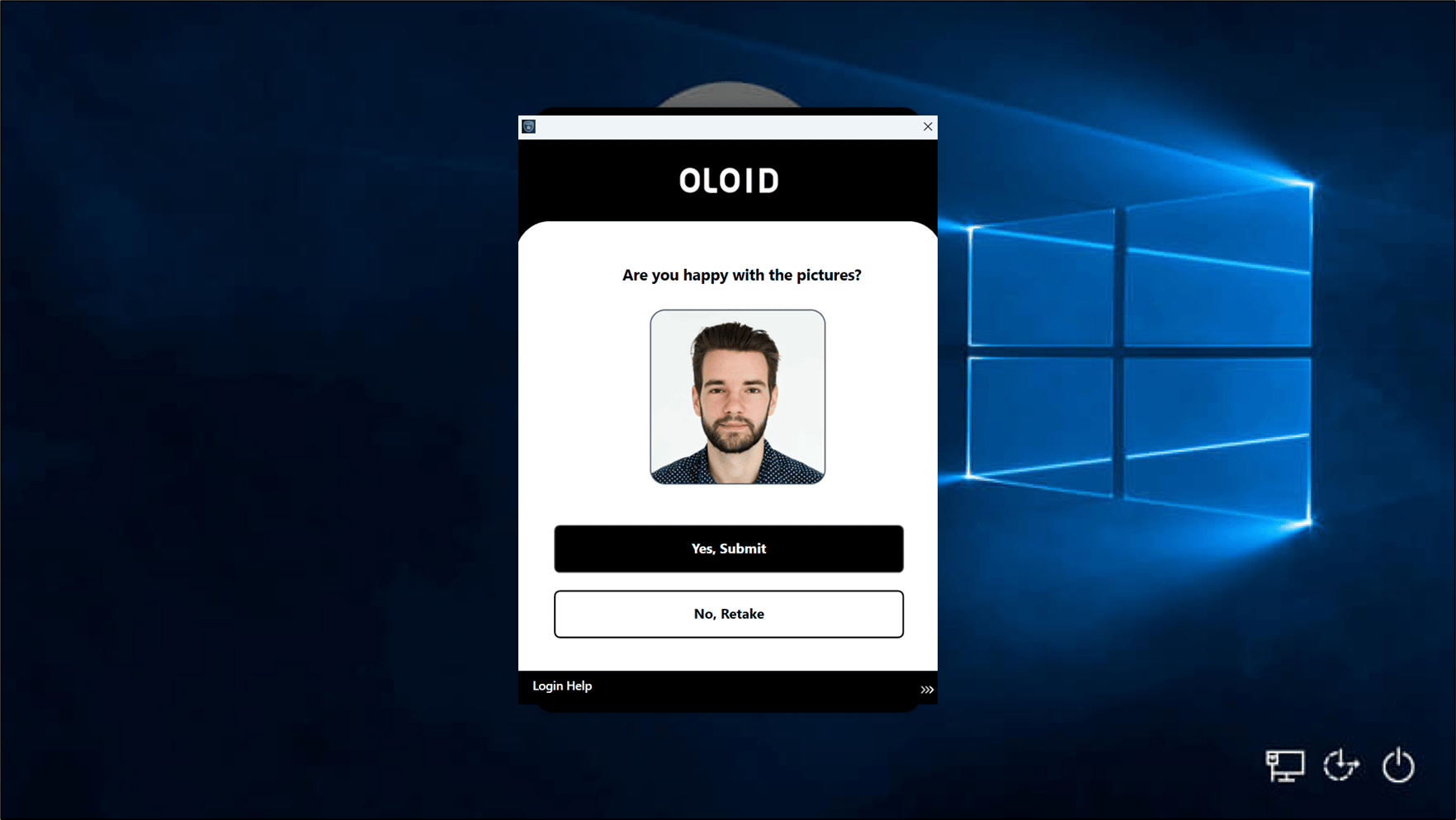
Do one of the following:
- Tap Yes- Submit to submit the image. The face is submitted successfully and is displayed on the details screen.
-
Tap No- Retake to take the photo again.
The camera turns on to retake the photo.
Note: A maximum of five faces can be added.
-
Do one of the following:
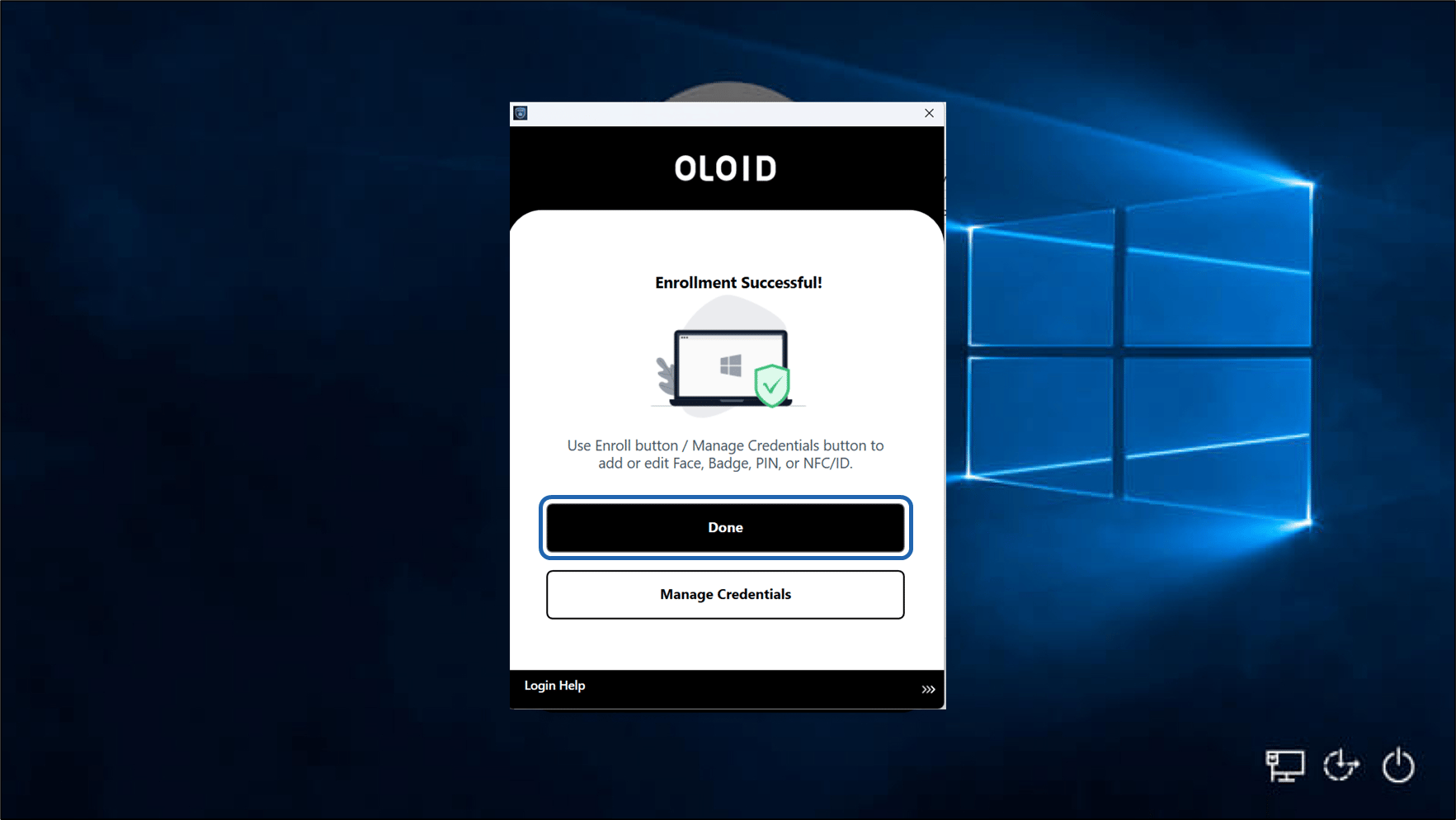
- Click Done to finish enrollment.
-
Click Manage Credential to enroll another credential.
Note: Button names may vary based on enrolled credentials. Contact Support if no authentication method appears.

Enroll Badge
- Select Badge.
- Scan your badge on the Badge Reader.
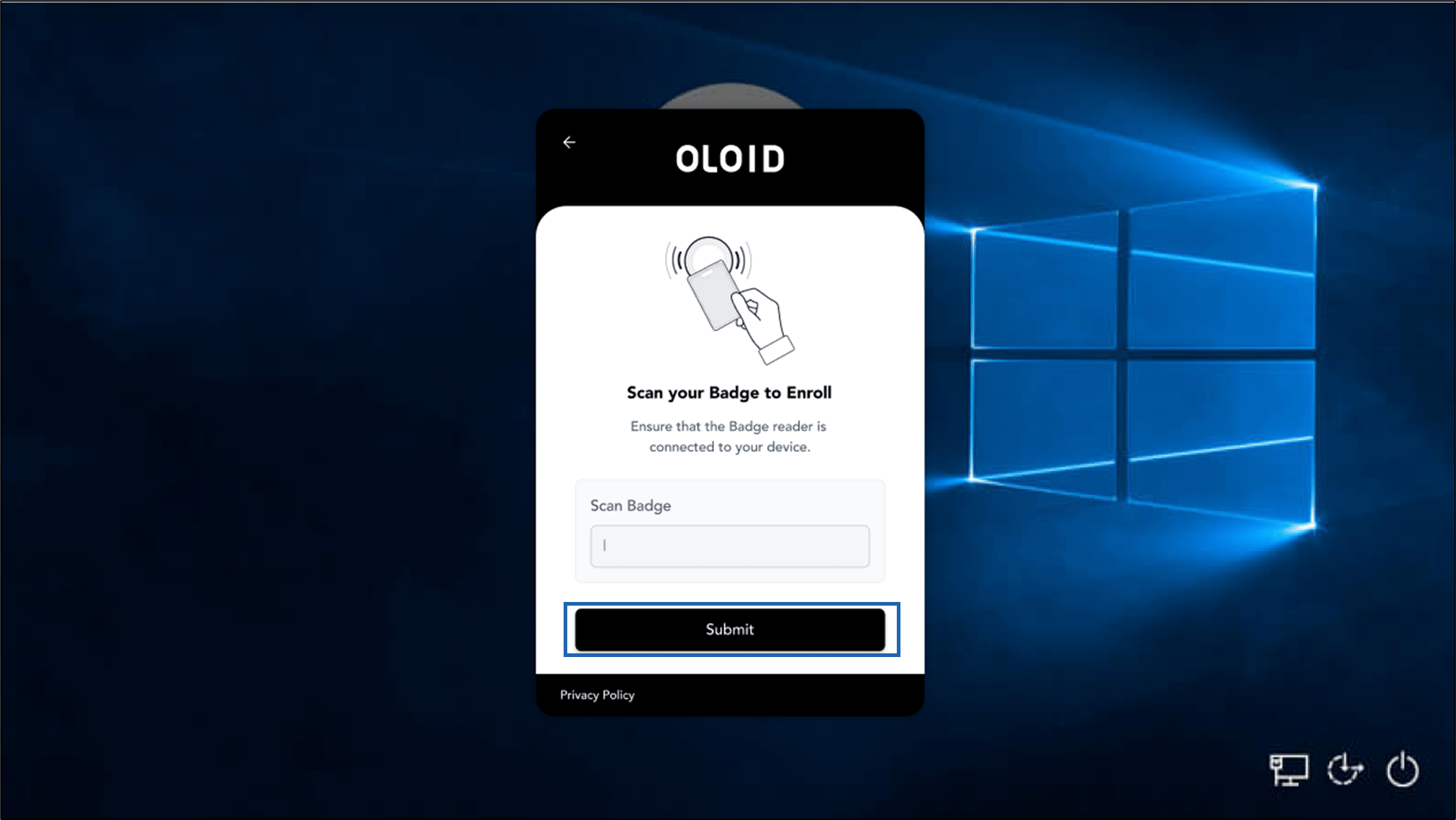
- Click Submit. The badge is enrolled successfully.
- Do one of the following:
- Click Done to finish enrollment.
-
Click Manage Credential to enroll another credential.
Note: Button names may vary based on enrolled credentials. Contact Support if no authentication method appears.
Enroll PIN
-
Select PIN.
 Note: You can configure PIN credentials in the Oloid Portal. For more details, refer How to configure PIN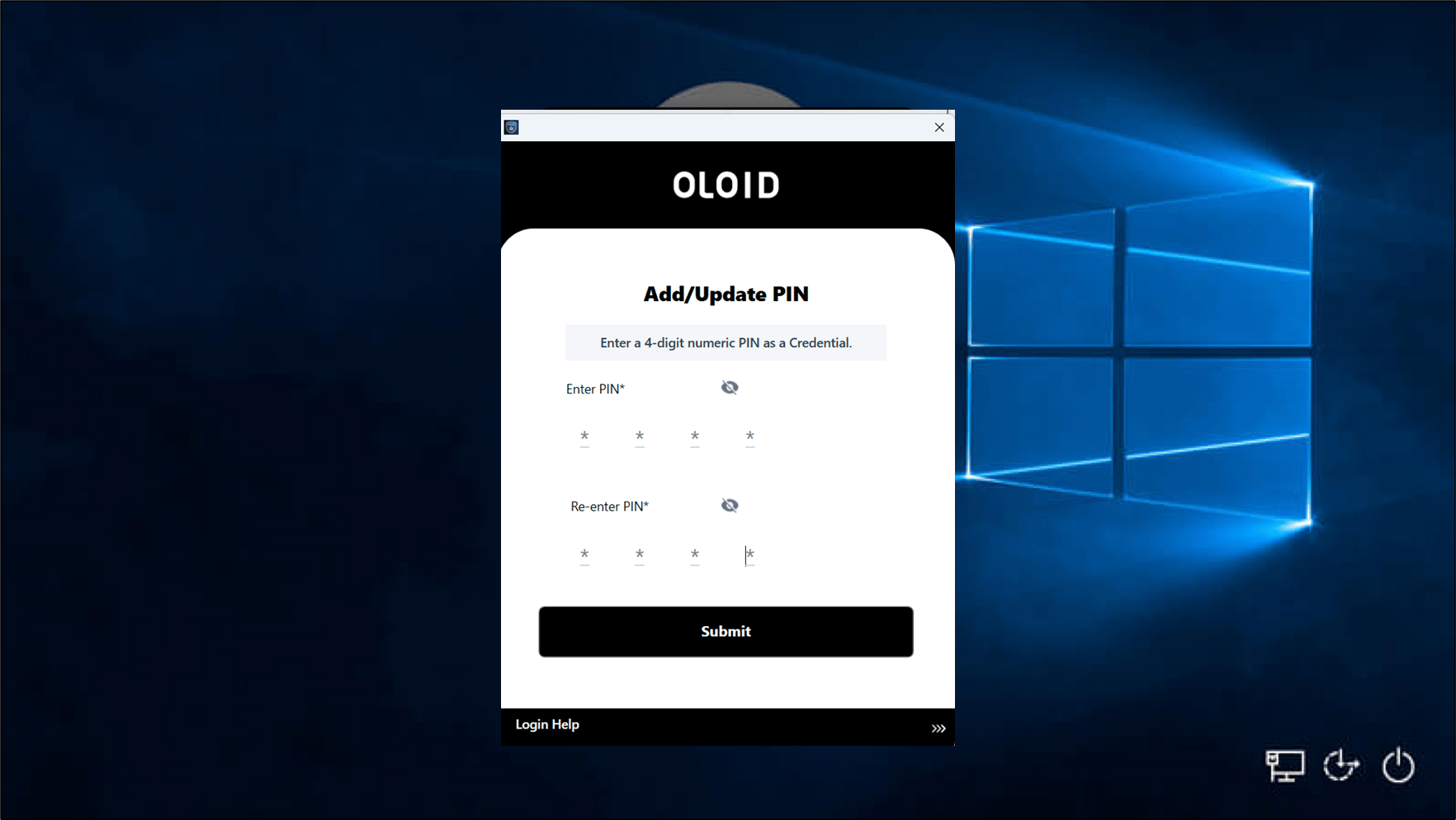
-
Do the following:
- Enter PIN.
- Re-enter PIN. The PIN is enrolled successfully.
-
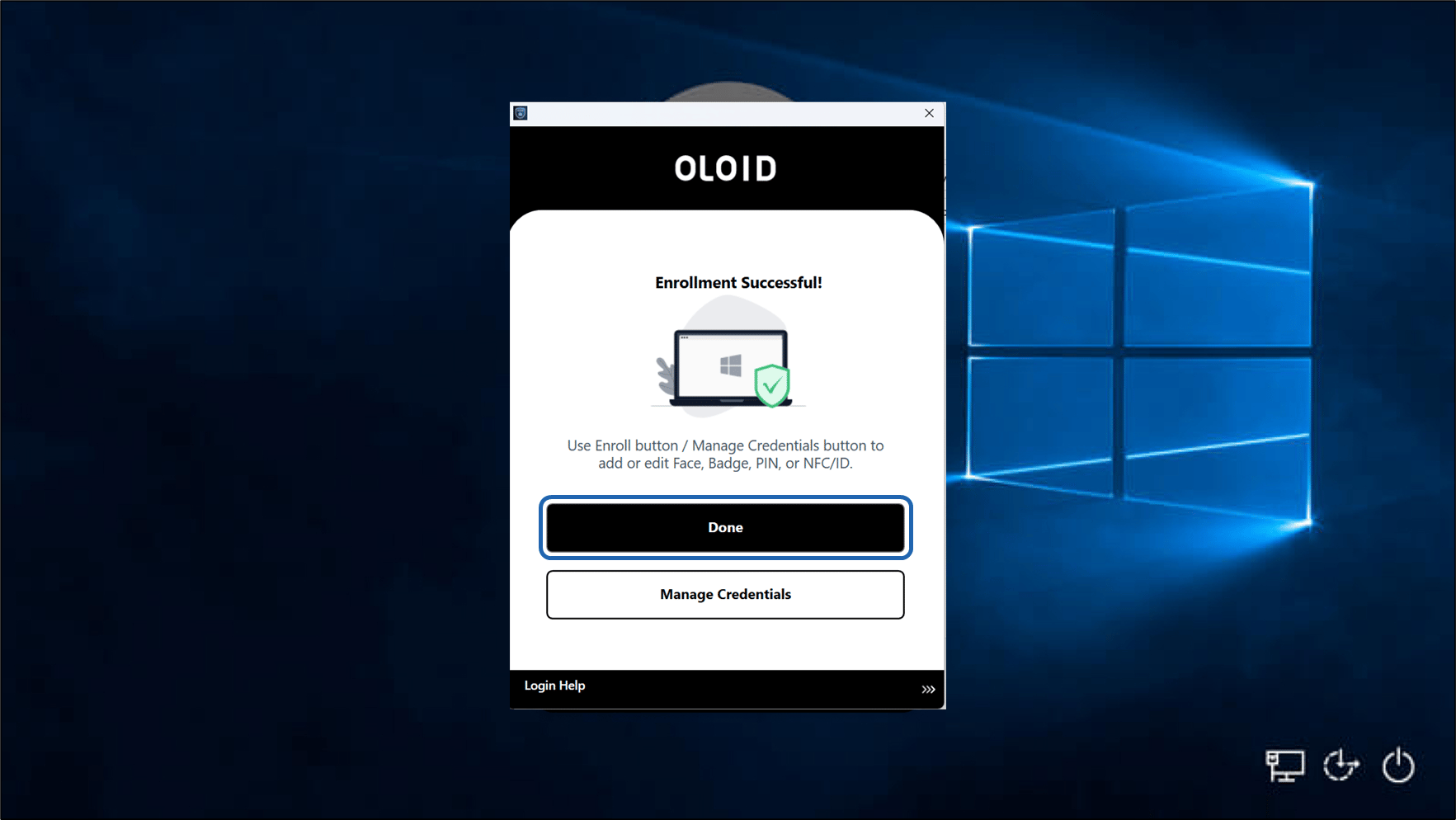
Do one of the following:
- Click Done to finish enrollment.
-
Click Manage Credential to enroll another credential.
Note: Button names may vary based on enrolled credentials. Contact Support if no authentication method appears.

Enroll NFC
- Select NFC Tag.
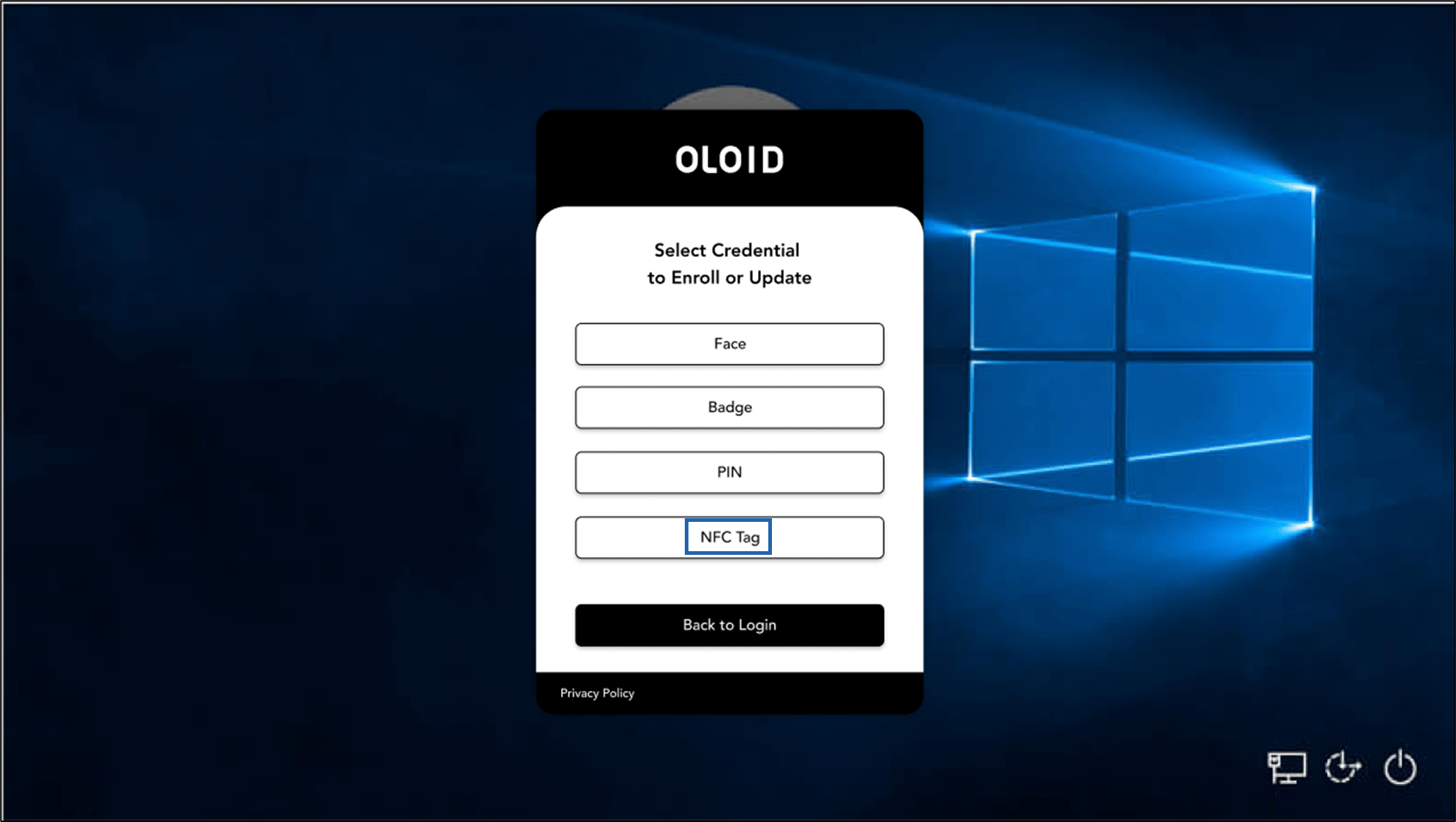
- Scan your NFC Tag in the Card Reader.
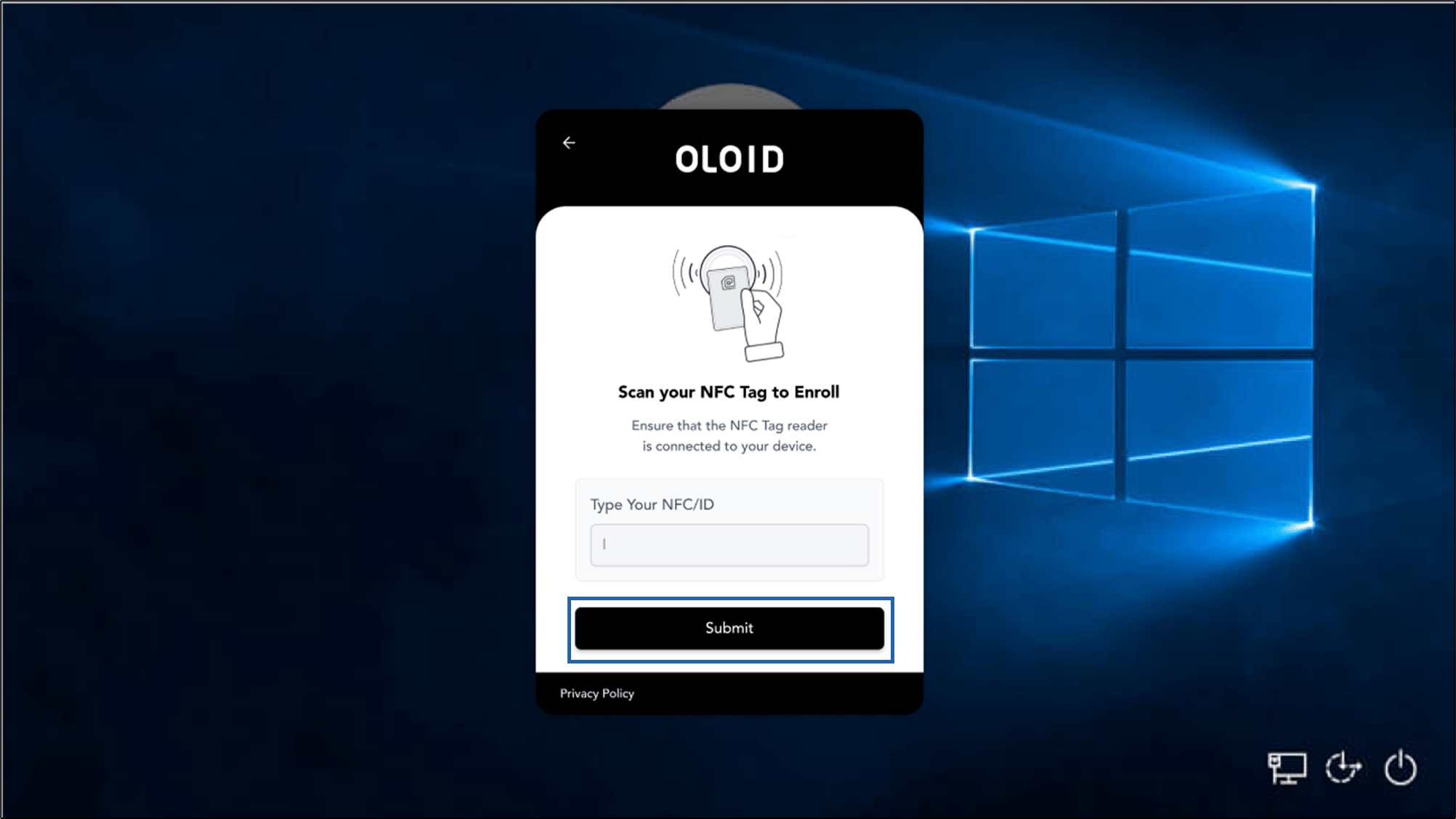
- Click Submit. The NFC Tag is enrolled successfully.
- Do one of the following:
- Click Done to finish enrollment.
-
Click Manage Credential to enroll another credential.
Note: Button names may vary based on enrolled credentials. Contact Support if no authentication method appears.