Introduction
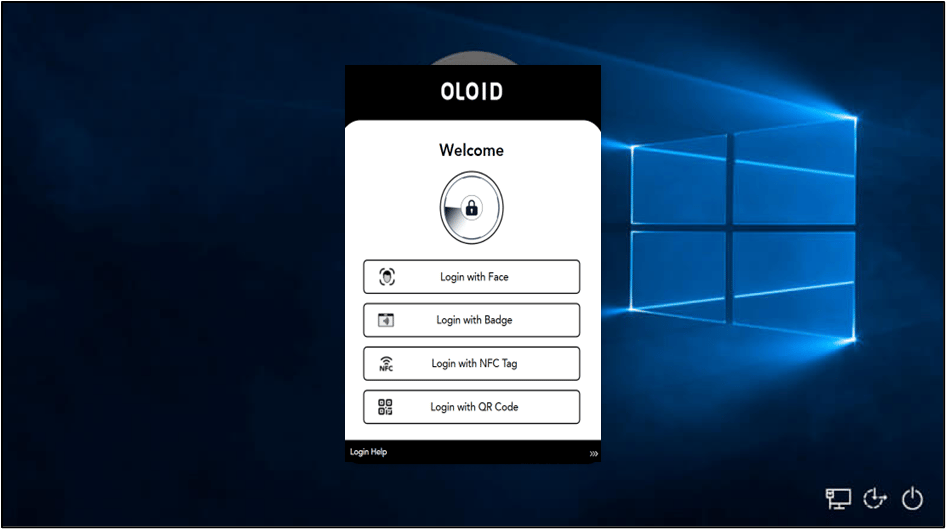
This document provides step-by-step instructions for enabling Auto Launch Mode in the Windows Login application. When enabled, the Windows Login app automatically launches on the Windows pre-login screen, allowing users to access the configured Oloid authentication options without manually launching the application.Prerequisites
- You must have Tenant Admin Access.
- Windows Login Application must be created in the Tenant Admin Portal. For more information, refer: How to create and configure Windows Login application in the Tenant Admin Portal
Steps to enable Auto Launch Mode
- Log in to the Tenant Admin Portal.
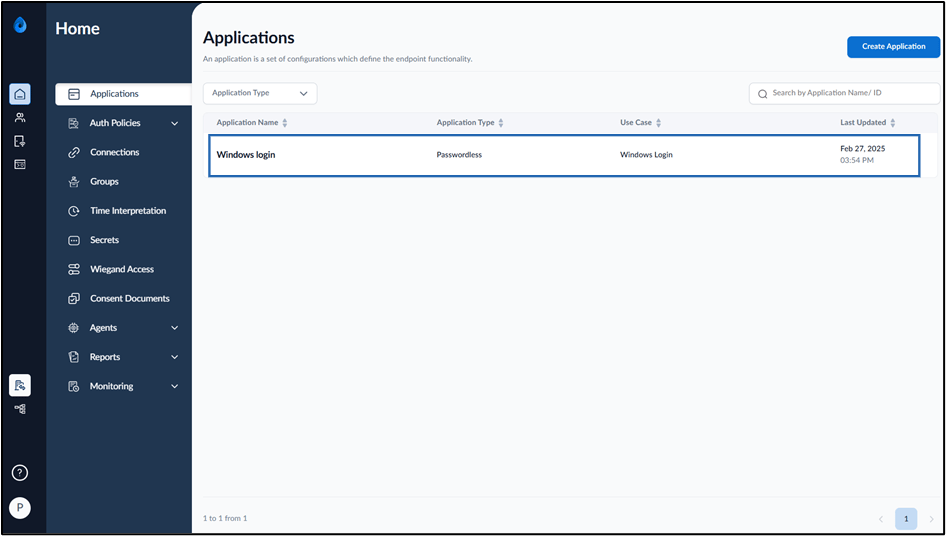
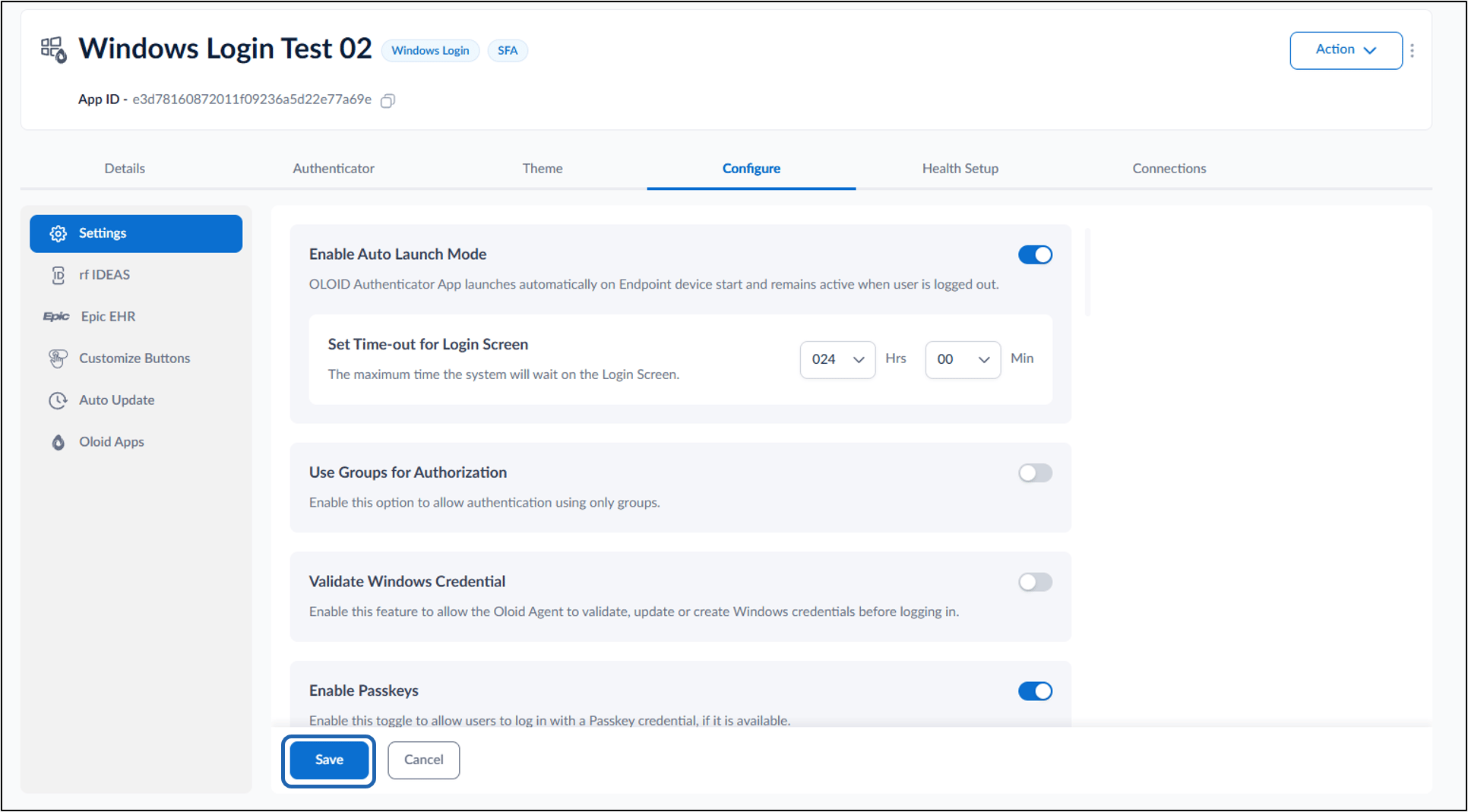
- On the Applications page, select the application paired in the Supervisor App (Windows Authenticator App).
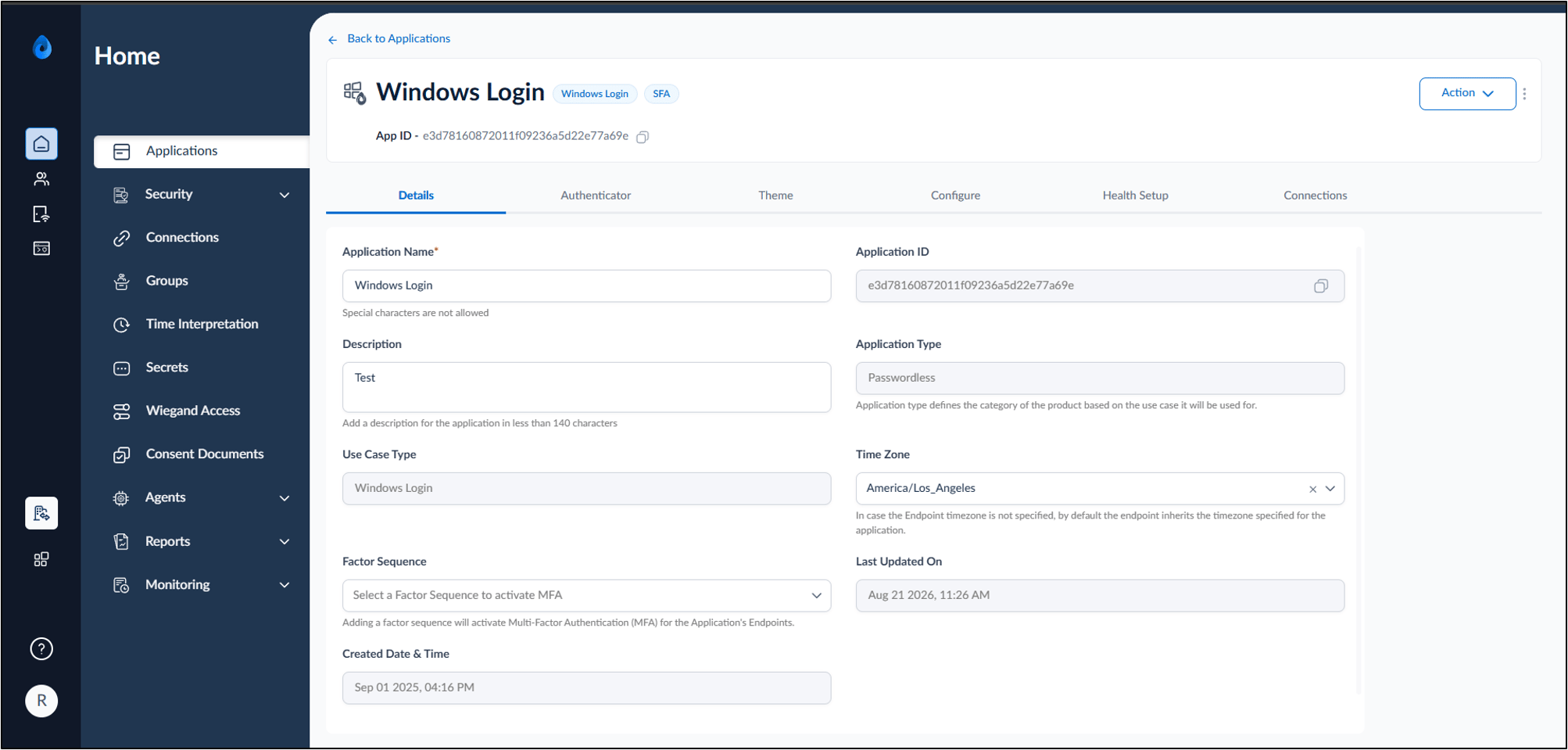
- Go to Configure > Settings tab.
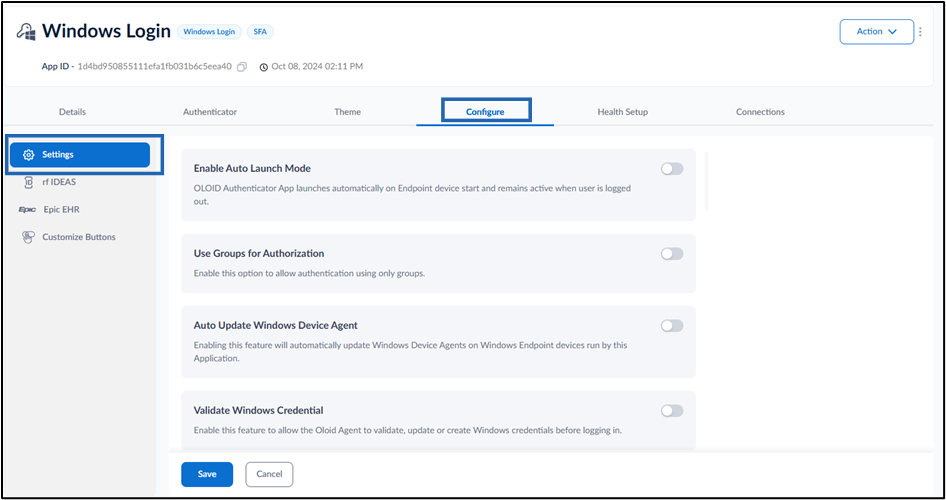
- Turn on Enable Auto Launch Mode toggle button to automatically launch the Windows Login app on the pre-login screen.
- Set Time-Out for Login screen. This duration will define the time the system will wait on login screen.
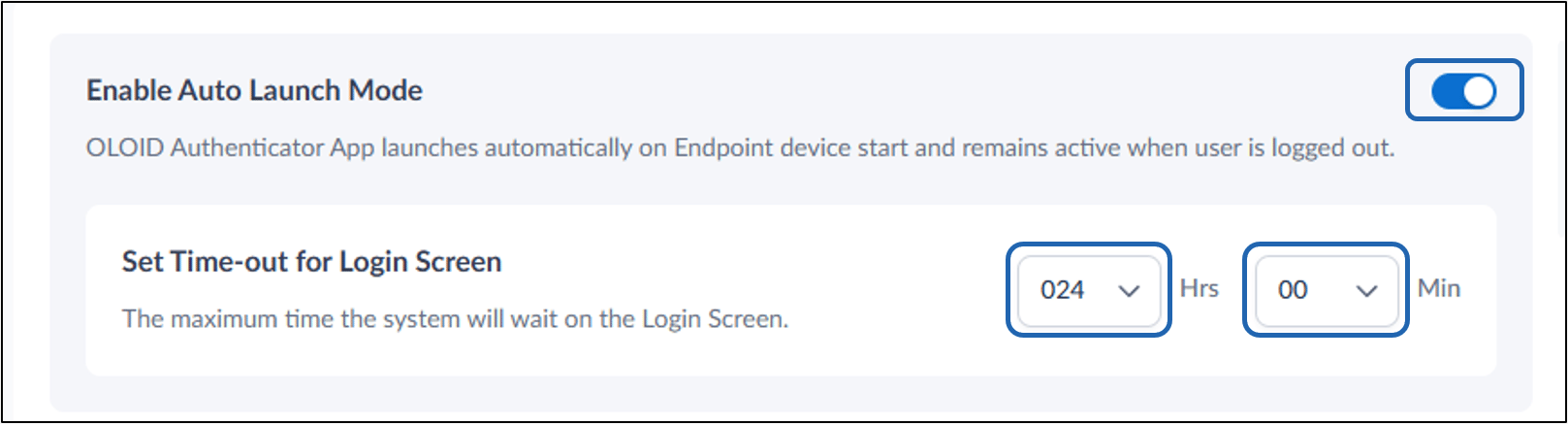
- Set Time-Out for Login screen. This duration will define the time the system will wait on login screen.
- Click Save.
Note: Note: This note applies only to Windows Login Version 1. In the Windows Authenticator app, you must sync the configuration for the function to work. For more information, refer How to sync configuration in Supervisor App
Sample Screen for Auto Launch Mode