

Introduction
This document provides step-by-step instructions for logging in to the Supervisor App using Google SSO. When SSO is enabled, users can authenticate using their Google account credentials to securely access the Supervisor App.Prerequisites
- Windows Login Application must be created in the Tenant Admin Portal. For more information, refer: How to create and configure Windows Login application in the Tenant Admin Portal
- Ensure the endpoint is paired with the Windows Login application. refer Windows Login - How to Manually Pair the Supervisor App
- Ensure User has a Microsoft account.
- Ensure SSO is enabled in the Tenant Admin Portal. For more information, refer: Tenant Admin Portal - How to Enable GSuite SSO in Tenant Admin Portal
Step to Login with Google
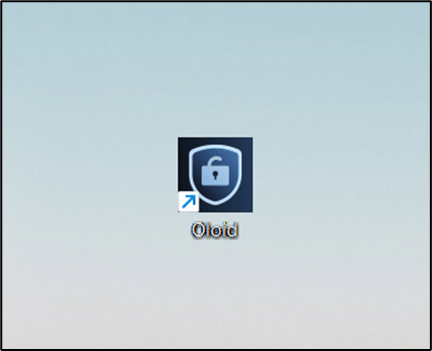
- Double-click on the Supervisor App to start.
- Click Login with SSO.
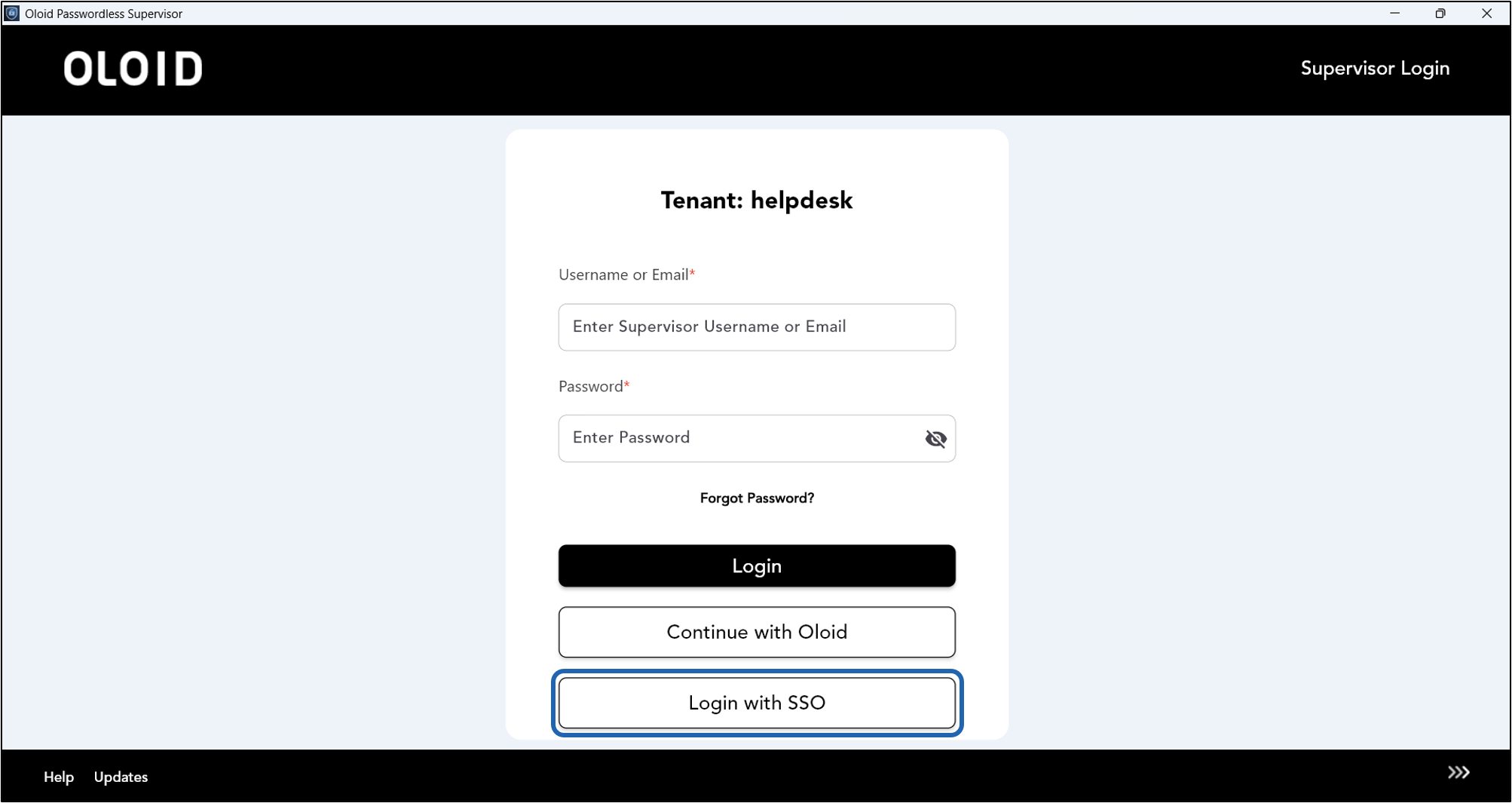
- Select Login with Google.


- Enter Email or phone.
- Click Next.
The Welcome page is displayed.

- Enter Password.
- Click Next.
You are logged into the Supervisor app.
