

Introduction
The On-Screen Keyboard feature in the Tenant Admin Portal allows admins to enable a virtual keyboard for Windows Login endpoints. Once enabled, users can use the touchscreen keyboard to enter their PIN during Windows authentication.Prerequisites
- You must have Tenant Admin Access.
- Windows Login Application must be created in the Tenant Admin Portal. For more information, refer: How to create and configure Windows Login application in the Tenant Admin Portal
Steps to Enable On-Screen Keyboard Configuration
- Log in to Tenant Admin Portal.
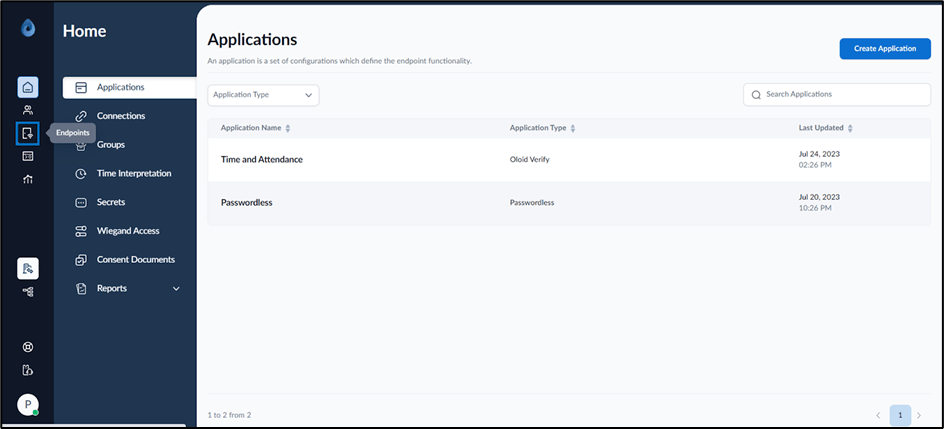
- On the homepage of the portal, click Endpoints on the left panel menu.
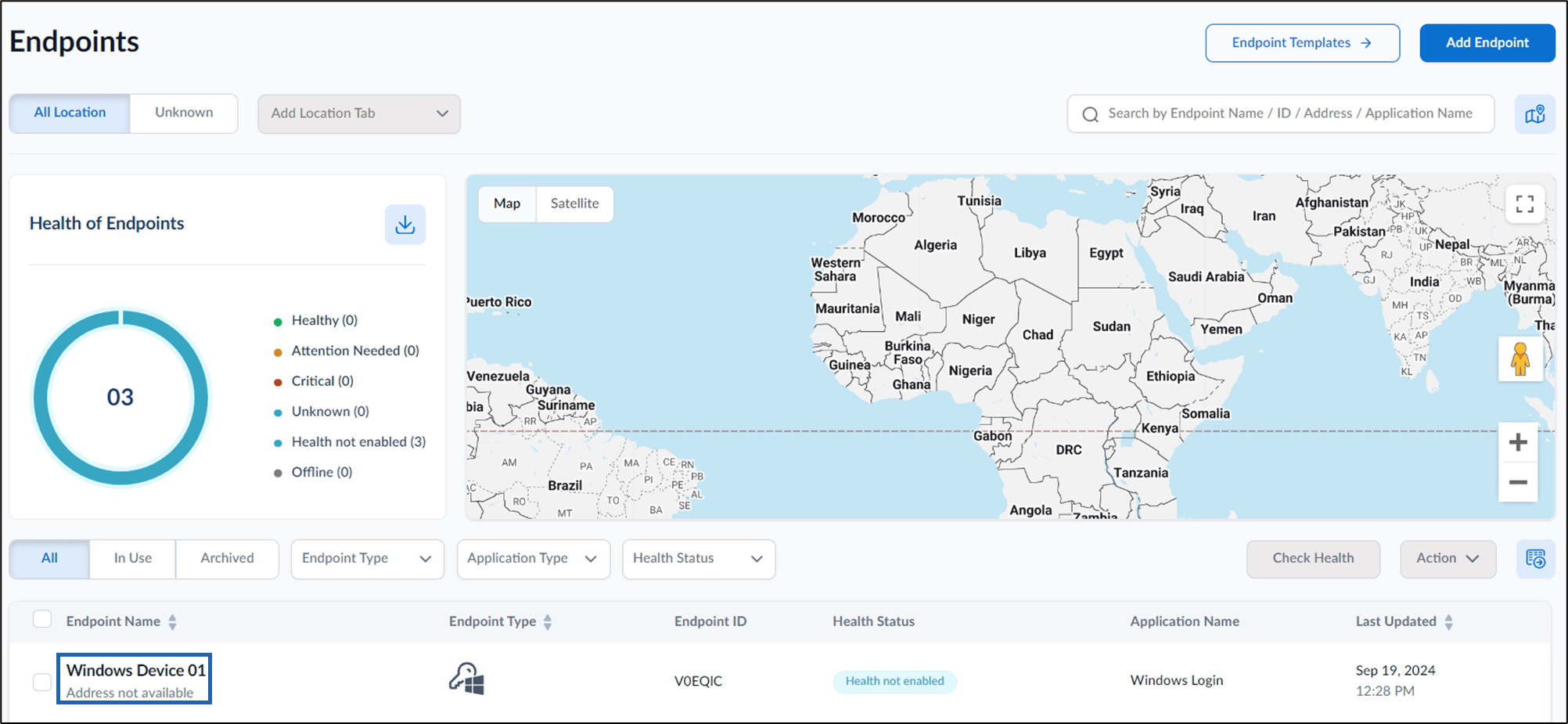
- Select the endpoint to be configured.
- Go to Configure tab > Endpoint Settings tab.
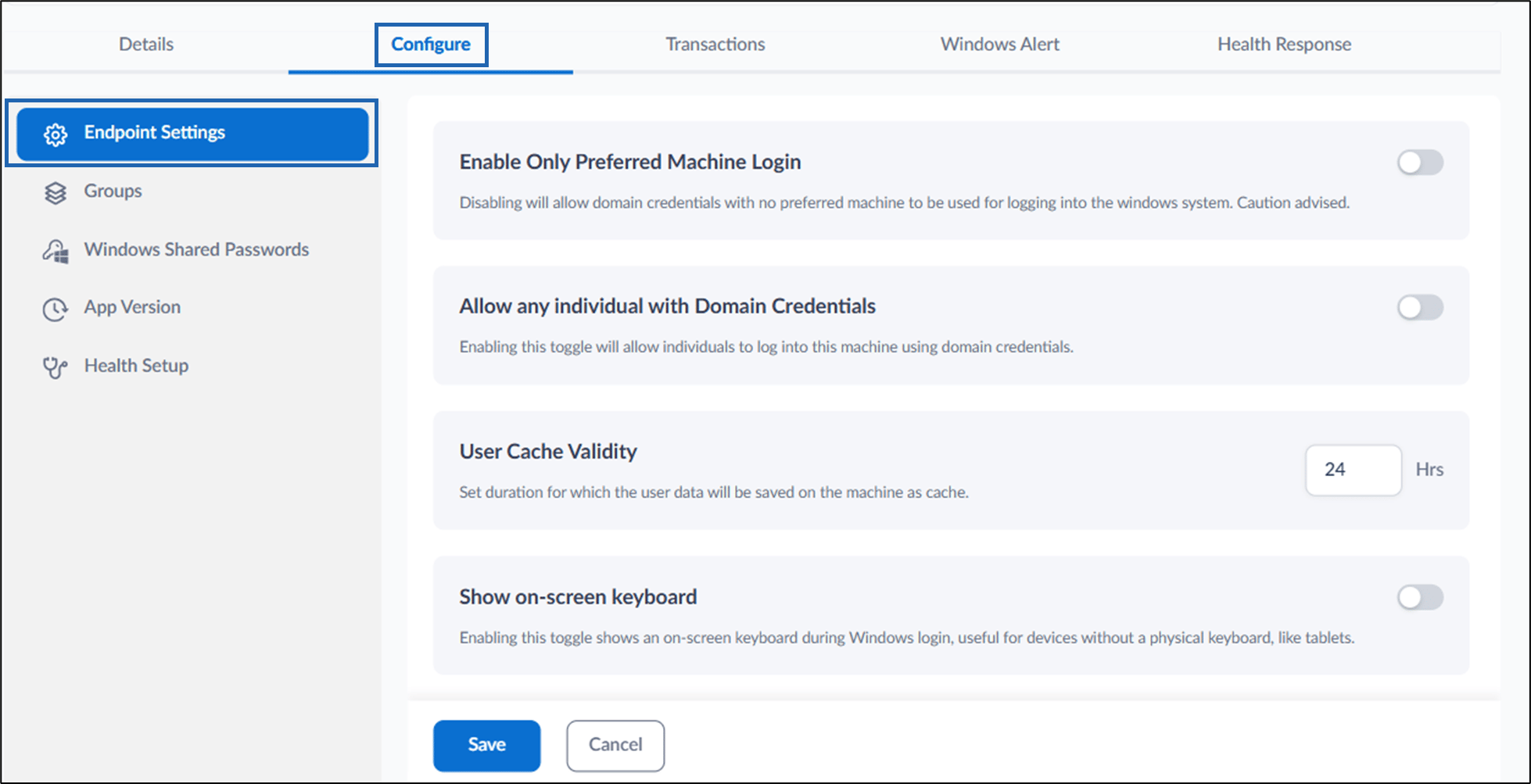
- Turn on Show on-screen keyboard option to display an on-screen keyboard during Windows login. This option is useful for devices without a physical keyboard, such as tablets.

- Click Save. The touchscreen is configured for the endpoint.
To use the touchscreen keyboard for the Windows login app
-
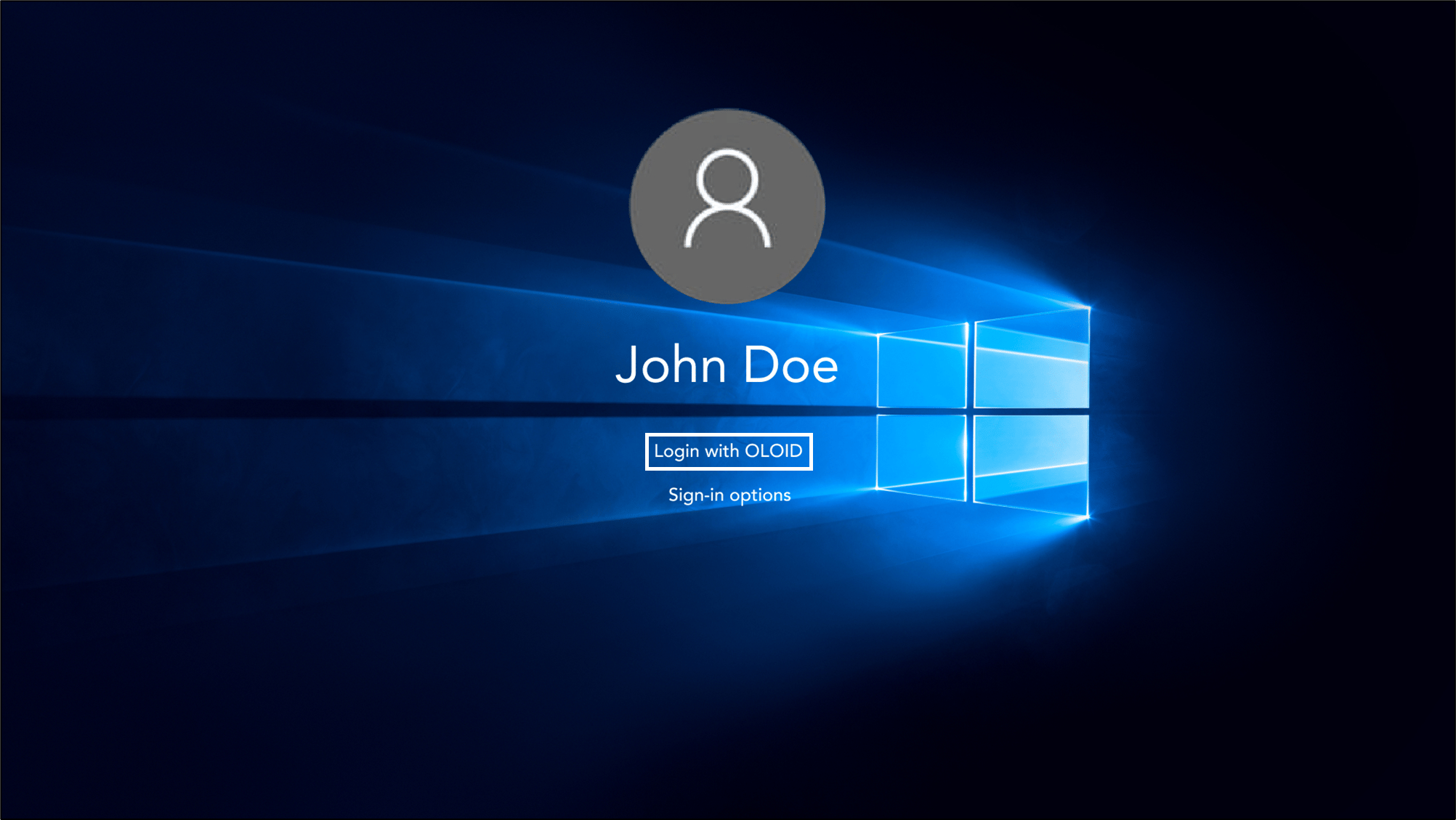
On the Windows lock screen, tap Login with OLOID.
-
Tap the Badge on the Badge Reader to scan it.
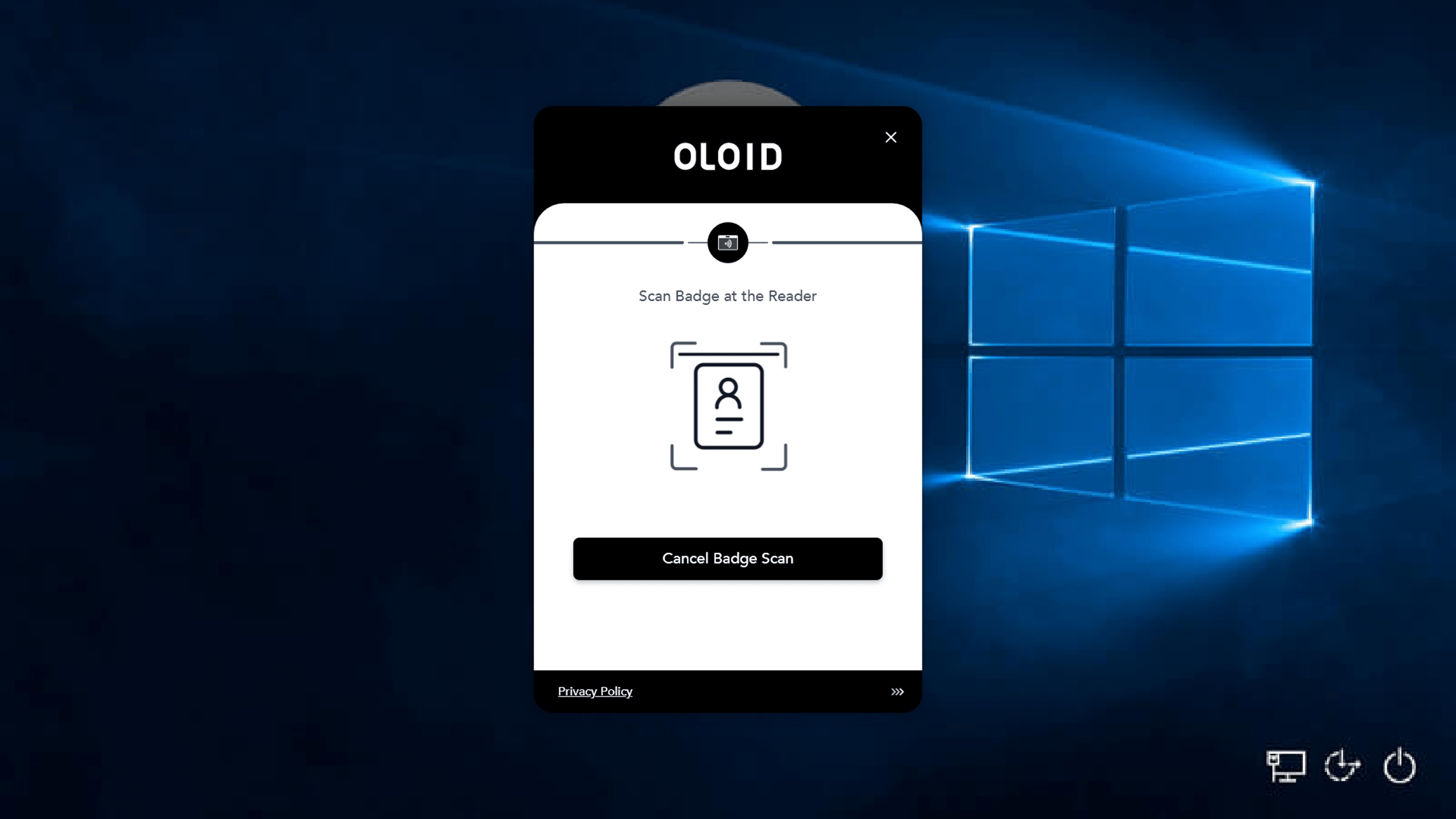
 Note: In case you are unable to view the onscreen keyboard or is accidentally closed, then tap the more
 option > On-screen Keyboard.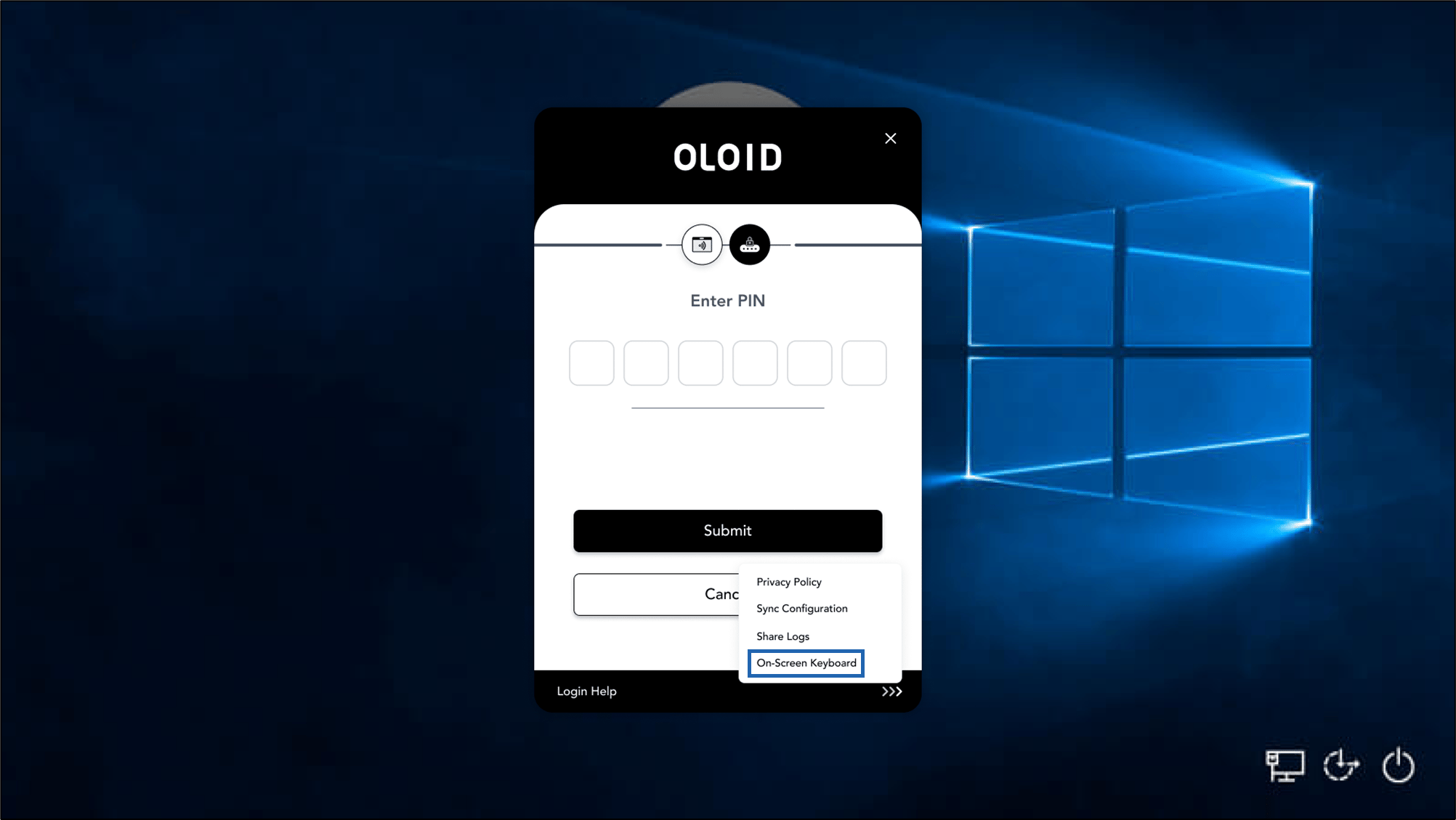
- Enter the PIN, then tap Enter. On PIN authentication, you are signed in to the Windows device.
Related Document How to configure endpoint for Windows Login