

-
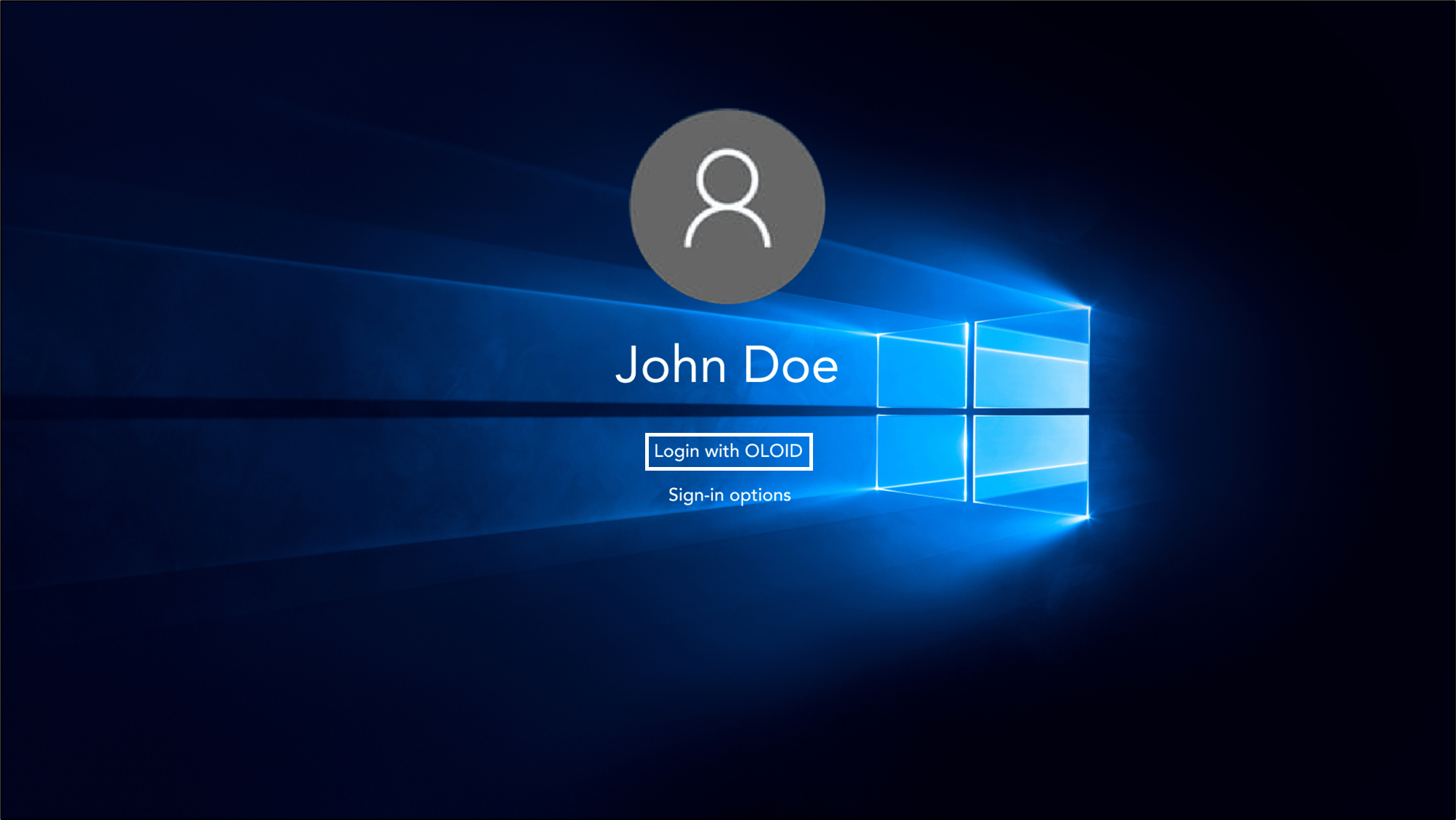
On the Windows lock screen, click Login with OLOID.
-
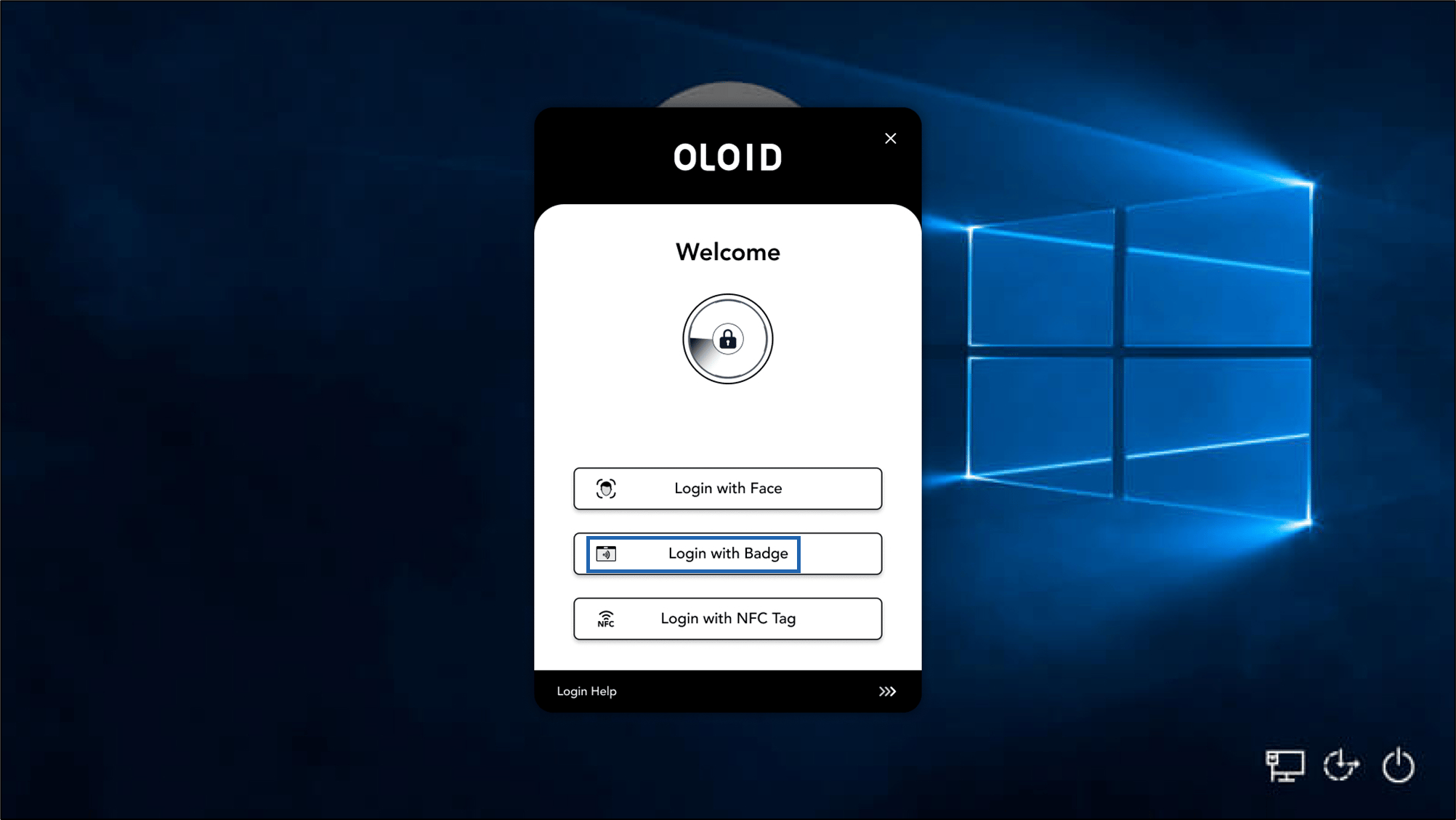
Select Login with Badge.
-
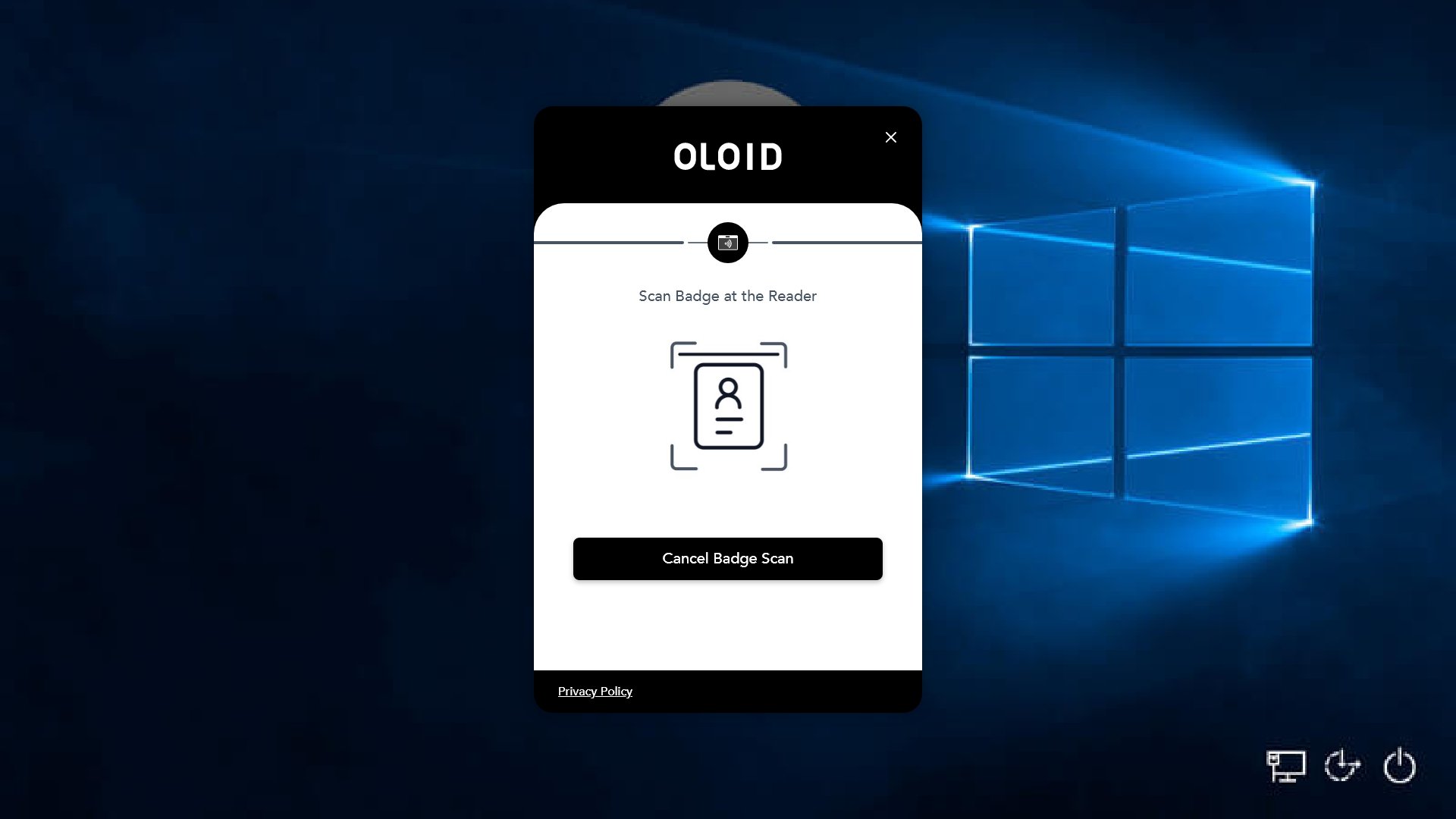
Tap the Badge on the Badge Reader to scan it.
Note: The badge reader must be connected to the computer.
-
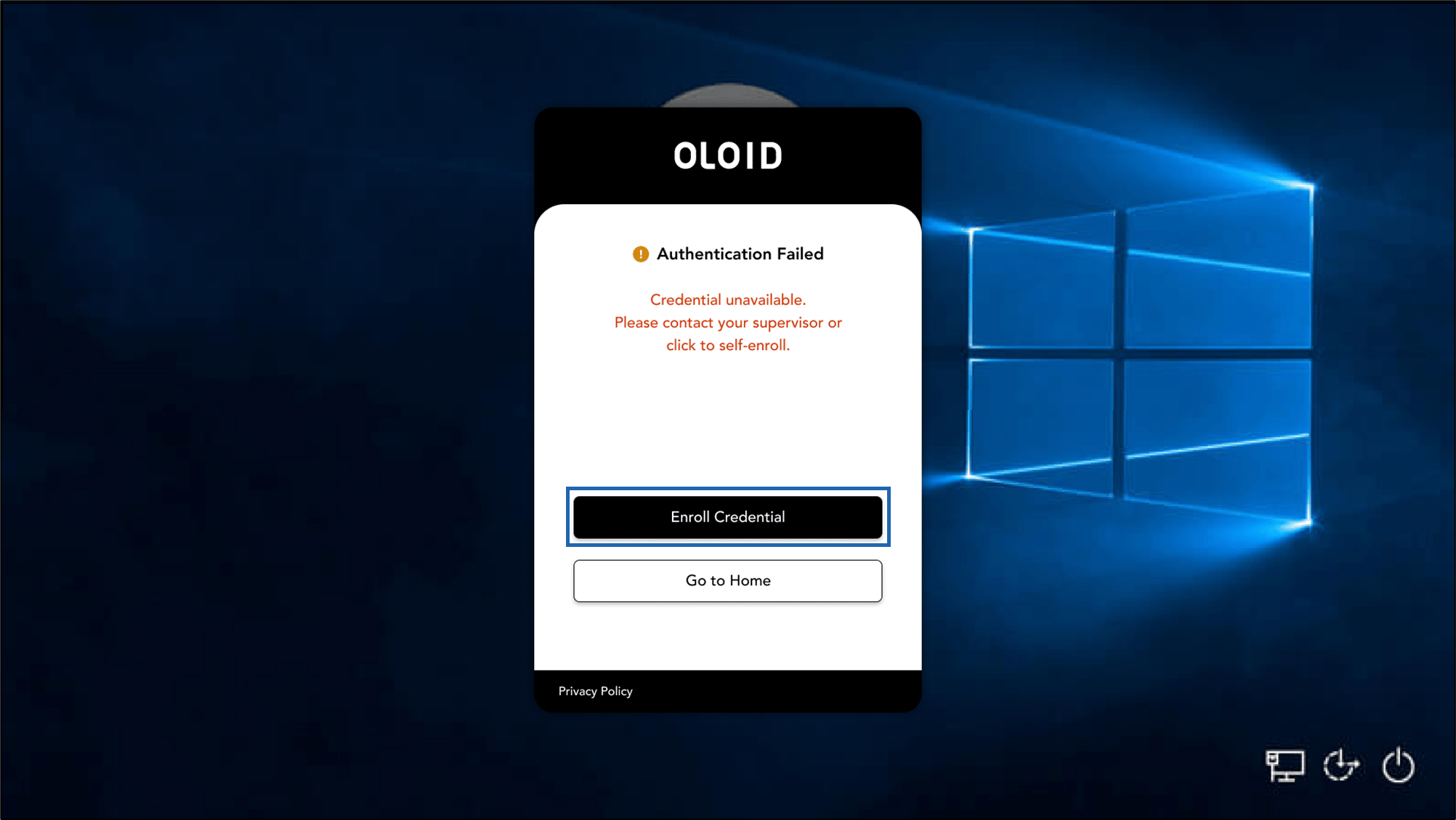
On the Authentication Failed screen, select Enroll Credential.
-
Do the following:
- Enter Domain\Username.
Enter your Windows domain and username in the format
Domain\Username. - Enter Password. Use your Windows account password.
- Select Enroll Windows credential to your account. (Optional)
- Click Continue.
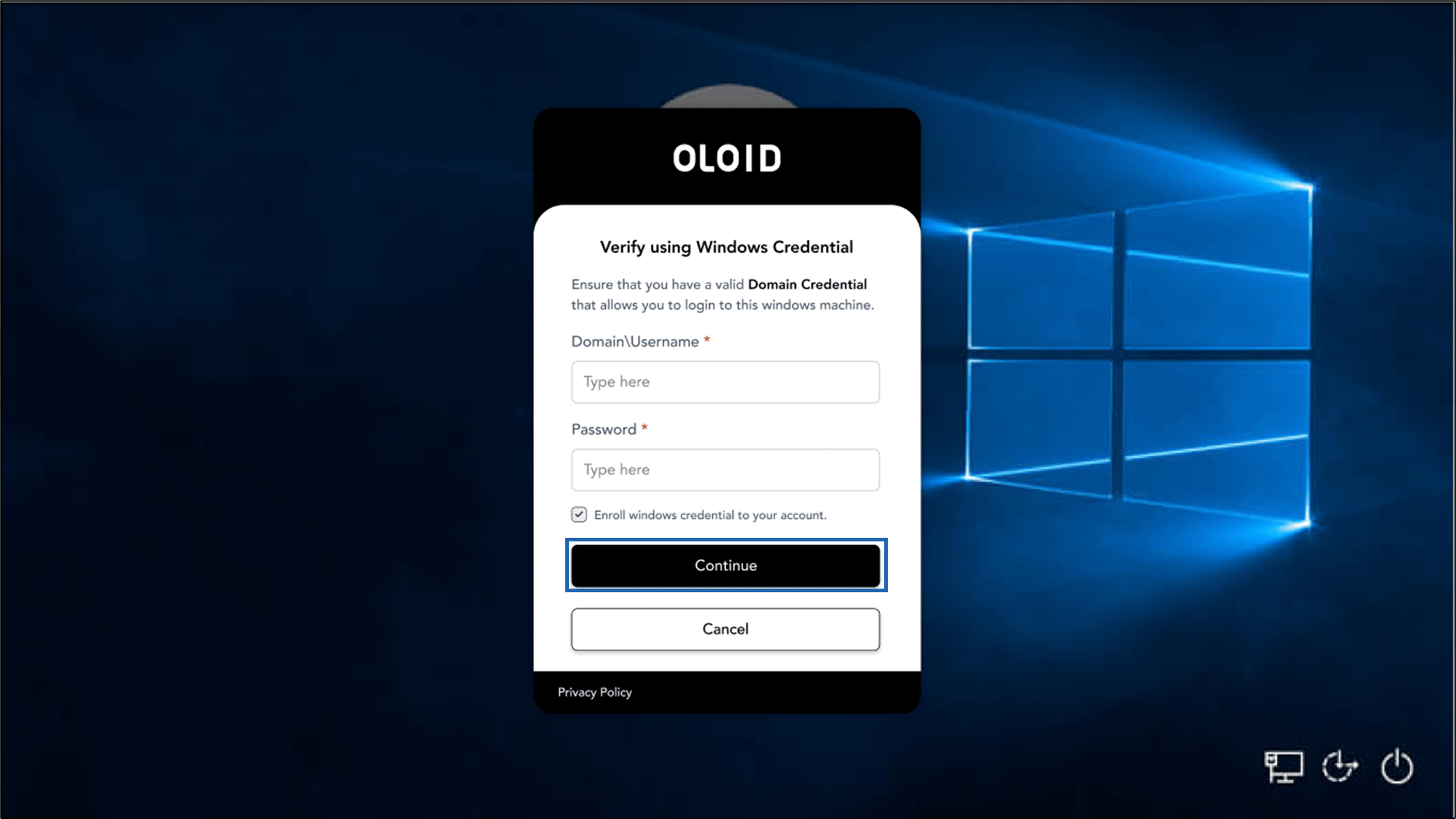
- Enter Domain\Username.
Enter your Windows domain and username in the format
-
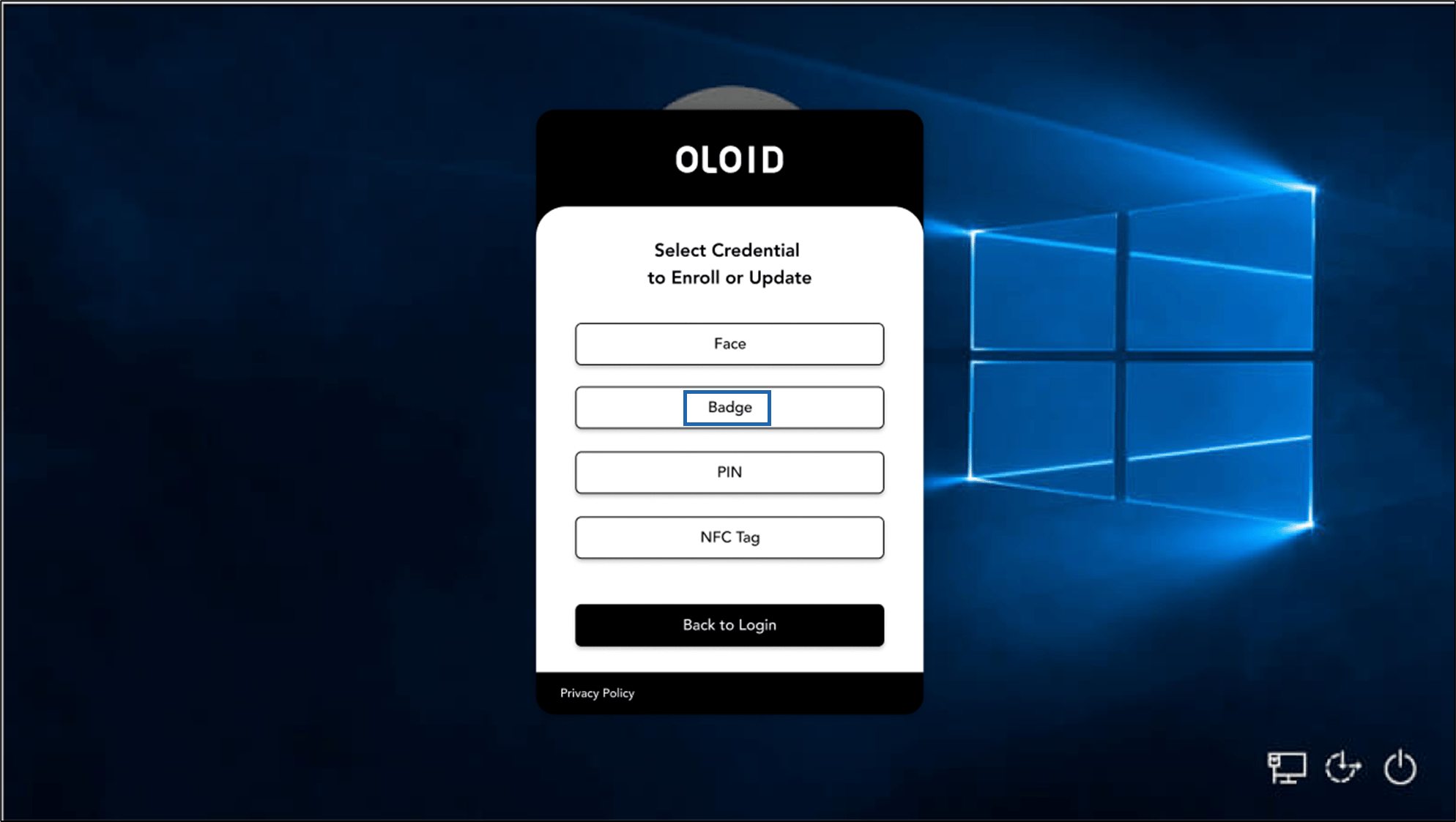
Select Badge.
Note: You can also update the badge credential.
-
Scan your badge in the Badge Reader.

-
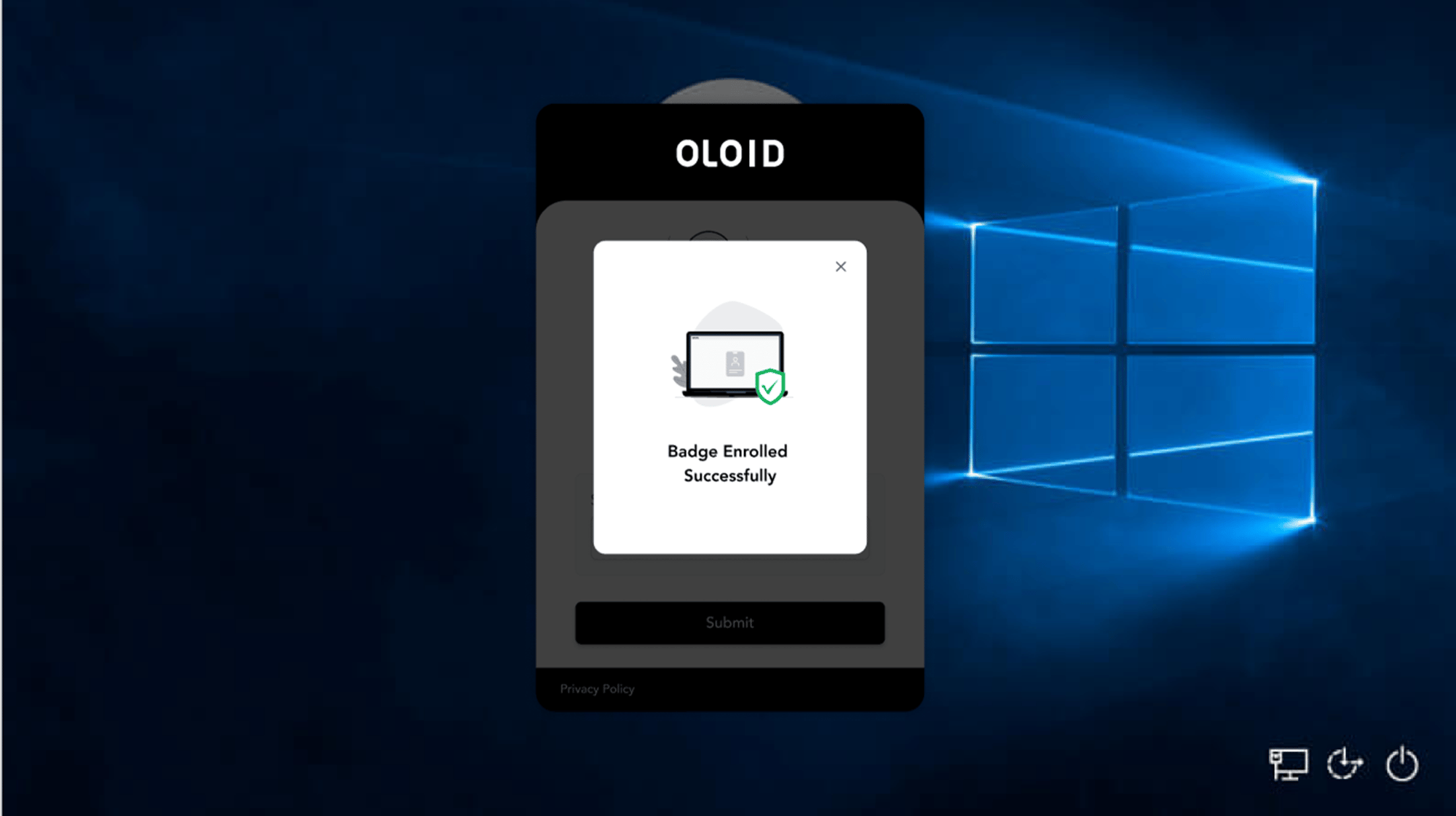
Click Submit.
The badge is enrolled successfully.
Windows Login - How to Enroll Badge
This document provides step-by-step instructions for enrolling badge through Windows Login app.
Introduction
This document provides step-by-step instructions for enrolling badge through Windows Login app.
Steps to enroll badge through Windows Login app:
⌘I