Introduction
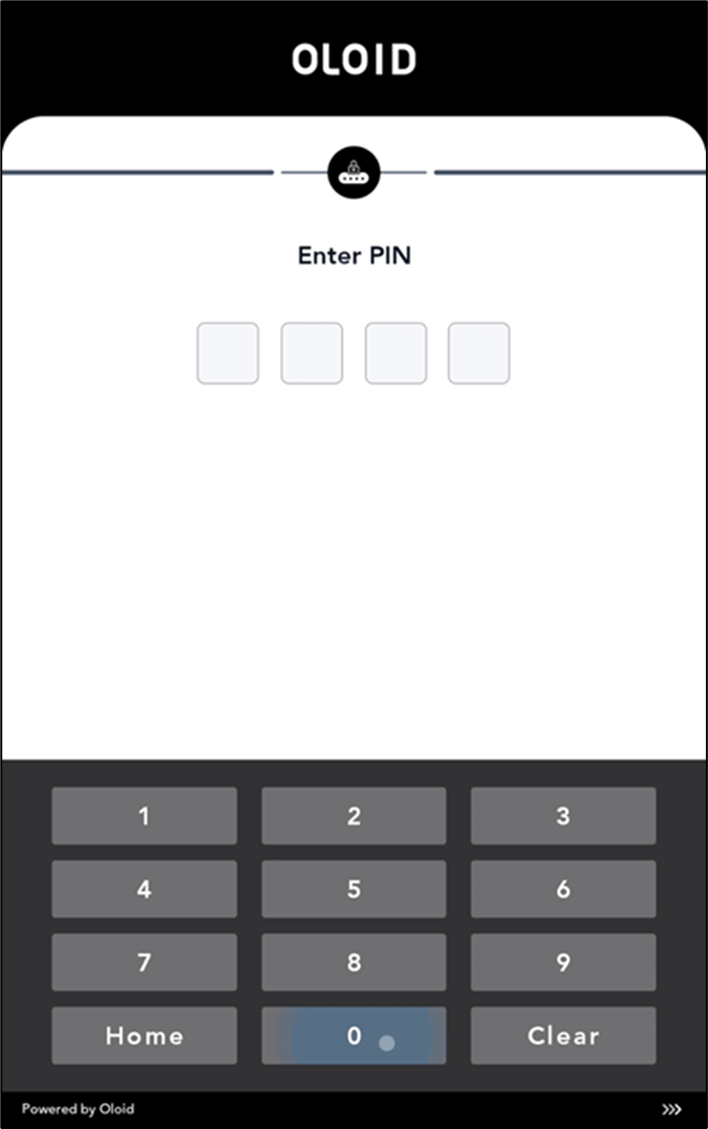
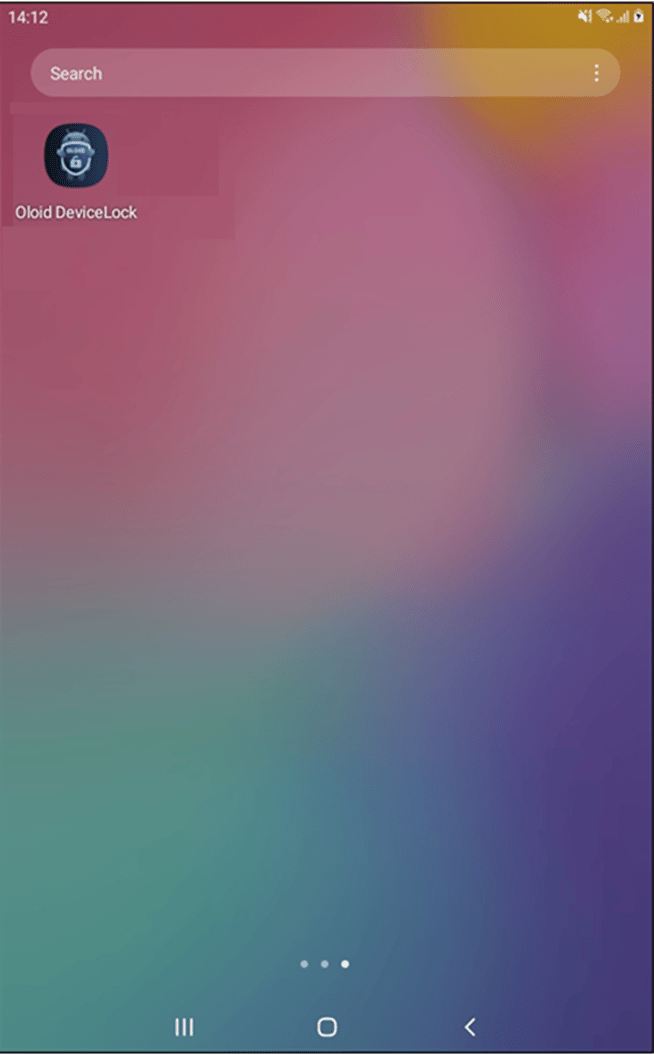
The Oloid DeviceLock app enables users to securely unlock their Android devices using PIN credential. After successful authentication, the device unlocks and redirects to the device home screen.Prerequisite
You must have your assigned PIN.Steps to Unlock the Device
-
Press the Power button or tap the screen on your device.
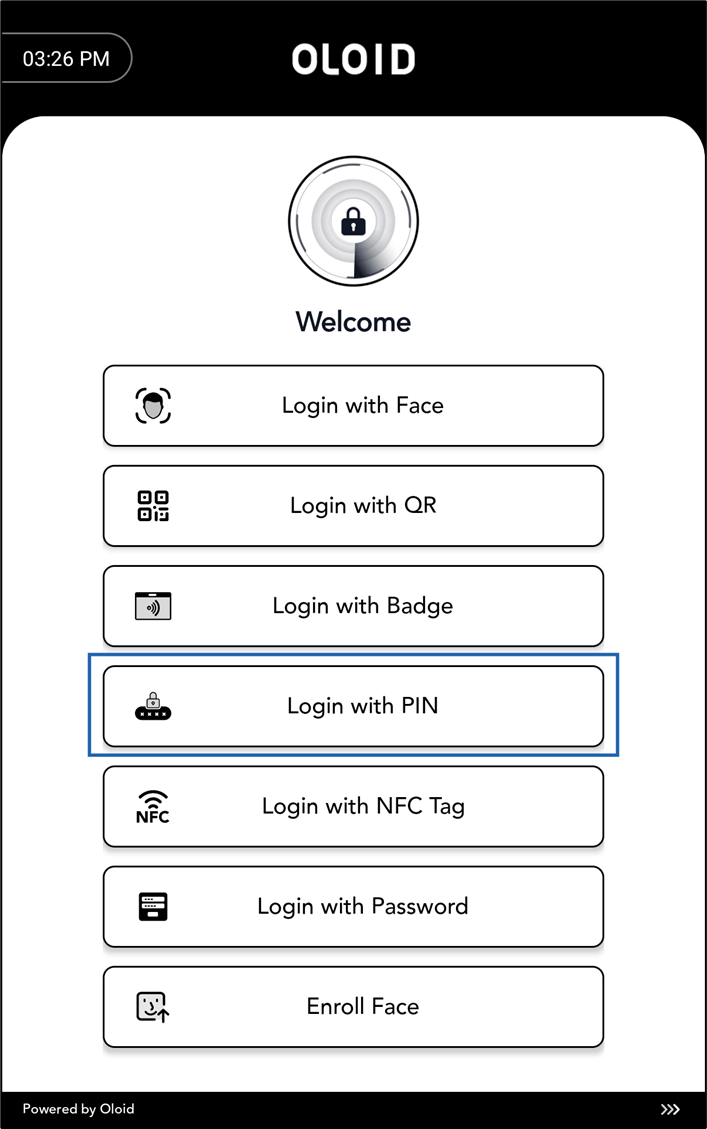
The Welcome screen is displayed.Note: The Device Lock app is displayed automatically, as it always runs in Kiosk Mode.
-
Tap Login with PIN.
Note: The authentication methods (Face, QR, Badge, PIN, NFC Tag and Password) will be visible on the Welcome screen, only if they are enabled for the application. The button names may vary based on the application’s configuration and customization. If you do not see any authentication method available, please contact your support team for assistance.