Introduction
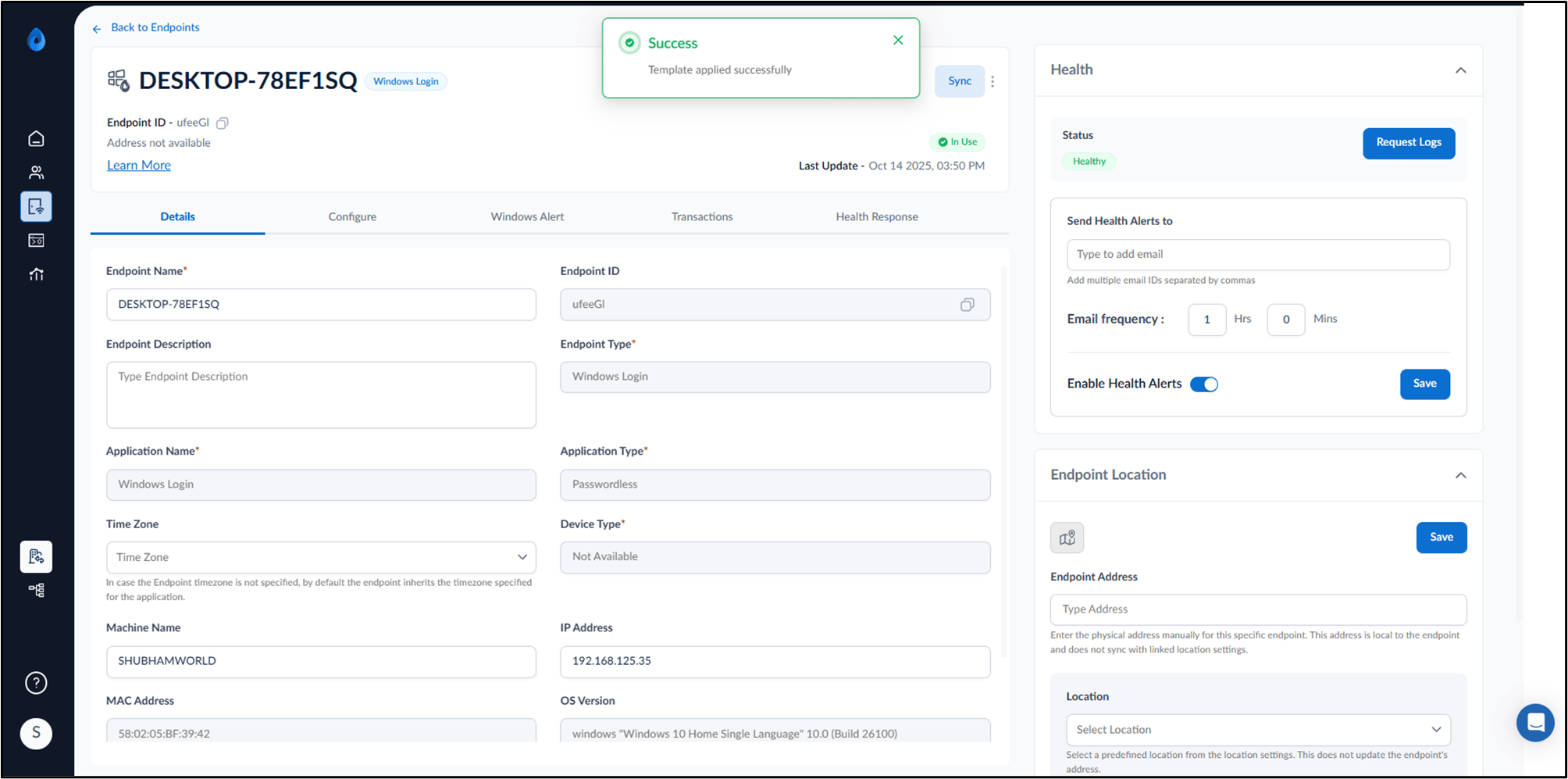
This document describes how to apply an endpoint template in the Tenant Admin Portal after completing auto-pair configuration on the Windows Login application. Applying an endpoint template ensures that predefined settings are consistently and automatically applied across all applicable device(s).Prerequisites
- You must have a Tenant Admin Account.
- The Windows Login App must be auto paired. To auto-pair refer How to Install and Auto-Pair Windows Authenticator App through MDM
- An Endpoint template must be created. To create refer How to create an endpoint template.
Steps to apply Endpoint Template after Auto-pair
- Log in to the Tenant Admin Portal.
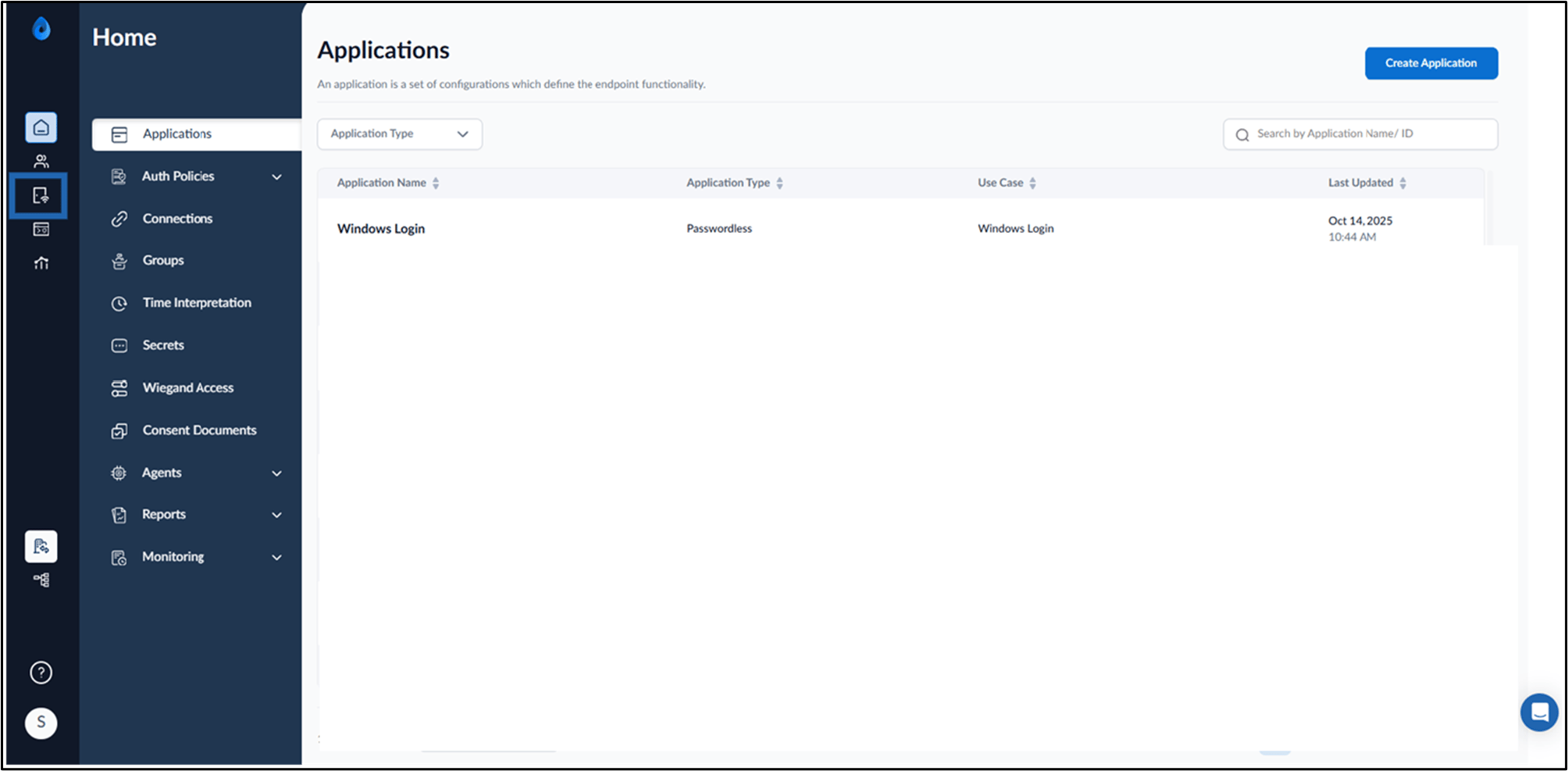
- On the Home page of the portal, click Endpoints from the left panel menu.
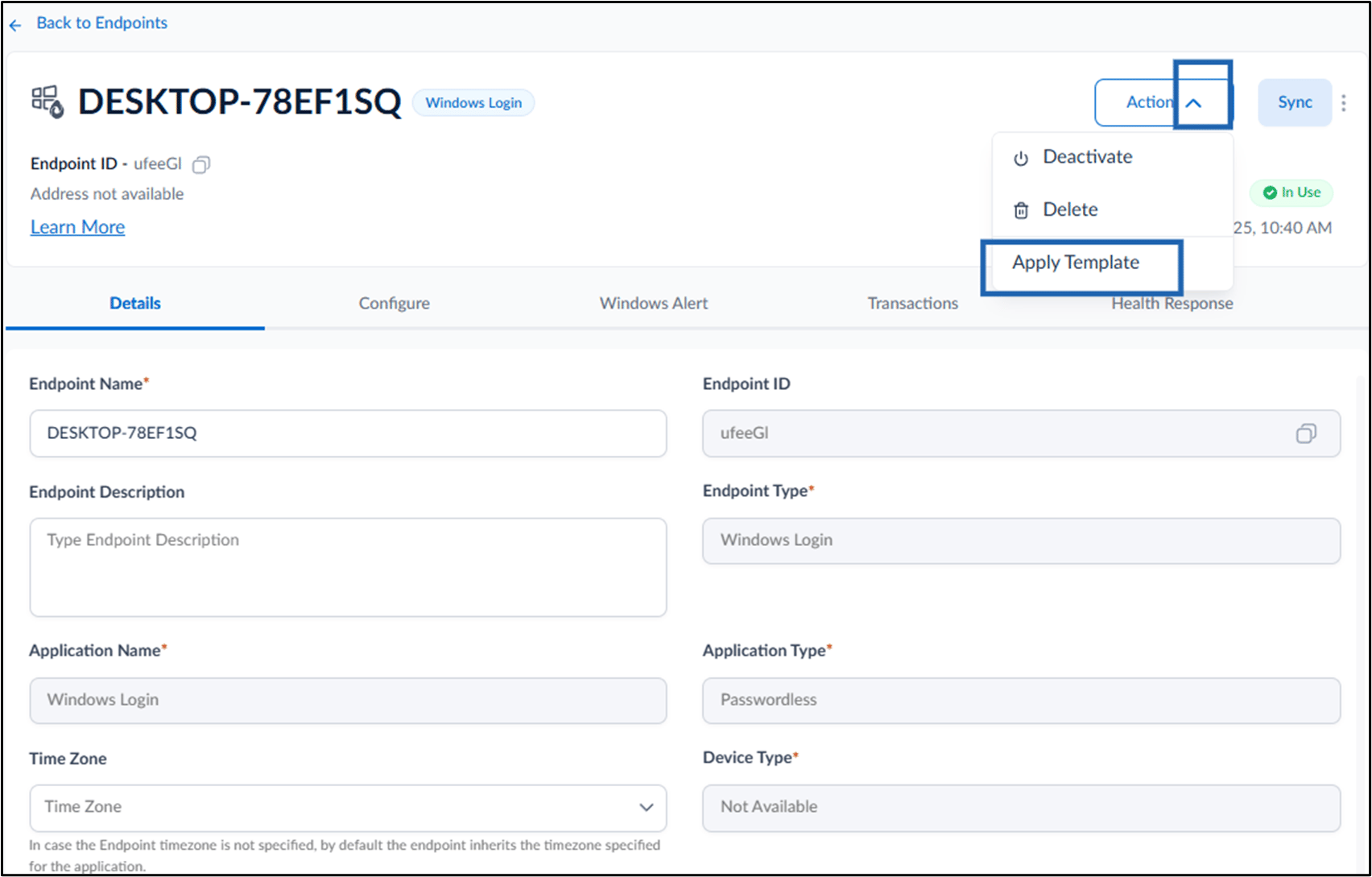
- Select the Endpoint.
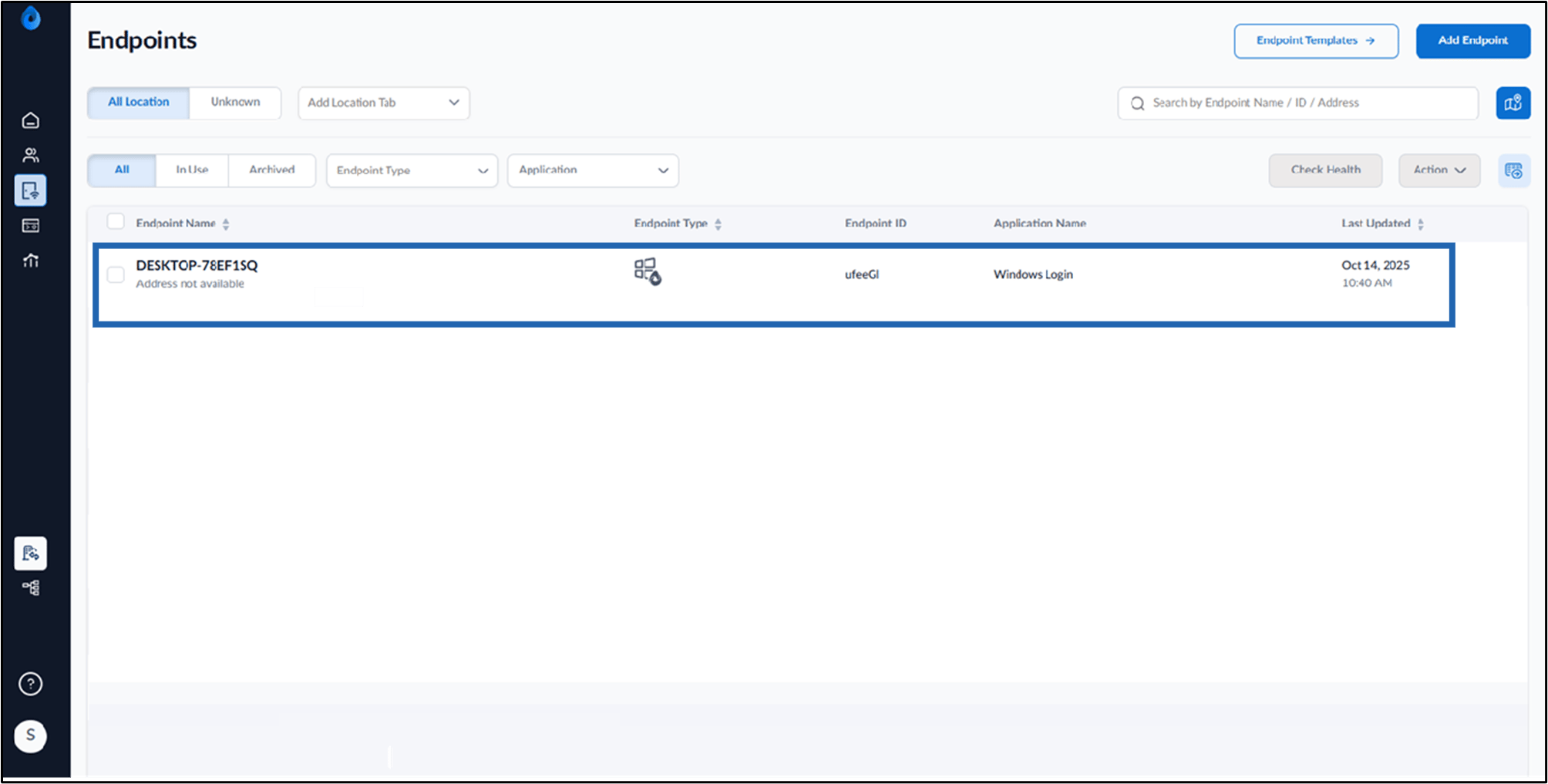
- Select Action dropdown > Apply Template.
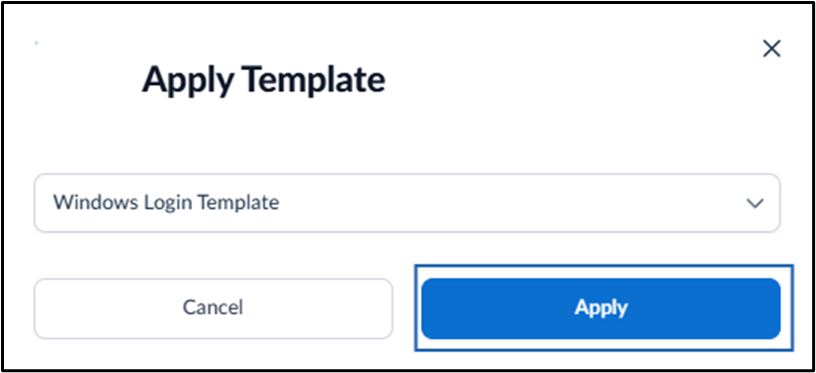
- Choose the applicable template from the Select Template dropdown.
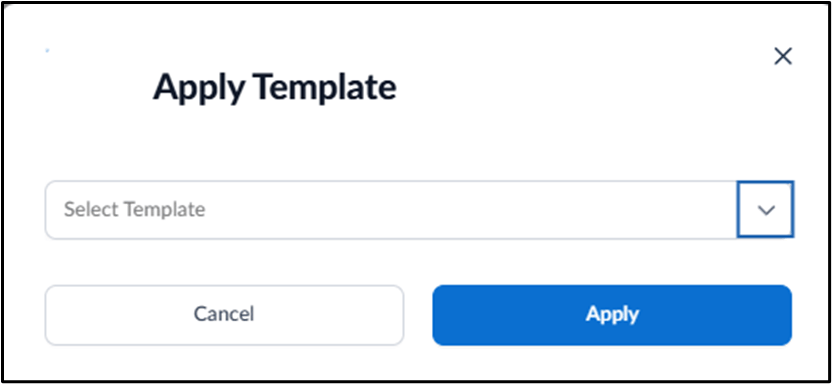
- Click Apply.