

Introduction
The Oloid Windows Login application enables secure, passwordless sign-in. Tenant Admins can configure a default Windows domain in the Tenant Admin Portal to streamline logins in domain-connected environments. Once set, users are automatically directed to the specified domain, making the login process faster and error-free.Prerequisites
The Allow Credential Updates and Enrollment toggle must be enabled for the application. For more details refer the configure section of this document How to create and configure Windows Login application.Steps to enable Windows default domain
- Log in to the Tenant Admin Portal.
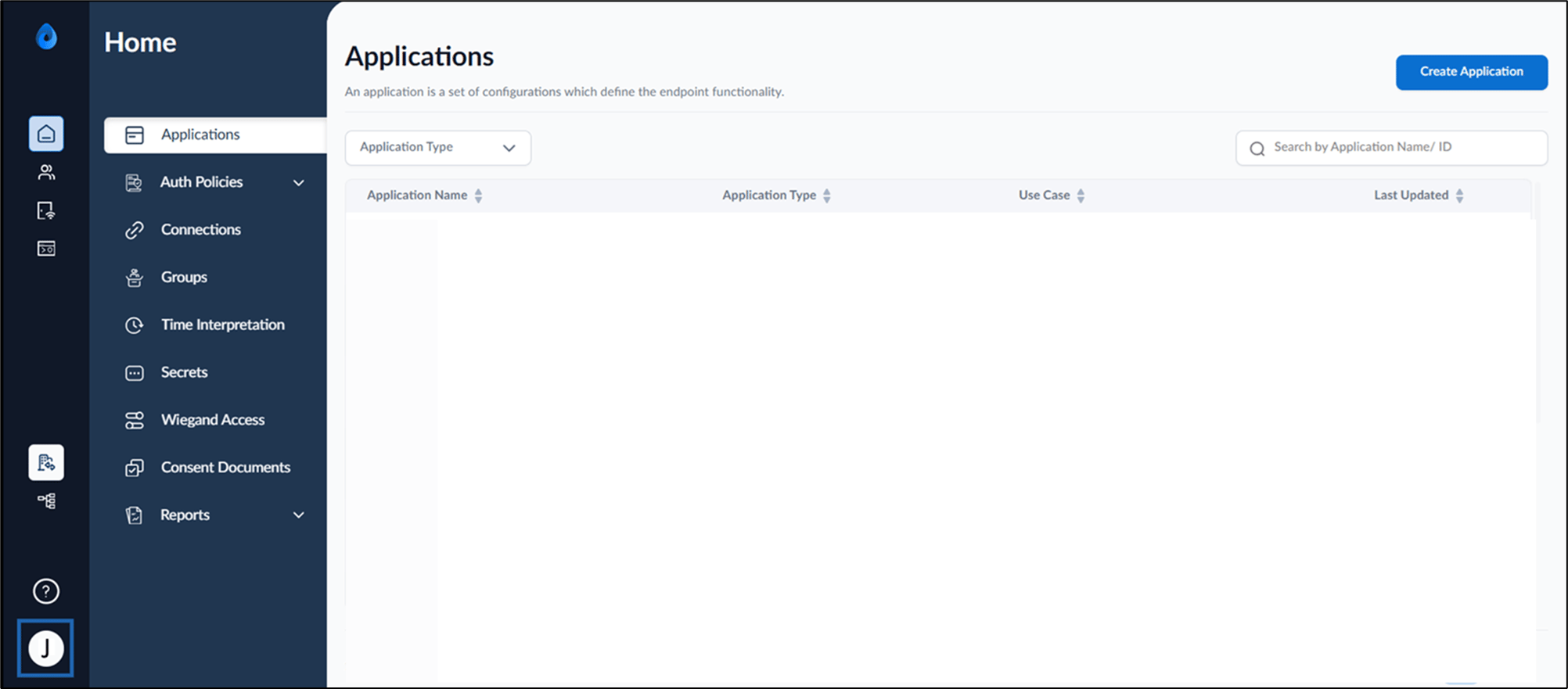
- On the homepage of the portal, click user profile icon on the bottom left corner of the menu panel.
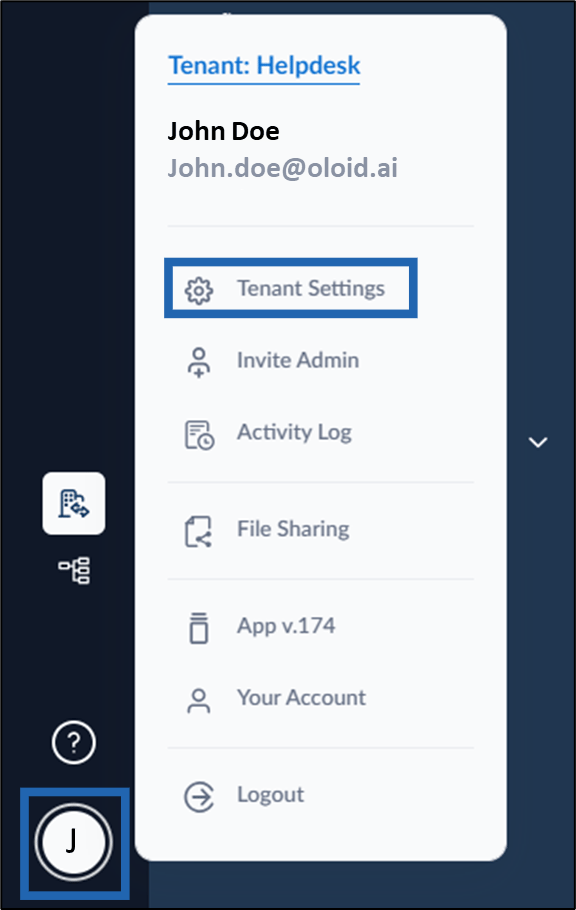
- Go to Tenant Settings.
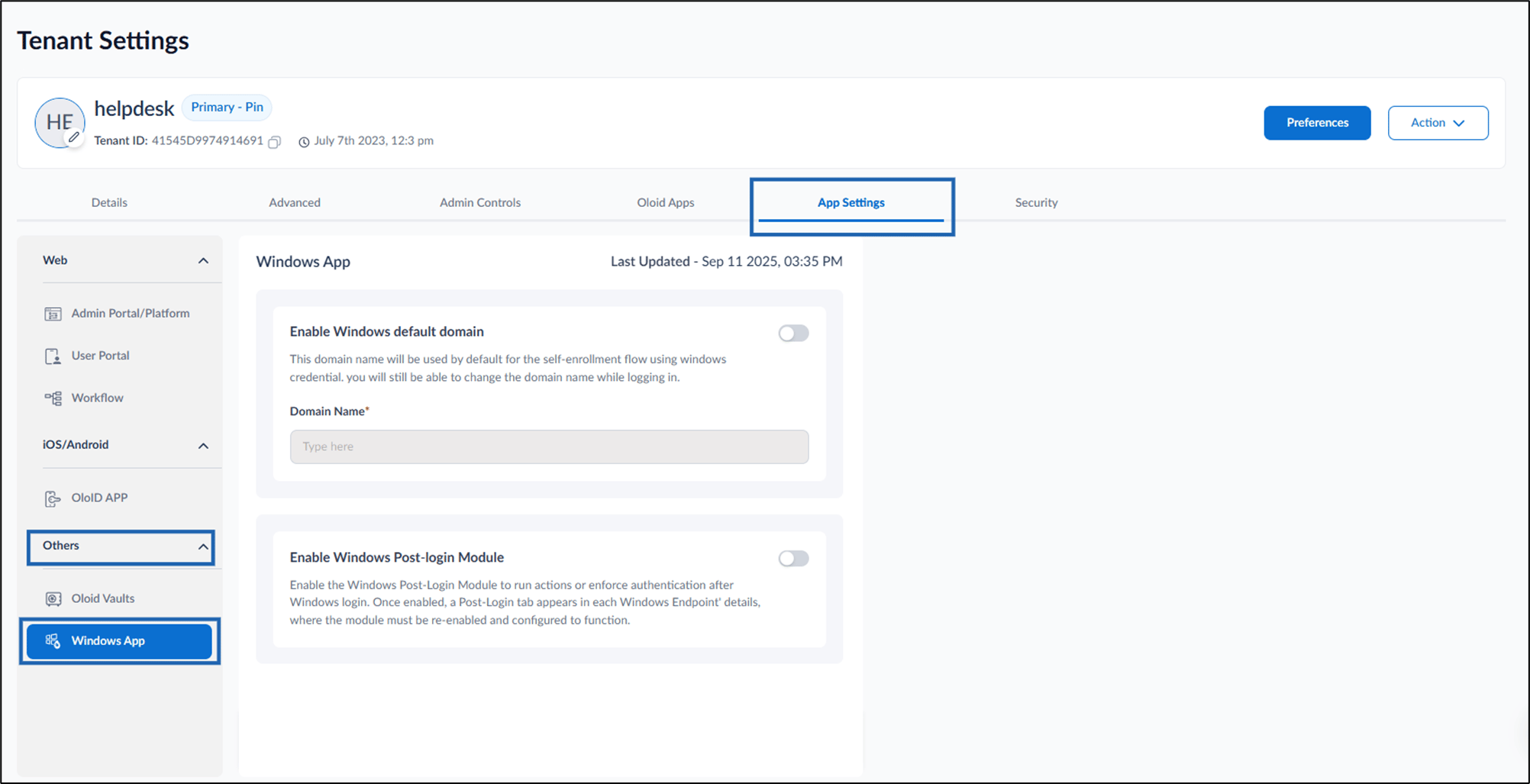
- Go to App Settings tab > others > Windows App.
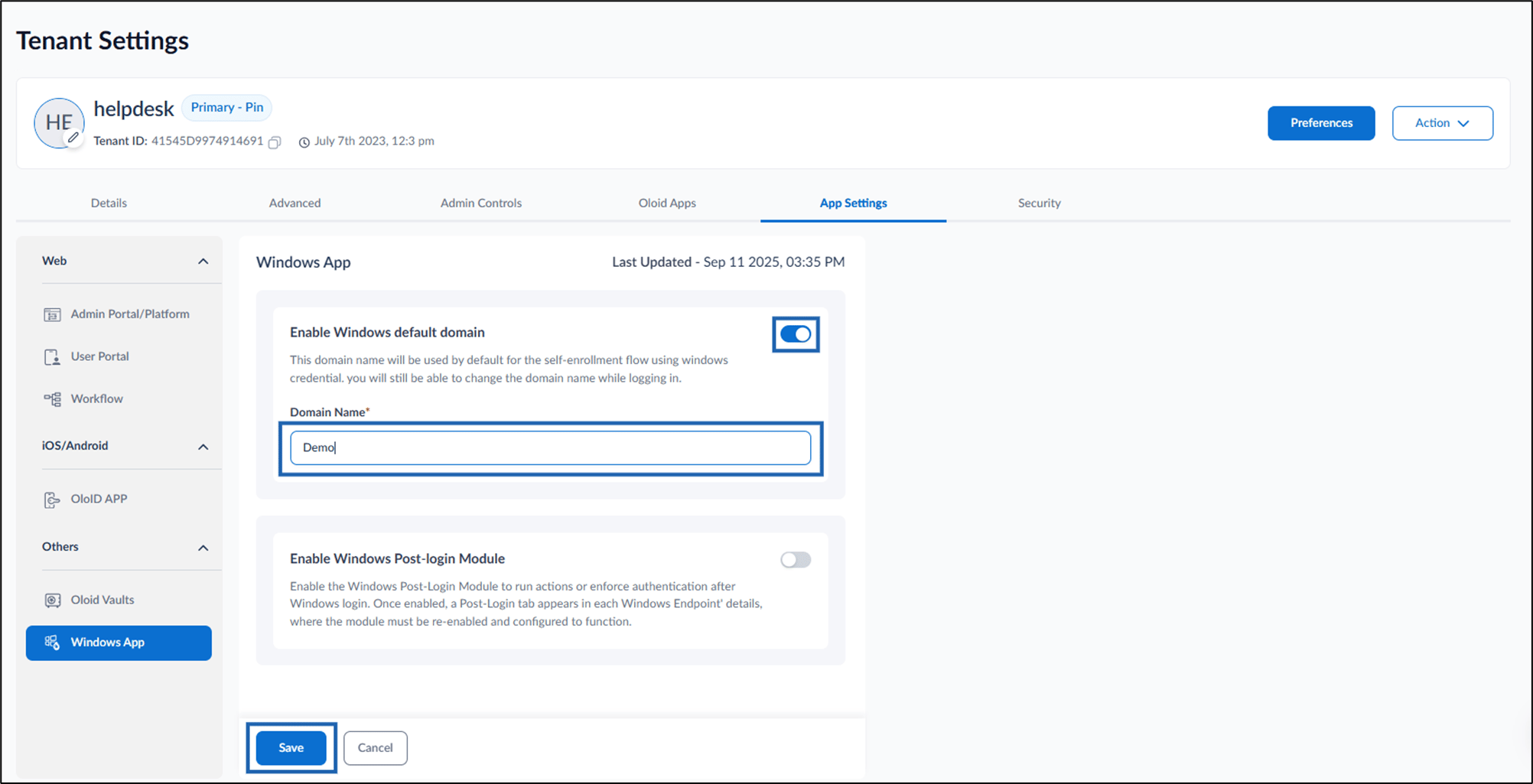
- Do the following:
- Turn on Enable Windows default domain toggle.
- Enter Domain name in the text field.
- Click Save.
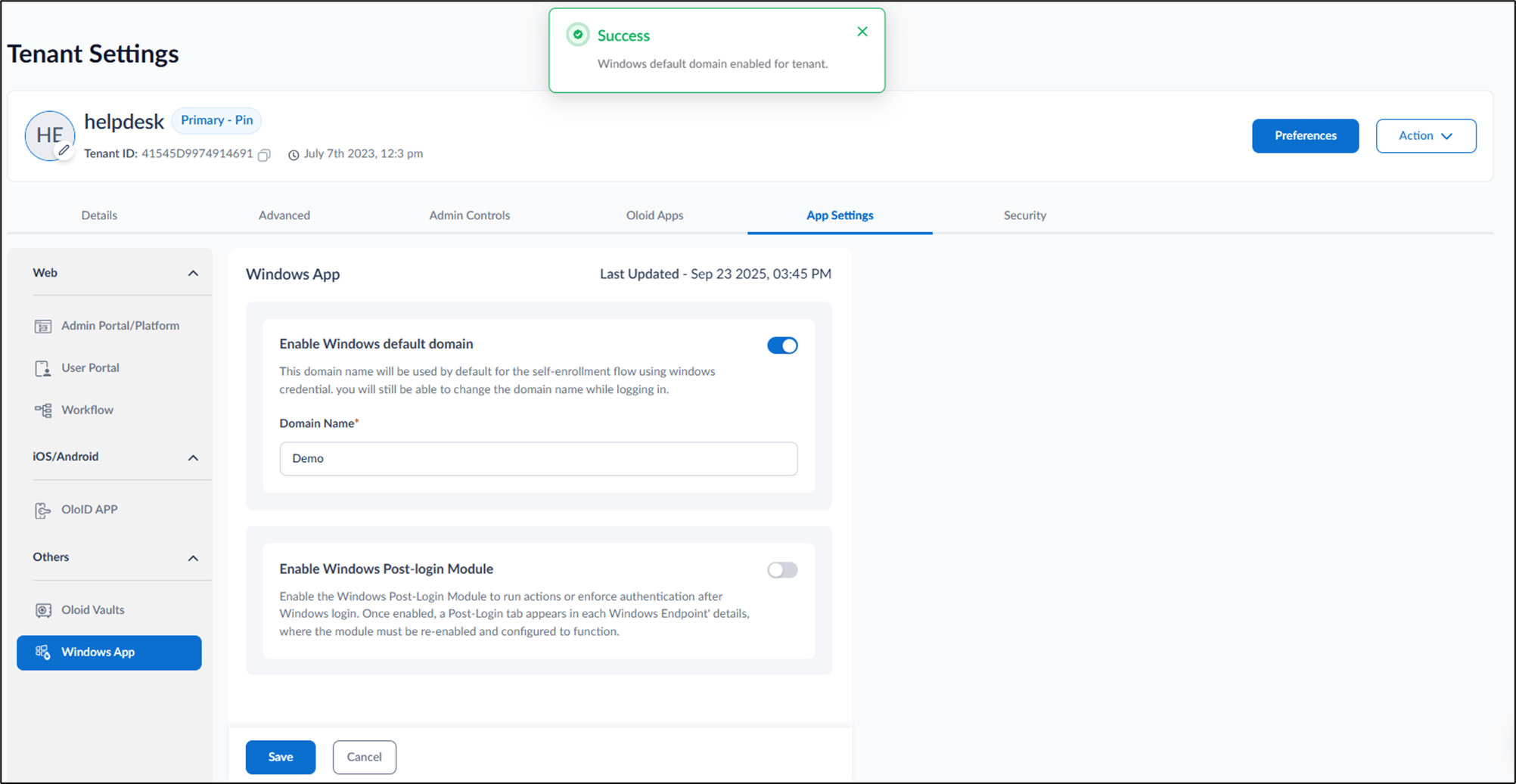
Sync Configuration to Apply Changes
After enabling the Windows Default Domain, you must sync the configuration in the Supervisor App to apply the changes. For detailed steps, see How to sync configuration in Supervisor App. Once the configuration is synced, you can view the changes during login. A sample preview screen is shown below for reference.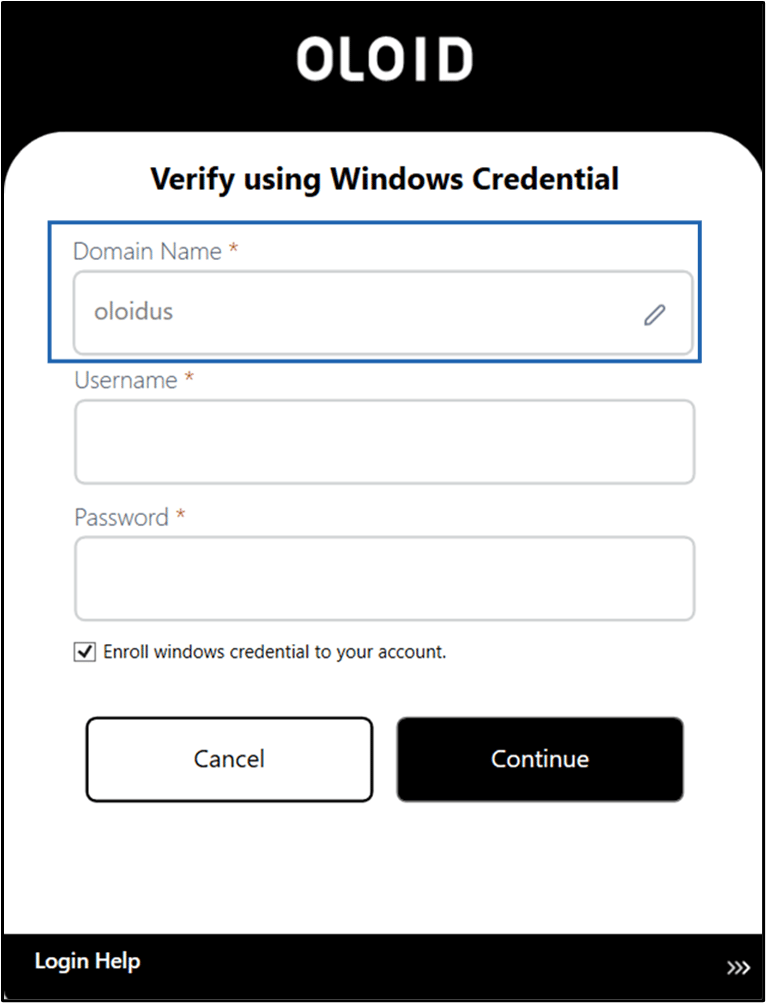
Keywords | Windows default Domain Configuration | Enable Default Domain for Windows Login |