Introduction
The NFC/ID credential feature in the Tenant Admin Portal allows admin to enable NFC-based authentication for the Windows Login application. Once enabled, users can log in to Windows endpoints by scanning an NFC card or tag.Prerequisite
You must have Tenant Admin Access.Steps to Enable NFC/ID credential
- Log in to the Tenant Admin Portal.
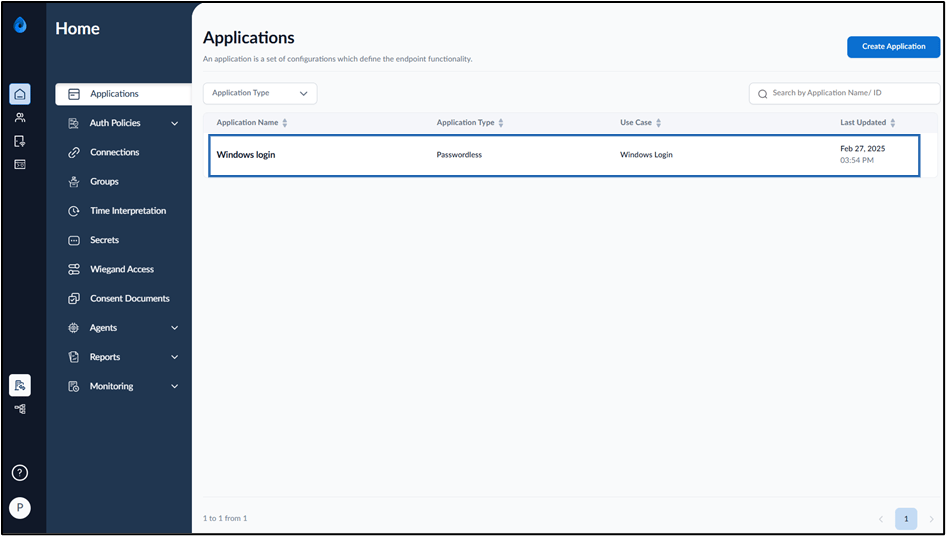
- On the Applications page, click the Windows Login application.
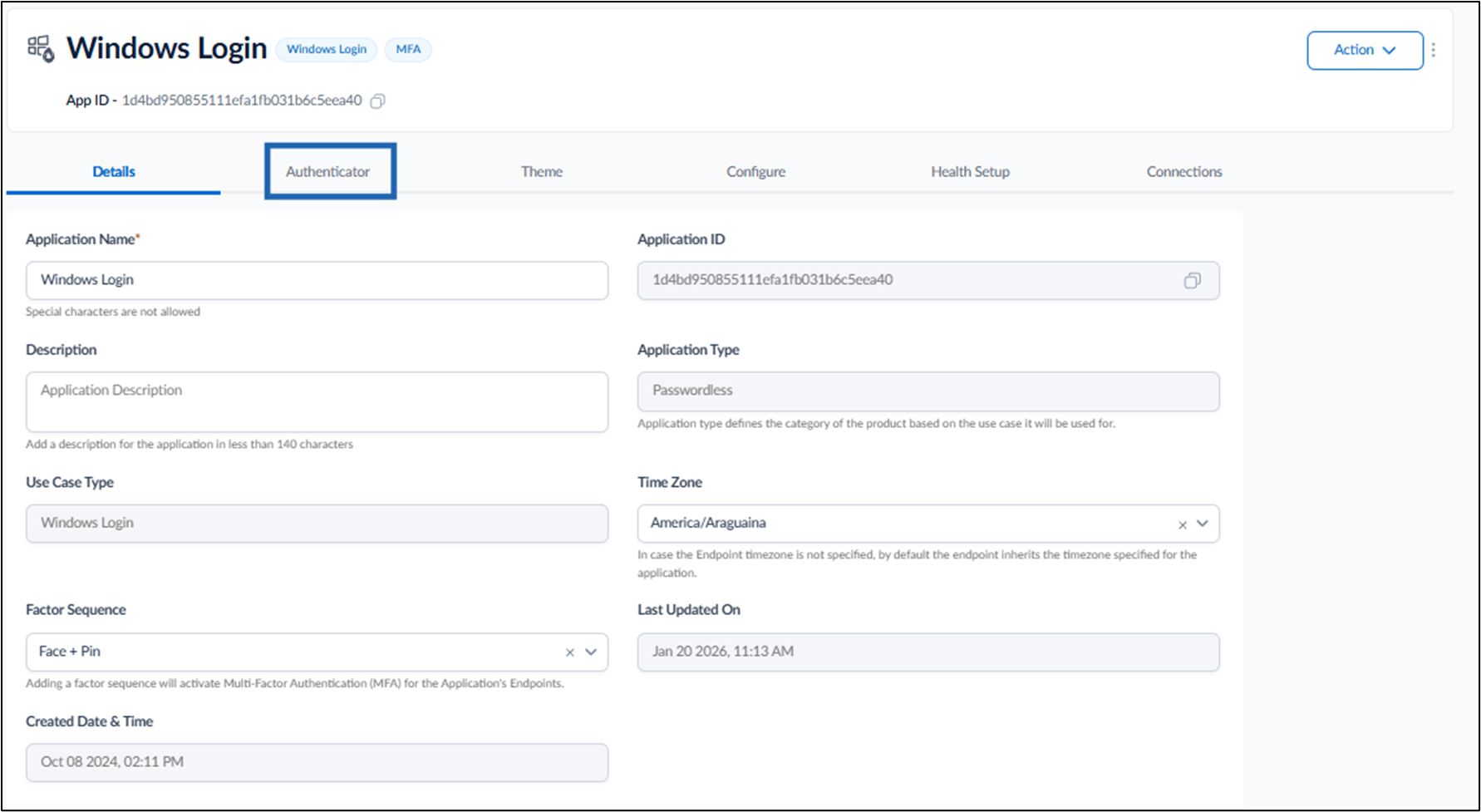
- Go to the Authenticator tab.
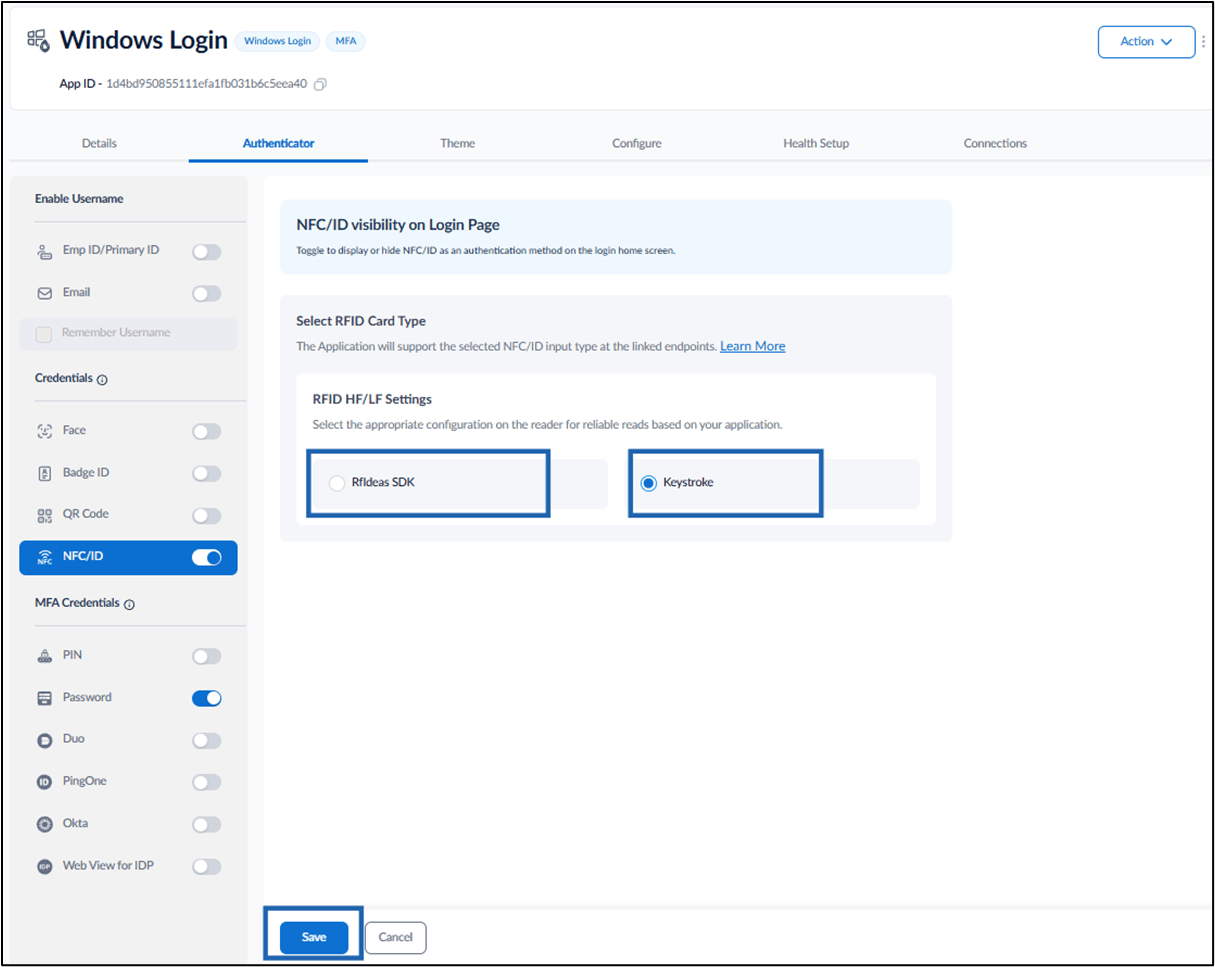
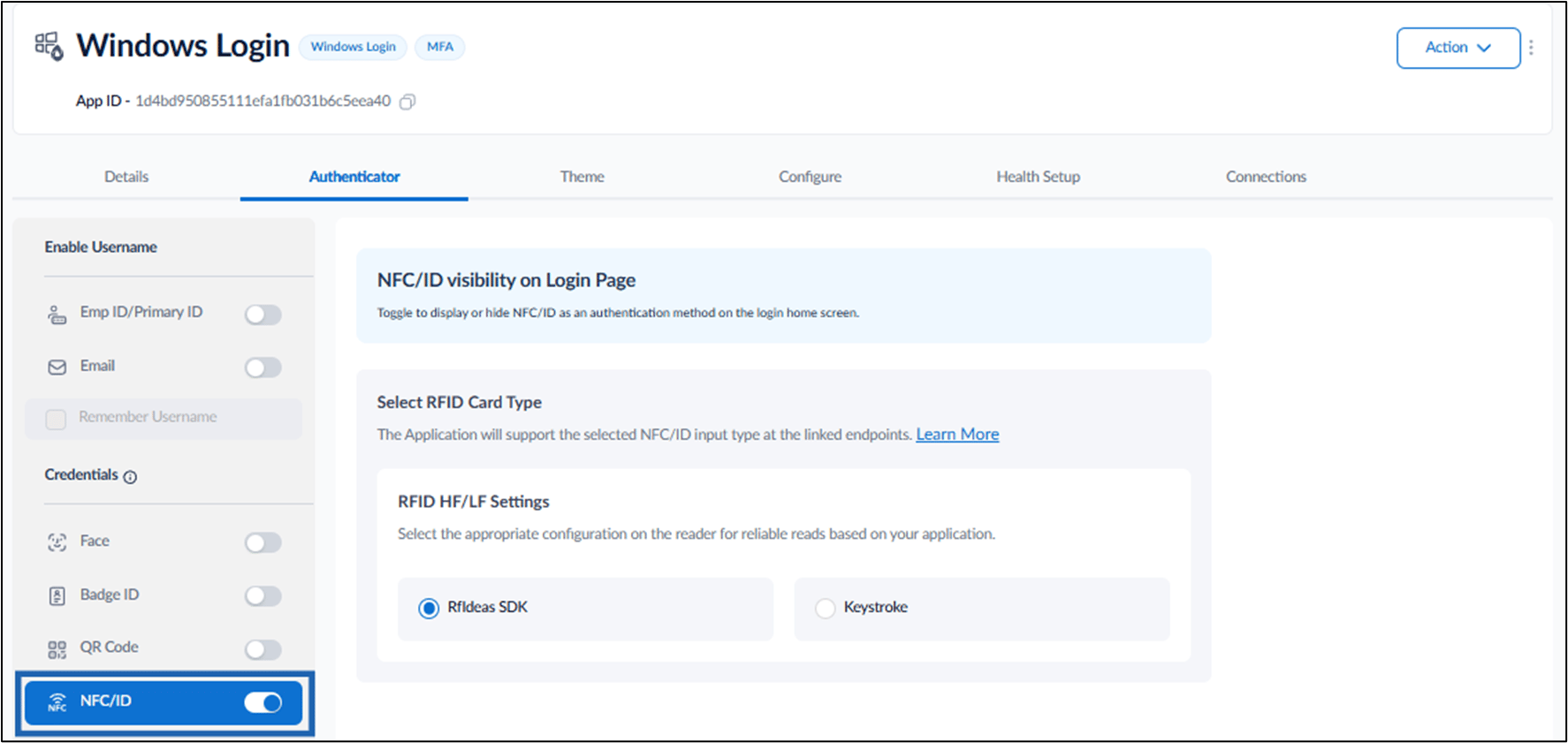
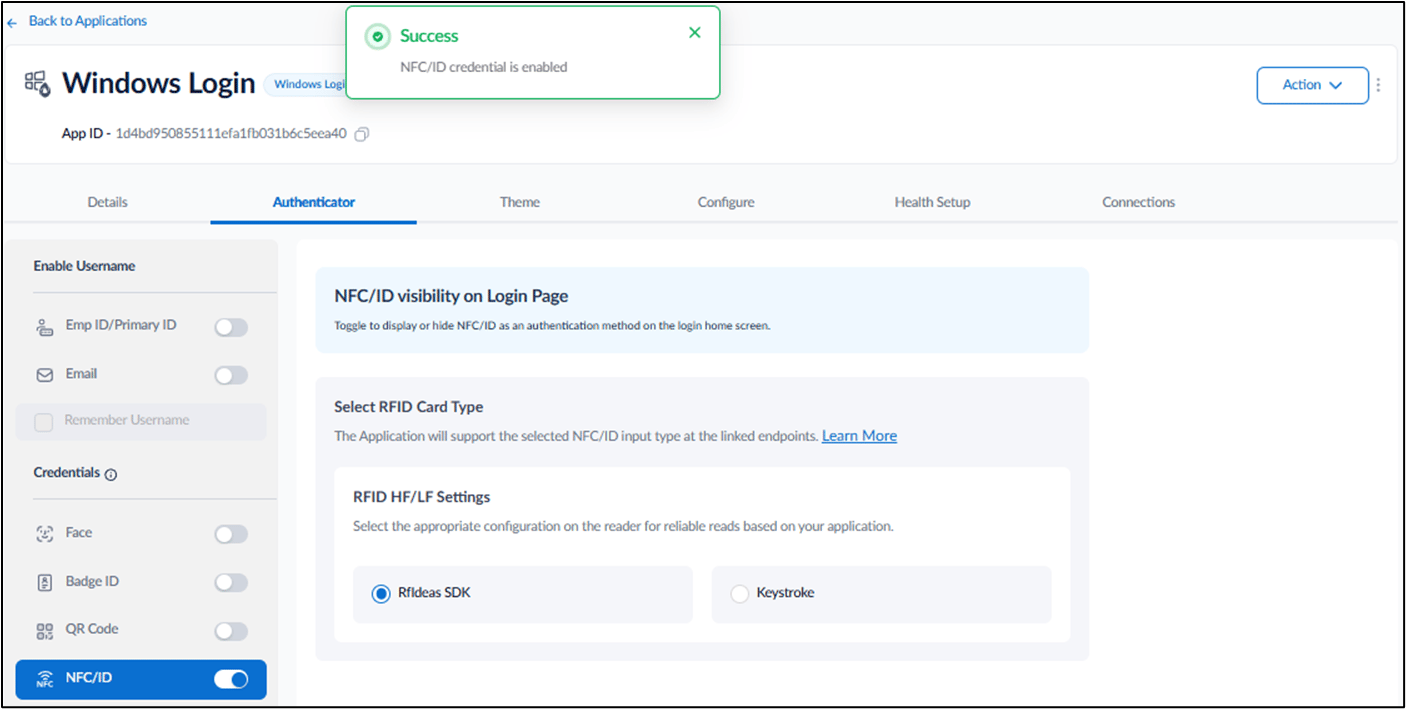
- Turn on the NFC/ID toggle.
Configure the NFC/ID
-
Under RFID HF/LF Settings, do one of the following:
-
RfIdeas SDK: Select this option to authenticate users using an NFC card or tag.
Note: NFC/ID enrollment is supported only through the Supervisor app.
-
Keystroke: Select this option to authenticate users using an NFC card or tag, or through keyboard input.
Note: NFC/ID enrollment is supported through both the Supervisor app and the Tenant Admin Portal.
-
RfIdeas SDK: Select this option to authenticate users using an NFC card or tag.
-
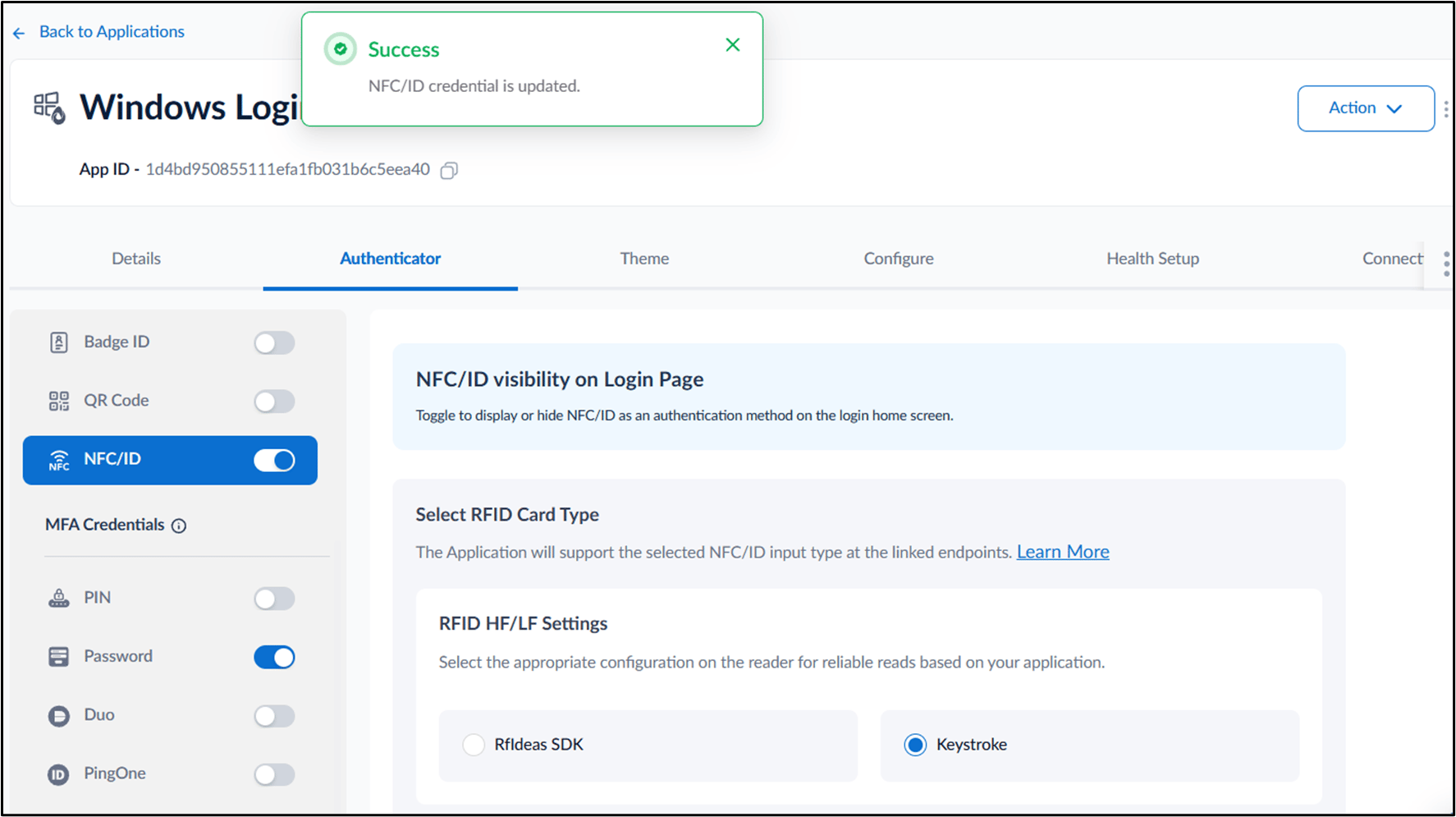
Click Save.