

Introduction
You can configure the auto-update feature in Windows application endpoint from the Auto Update tab. This feature allows you to override the default auto-update configuration inherited from the application level. Based on your requirement, you can disable auto-updates entirely for a specific endpoint or define a custom update schedule.Steps to Configure Auto Update
- Log in to the Tenant Admin Portal.
-
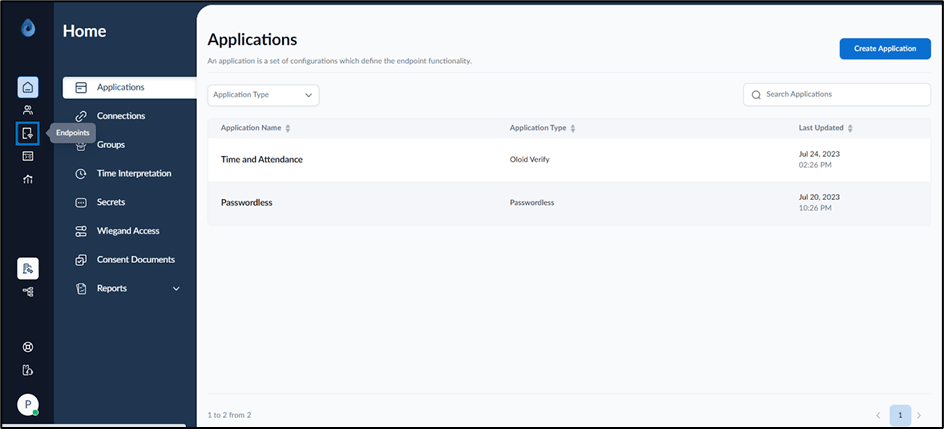
On the homepage of the portal, click Endpoints on the left panel menu.
-
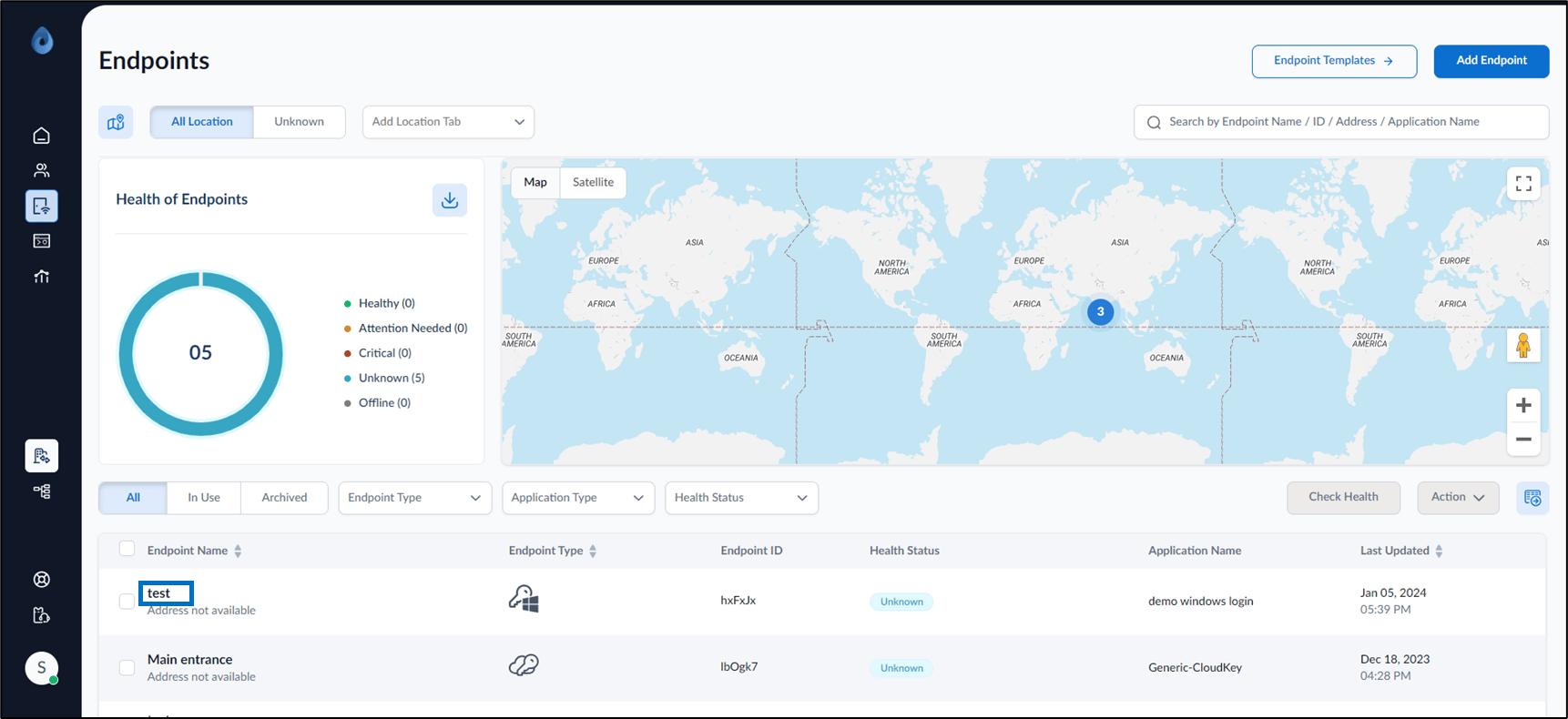
Click Endpoint Name to edit.
-
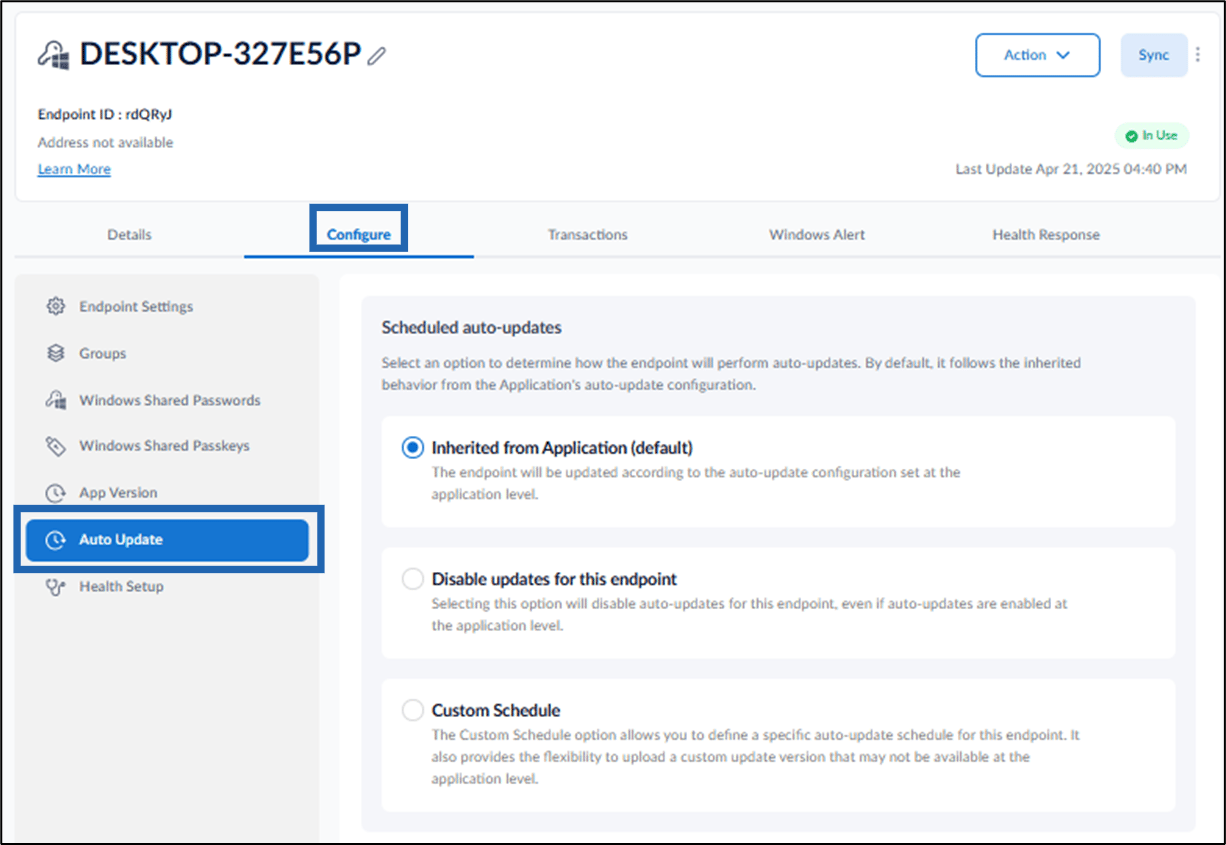
Go to Configure tab > Auto Update section.
-
Select one of the following options:
- Inherited from Application (default): Select this option to use the application’s auto-update configuration.
- Disable updates for this endpoint: Select this option to stop automatic updates on the endpoint, even if automatic updates are enabled at the application level.
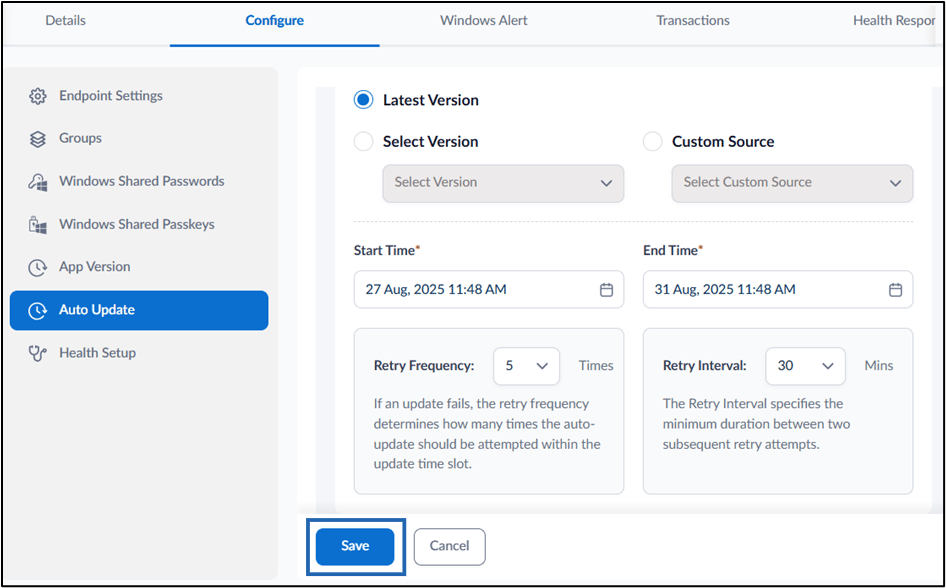
- Custom Schedule: Select this option to define a specific update schedule and select the latest or specific version.
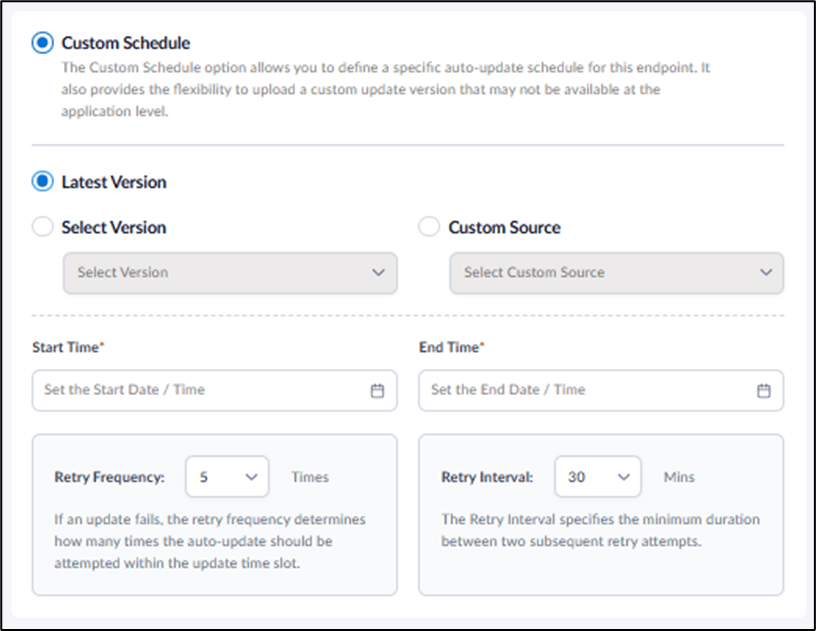
- Select Latest Version to install the latest available version.
- Select Version: Select this option to choose a specific version that differs from the custom source version.
- Select Custom Source option only if at least one custom source file is listed in the dropdown. If no file is available on the backend, the option remains disabled.
- Set the Start Time and End Time to define the auto update window.
- Configure retry settings:
- Retry Frequency: Number of retry attempts if an update fails.
-
Retry Interval: Time interval between each retry attempt.
Note: The endpoint will attempt to update only within the defined time window. If an update fails, the retry logic is applied based on the frequency and interval specified.
-
Click Save to apply the configuration.
 Note: Make sure to sync the configuration in the Supervisor App to apply the changes. For more, refer to How to sync configuration in Supervisor App