Introduction
This document explains how to configure login options for Oloid Apps in the Tenant Admin Portal. These settings determine how users access the Supervisor App and User Enrollment App after the Windows endpoint is paired.Prerequisites
- You must have access to the Tenant Admin Portal.
- Ensure the Endpoint is paired to the Windows Login Application.
Steps to configure the login options
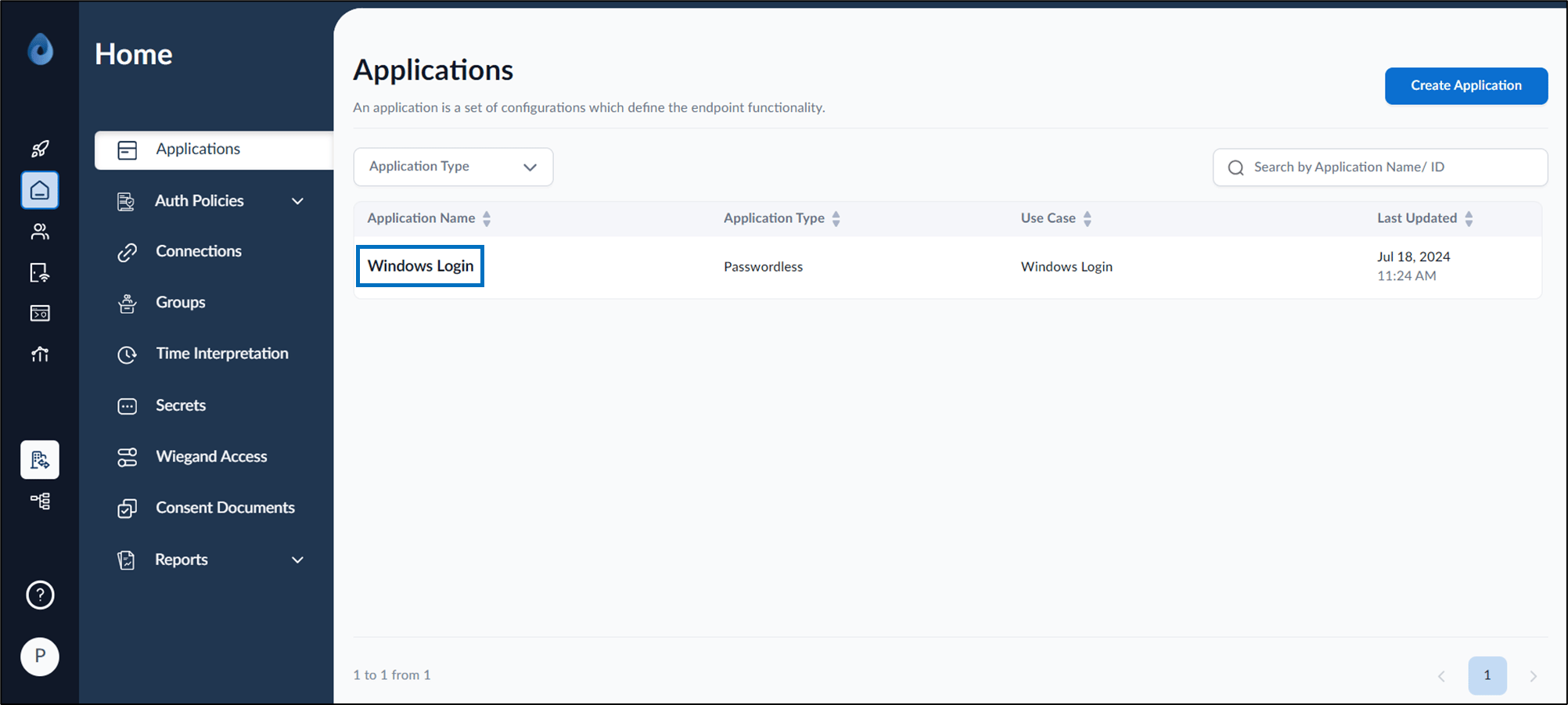
- Log in to the Tenant Admin Portal. Home page is displayed.
-
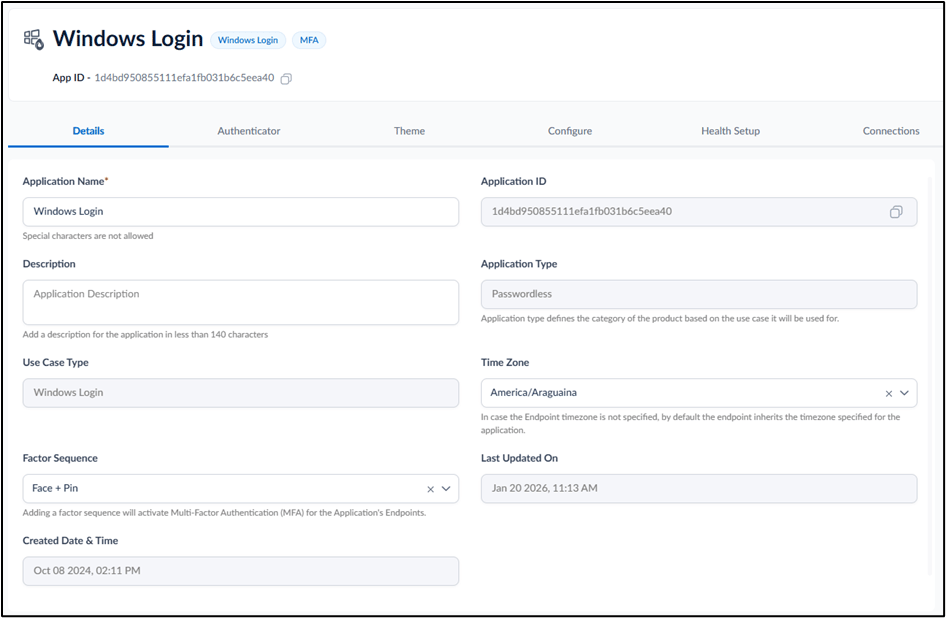
Select the application that is configured in the Supervisor App (Windows Login App).
-
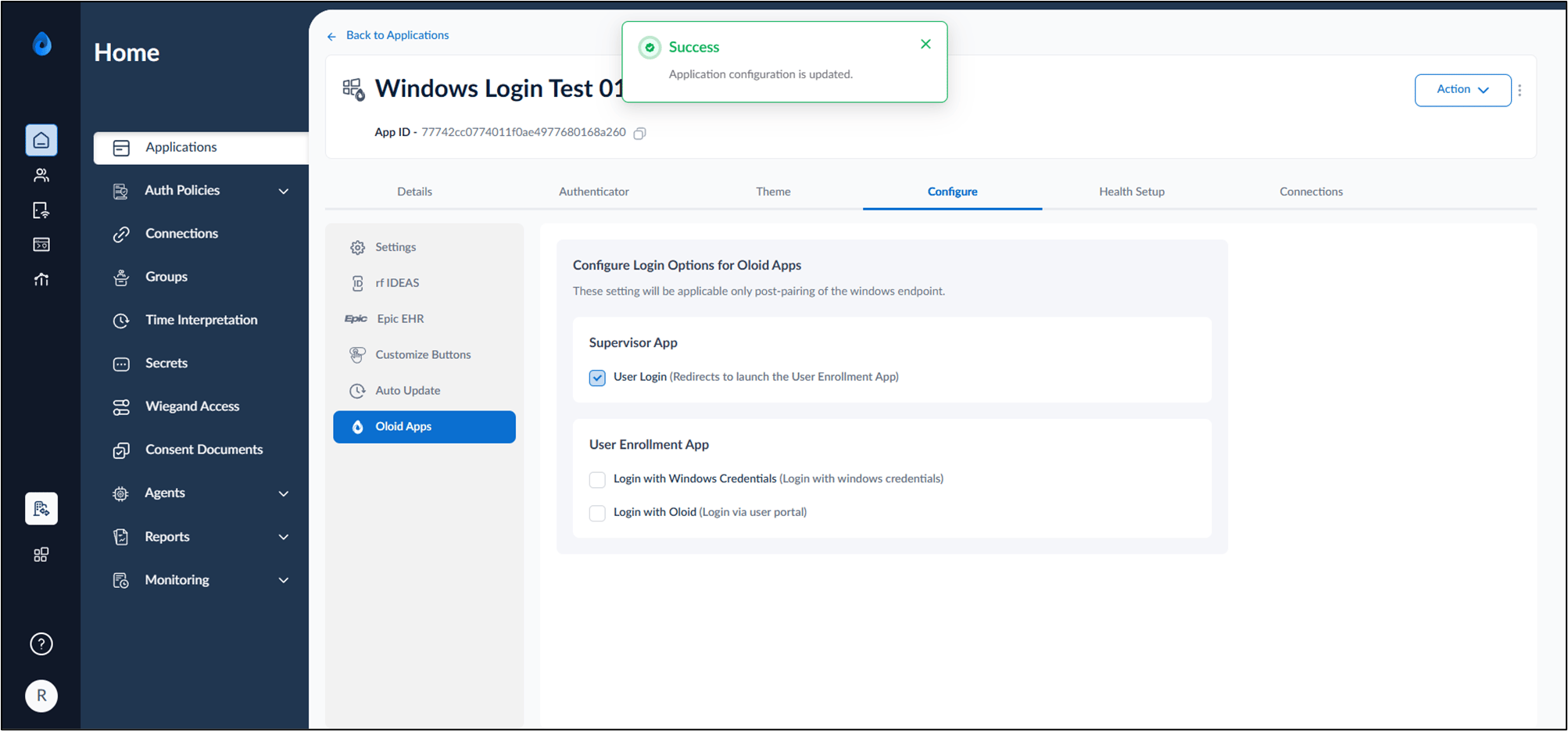
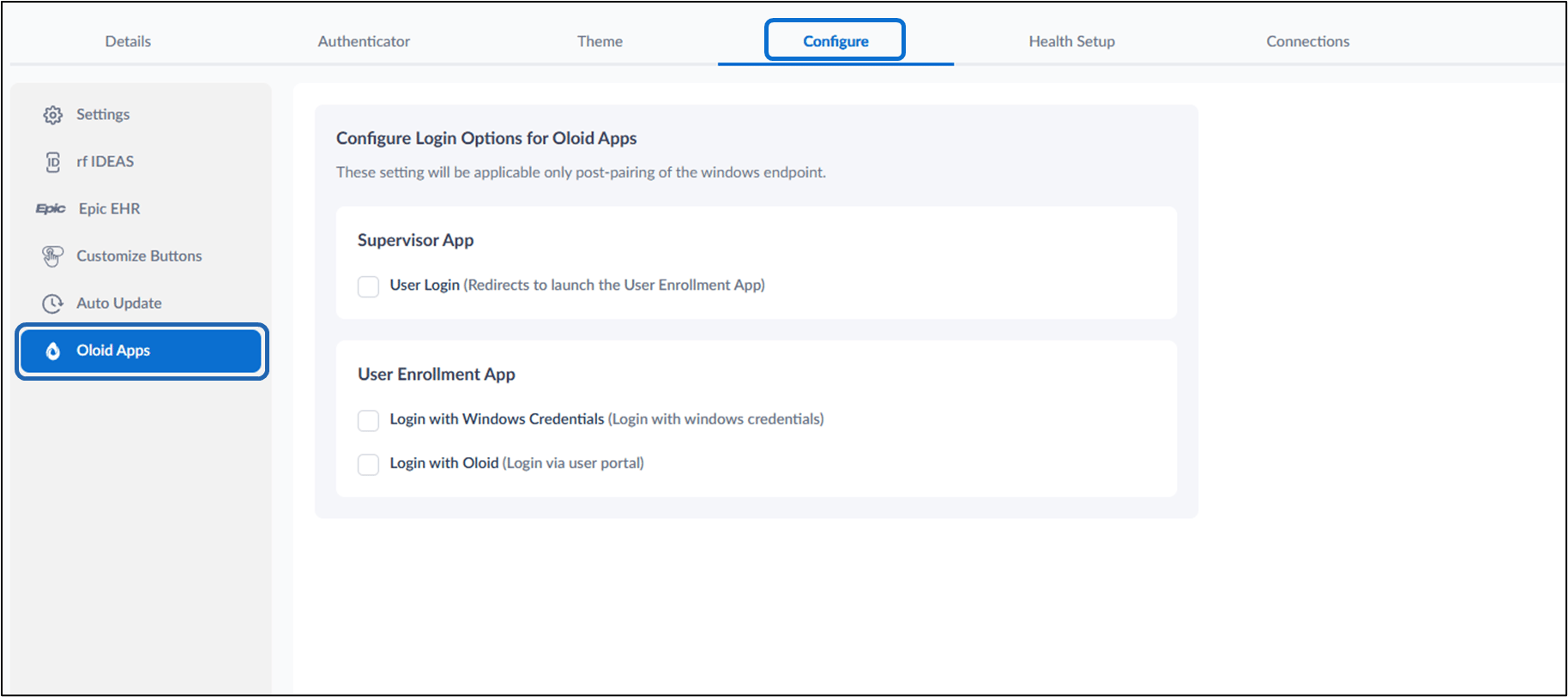
Click Configure tab> Oloid Apps.
-
Do the following:
- In the Supervisor App section:
- Select User Login (Redirects to launch the User Enrollment App) to allow users to be redirected to the User Enrollment App during login.
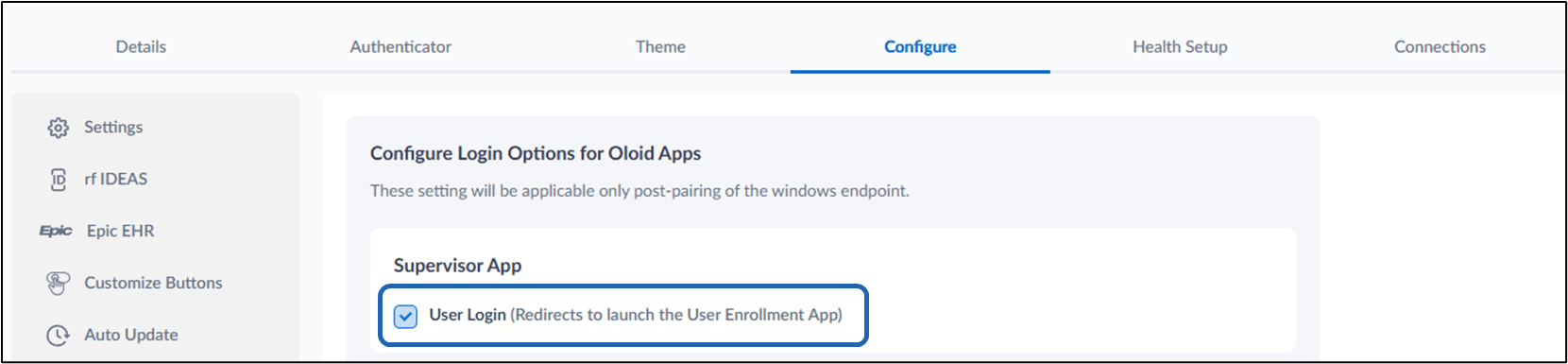
- Select User Login (Redirects to launch the User Enrollment App) to allow users to be redirected to the User Enrollment App during login.
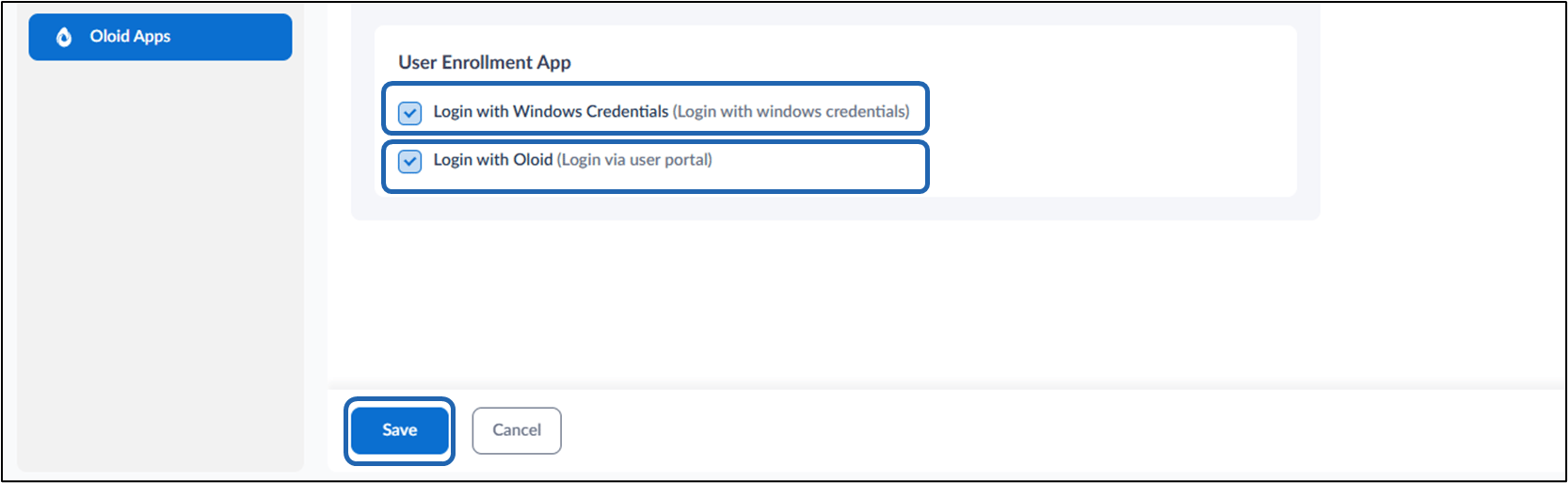
- In the User Enrollment App section:
- Select Login with Windows Credentials to allow users to log in using their Windows credentials.
-
Select Login with Oloid to allow users to log in via the Oloid user portal.
Note: Choose one or both login options based on your authentication requirements.
- In the Supervisor App section:
-
Click Save.