Introduction
This document explains how to enable the Forgot PIN link in Windows Login in the Tenant Admin Portal and configure the settings that allow users to recover or manage their PIN from the Windows Login screen.Prerequisites
- You must have Admin access to the Tenant Admin Portal.
- The Windows Login application must be created and configured. For more, refer to How to create and configure Windows Login application in the Tenant Admin Portal
- You must enable Allow Login Through Local Credentials toggle in Windows Login application. For more, refer to How to Configure Allow Login Through Local Credentials
Steps to Enable the Forgot PIN Link
- Log in to the Tenant Admin Portal.
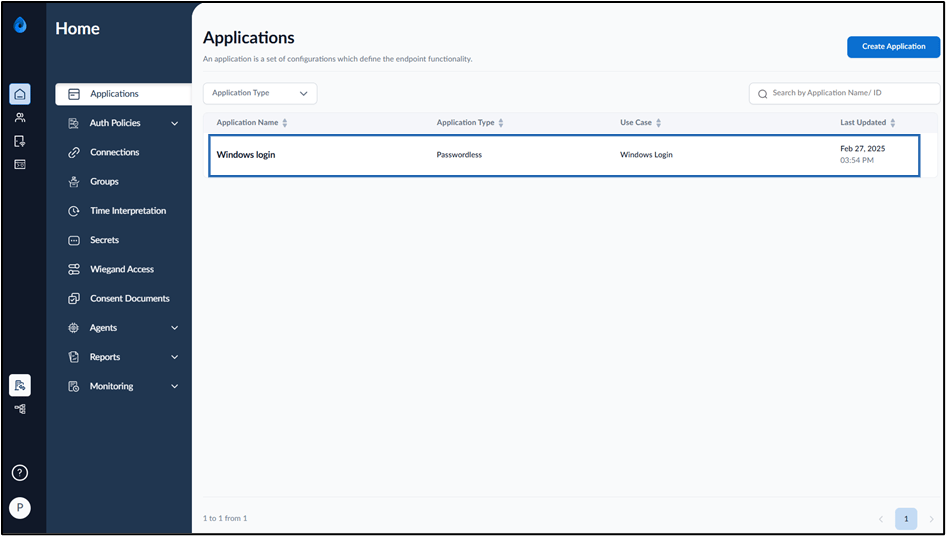
- On the homepage of the portal, select the Windows Login application.
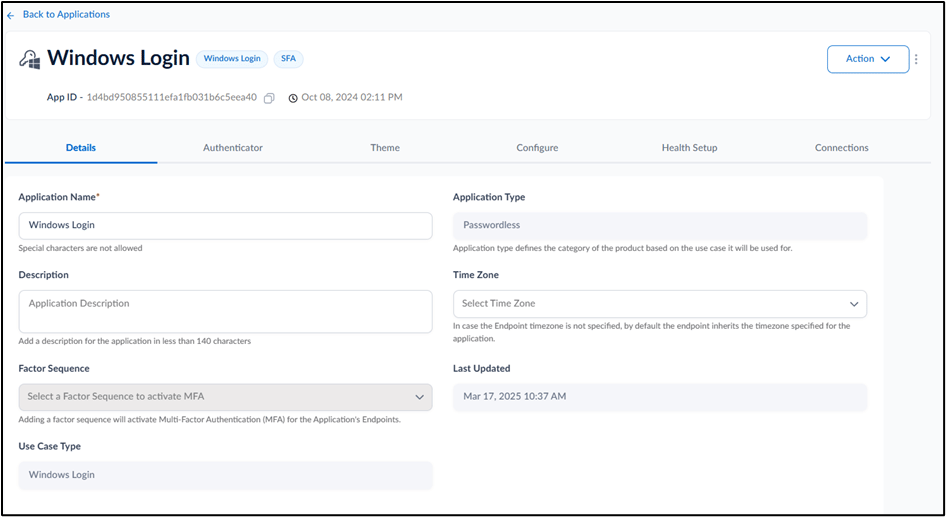
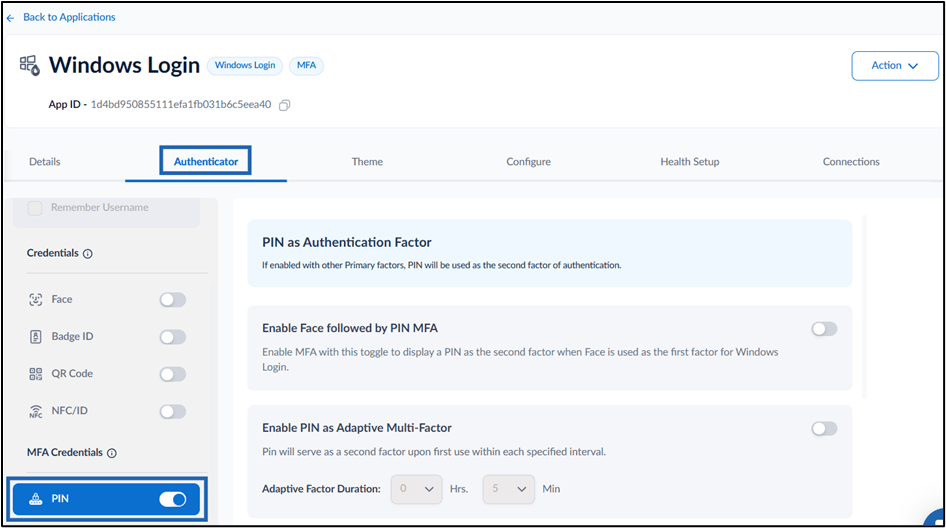
- Go to Authenticator tab.
- Under MFA Credentials, enable the PIN toggle.
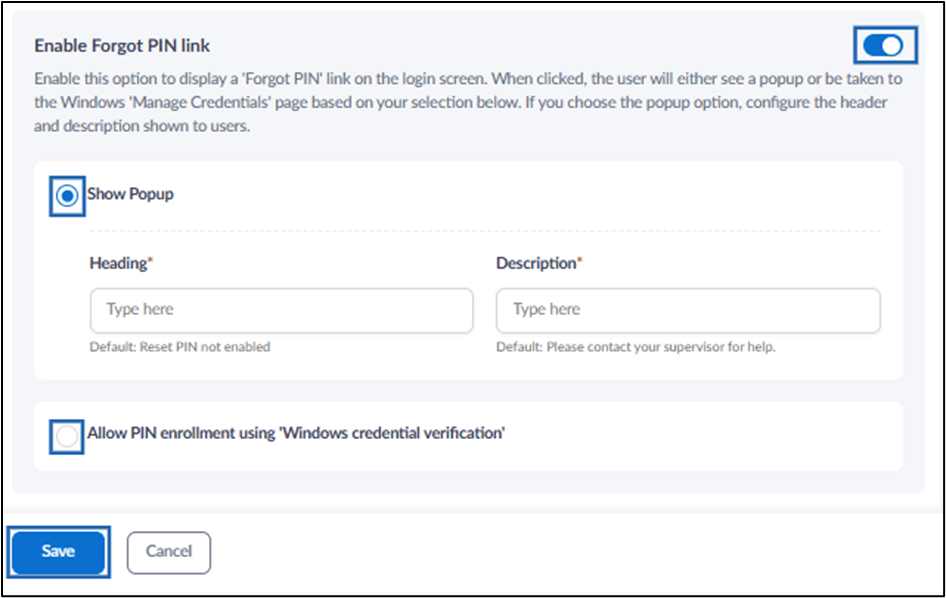
- Enable Forgot PIN link toggle.
- Select one of the following options:
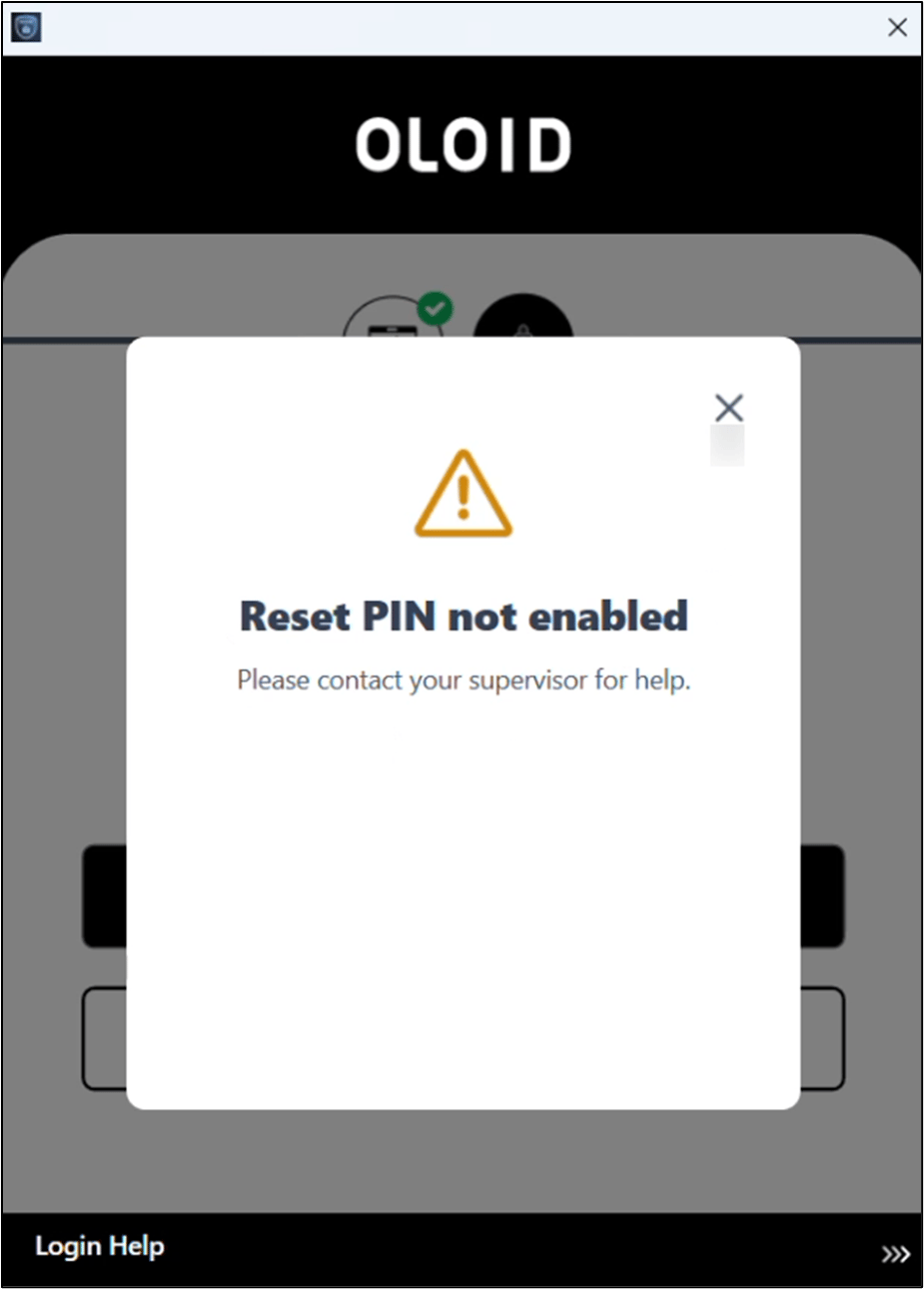
- Select Show Popup to display a popup message with instructions when users click the Forgot PIN link. See, Sample screen.
Do the following:
- Enter the Heading.
- Enter the Description. OR
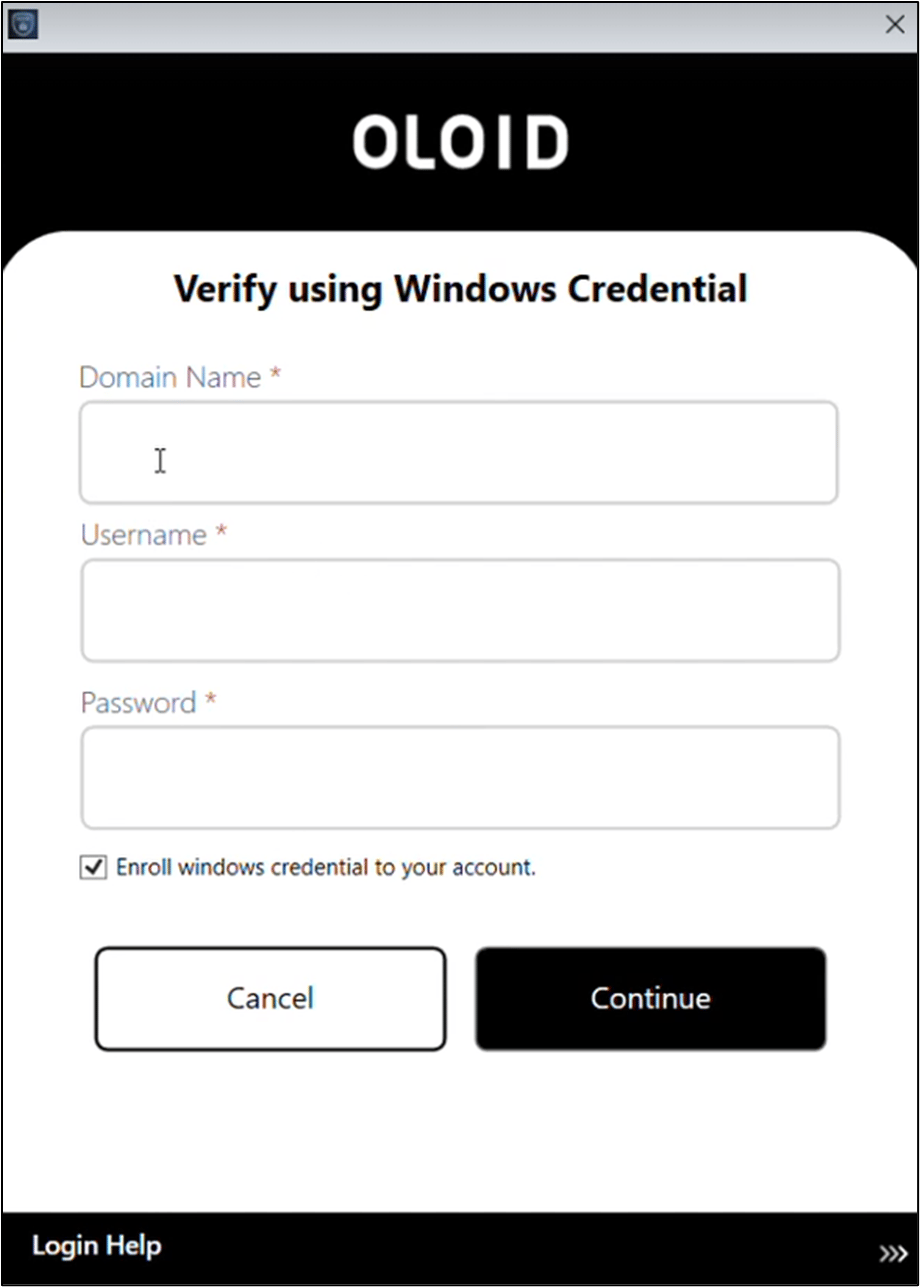
- Select Allow PIN enrollment using ‘Windows credential verification’ to redirects users to the Windows credentials management page. See, Sample screen.
- Select Show Popup to display a popup message with instructions when users click the Forgot PIN link. See, Sample screen.
Do the following:
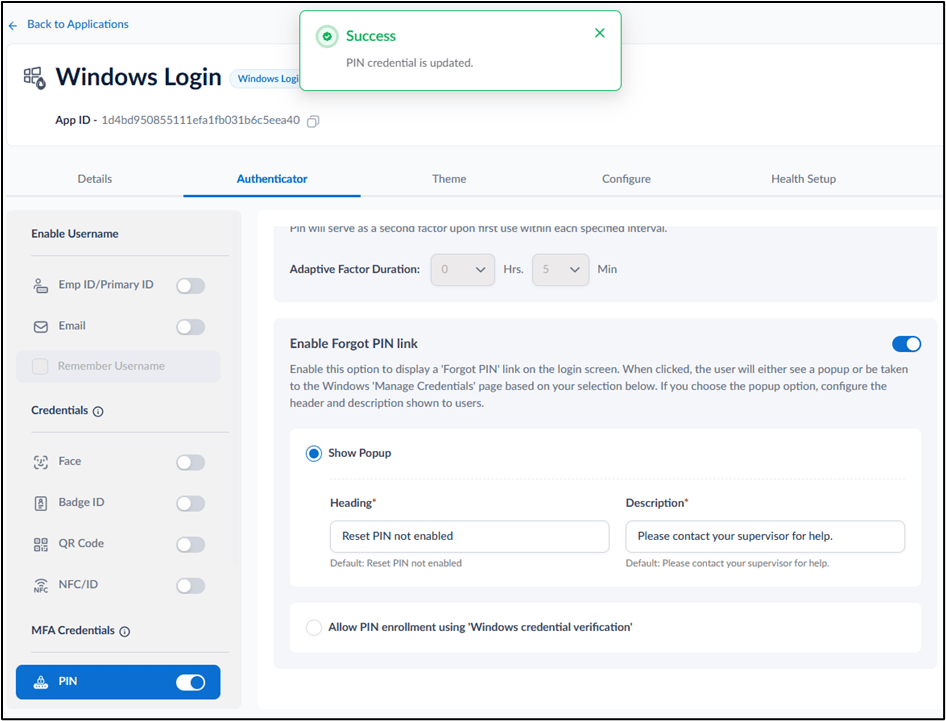
Sample Application Screen Showing Popup Message
Application Screen Redirecting User to Windows Manage Credentials Page