Introduction
The Add Group to Windows shared password features allows the admin to add a Group to shared windows password, this allows all users within the group to use the windows shared password.Prerequisites
You must have a Tenant Admin account.Steps to Add Group to Windows Shared Password
- Log in to the Tenant Admin Portal.
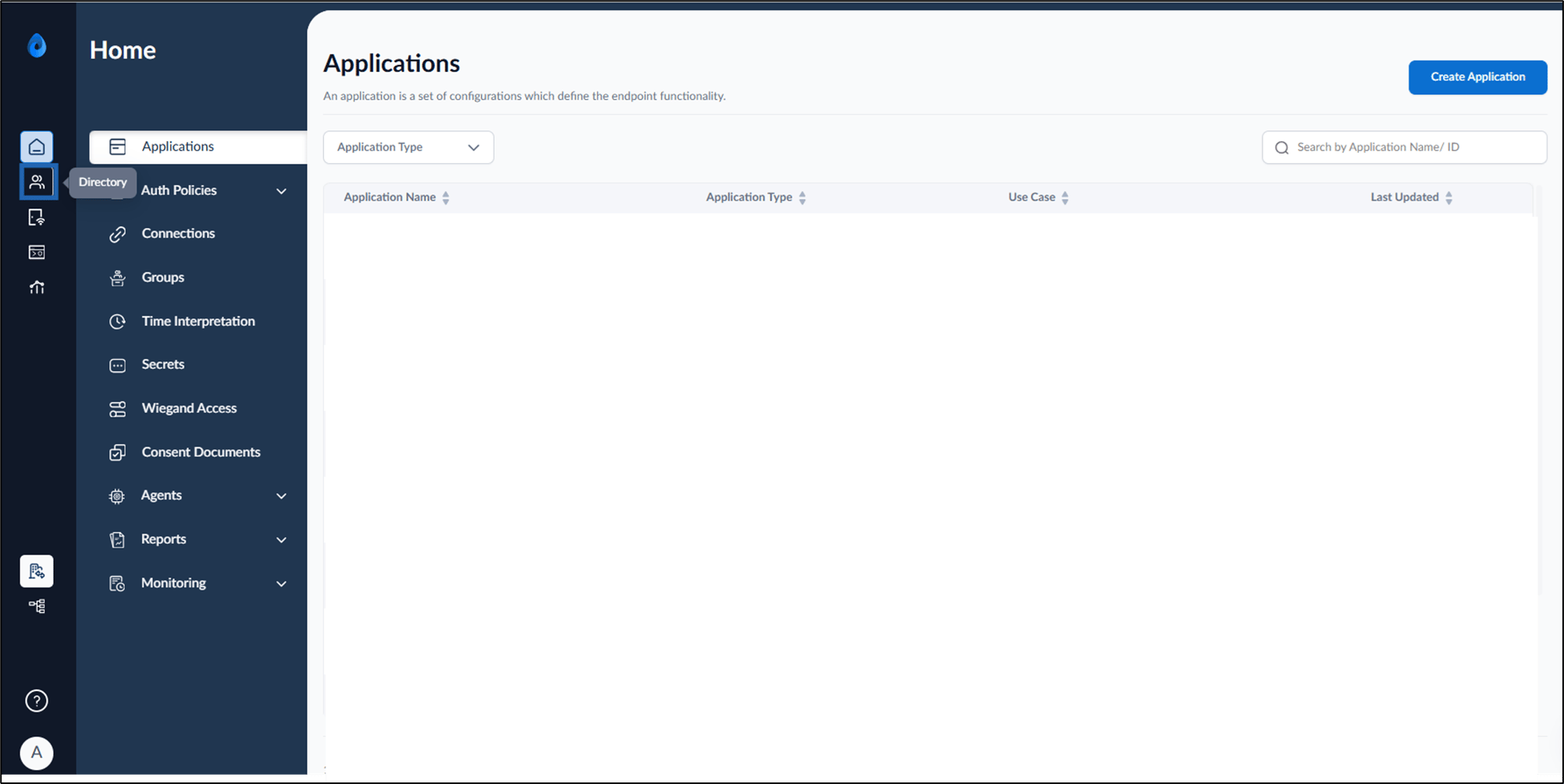
- On the home page of the portal, click Directory on the left menu panel.
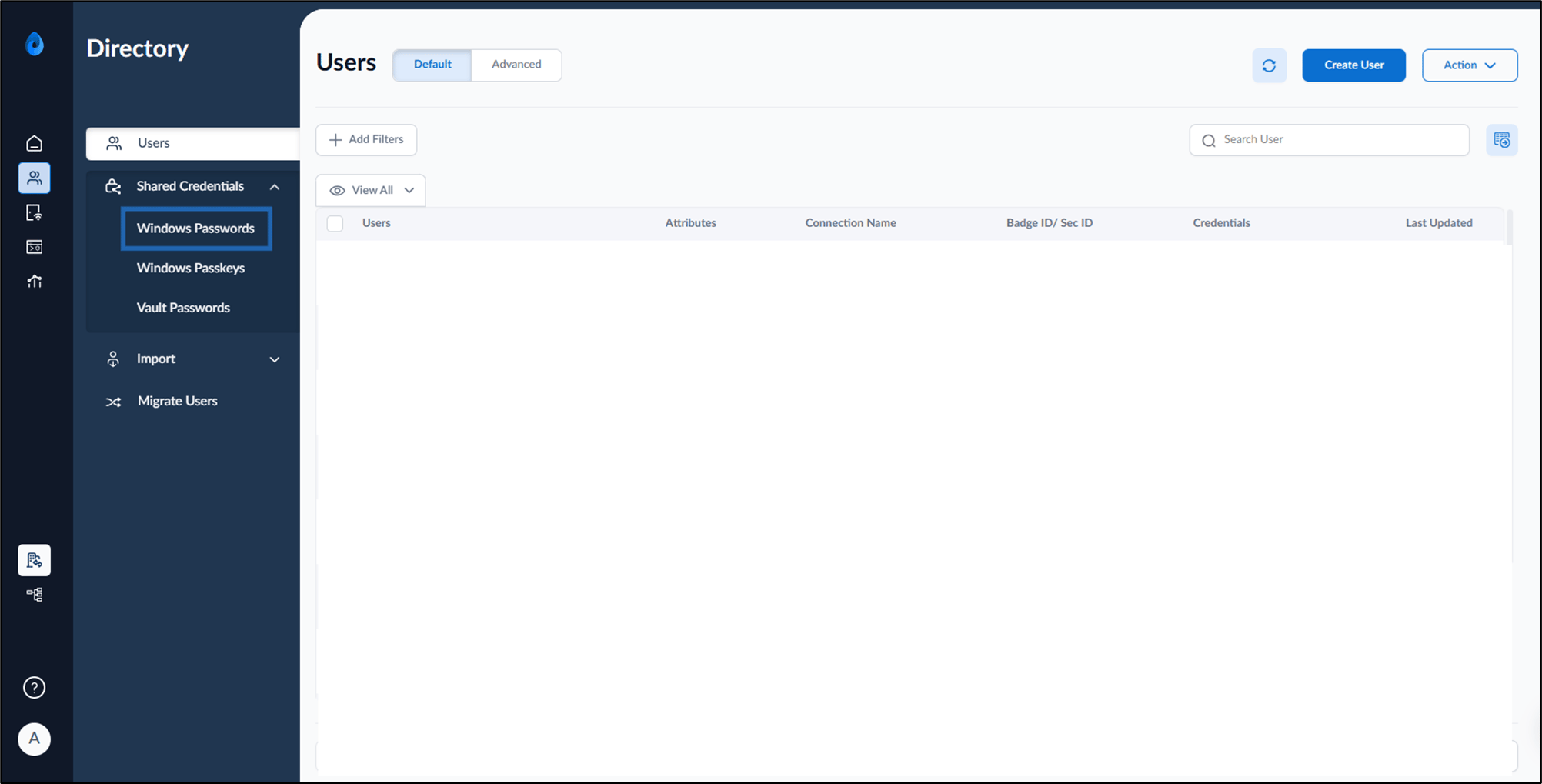
- Click Shared Credentials > Windows Password on the left menu panel.
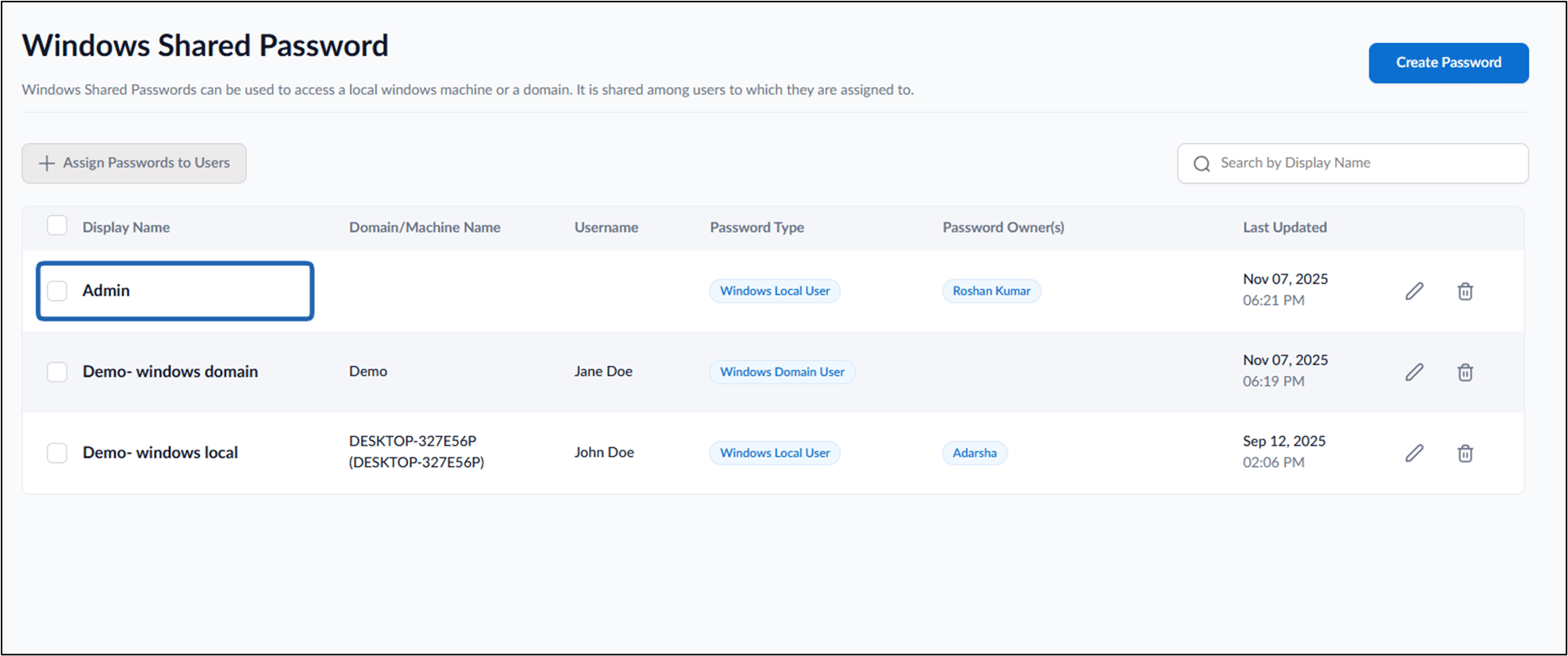
- Select Shared Password from the list.
The Windows shared password details page is displayed.
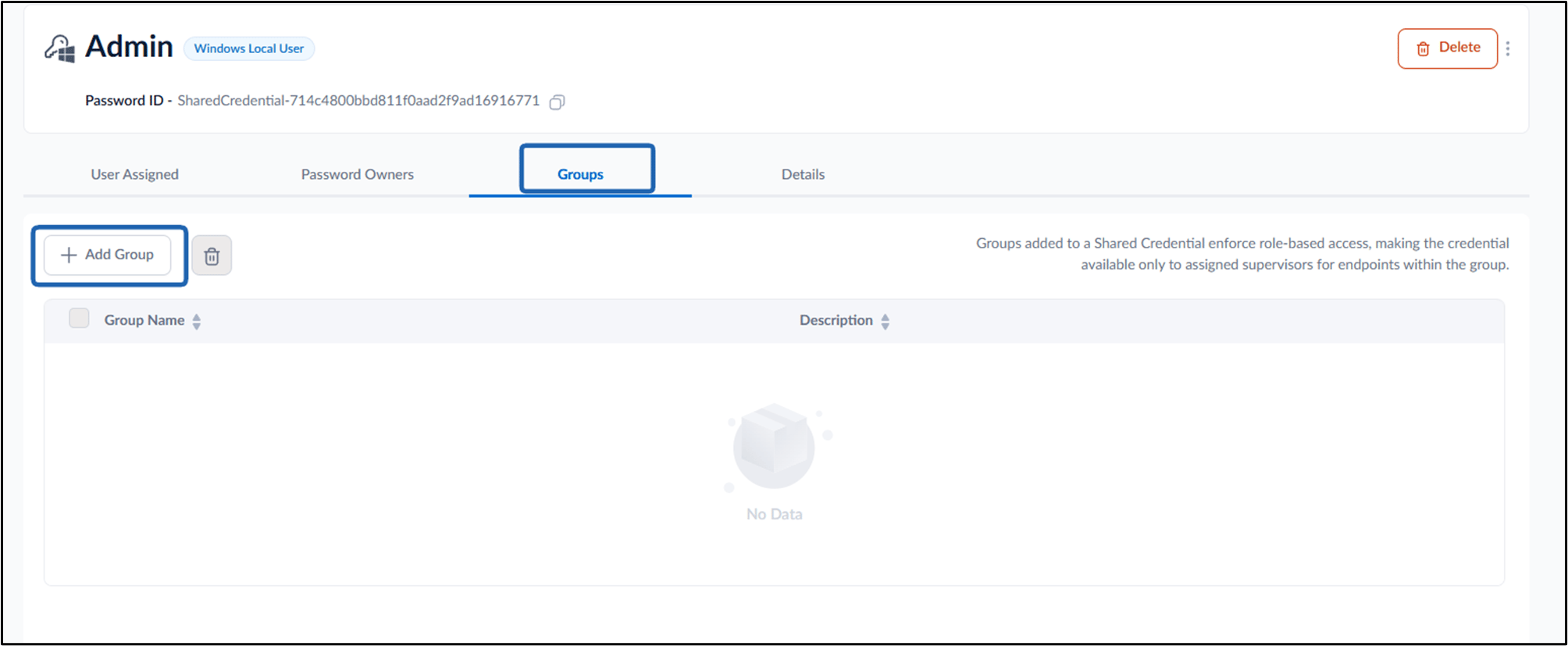
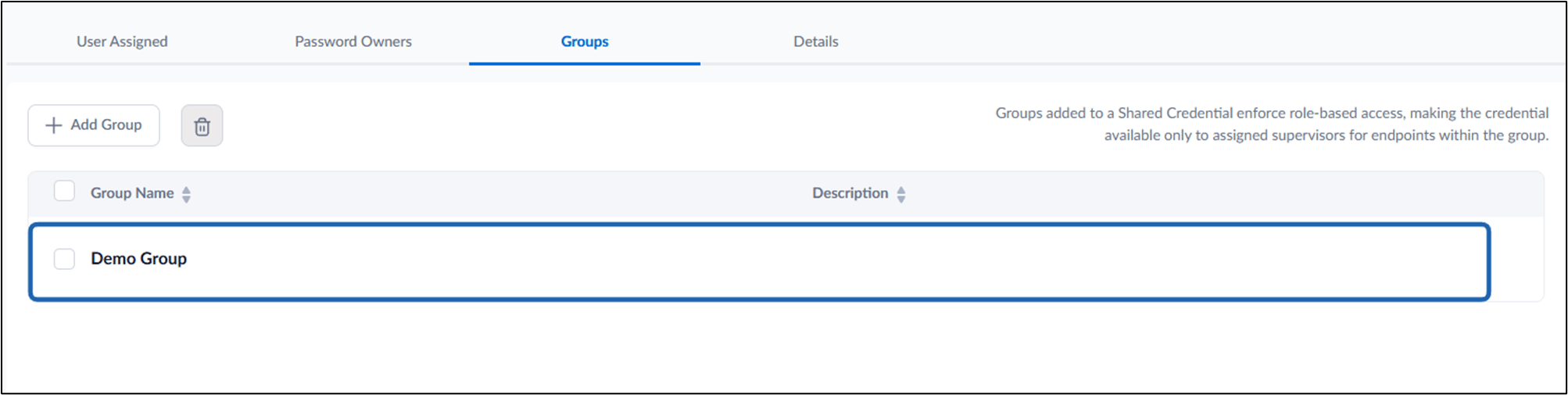
- Select Groups tab > click + Add Group
The Add Group pop-up box is displayed.
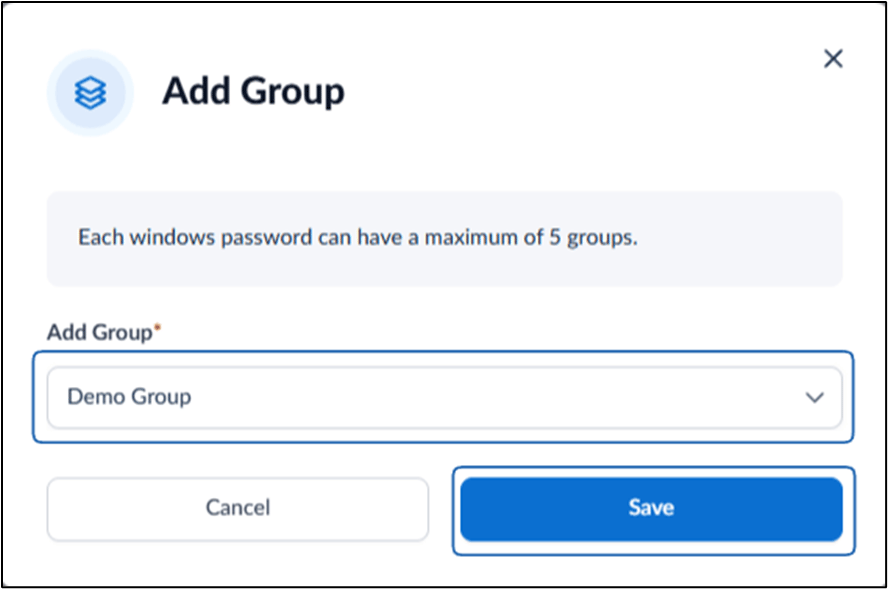
- Select Group from dropdown list.
- Click Save. The Group is successfully added to the shared windows passwords