Introduction
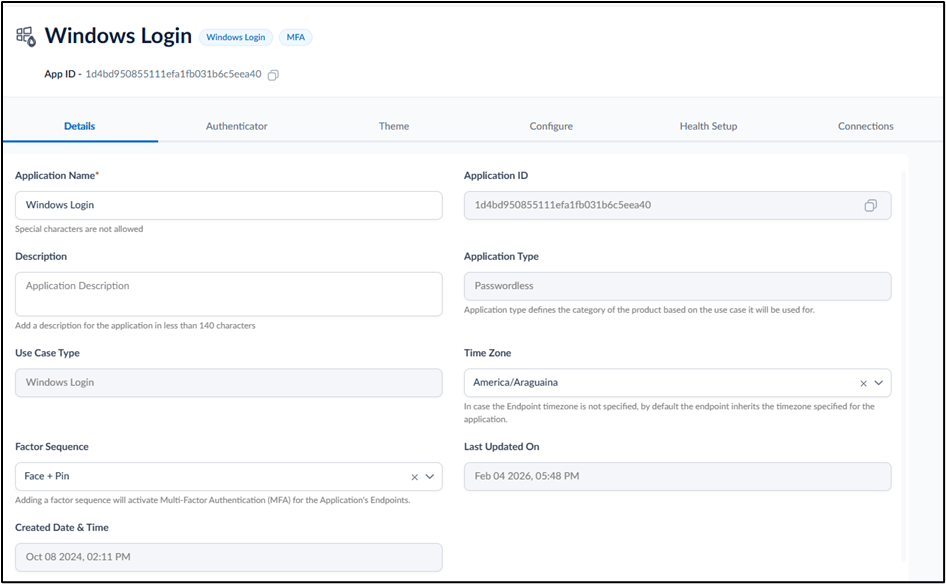
This document provides instructions to enable Face followed by PIN multi-factor authentication (MFA) for the Windows Login application in the Tenant Admin Portal. When enabled, users must authenticate using Face as the primary factor and then enter a PIN as the secondary factor during Windows login.Prerequisites
- You must create and configure Windows Login application. For More, refer to How to create and configure Windows Login application in the Tenant Admin Portal
- You Must enable Face credential in the Windows Login application. For more, refer to How to configure Face credential for Windows Login Application in the Tenant Admin Portal
Steps toEnable Face Followed by PIN MFA
- Log in to the Tenant Admin Portal.
-
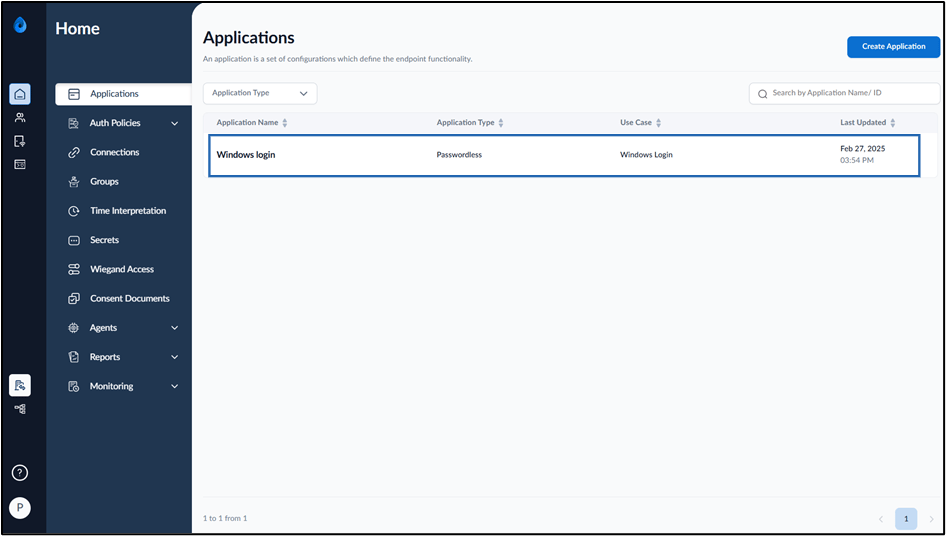
Go to Applications > select Windows Login application.
-
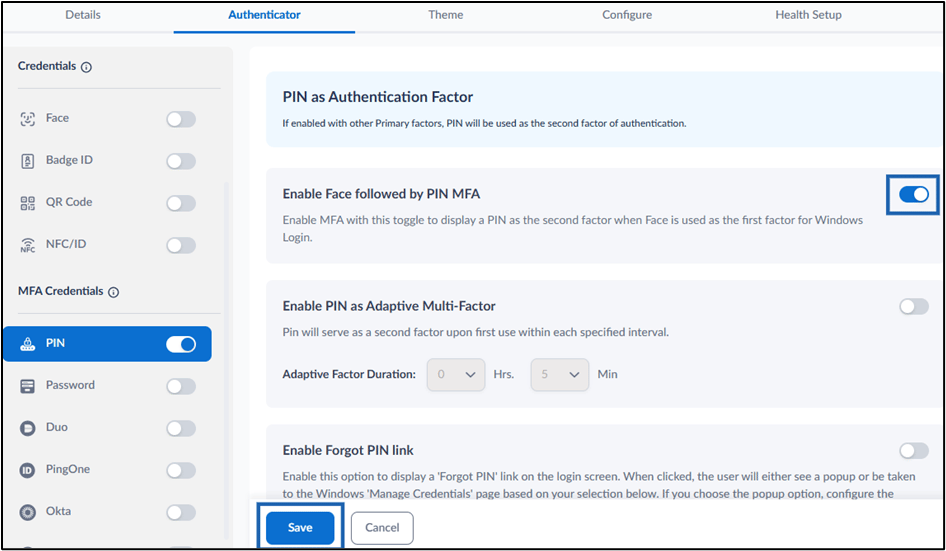
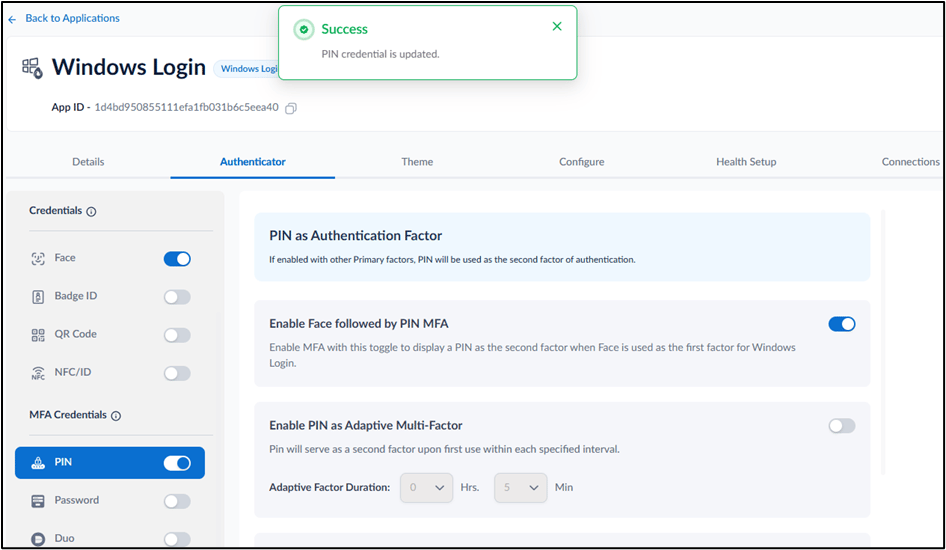
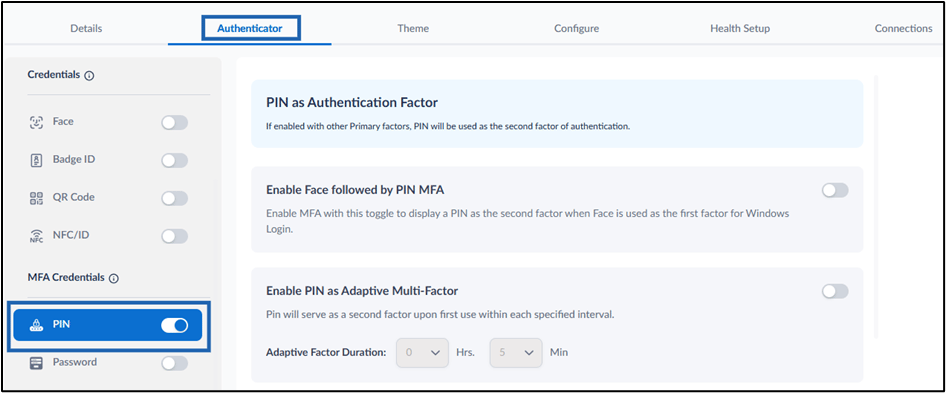
Go to Authenticator > enable PIN credential.
-
In PIN as Authentication Factor, turn on Enable Face followed by PIN MFA.
Note: When this option is enabled, users must authenticate using Face as the first factor and then enter a PIN as the second factor (MFA) during Windows Login.
-
Click Save.