

Introduction
This document explains how to enable and configure Badge ID authentication for the Windows Login application in the Tenant Admin Portal. Badge-based authentication allows users to log in by scanning an RFID badge, providing a fast and efficient alternative to traditional credentials.Prerequisite
- You must have Tenant Admin Access.
- Windows Login Application must be created in the Tenant Admin Portal. For more information, refer: How to create and configure Windows Login application in the Tenant Admin Portal
Steps to Configure Badge ID credential
- Log in to the Tenant Admin Portal.
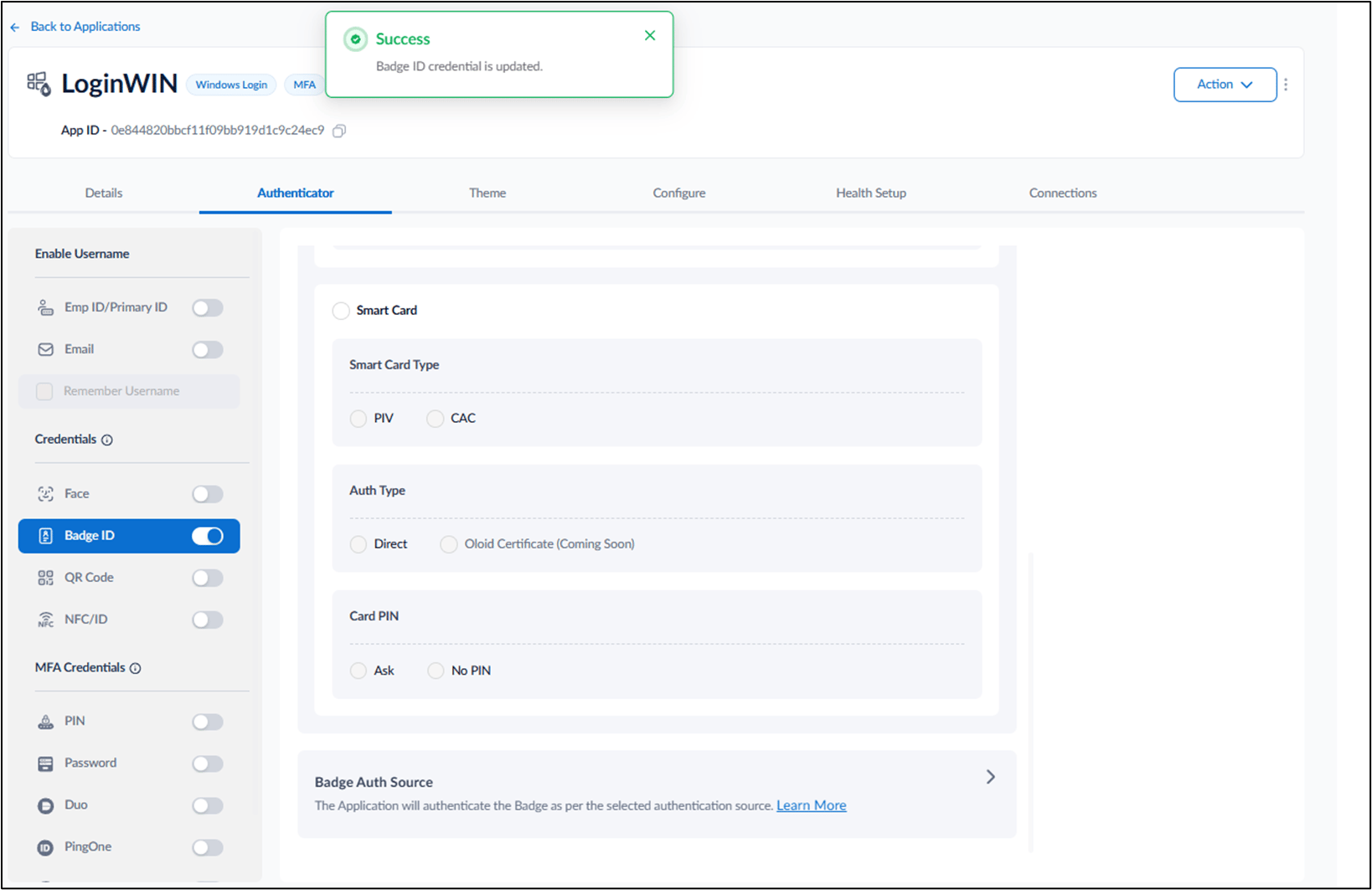
- On the Applications page, click the Windows Login application.
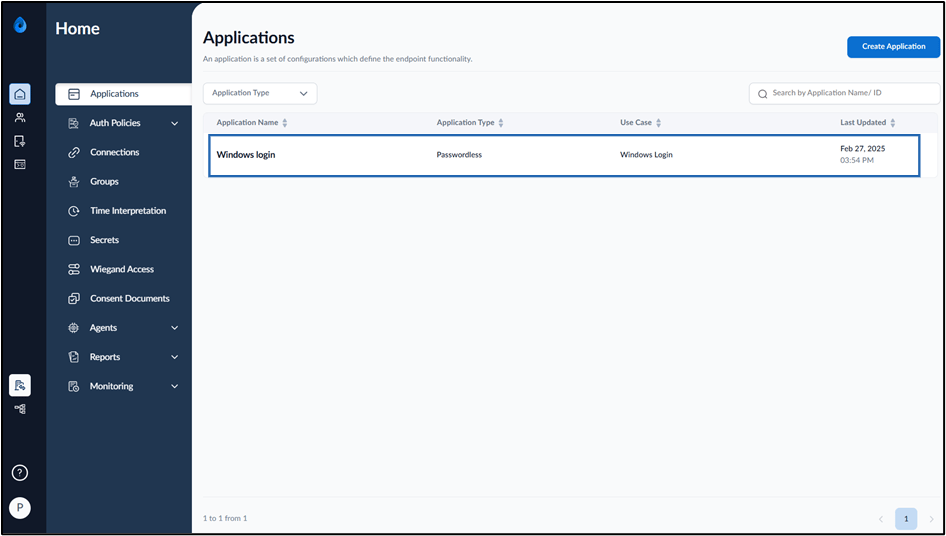
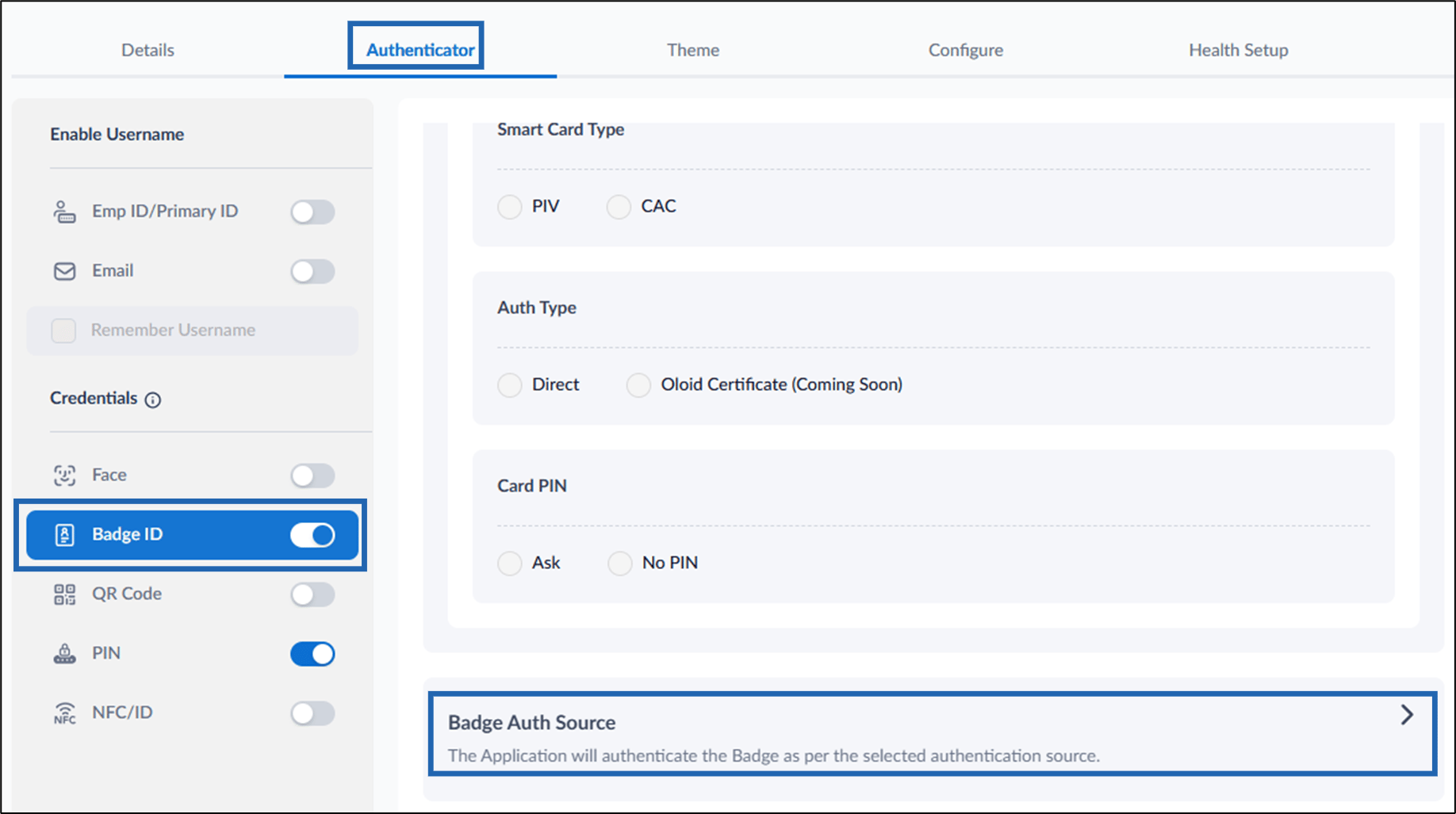
- Go to the Authenticator tab.
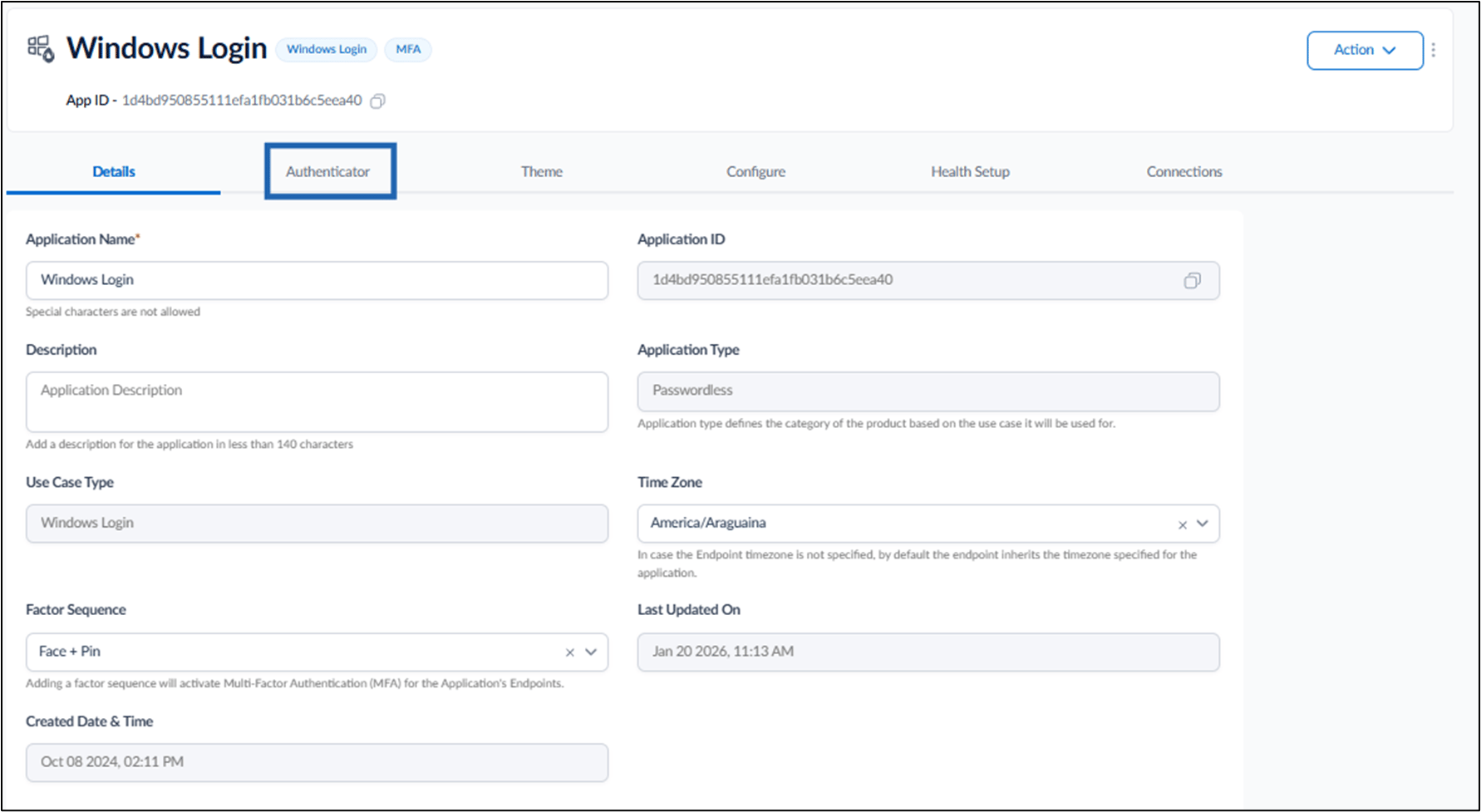
- Turn on the Badge ID toggle.
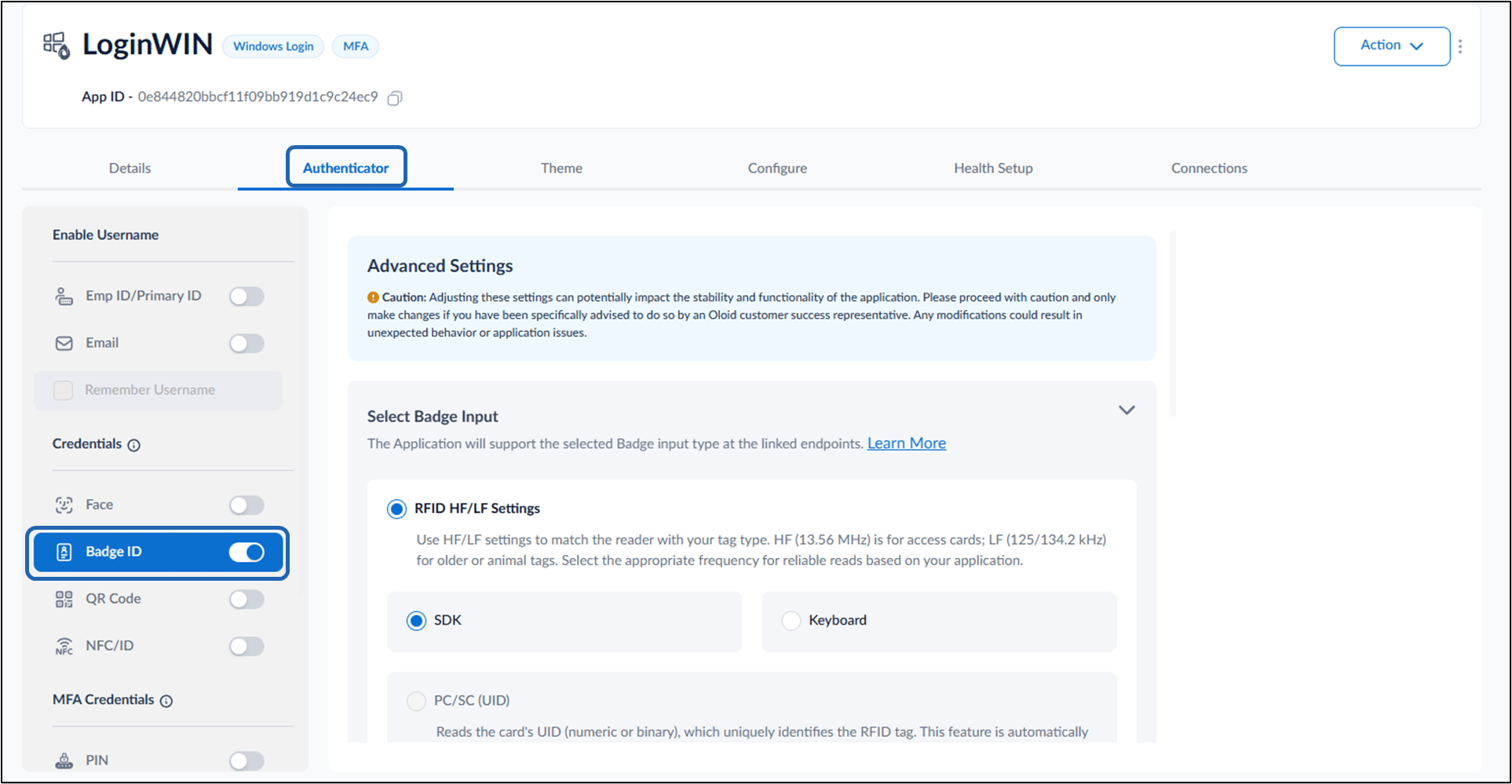
- Do the following:
- Click Save after configuration changes to apply the configuration. The Badge Input source is successfully configured.
Configure Select Badge Input
- Select Badge Input
- RFID HF/LF Settings
Use this option to configure RFID badge input based on frequency type.
- HF (13.56 MHz): Typically used for access cards and modern RFID systems.
-
LF (125 / 134.2 kHz): Used for older or legacy animal tag systems.
Note: Select the appropriate frequency based on the badge type used in your environment.
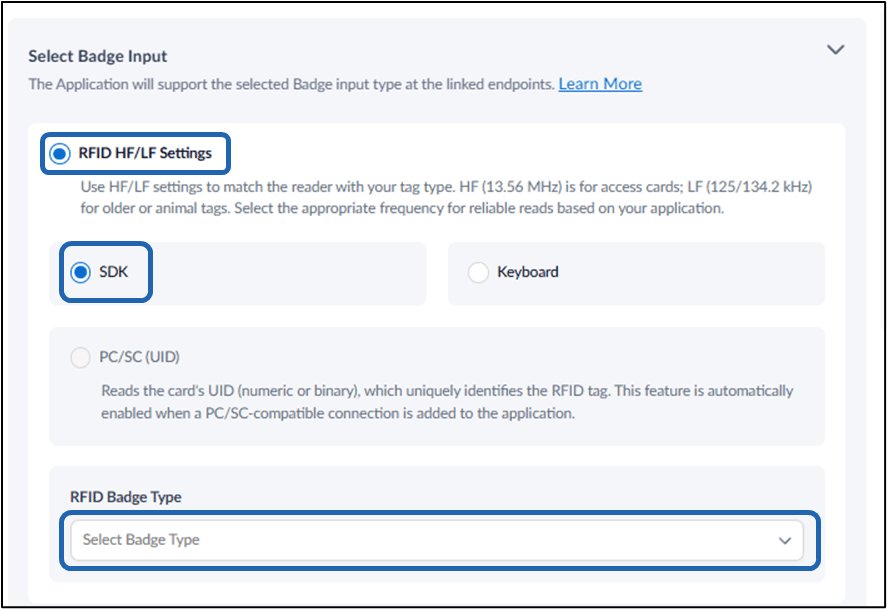
- Input Method Choose how badge data is received by the application: • SDK Enables badge reading through the integrated SDK. This is the recommended option for most deployments where native reader integration is used. • Keyboard Uses keyboard emulation mode where badge data is input as keystrokes (commonly used in wedge-based readers).
- PC/SC (UID)
Reads the card’s UID (Unique Identifier) in numeric or binary format.
This uniquely identifies the RFID tag.
- This option is automatically enabled when a PC/SC-compatible connection is added to the application.
- RFID Badge Type
- Admins must select the specific RFID badge type from the dropdown.
- This ensures compatibility between the reader and badge format.
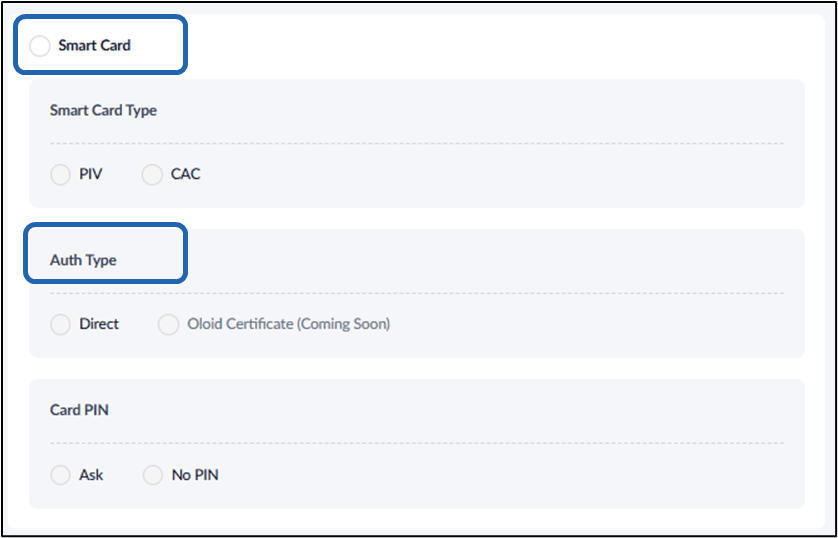
- Smart Card
Enable this option when using smart cards for authentication.
Smart Card Type
- PIV (Personal Identity Verification)
- CAC (Common Access Card) Select the appropriate card type based on organizational requirements.
- Authentication Type Defines how authentication is performed using the smart card: • Direct Authentication is handled directly through the configured system. • Oloid Certificate (Coming Soon) Future capability for certificate-based authentication managed via Oloid.
Configure Select Badge Auth Source
Sync Configuration
Note: In Windows Authenticator app, you must sync the configuration to Validate Windows Credential to work properly. For more details, refer How to sync configuration in Supervisor App