

Introduction
This document provides step-by-step instructions for logging in with NFC to Windows device.Prerequisites
In the Tenant Admin Portal, you must do the following:- Windows Login Application must be created in the Tenant Admin Portal. For more information, refer: How to create and configure Windows Login application in the Tenant Admin Portal
- Assign NFC ID to the user. For more details, refer How to assign NFC/ID as credential to users
- Enable NFC as an authenticator in the Windows application. For more details, refer Windows Login - How to enable NFC/ID credential for Windows Login in the Tenant Admin Portal
Note: If you don’t see the login option reach out to Oloid Support.
Steps to sign in to Windows device
-
On the Windows lock screen, do the following:
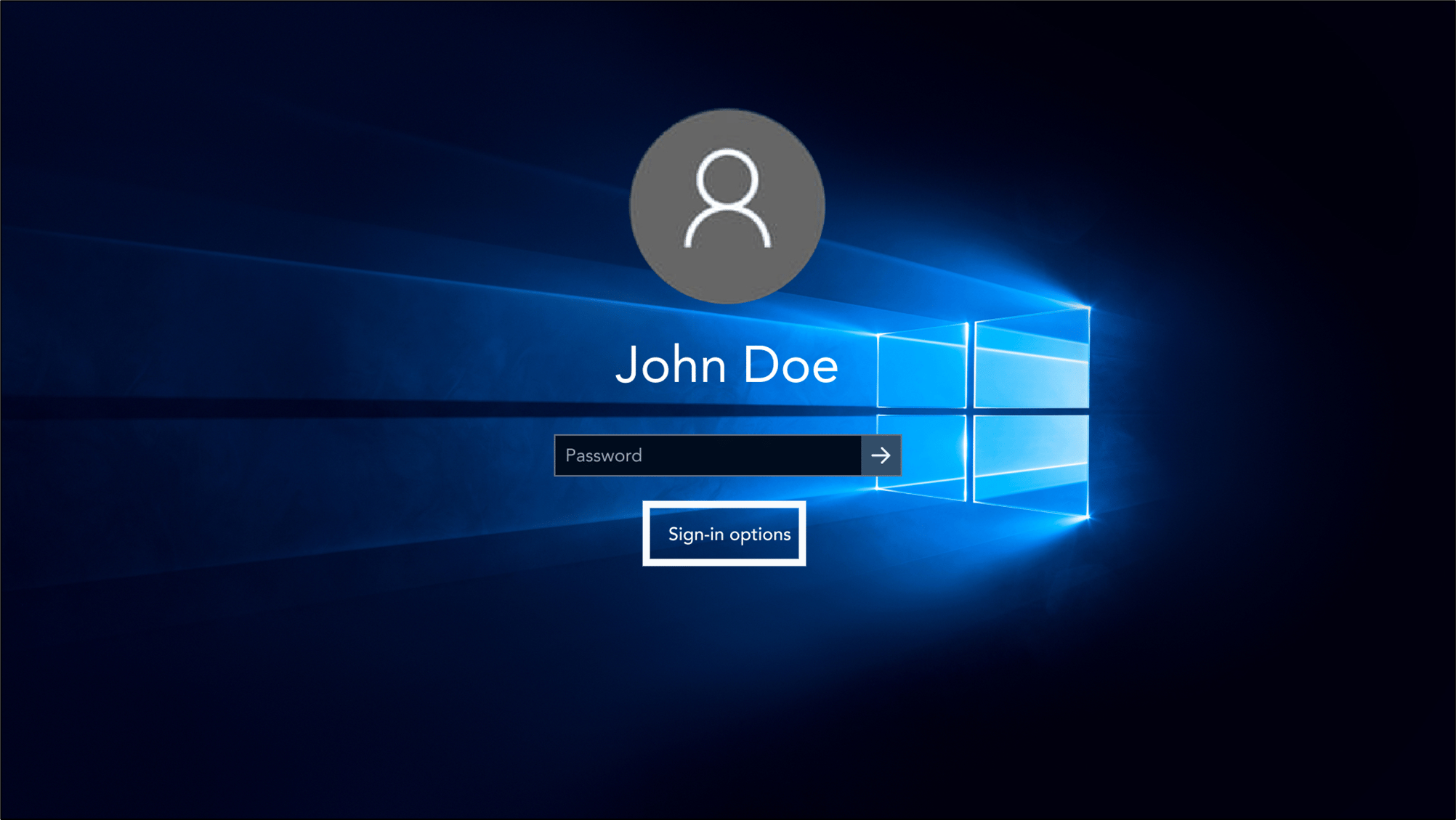
- Click Sign-in options.
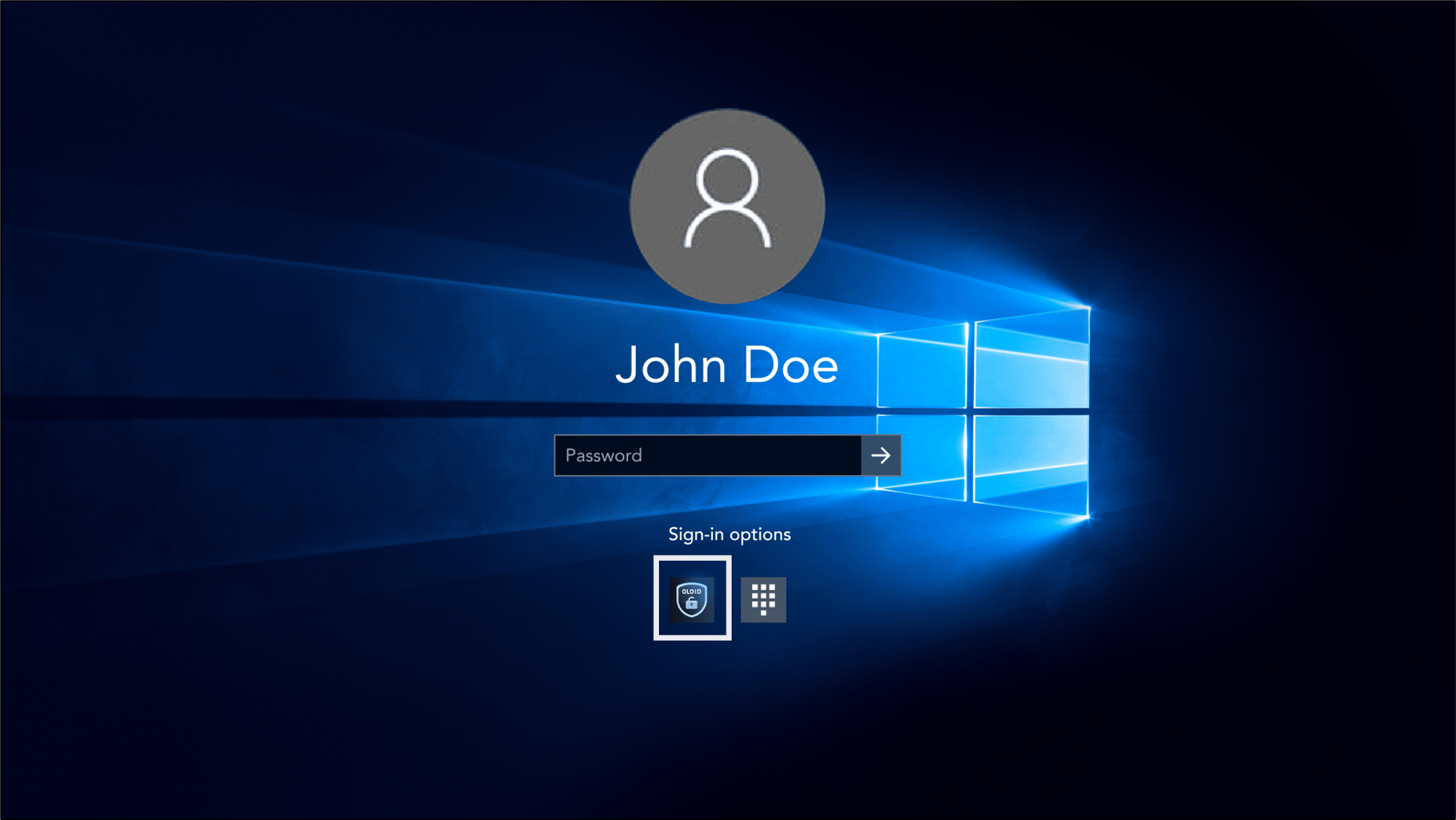
- Select Windows login app.
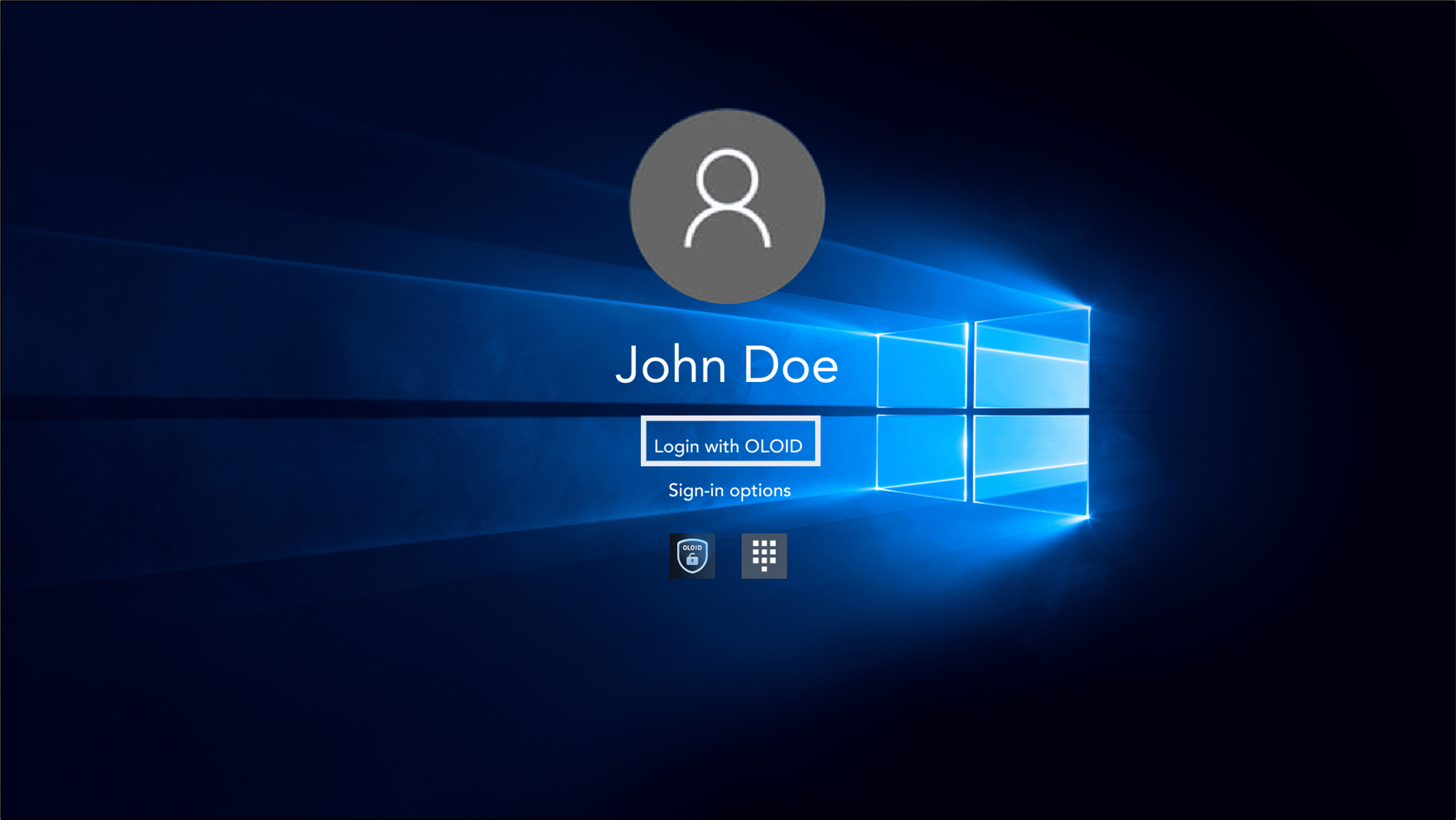
- Select Login with OLOID.
- Click Sign-in options.
-
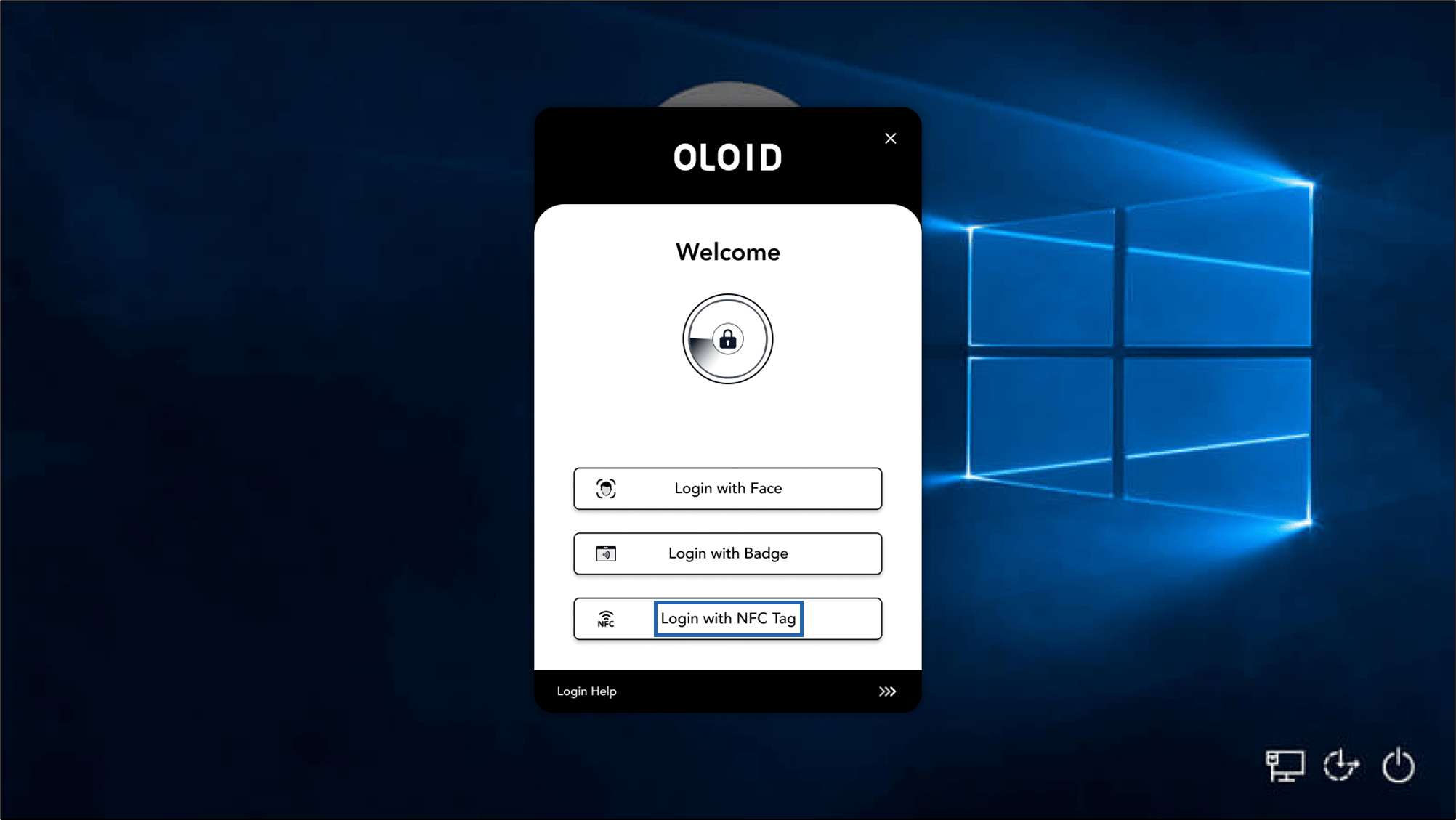
Select Login with NFC Tag.
-
Tap the NFC Tag on the Reader to scan it.
Note: The card reader must be connected to the computer.
 Note: If the user has multiple passwords configured in the Oloid Portal, then the Choose Your Account page is displayed. You can select a specific account to sign in successfully.
 Note: The user can also perform offline NFC authentication after completing at least one successful online NFC authentication.