Introduction
The Theme tab in the Tenant Admin Portal for windows login application allows you to customize the appearance of your Windows Login Application. You can upload your organization’s logo, change the login icon, and update the button text to align with your company’s standards.Prerequisite
- You must have Tenant Admin Access.
- Windows Login Application must be created in the Tenant Admin Portal. For more information, refer: How to create and configure Windows Login application in the Tenant Admin Portal
Steps to Edit Theme Tab
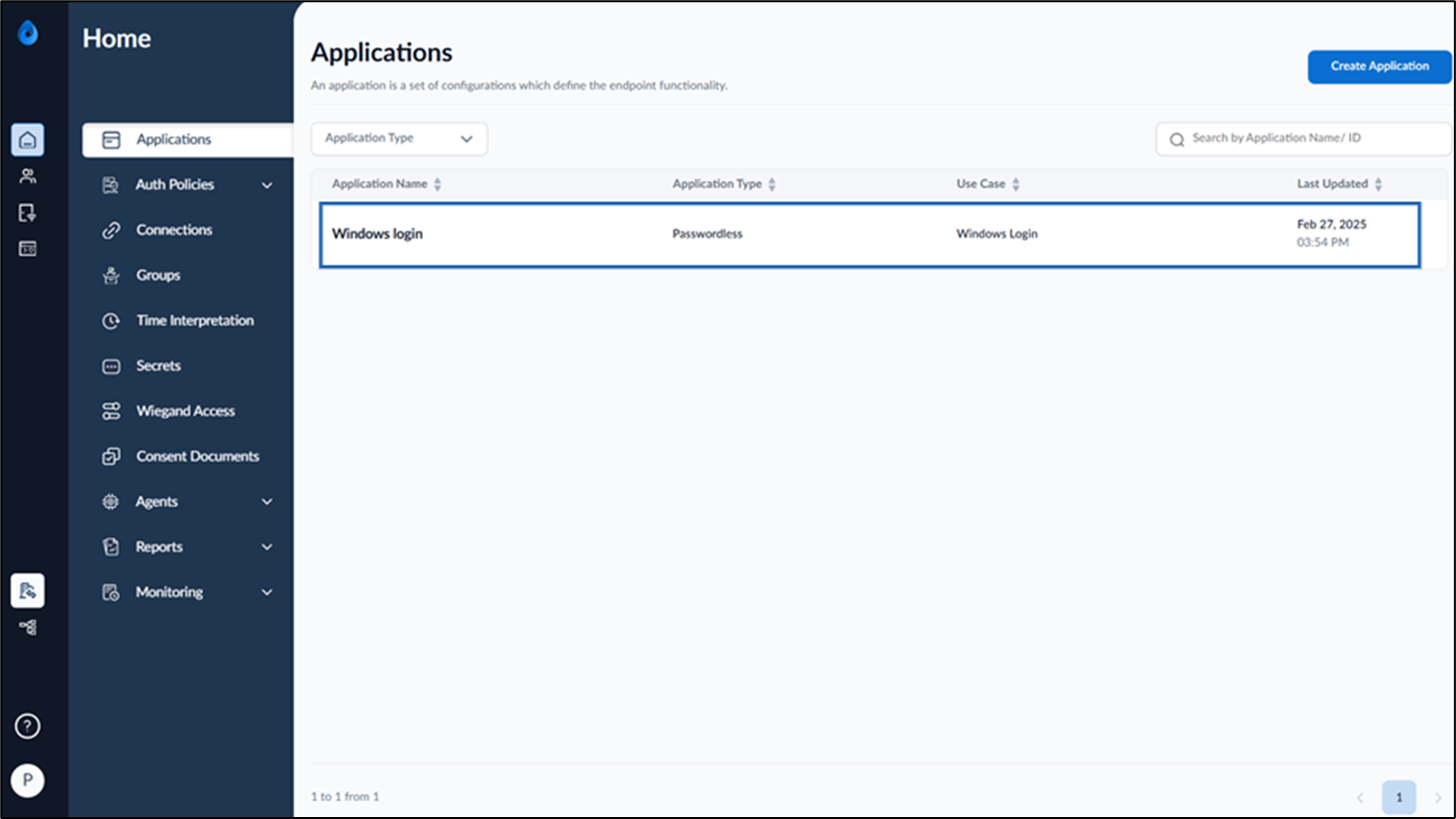
- Log in to the Tenant Admin Portal.
- On the Applications page, click on the preferred Windows Login application to edit.
- Go to Theme tab.
Configure Theme Section
-
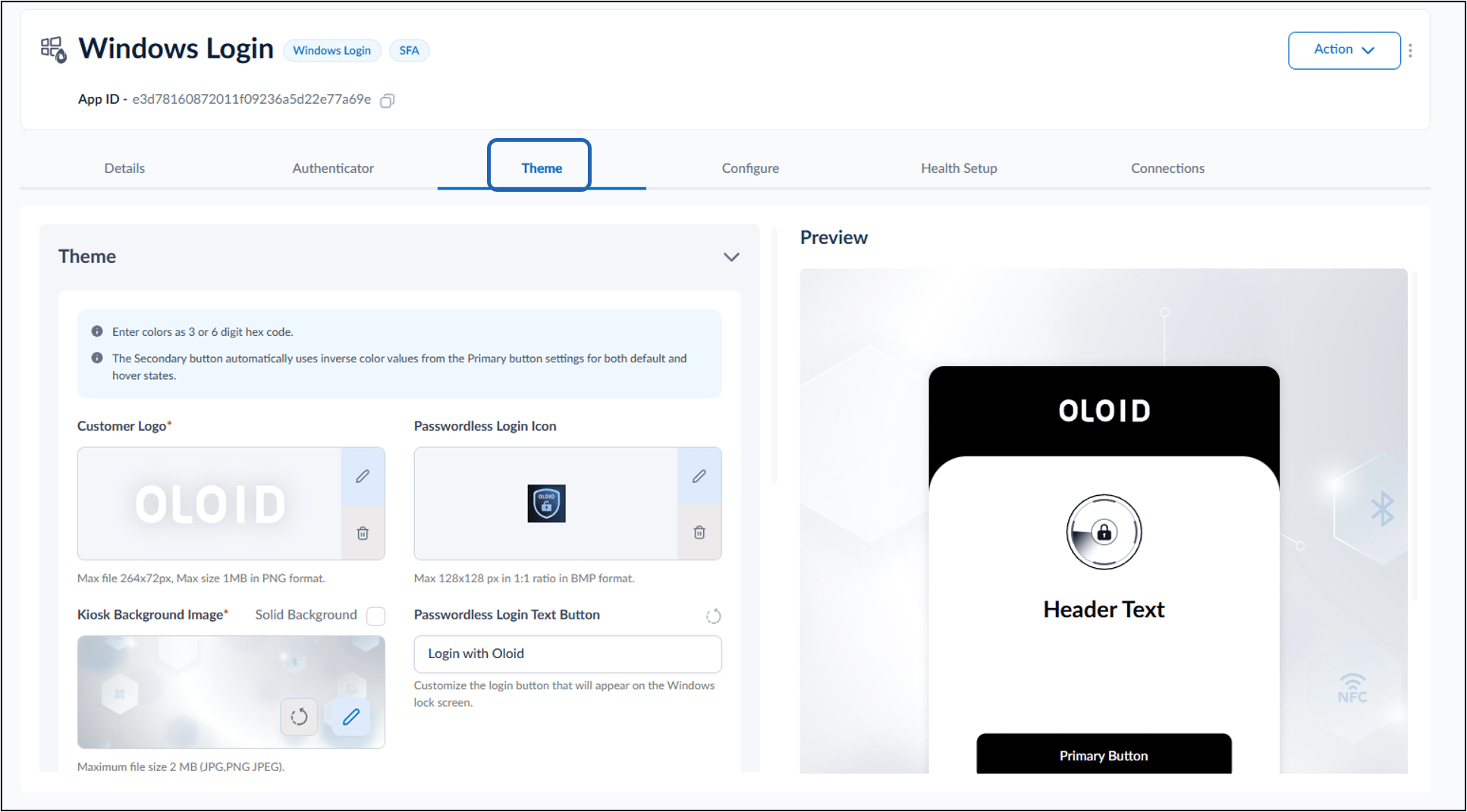
- Do the following:
-
Edit Customer logo.
Note: The maximum file dimensions for the logo are 264x72 px, with a maximum size of 1 MB in PNG format.

-
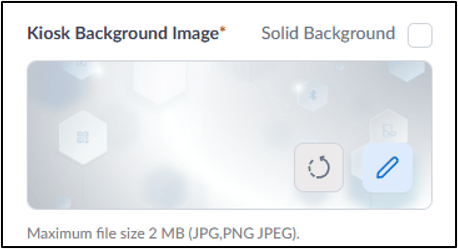
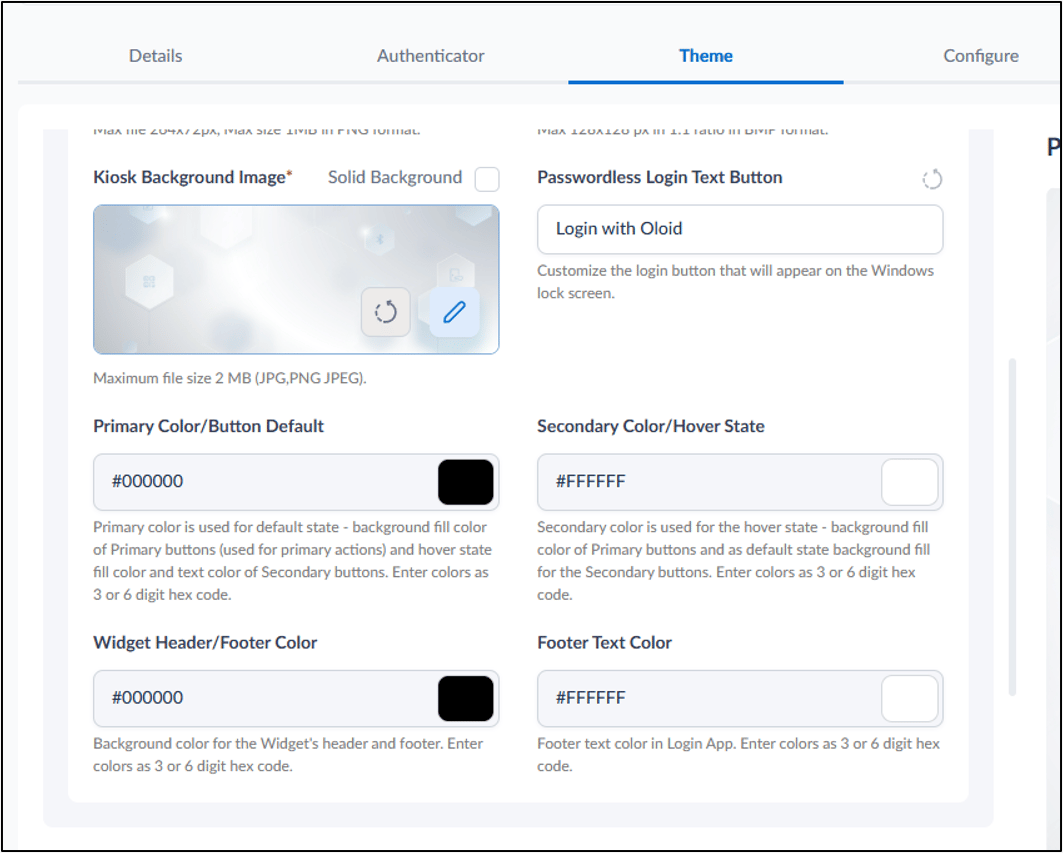
Kiosk Background Image: Do one of the following:
-
Edit Background image.
orNote: The maximum file size is 2 MB (JPG, PNG, JPEG). This image is used as the widget background.
-
Select Solid Background option > enter color code.
-
Edit Background image.
- Primary Color/Button Default: Update the primary color code to define the primary button’s default background and its hover-state text color.
- Secondary Color/Hover State: Update the secondary color code to define the primary button’s hover background and its default text color.
- Customize Heading: Update the heading that appears at the top of the screen.
- Widget Header/Footer Color: Update the background color for the Widget’s header and footer.
-
Footer Text Color: Update the footer text color code in Login App.
-
Edit Customer logo.
- (Optional) In the Preview section, select one of the following tabs to preview the theme configuration:
- Identity Selection: Preview the appearance of the identity selection screen displayed before user authentication.
- Authentication: Preview the authentication screen displayed when users authenticate using their configured credentials.
- Error: Preview how error messages and error screens are displayed to users during authentication failures.

- Click Deploy.
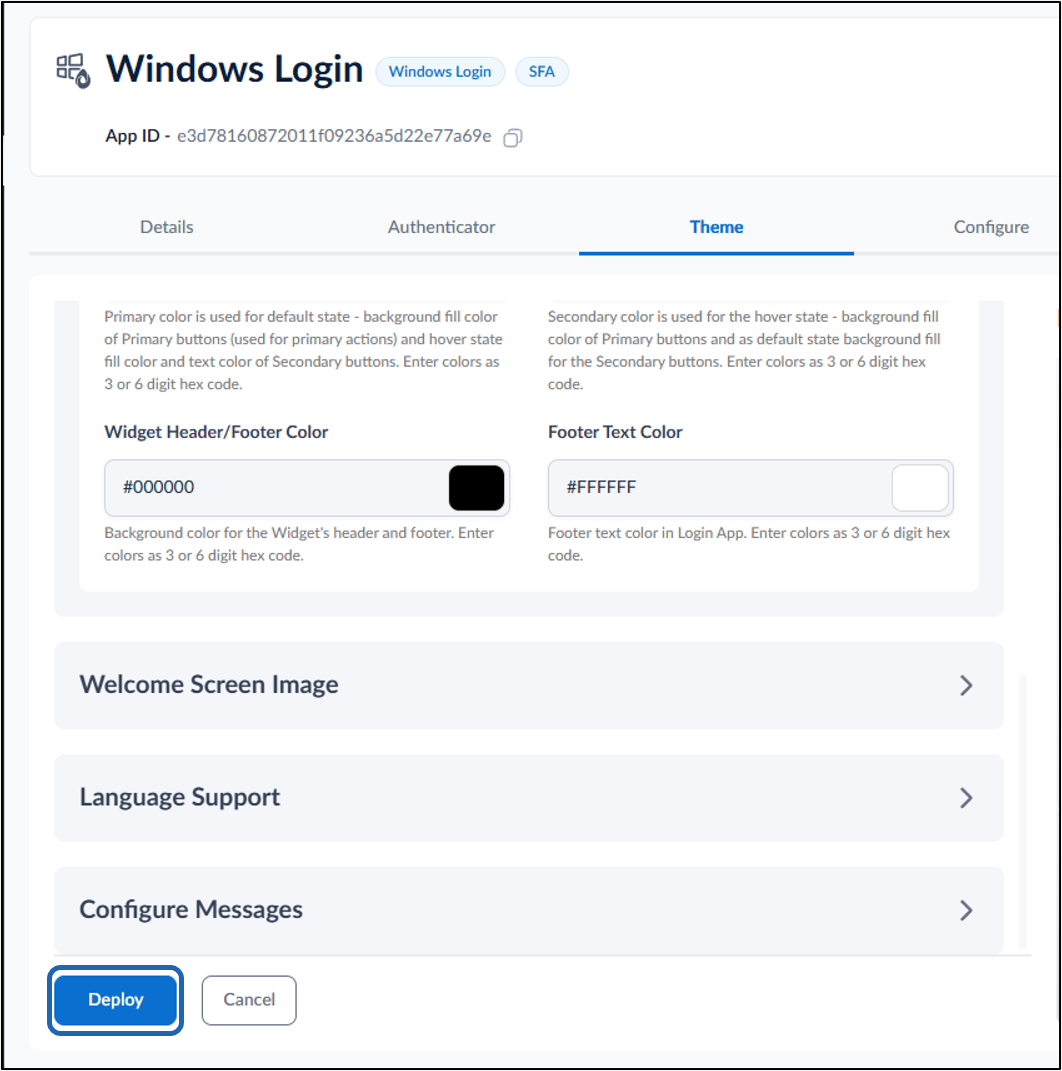
- Click Update.

Configure Welcome Screen
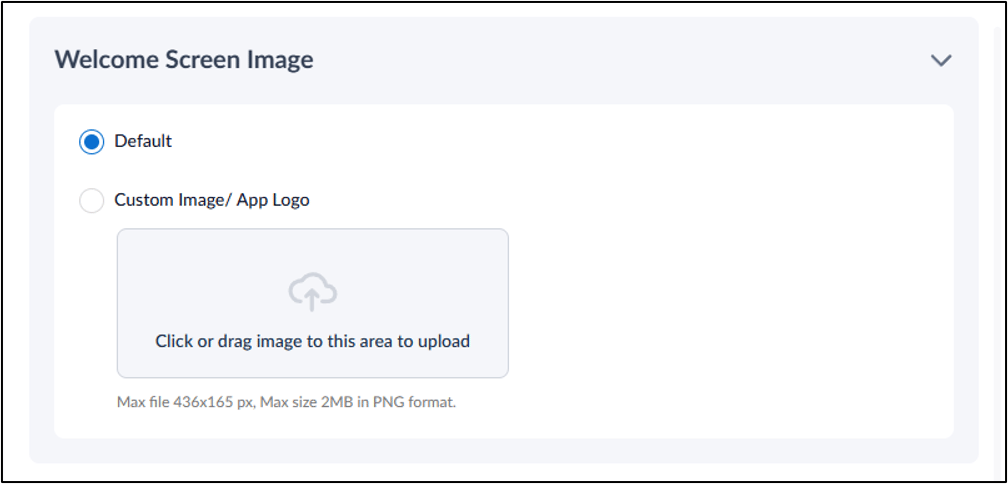
- Select Custom Image/App Logo
- Click or Drag an Image to Upload.
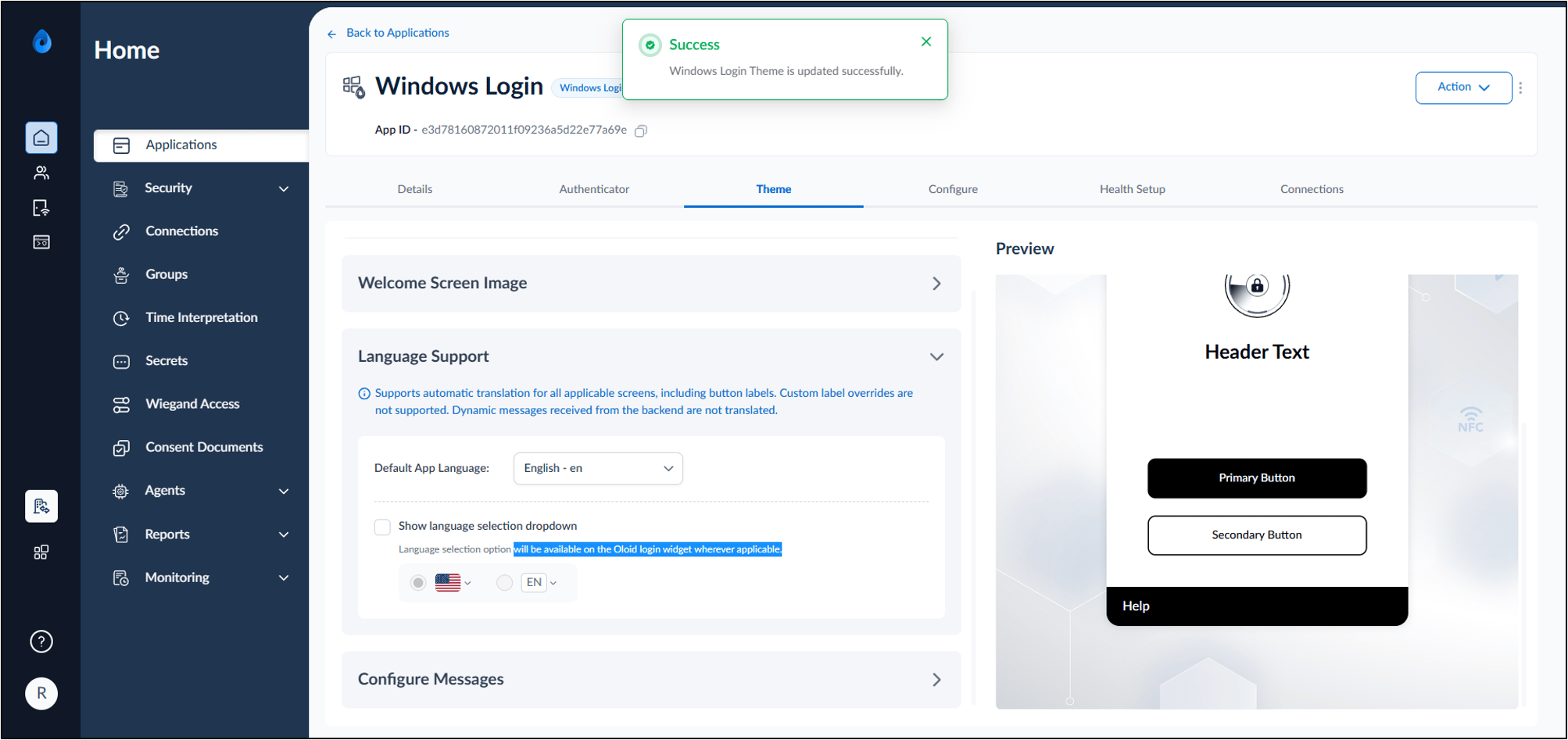
Configure Language Support
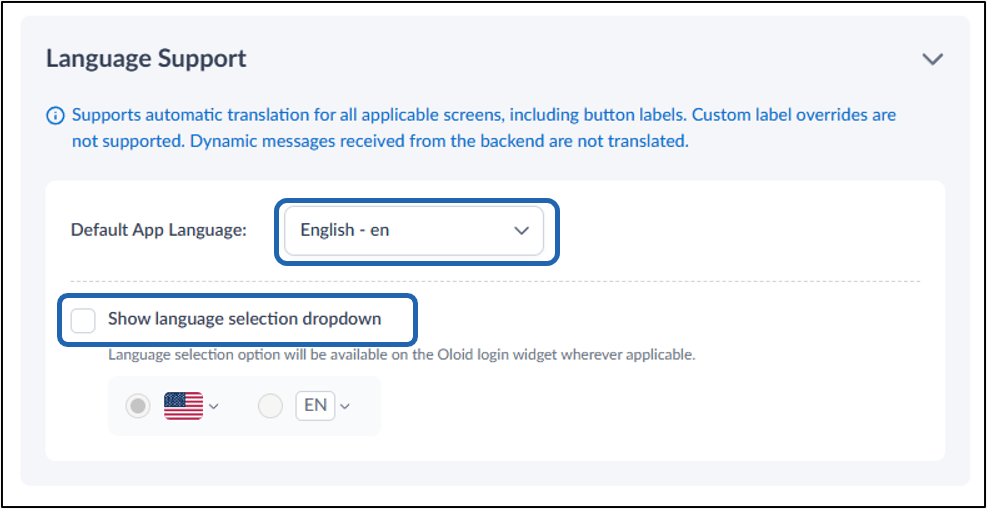
- Select Language Support.
- Select Default App Language from dropdown.
- Select the Show Language selection dropdown checkbox. The Language selection option will be available on the Oloid login widget wherever applicable.
- Select Language Selection widget type (Flag or Language code).
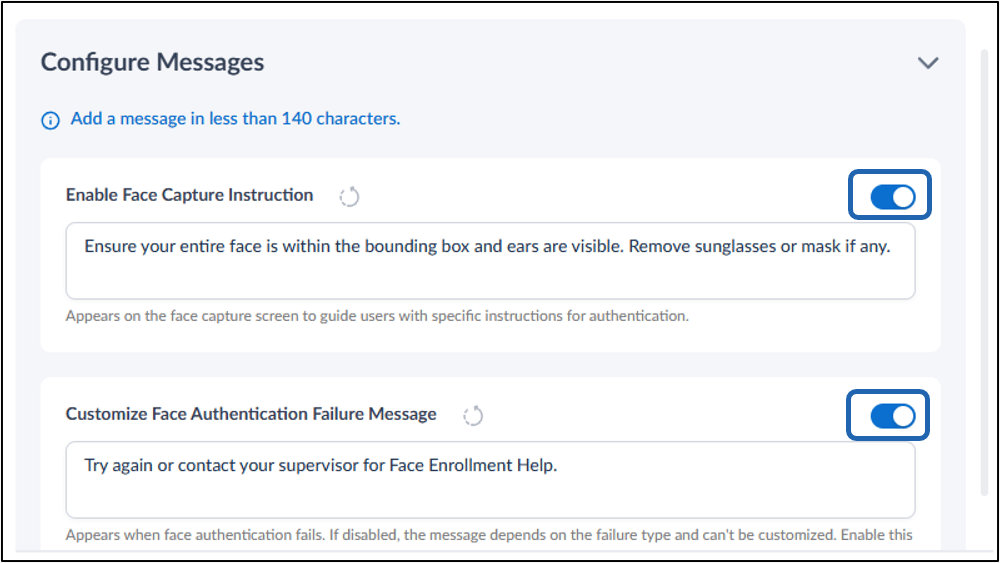
Configure Messages
- Enable the Face Capture Instructions toggle.
- Type the Face capture instructions. (Optional)
- Enable the Customize Face Authentication Failure Message toggle.
- Type the Face Authentication Failure Message. (Optional)
- Click Deploy. The Confirm Update pop-up box is displayed.
- Click Update.