How to configure rf IDEAS readers for... - screenshot 1 It is recommended to contact your Oloid Account Manager for configuration support to ensure a smooth setup. Pre-requisite:
  • Download the latest “rf IDEAS Configuration Utility” from the RF IDEAS website.
To configure your card reader:
  1. Launch the rf IDEAS configuration utility app. Make sure the card reader is connected to the system.
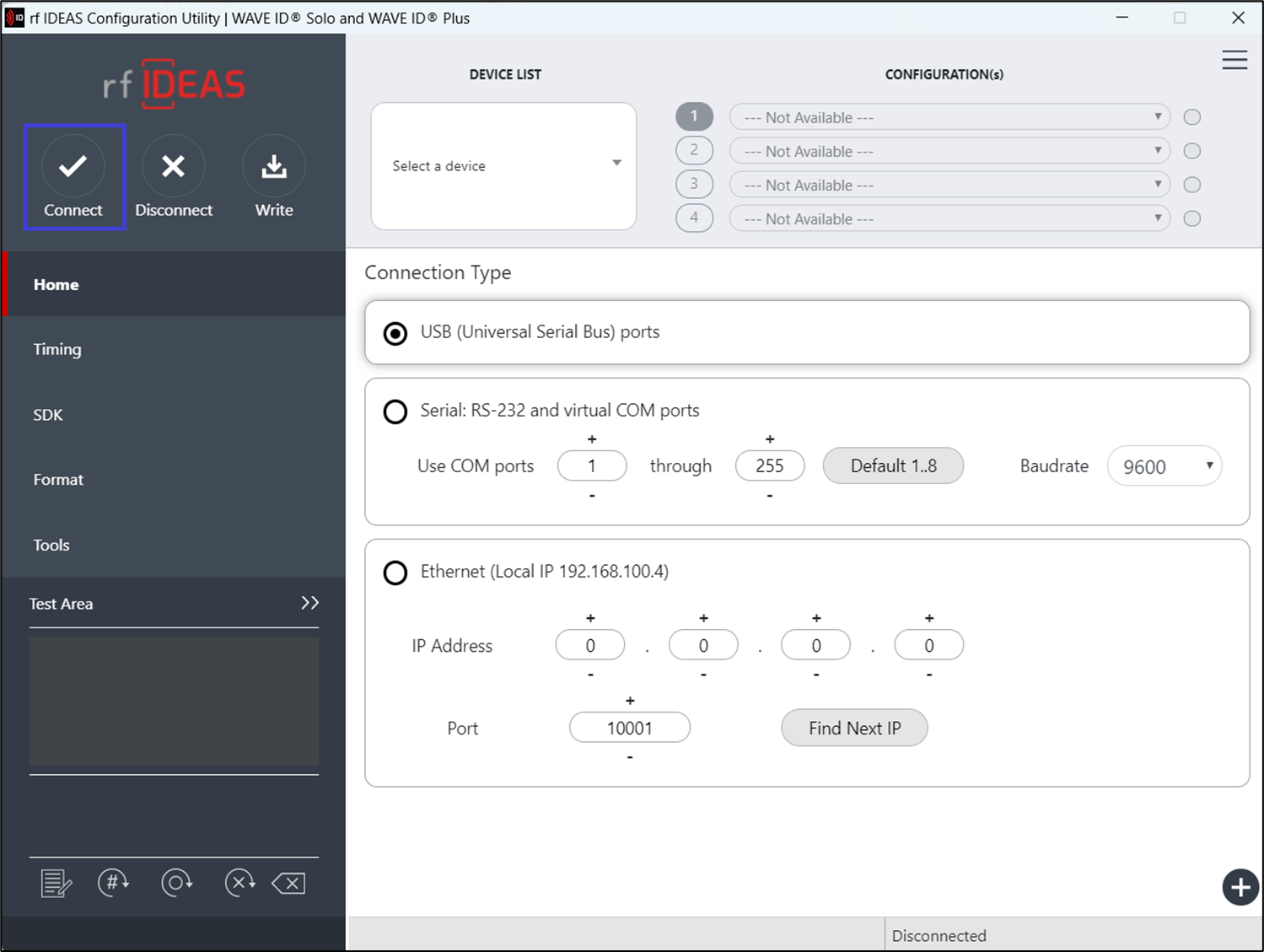
  2. Select Connect from the top menu bar. How to configure rf IDEAS readers for... - screenshot 2 The DEVICE LIST is configured and displayed. How to configure rf IDEAS readers for... - screenshot 3

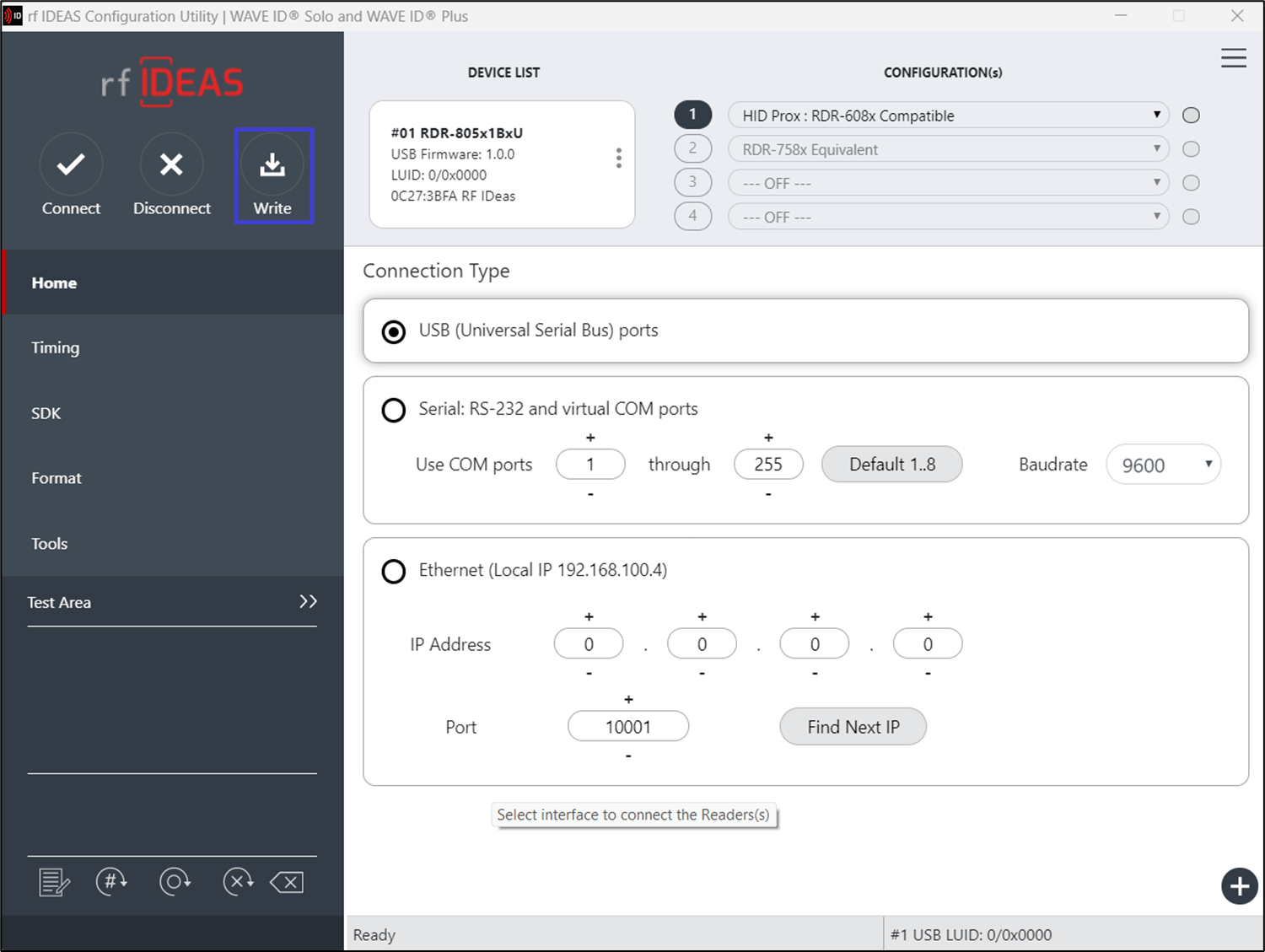
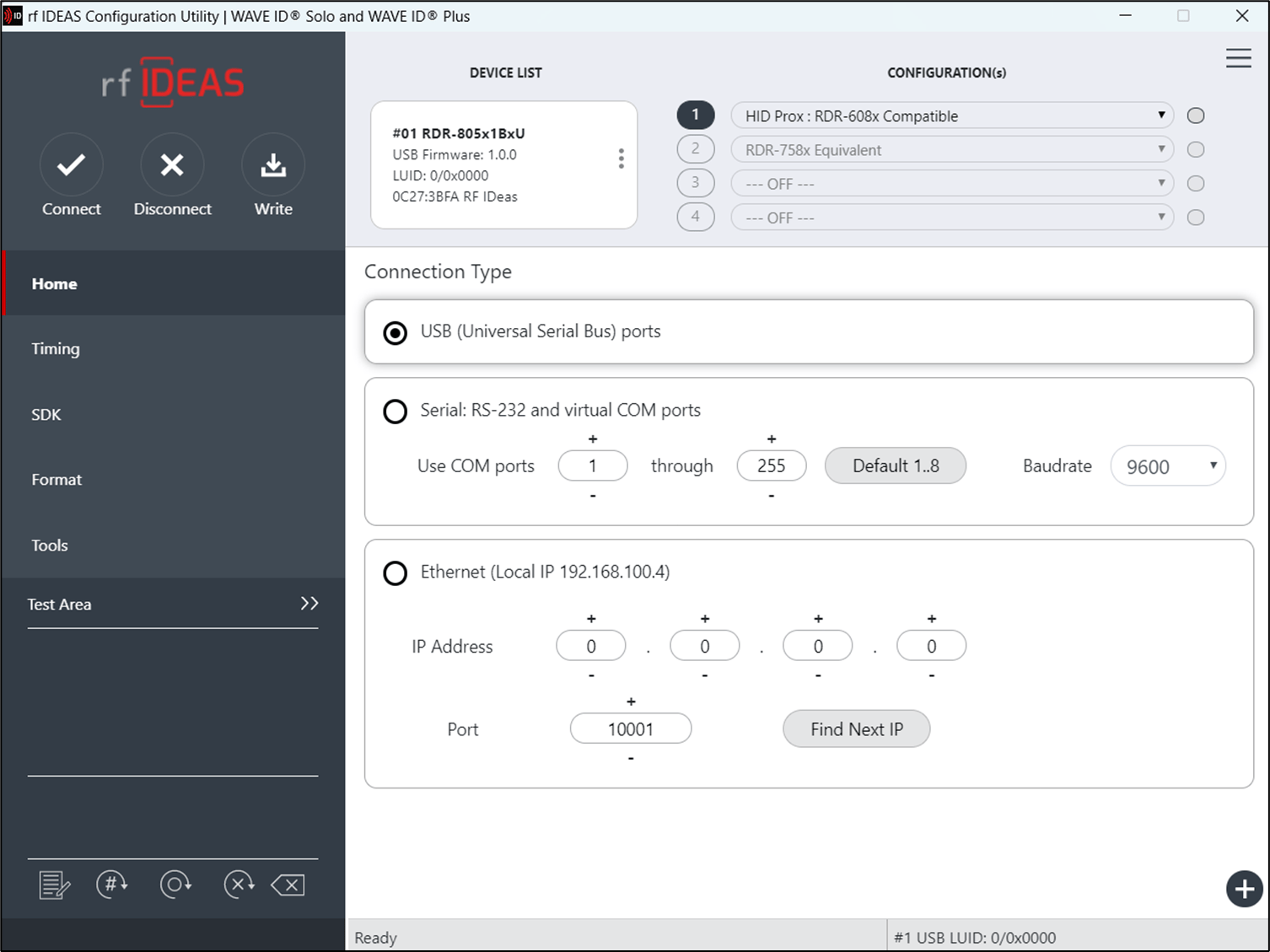
  3. Select the preferred configuration from the CONFIGURATION(s) dropdown list. How to configure rf IDEAS readers for... - screenshot 4

  4. Select Write from the top menu bar. How to configure rf IDEAS readers for... - screenshot 5 The badge reader is updated with the new settings.
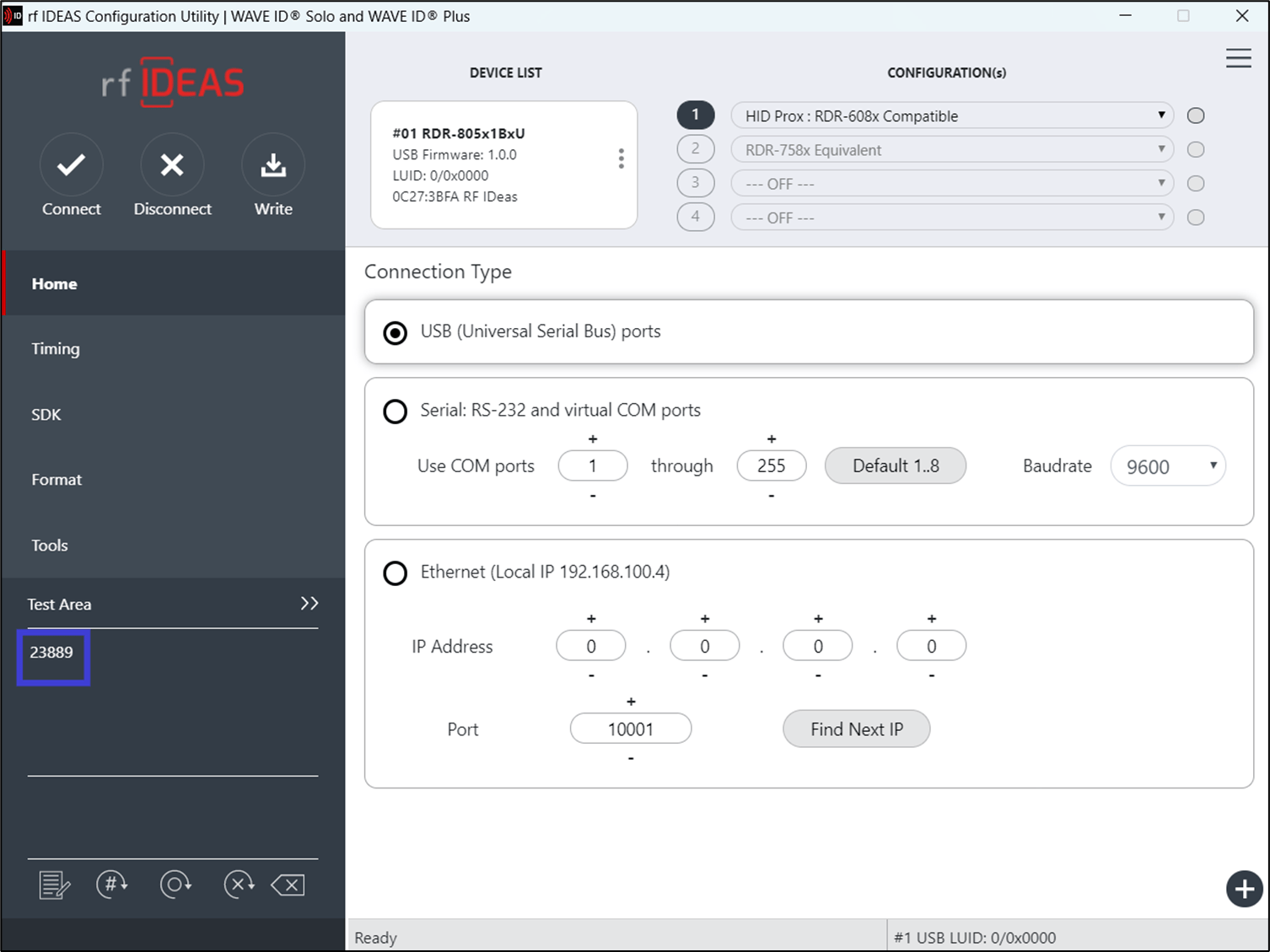
  5. Select the Test Area to scan your badge card with the card reader. How to configure rf IDEAS readers for... - screenshot 6 The badge number is displayed in the Test Area. How to configure rf IDEAS readers for... - screenshot 7 The card reader is configured for the badge card. You can clickHow to configure rf IDEAS readers for... - screenshot 8 icon in the bottom right corner to download the .hwg file.