Introduction
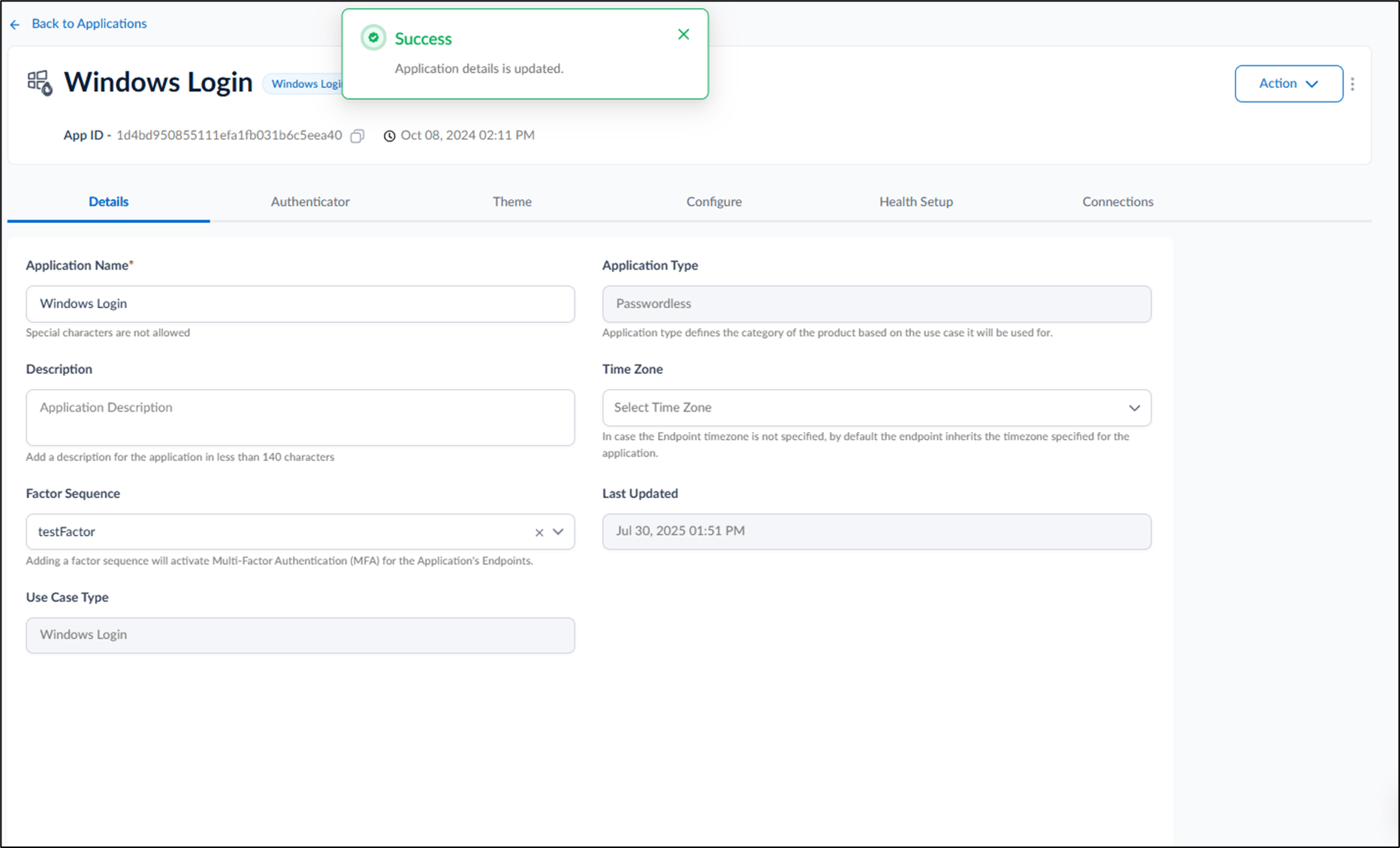
This document provides step-by-step instructions for editing the Details tab of a Windows Login application in the Tenant Admin Portal. You can update the application name, description, and factor sequence to configure the application based on your authentication and deployment requirements.Prerequisites
- You must have Tenant Admin Access.
- Windows Login Application must be created in the Tenant Admin Portal. For more information, refer: How to create and configure Windows Login application in the Tenant Admin Portal
Steps to edit details Tab
- Log in to the Tenant Admin Portal.
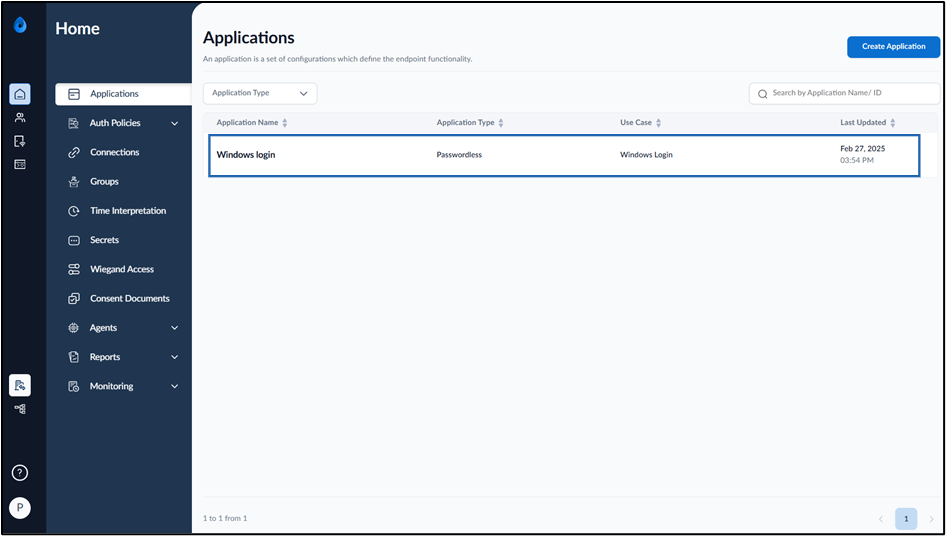
- On the Applications page, click on the preferred Windows login application to edit.
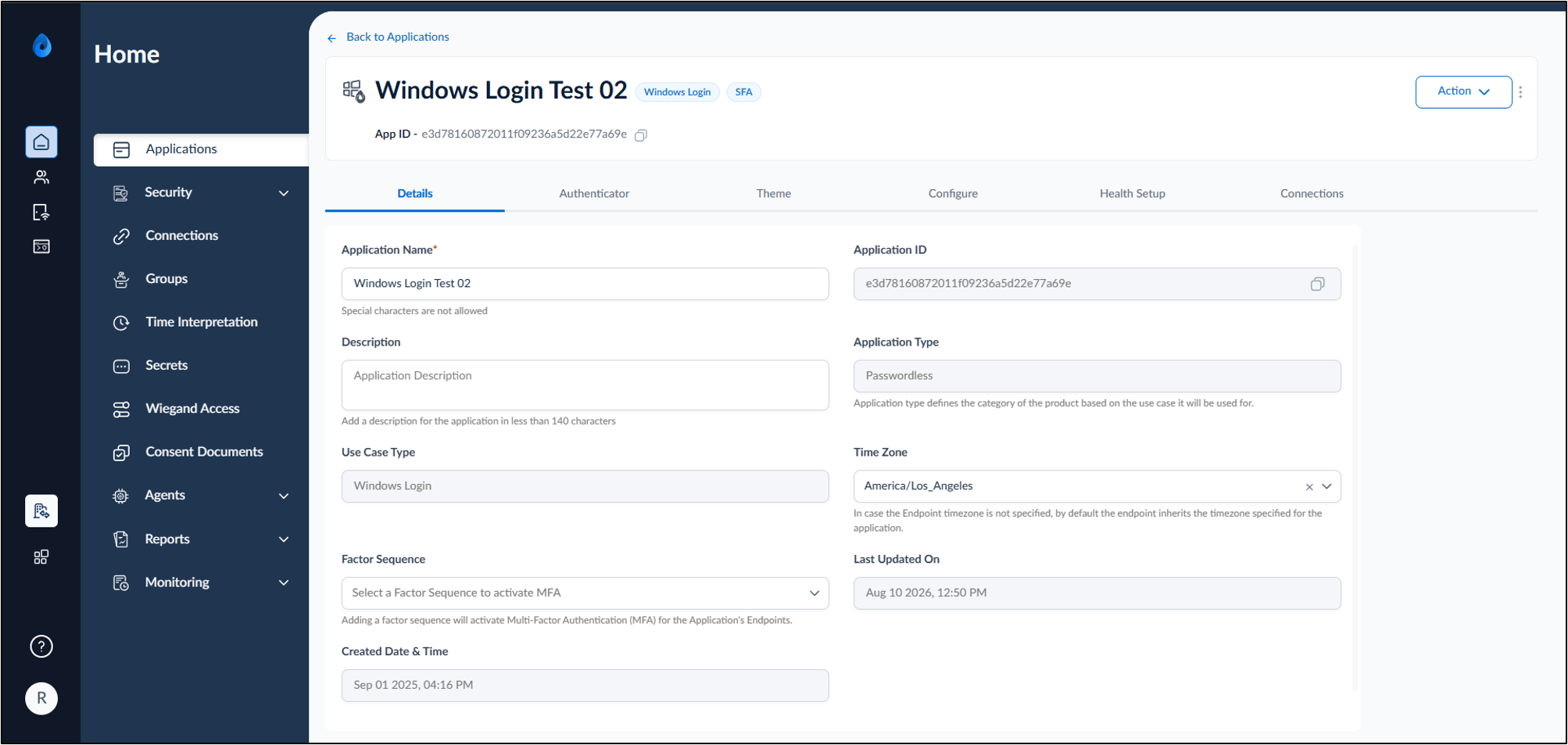
- Do the following:
-
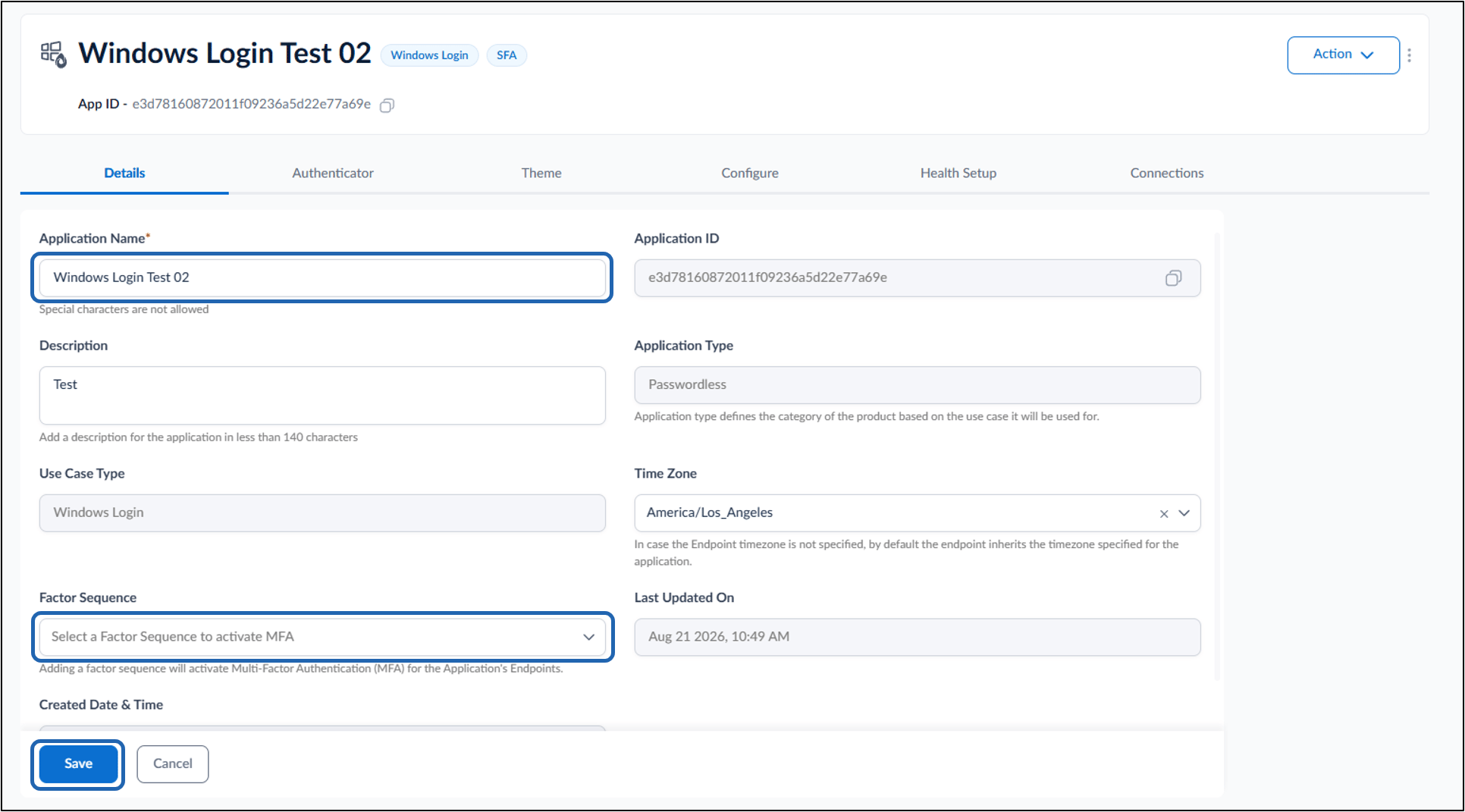
Modify Application Name (if required).
Note: Special characters are not allowed in Application Name.
-
Add Description. (Optional)
Note: The description should be less than 140 characters.
- Select your Timezone based on your country and region from dropdown list. (Optional)
-
Select Factor Sequence from drop down list to activate Multi-Factor Authentication (MFA) for the Application’s Endpoints.
Note: These are one-time settings and all the default settings are recommended.
-
Modify Application Name (if required).