

- You must configure the badge card. For further details, refer How to configure rf IDEAS readers for badge card
- You must identify the card type and card format. For further details, refer How to find the Card Type and Card Format using the RF IDeas Configurator Tool
-
Launch the rf IDEAS Configuration Utility app.

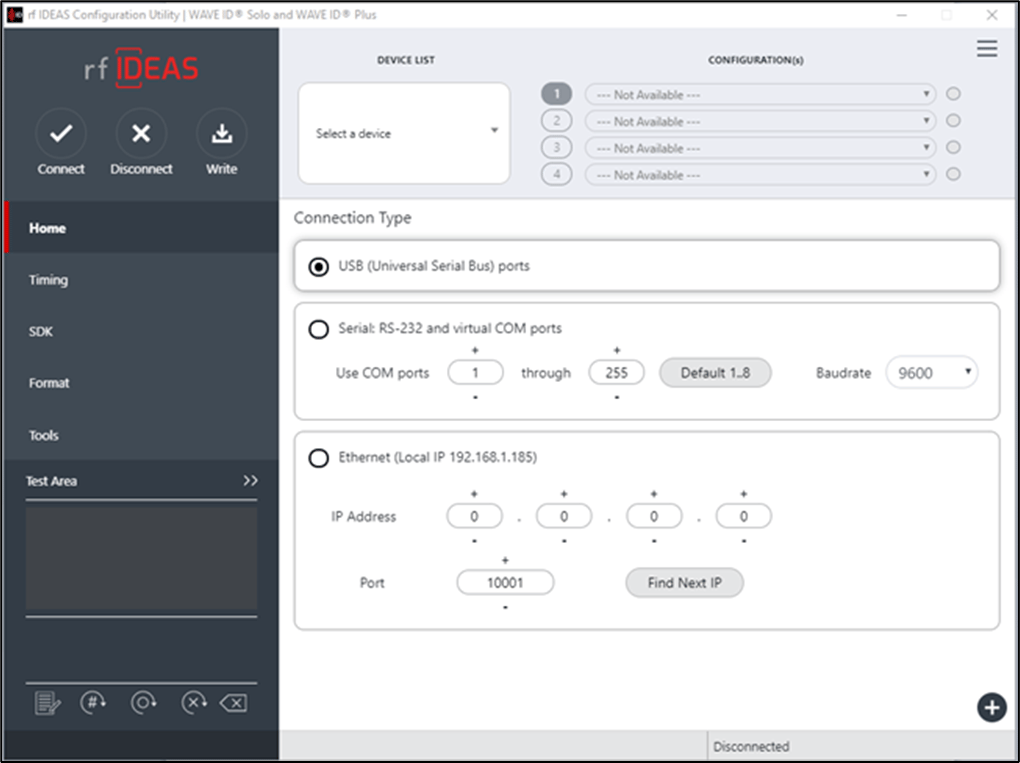
- Connect the card reader to the system.
-
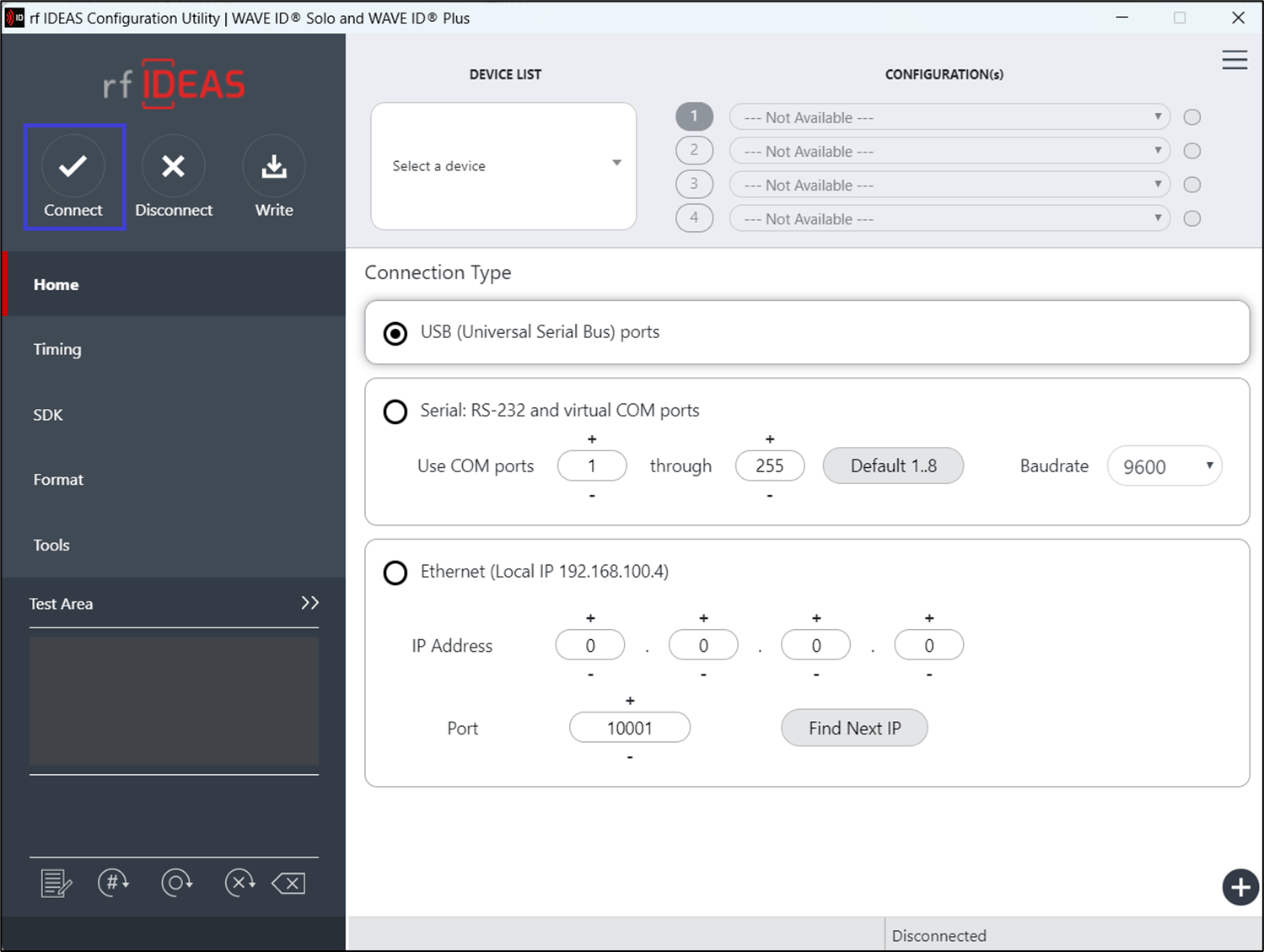
Click Connect from the top left menu bar.

-
In the left menu panel, select SDK.
 Note: It is not always necessary for the card reader to support both SDK and keyboard types. Some readers may support only one of the types.
-
Turn on the Disable Keystrokes for SDK toggle button to disable keystrokes for the SDK-type readers.
 Note: If this option is turned off, keystrokes will be enabled. This option applies only to keystroke-type readers.
 -
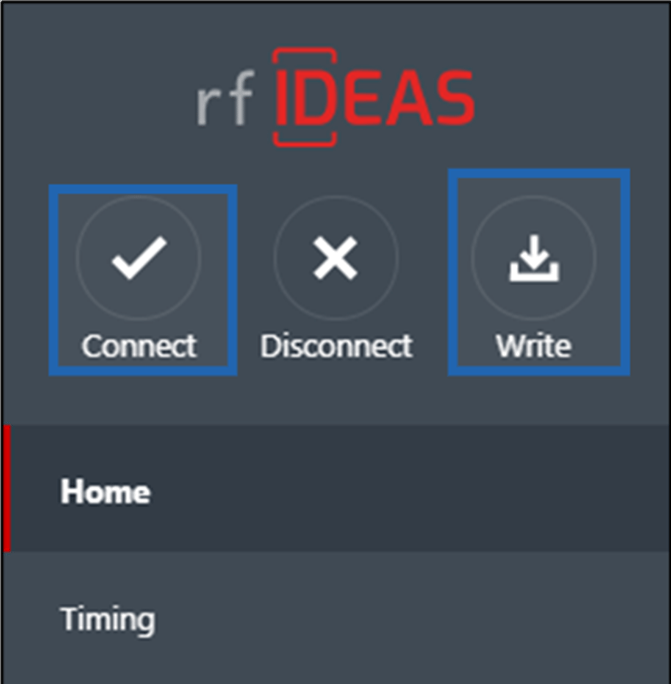
Click Write, and then click Connect to apply the configuration.
Note: Make sure the Disable Keystrokes for SDK setting remains as configured (enabled or disabled) after applying the action. This ensures that the card reader works correctly based on your intended use case, whether supporting SDK, keystrokes, or both.
-
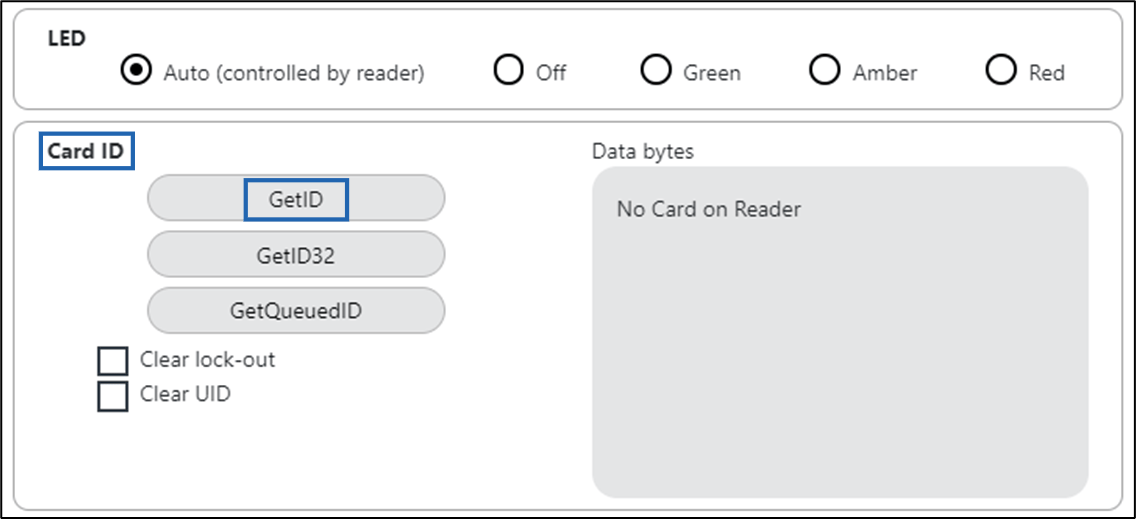
In the Card ID section, click GetID to retrieve the card ID.
Note: You need toscan the badge card using the card reader for the card ID to get displayed.
-
Select the Test Area to scan your badge card with the card reader.
The badge number is displayed in the Test Area.
Note: Make sure the badge number matches the card number. To calculate the card number, see Facility Code Calculation.
-
Turn on the Disable Keystrokes for SDK toggle button to disable keystrokes for the SDK-type readers.
- In the left menu panel, select Format.
-
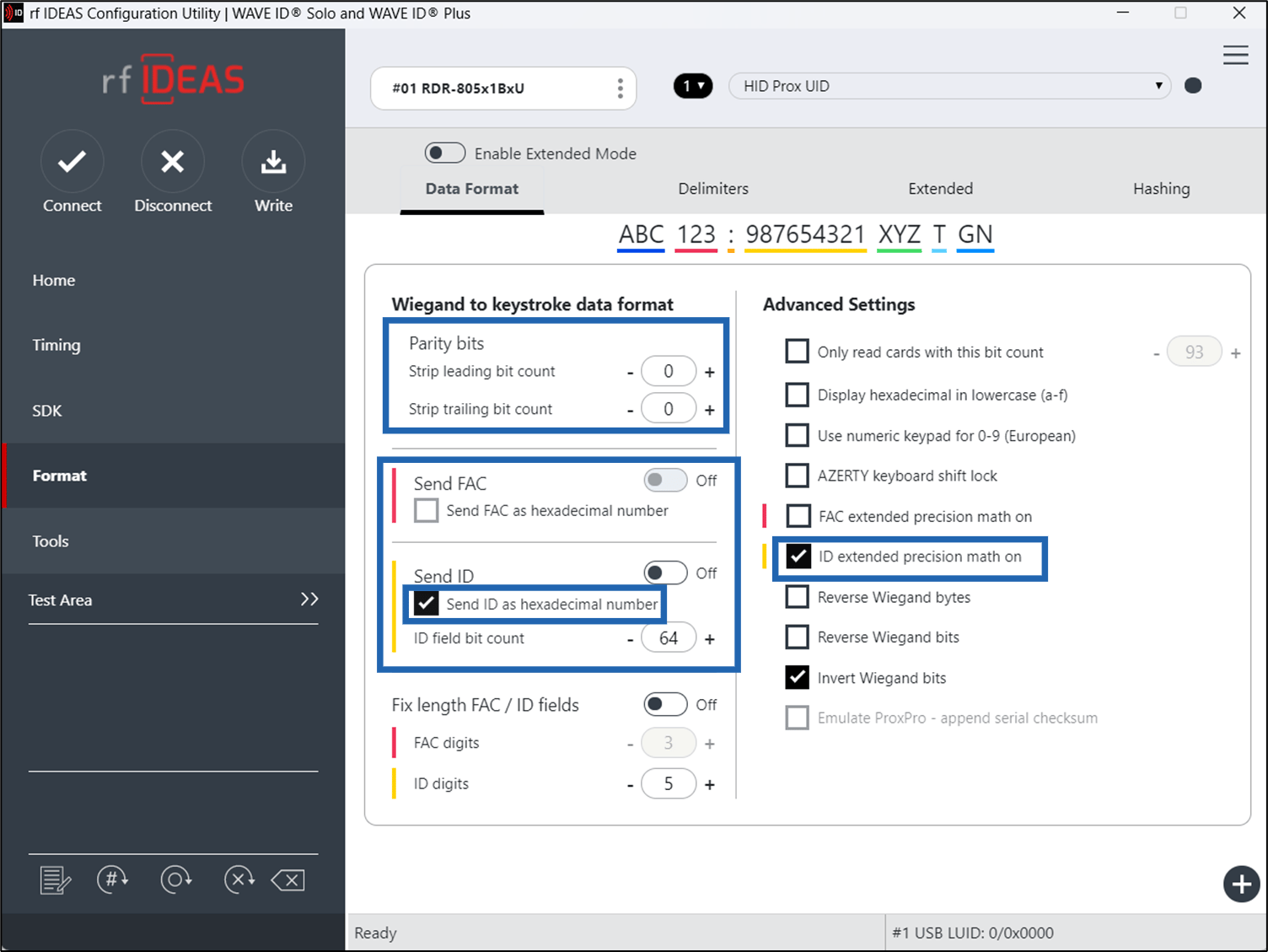
In the Data Format tab, do the following:
- Set Strip leading bit count and Strip trailing bit count to 0.
-
Disable both Send FAC and Send ID options.
Note:
- In the Wiegand to keystroke data format section, select the Send ID as hexadecimal number checkbox.
- In the Advanced Settings section, select the ID extended precision math on checkbox.
- Go to Delimiters tab, and do the following:
- In the Pre-data delimiters (ABC) section, select Insert Keystroke 1.

- Select <NONE> and press Enter on your keyboard.
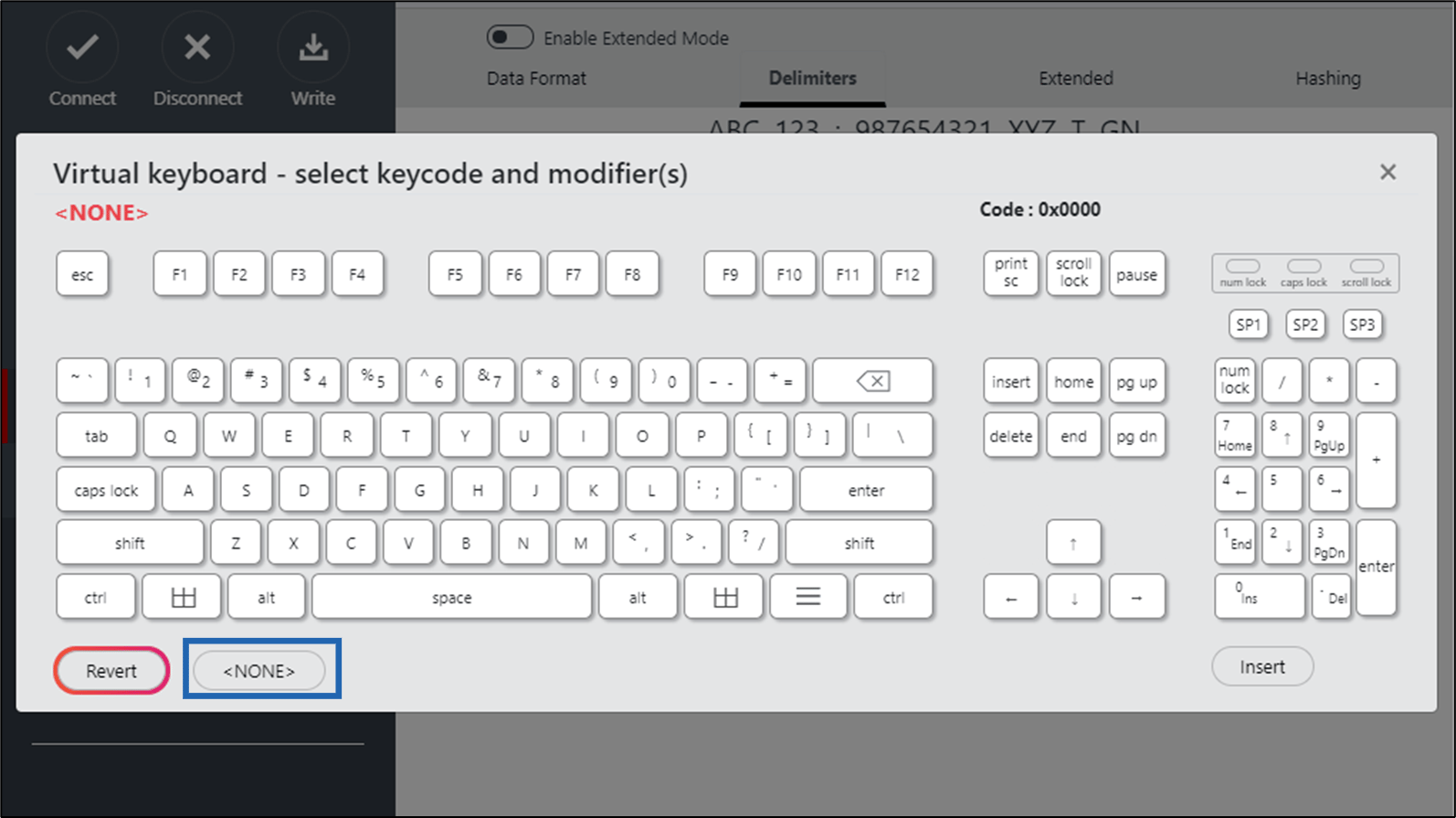
- In the Pre-data delimiters (ABC) section, select Insert Keystroke 1.
- Click Write to apply the changes.