

Introduction
The Windows Login app allows users to securely sign in to their Windows devices using QR Code and Duo authentication. This passwordless, multi-factor login method provides a faster and more secure way to access devices.Prerequisites
- A QR Code must be assigned to you. For more information, refer Windows Login - How to Add QR Code using Supervisor App
- You must have your registered mobile no.
-
External Username or DUO Id from Add Identifier must be added in the User Details page which is registered in DUO app.
Note: If you don’t see the login option reach out to the Oloid Support.
Steps to sign in to Windows device
-
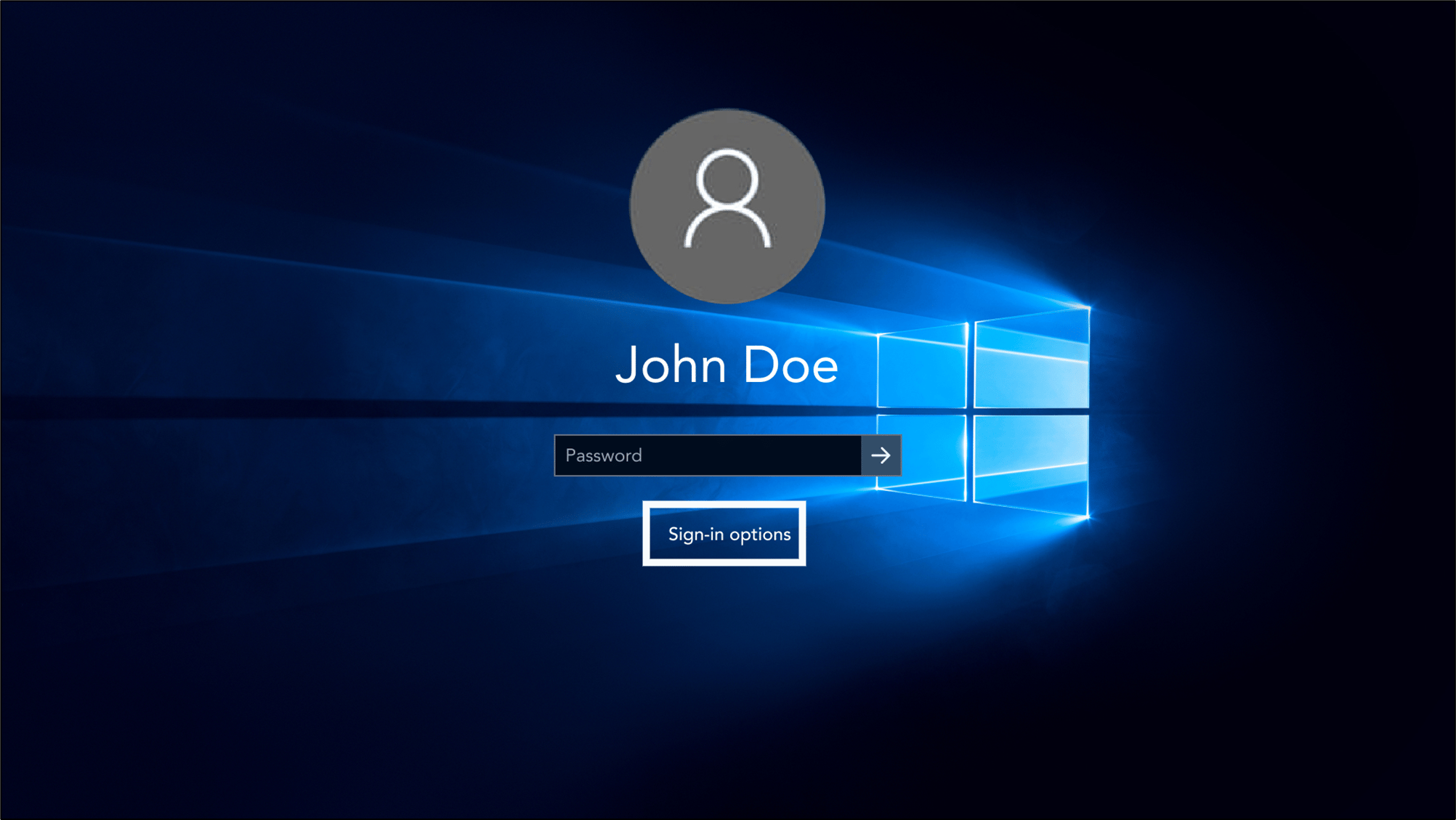
On the Windows lock screen, do the following:
- Click Sign-in options.
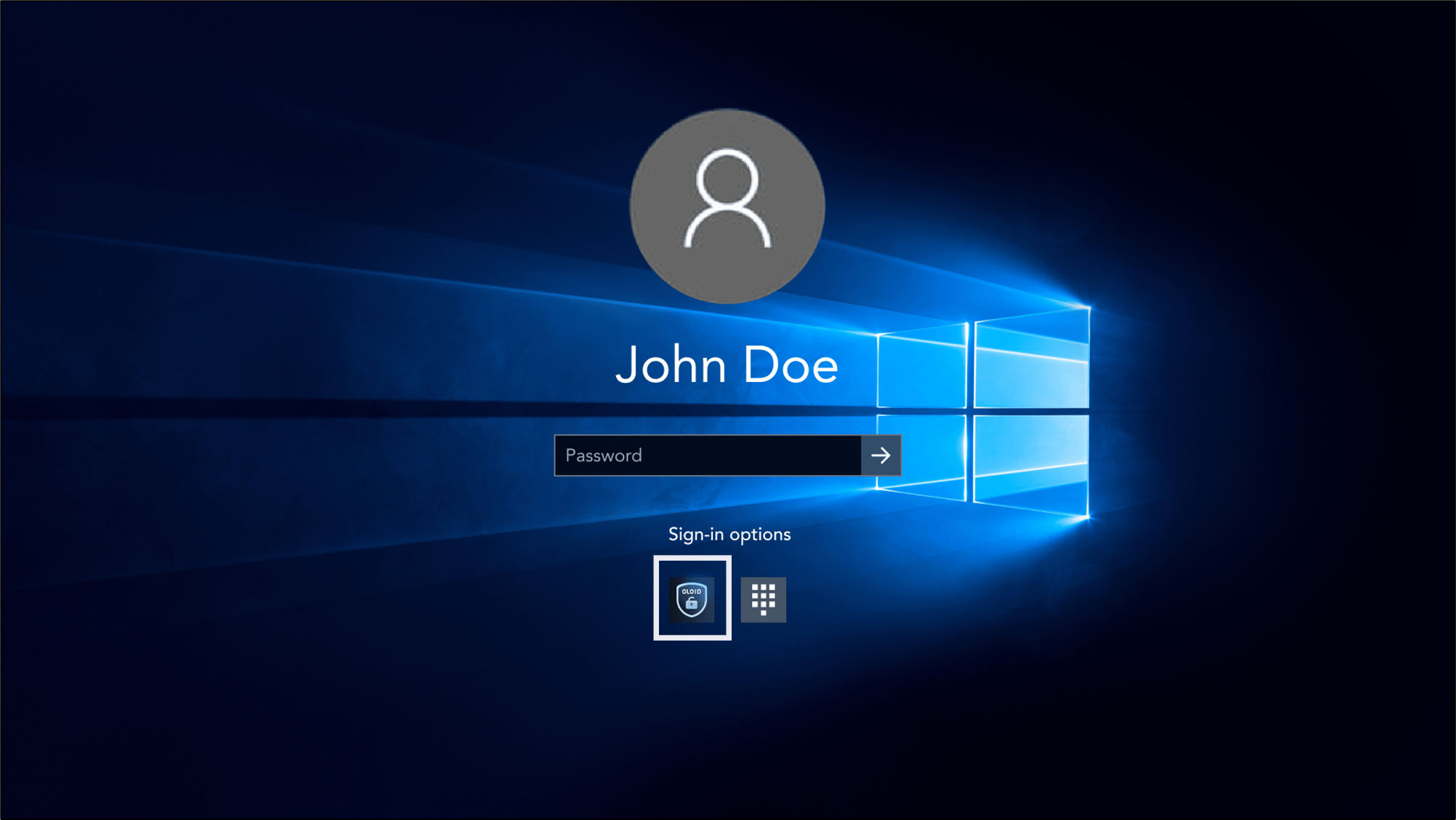
- Select Windows login app.
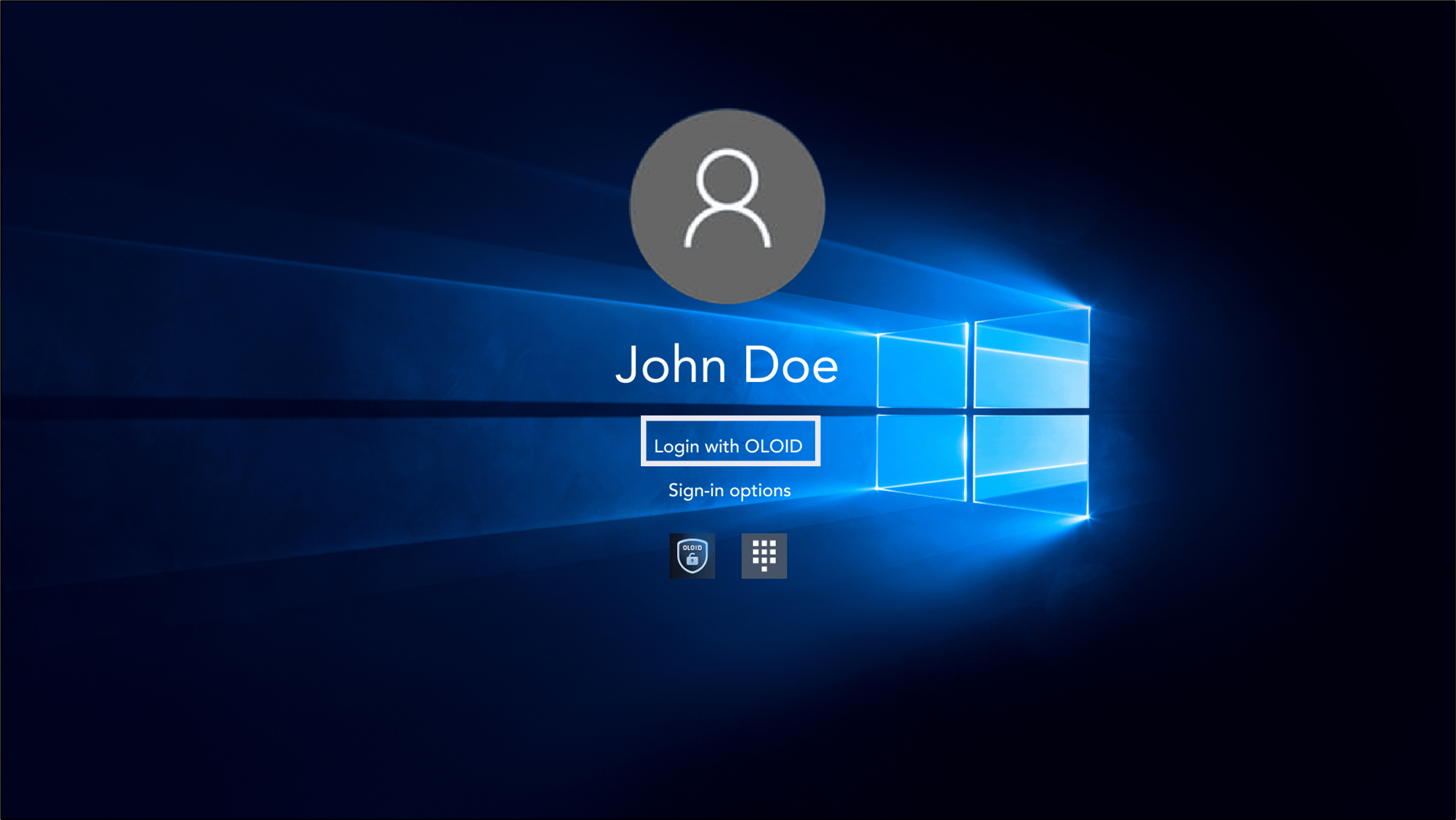
- Select Login with OLOID.
- Click Sign-in options.
-
Show your QR Code in front of the camera to capture the QR code.
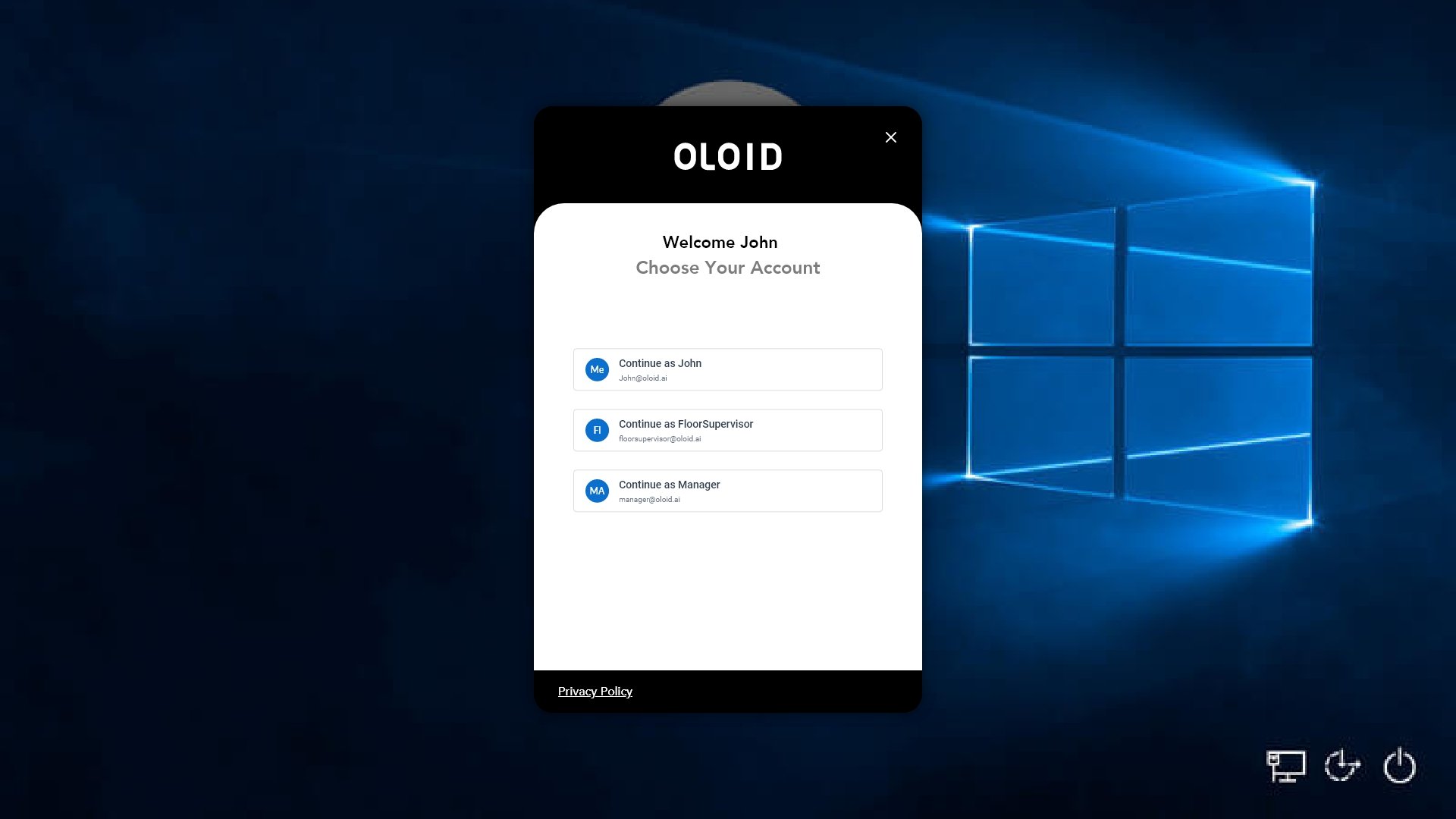
 Note: If the user has multiple passwords configured in the Oloid Portal, they can select a specific account to sign in. If the user has only one account configured, Choose Your Account pop-up box will not be displayed.
 -
Select the account to sign in.
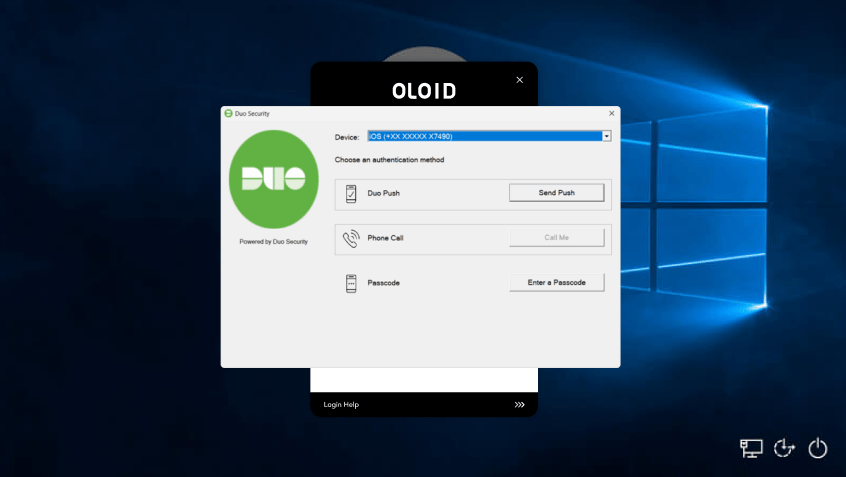
-
Select the user’s phone number from the Device dropdown in the User Details section.
Note: The Device dropdown displays multiple phone numbers only if the user has more than one phone number configured in the system.
-
Do one of the following:
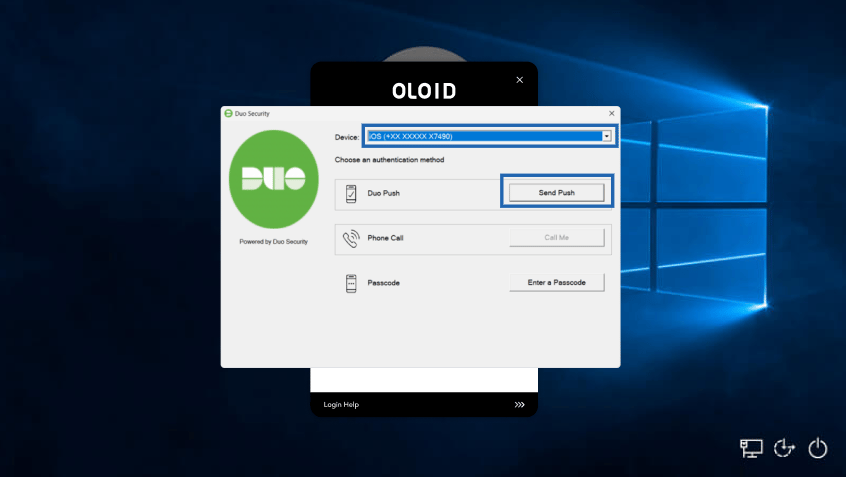
- Duo Push:
- Select Send push to send a notification to the registered mobile number.
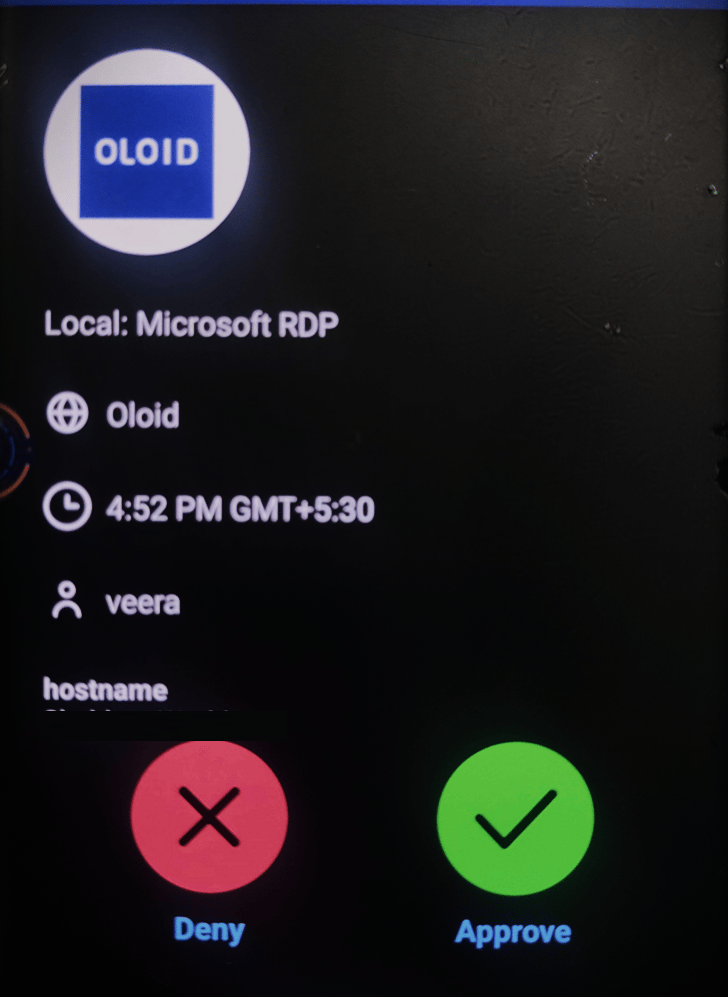
- Tap Approve.
- Select Send push to send a notification to the registered mobile number.
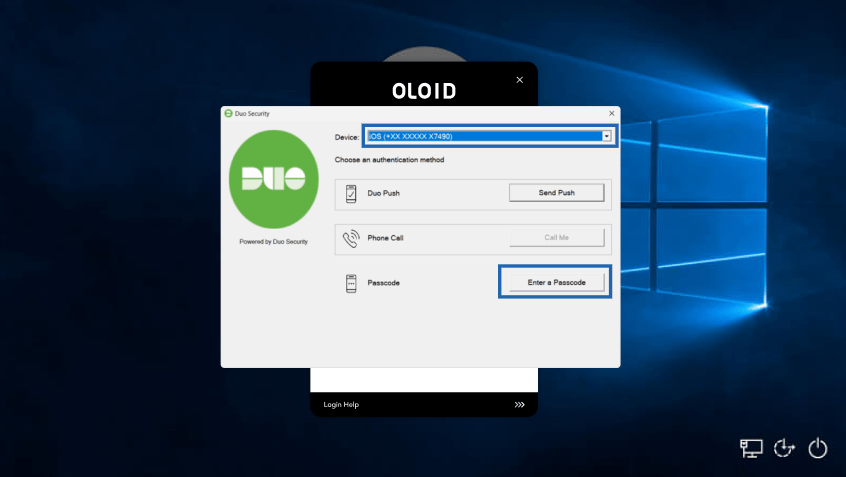
- Passcode:
- Select Enter a Passcode to send a Passcode to the registered mobile number.
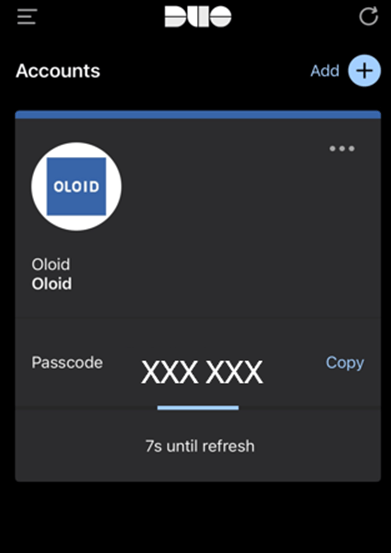
- Enter the passcode in the passcode field and click Log In.
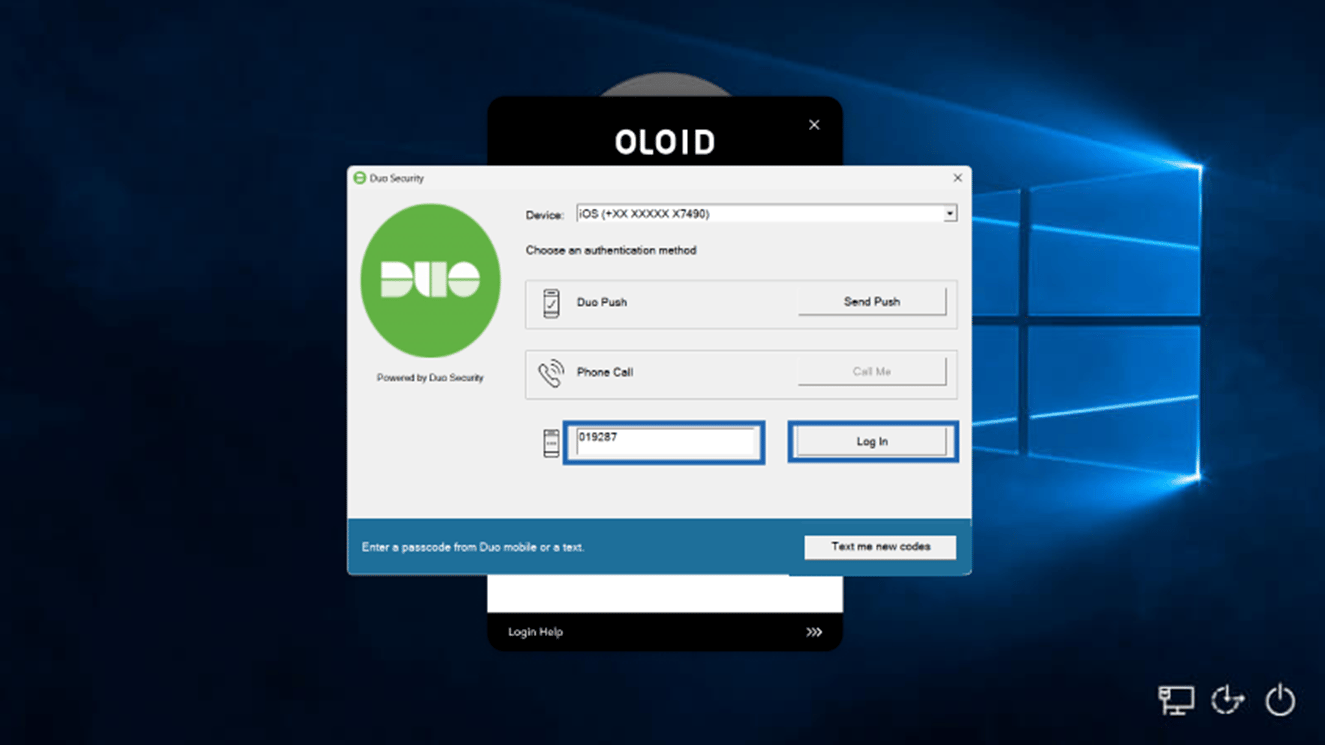
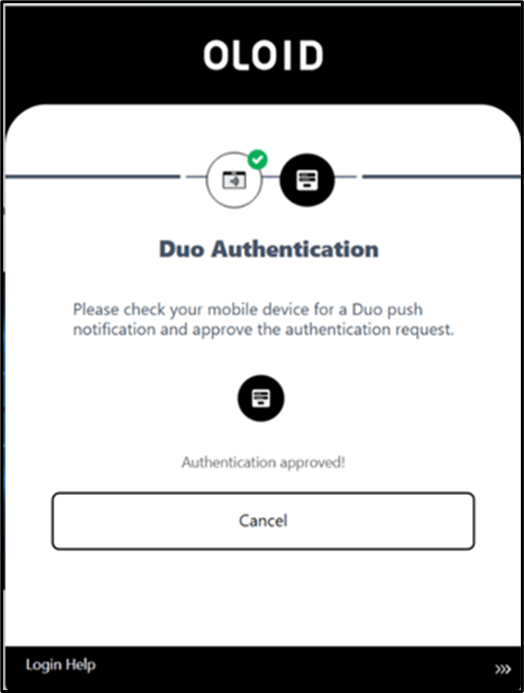
- Select Enter a Passcode to send a Passcode to the registered mobile number.
- Duo Push: