

Introduction
This document explains how to apply an Endpoint Template during the auto-pair configuration process for the Windows Login application. Applying the Endpoint Template ensures that predefined settings are automatically assigned to devices as part of the pairing process.Prerequisites
- You have Tenant Admin access to the Tenant Admin Portal.
- An Endpoint Template has been created. To create refer How to create and configure Windows Login Endpoint Template.
- Windows Login Application must be created in the Tenant Admin Portal. For more information, refer: How to create and configure Windows Login application in the Tenant Admin Portal
Steps at a Glance
- Create the Windows Login application in the Tenant Admin Portal and select the desired endpoint template in the “Apply Endpoint Template” field.
- Generate and download the auto-pair config file; ensure it is mapped to the application with the predefined template.
- Install the Windows Login app on the endpoint using the auto-pair option. The endpoint template is applied automatically.
Steps to Apply Endpoint Template During Auto-Pair Process
Step 1: Create and Configure the Windows Login Application
- Log in to the Tenant Admin Portal.
-
Create the windows login application. Refer How to create and configure Windows Login application.
Note: If window login application is already created then select the desired application from the application list.
-
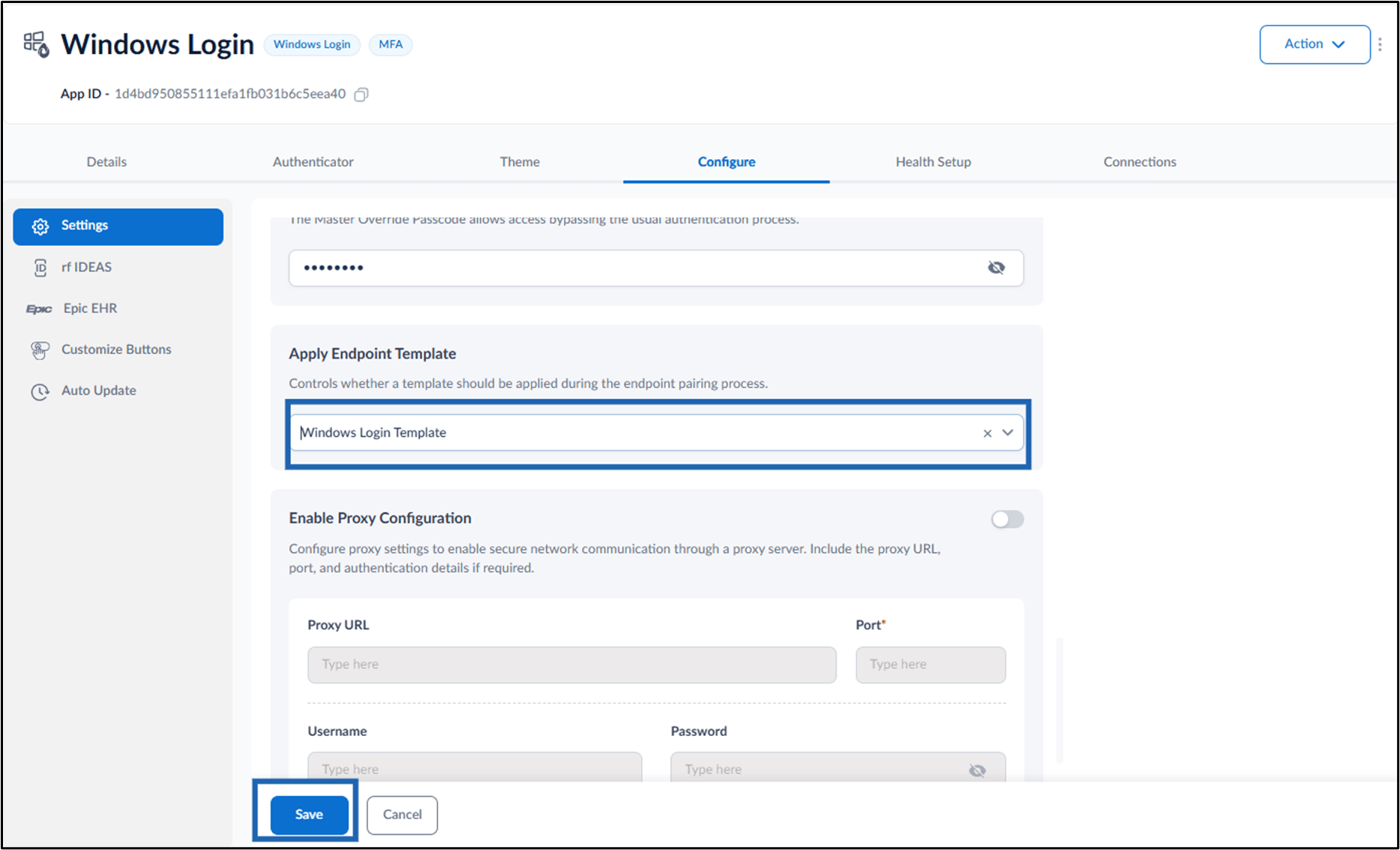
In the Settings section, select the applicable template from Apply Endpoint Template dropdown.
Note: Endpoint template must be added to apply template when using auto-pair option to pair the endpoint.

-
Select Save.
Step 2: Generate and Download the Auto-config File
-
Generate and download the auto-pair config file. Refer How to generate Auto-Pair config file for Windows Login in Tenant Admin Portal
Note: Ensure that the Application Mapping includes the application where the Endpoint Template is specified. This mapping ensures that auto-pair applies the correct endpoint configuration.

Step 3: Pair the Windows Login Application with Auto-pair config file.
- On the target Windows device, launch the Oloid Windows Login Installer.
- Pair the endpoint using auto-pair option. To auto-pair refer How to pair Supervisor App using auto-config option