Introduction
This document explains how to configure Allow Login Through Local Credentials for the Windows Login application in the Tenant Admin Portal. Enabling this setting allows users to sign in to Windows using their local Windows credentials.Prerequisites
- Tenant Admin access to the Tenant Admin Portal.
- You must create and configure Windows Login application. For More, refer to How to create and configure Windows Login application in the Tenant Admin Portal
Steps to Configure Allow Login Through Local Credentials
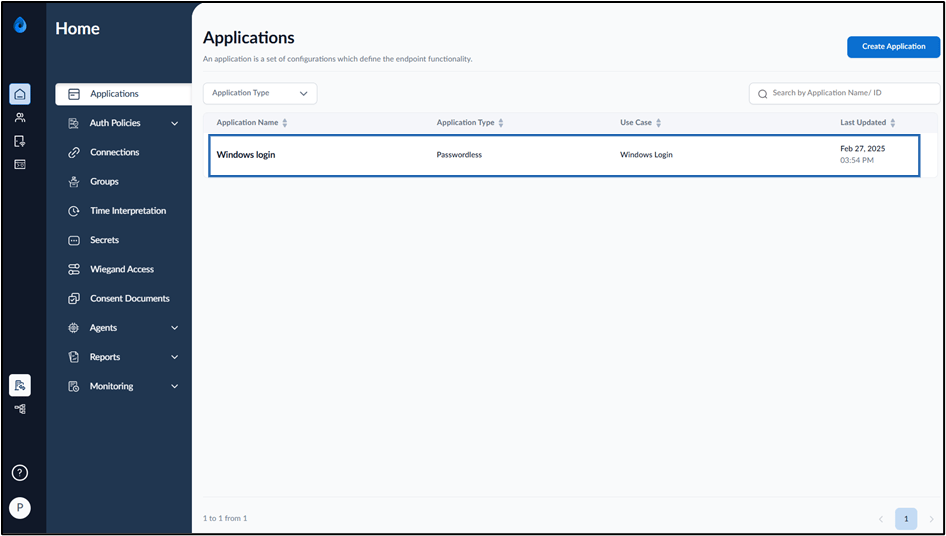
- Log in to the Tenant Admin Portal.
- Go to Applications > select Windows Login application.
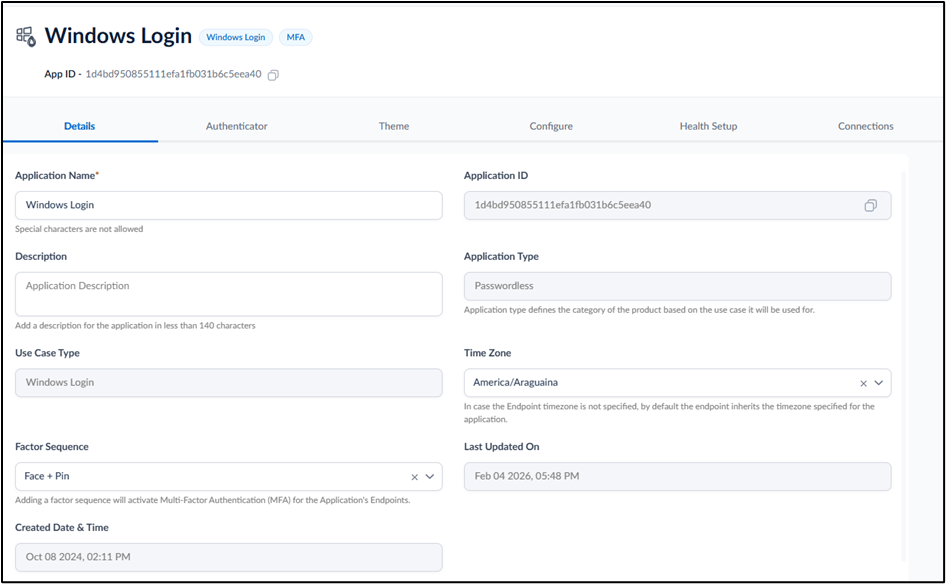
- Go to Configure > Settings tab.
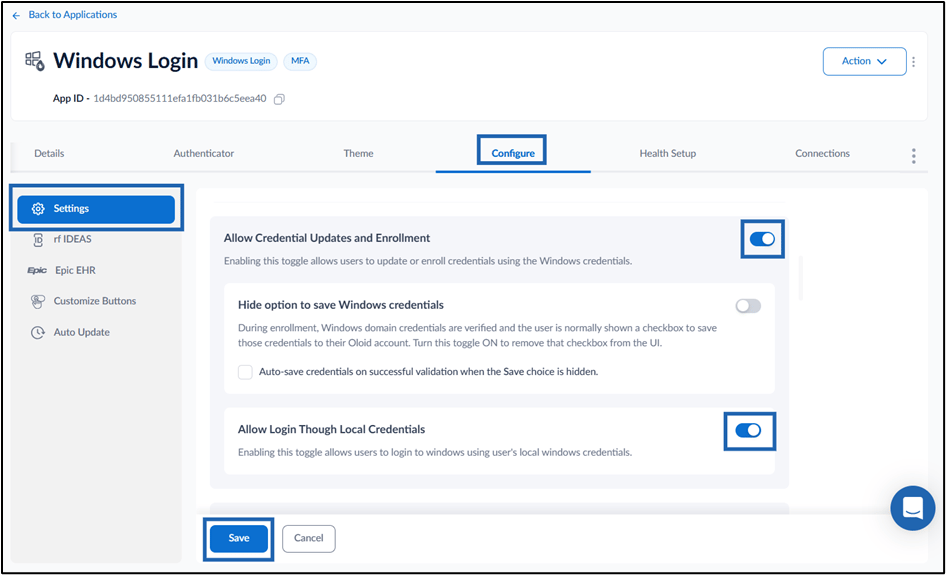
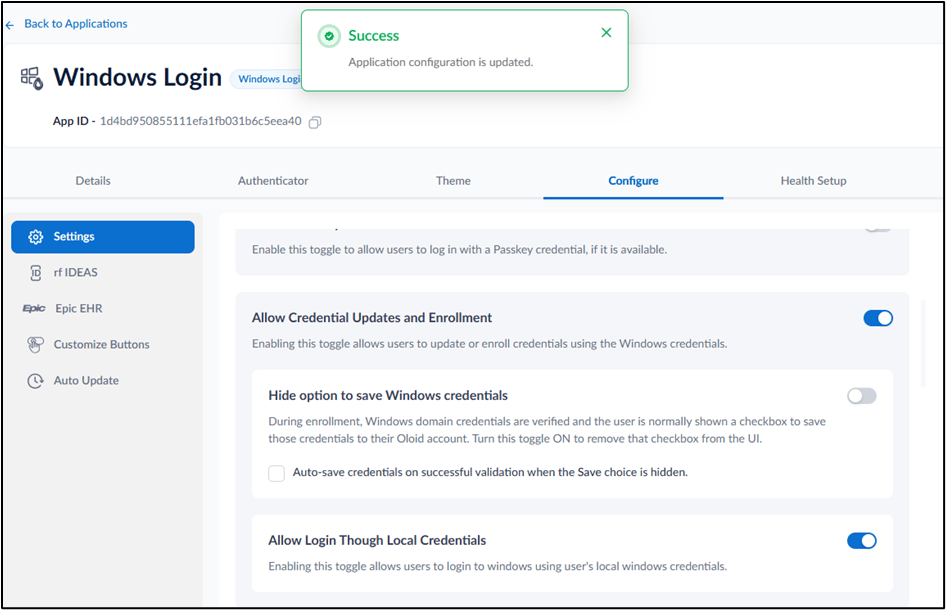
- Enable Allow Credential Updates and Enrollment toggle to allow users to update or enroll credentials using Windows credentials.
- Enable Allow Login Through Local Credentials to allow users to log in to Windows using their local Windows credentials.