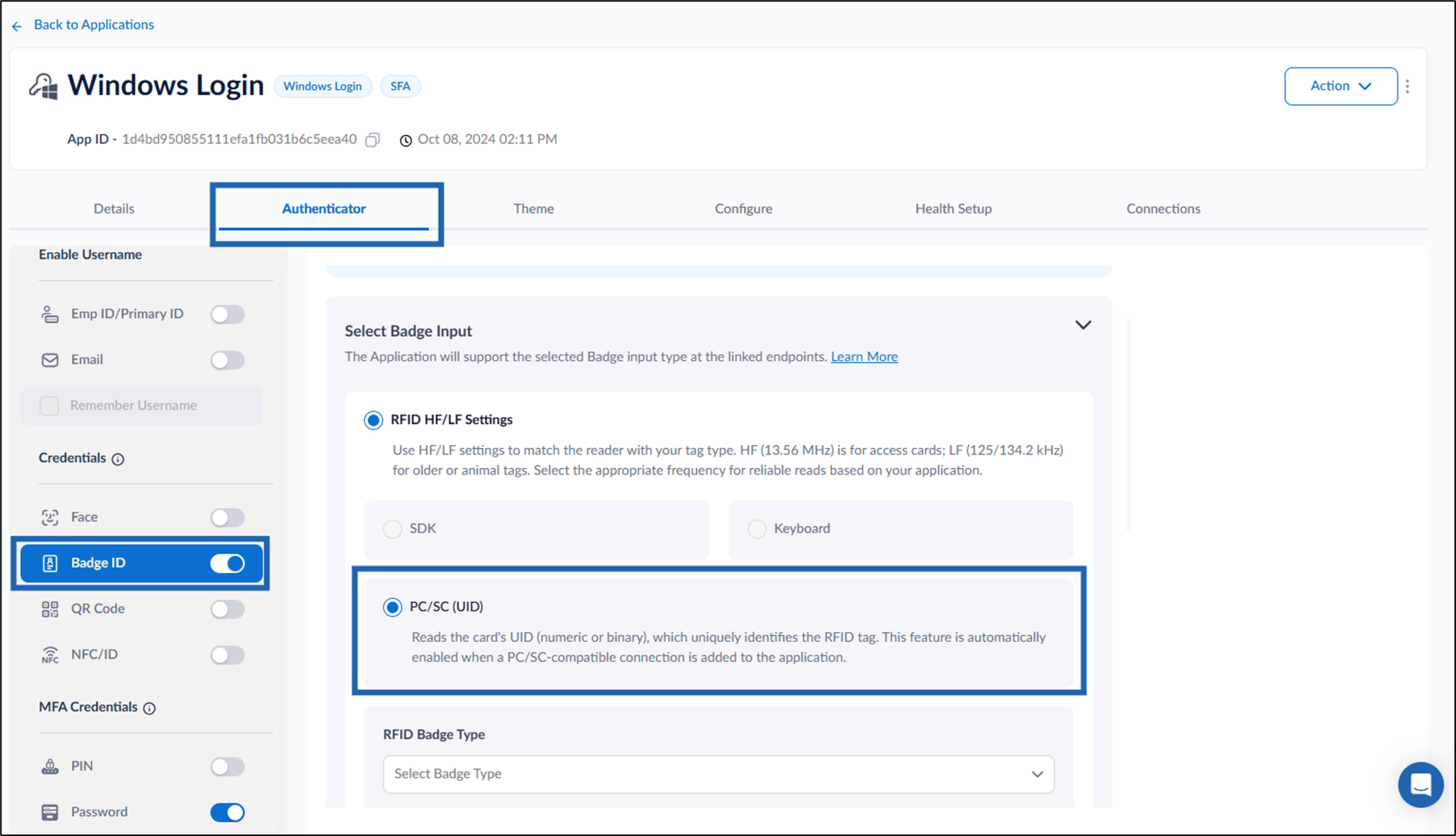
Prerequisite
PC/SC Badge input enabled connection must be created. For more details refer How to create PC/SC Badge Input enabled Connections in the Tenant Admin Portal.Steps to add PC/SC Badge input enabled Connection
- Log in to the Tenant Admin Portal.
-
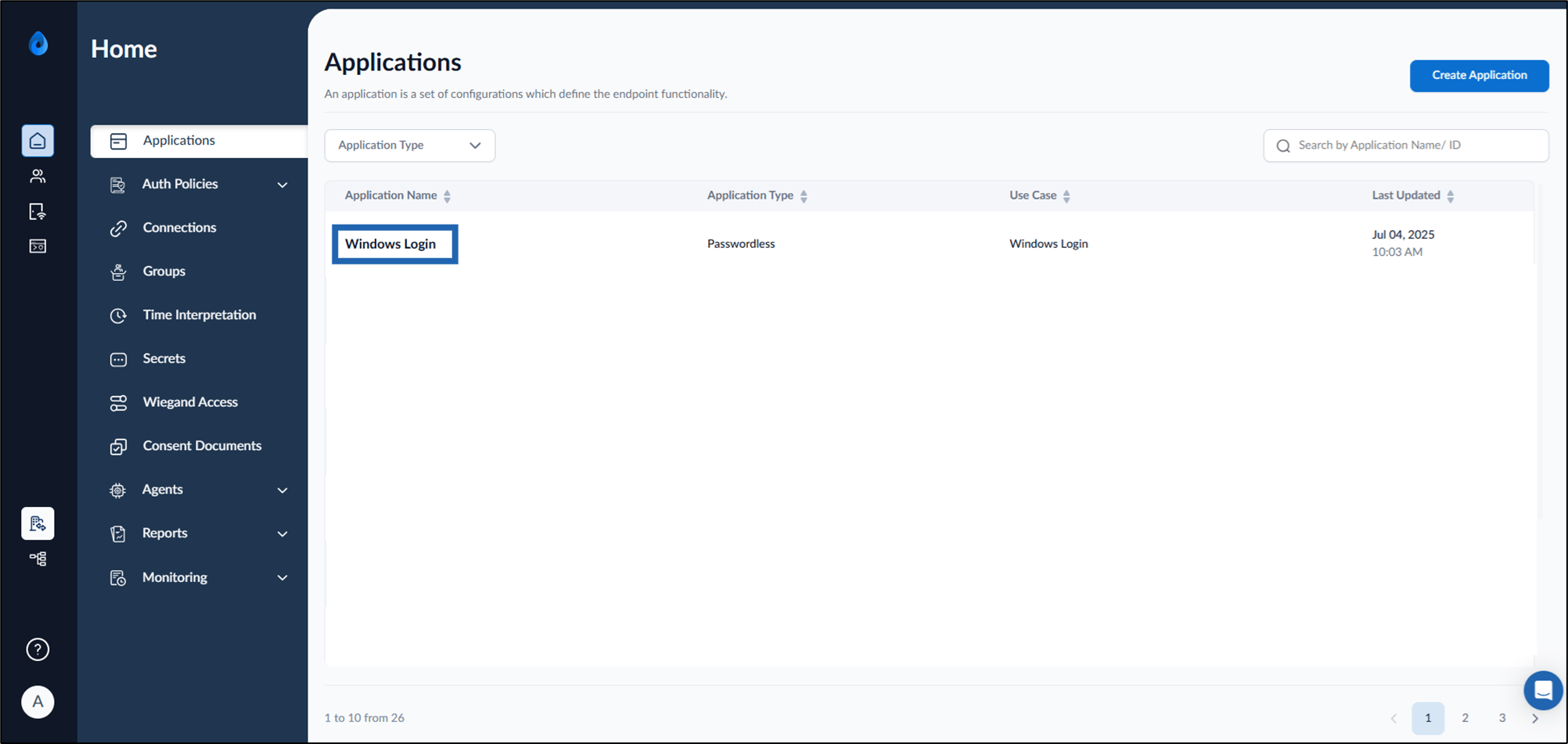
On the home page of the portal, click Application name to edit.
-
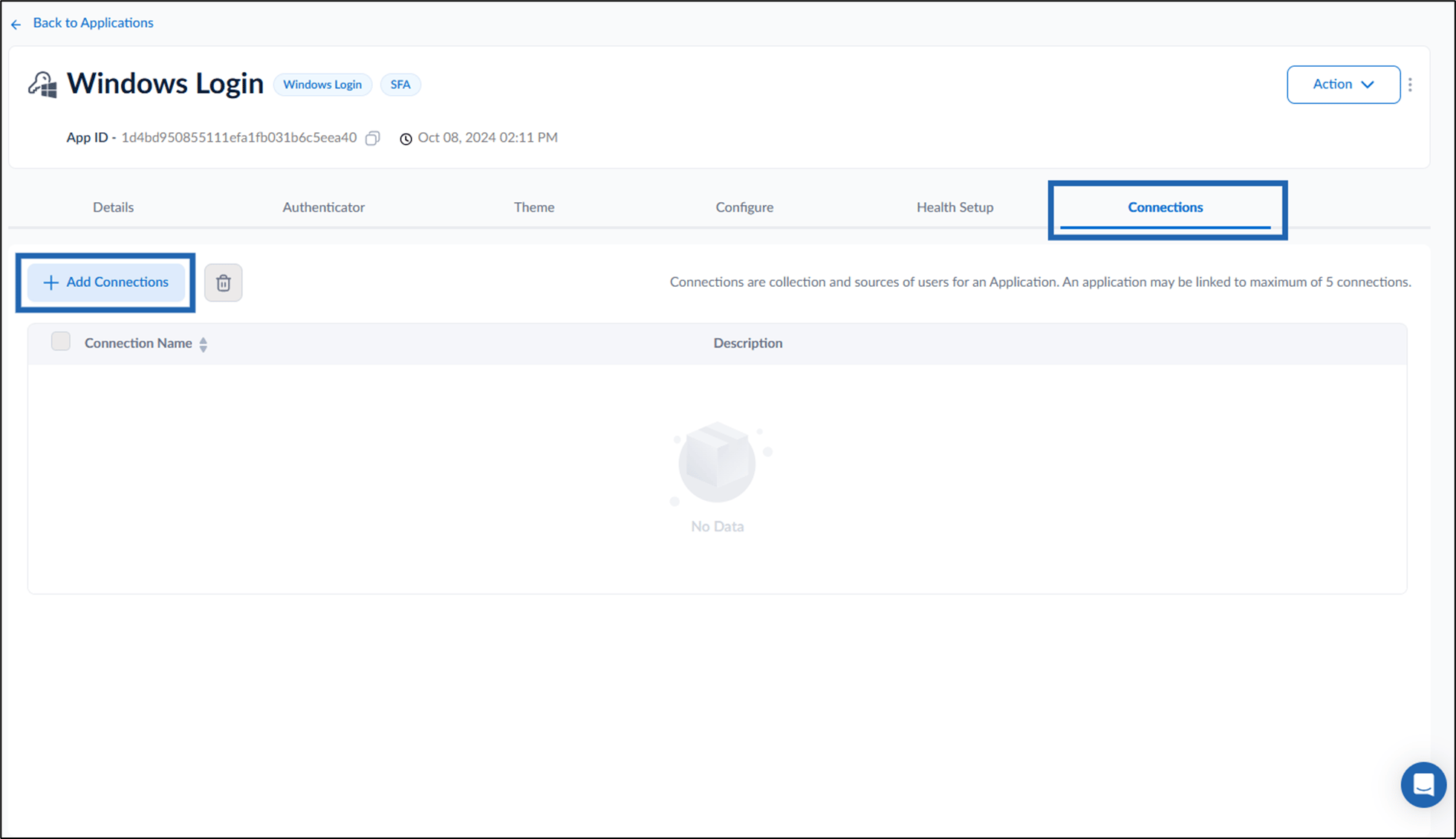
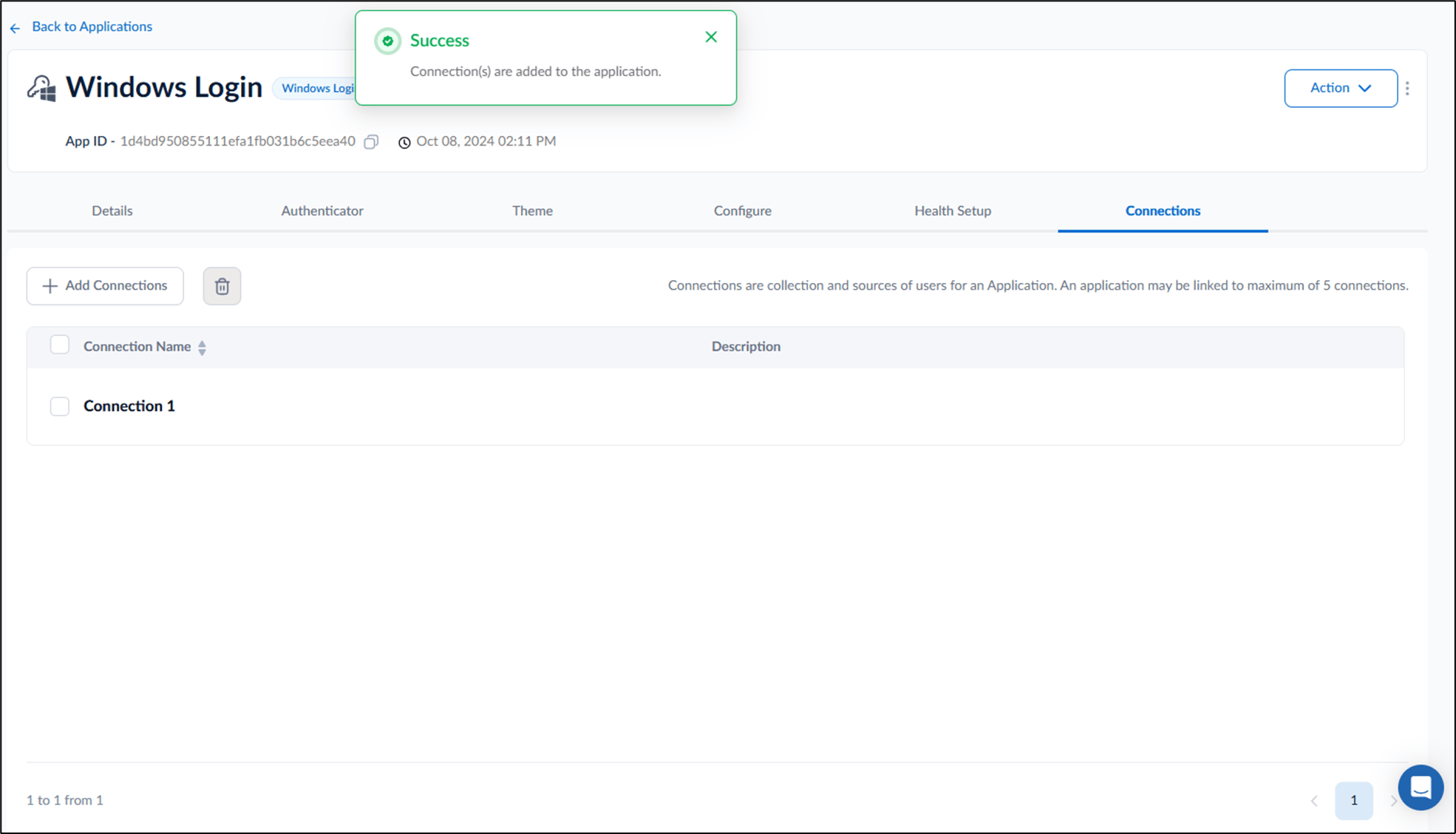
Go to Connection tab > select Add Connections.
Note: Before adding a PC/SC Badge input enabled connection, ensure that the connection is already created and listed in the connection list. To create a PC/SC Badge input enabled connection, refer to this link How to create PC/SC Badge Input enabled Connections in the Tenant Admin Portal.
-
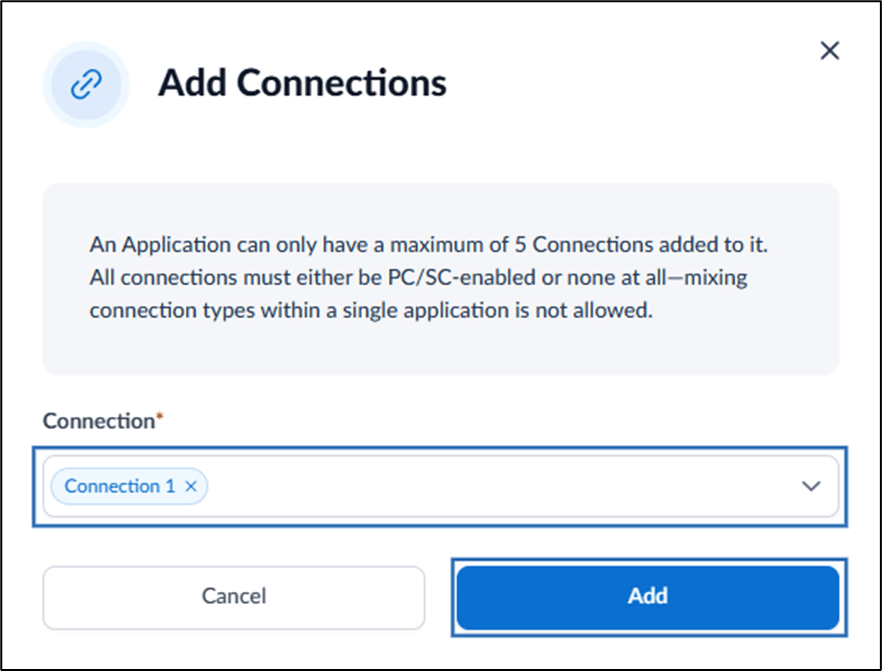
On the pop-up box, do the following:
- Select a PC/SC Badge input enabled connection from Connection dropdown menu.
-
Click Add.
Note: An application can have a maximum of 5 Connections. You can add only PC/SC Badge input enabled connections.
- Go to Authenticator tab > select Badge ID from left panel menu.