Introduction
This document provides step-by-step instructions for enrolling face through Windows Login app.Prerequisites
- Windows Login Application must be created in the Tenant Admin Portal. For more information, refer: How to create and configure Windows Login application in the Tenant Admin Portal
- Ensure the endpoint is paired with the Windows Login application. refer Windows Login - How to Manually Pair the Supervisor App
- In Tenant Admin Portal, you must enable Allow Credential Updates and Enrollment to enroll credentials in Windows Login app. For more details, refer to How to enable Allow Credential Updates and Enrollment in Windows Login application
- Ensure the Enable Windows default domain toggle is turned on. For more details, refer to How to enable Windows Default Domain for Windows Login application in the Tenant Admin Portal
- Make sure either the user’s Primary ID or email ID matches your System Account Name.
Steps to enroll face through Windows Login app
-
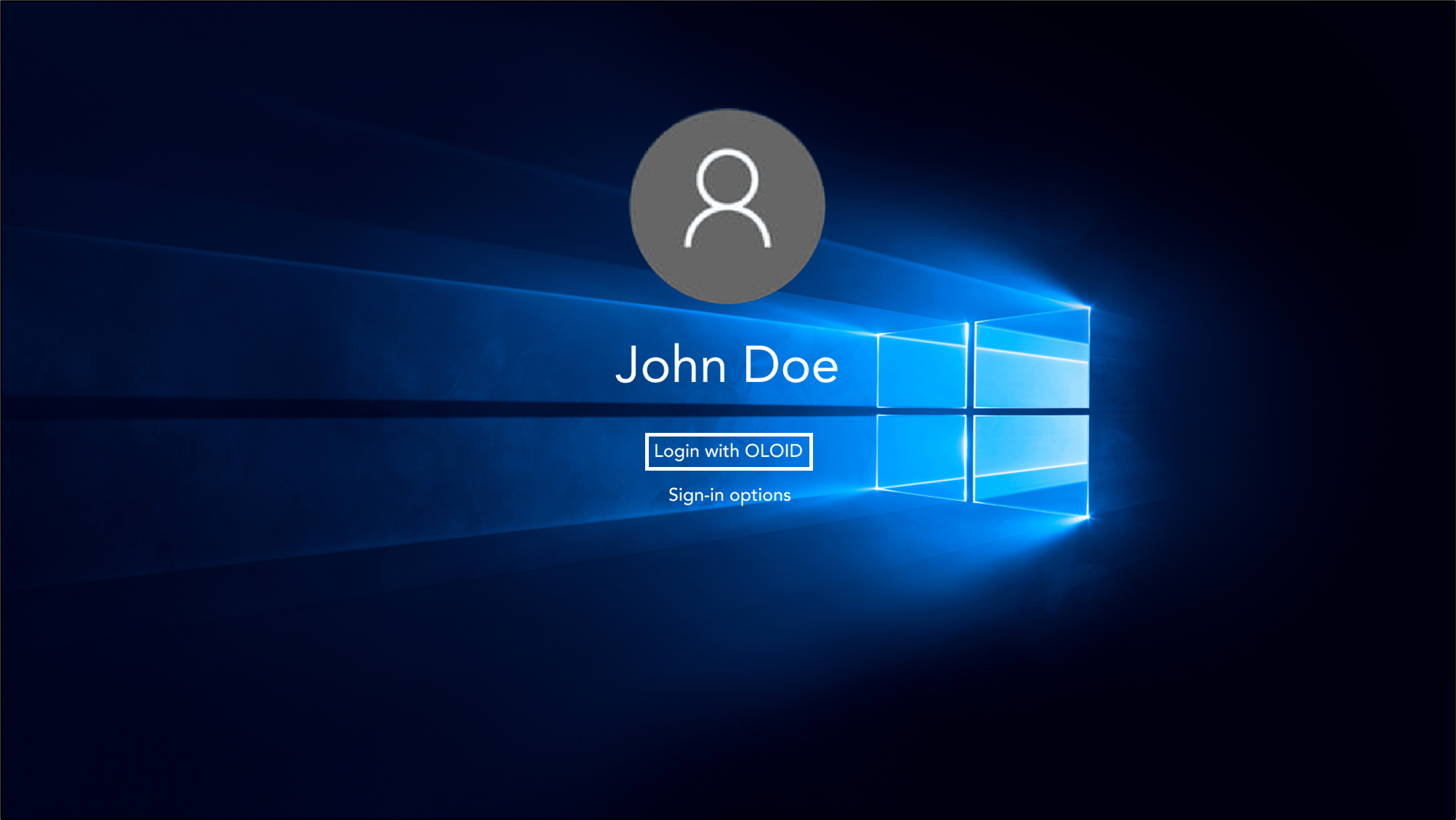
On the Windows lock screen, click Login with OLOID.
-
Select Login with Face.

-
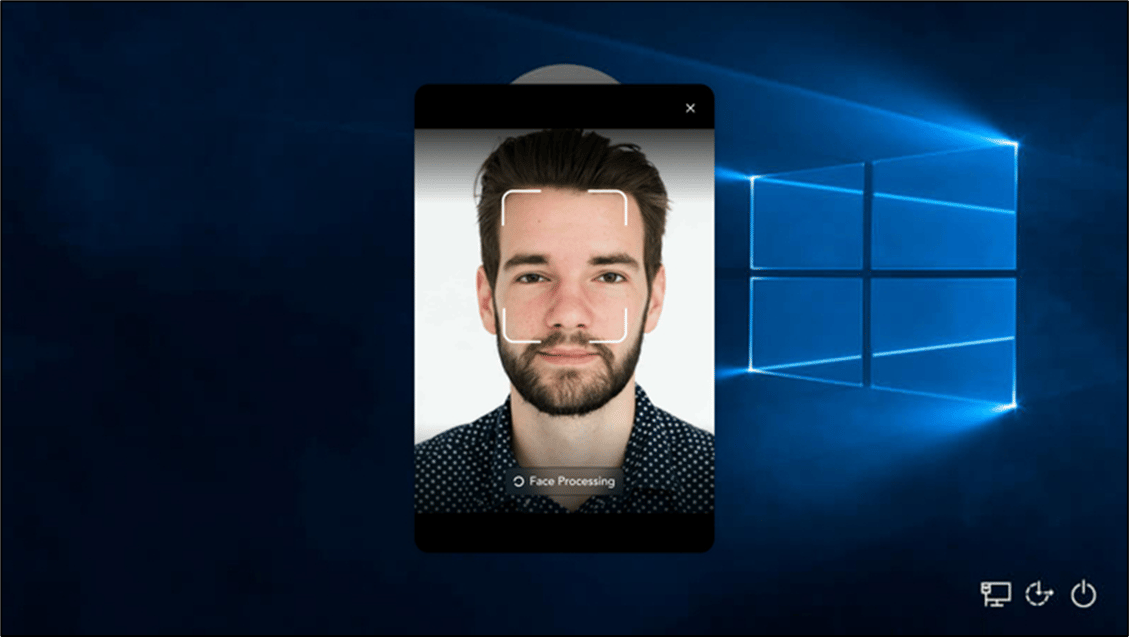
Place your face in front of the camera for facial authentication.

-
On the Authentication Failed screen, select Enroll Credential.

-
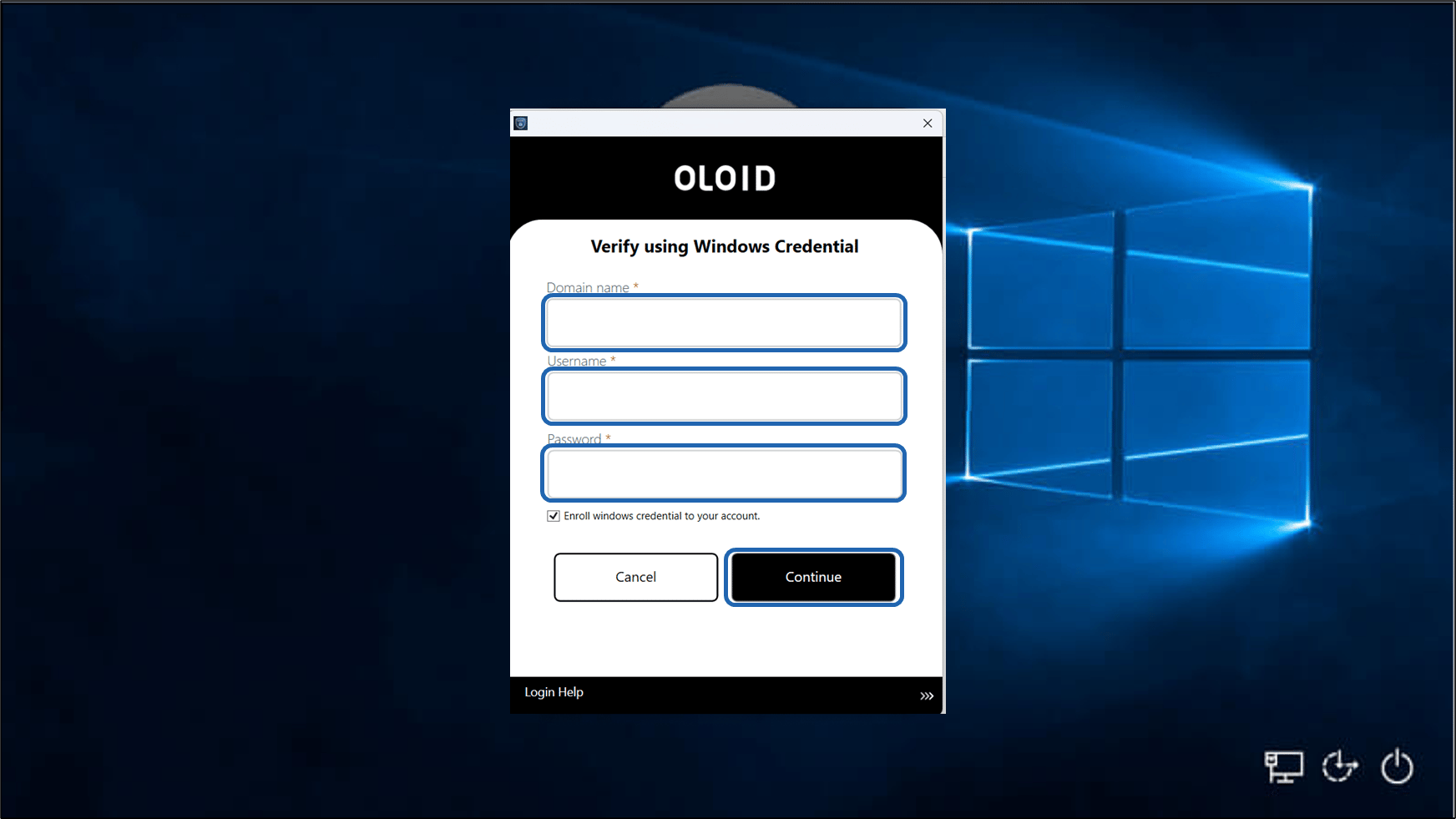
Do the following:
- Enter Domain Name Enter your Windows domain name.
- Enter Username. Use your Windows account username.
- Enter Password. Use your Windows account password.
- Select Enroll Windows credential to your account. (Optional)
- Click Continue.
-
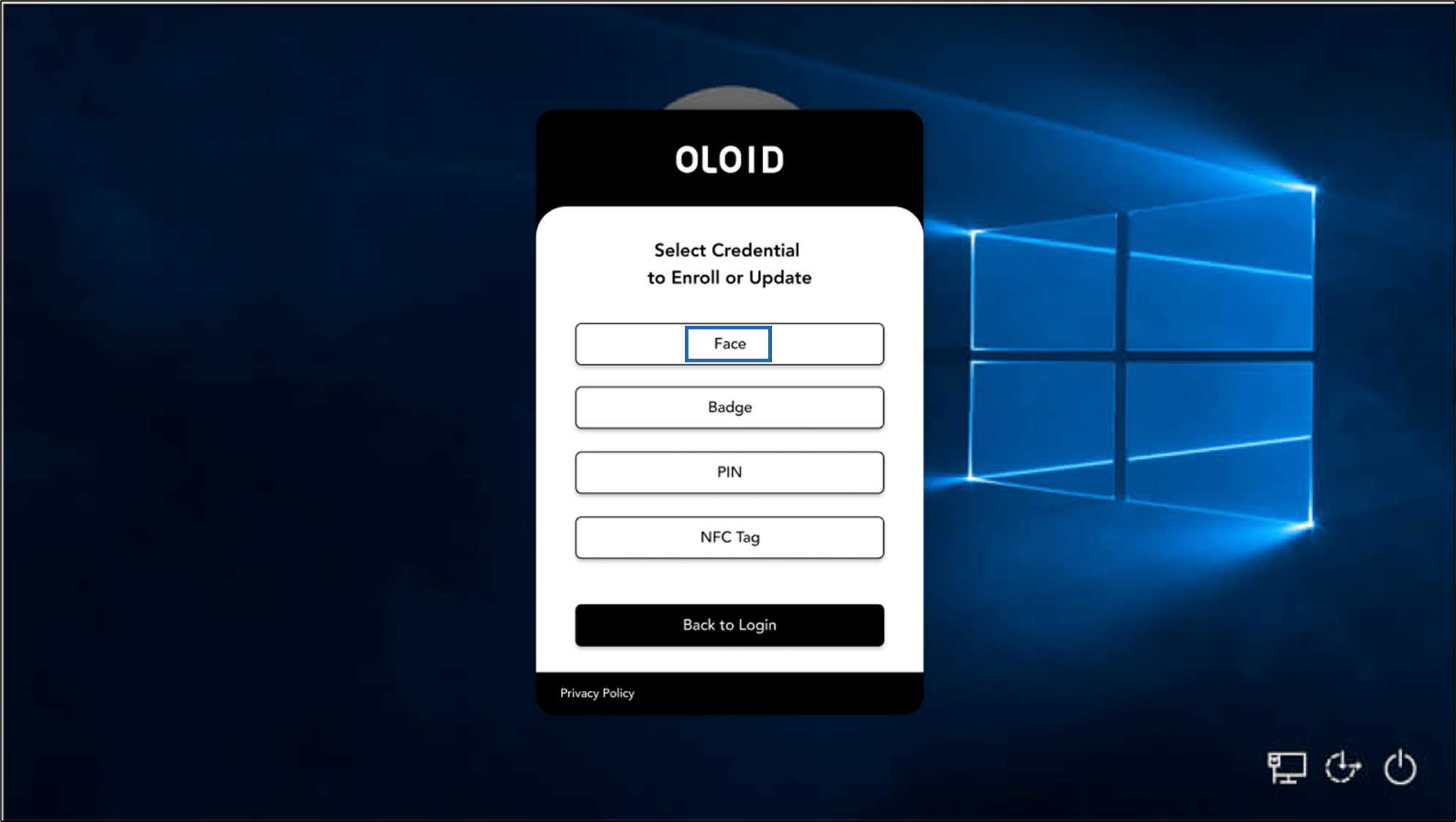
Select Face.
Note: If connection is enabled, user consent is requested before uploading the picture.
- Place your face in front of the camera for face authentication.