Introduction
Oloid’s Windows Authenticator App is a secure and user-friendly authentication method that allows Enterprise employees to log into Windows Laptops/Desktops/Servers using physical identity factors (like Face, Badge, NFC tags, and PIN). The Physical Identity factors can be combined in any order using factor sequencing for Multi-factor Authentication.Preparation Steps
- Generate the AutoPairConfig file in the Oloid Platform, then download and save it to your local device as AutoPairConfig.json. For more details, see How to generate auto-pair config file for Windows Login in Oloid Portal
-
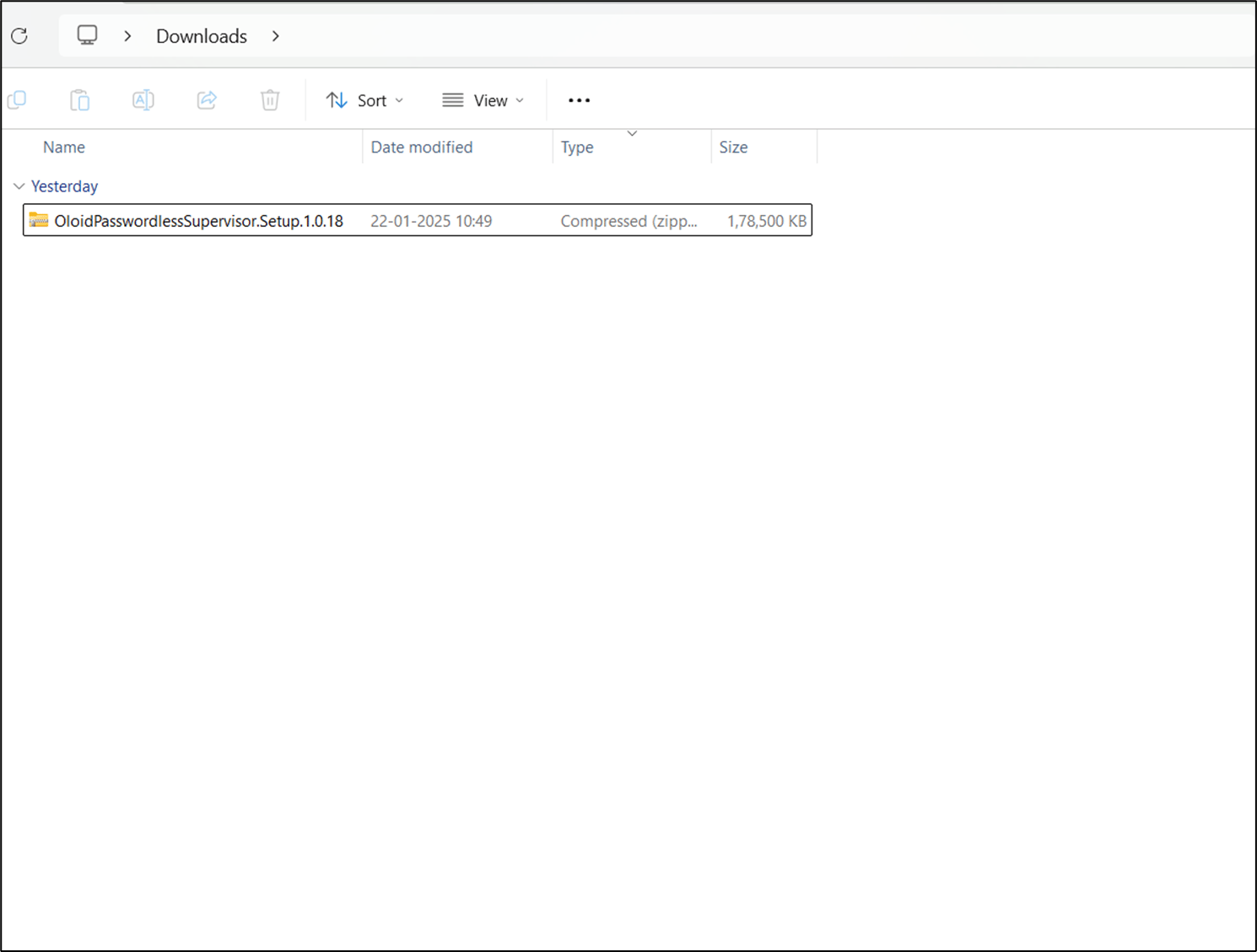
Download OloidPasswordlessSupervisor.Setup.zip file on your device.
If any previous version of Windows Authenticator app is installed, you need to remove it before installing the new version.Note: Select the version as advised by your Oloid Rep. For instructions to download the file, refer How to download Supervisor App > Steps to download from Tenant
-
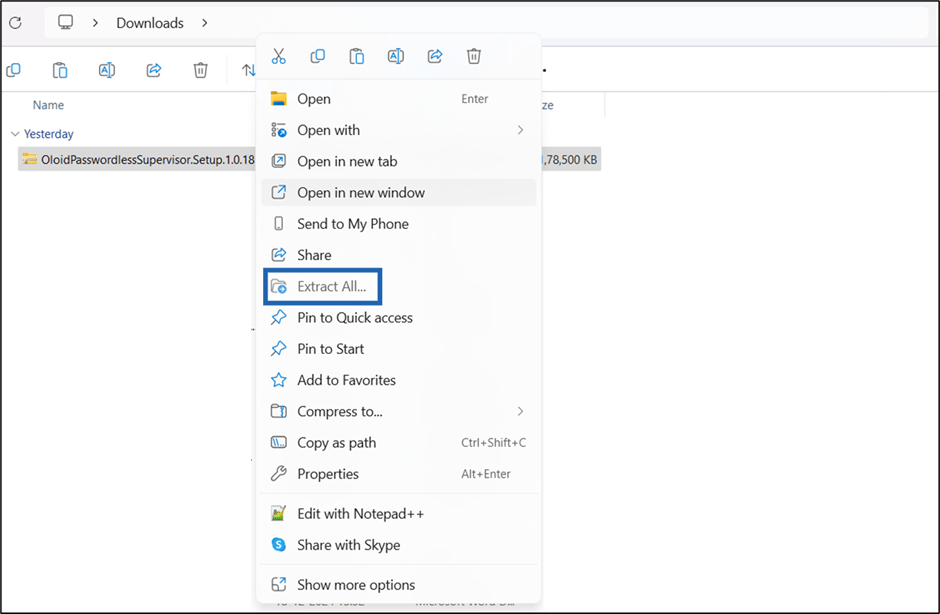
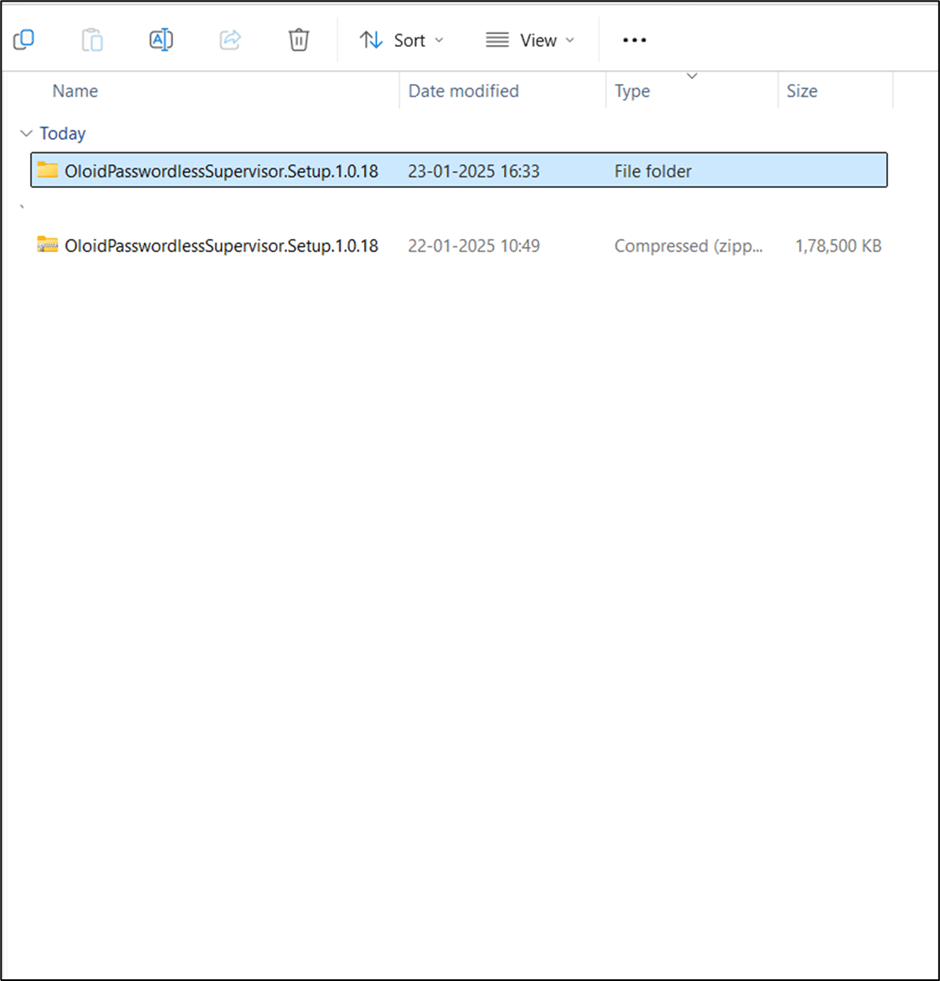
Right-click and select Extract All >OloidPasswordlessSupervisor.Setup.zip folder.
-
Copy the AutoPairConfig.json file to the extracted folder.
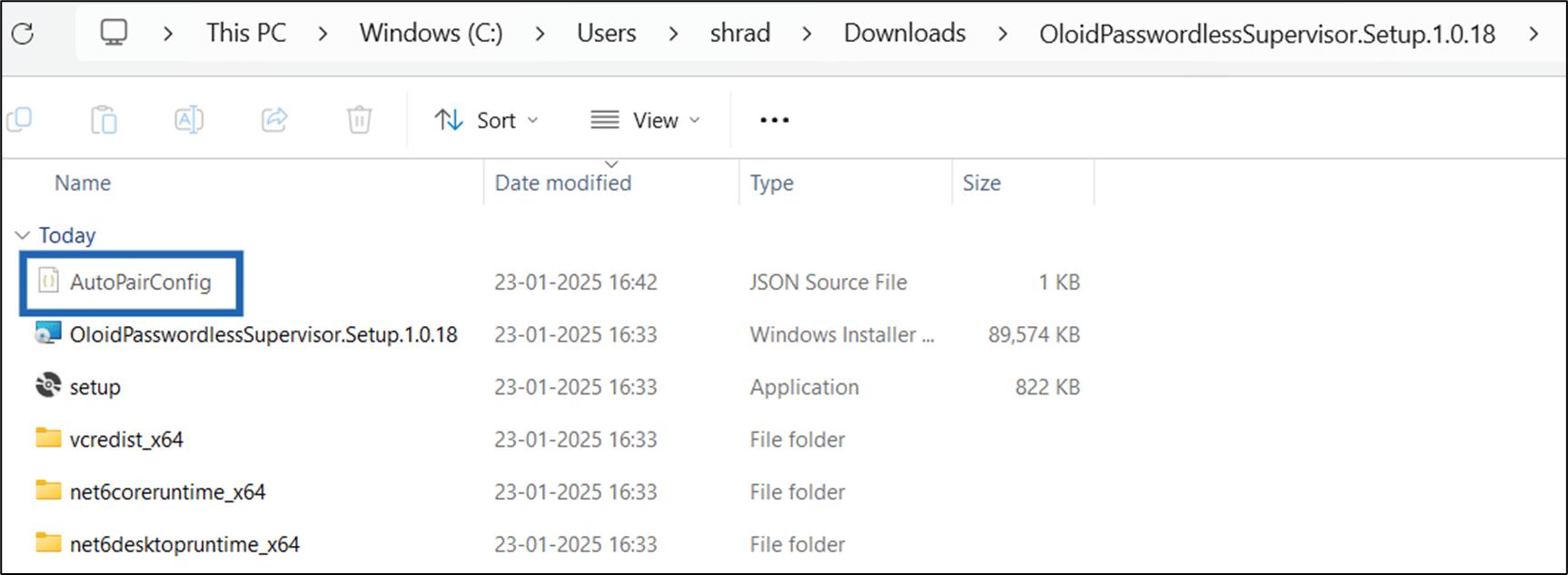
- Right-click and select OloidPasswordlessSupervisor.Setup.1.0.18 folder > Compress to > ZIP File.

Steps to install and auto-pair the Windows Authenticator app on end-user machines
-
Push the zipped file (OloidPasswordlessSupervisor.Setup.1.0.18.zip) through the MDM for the end-user machines.
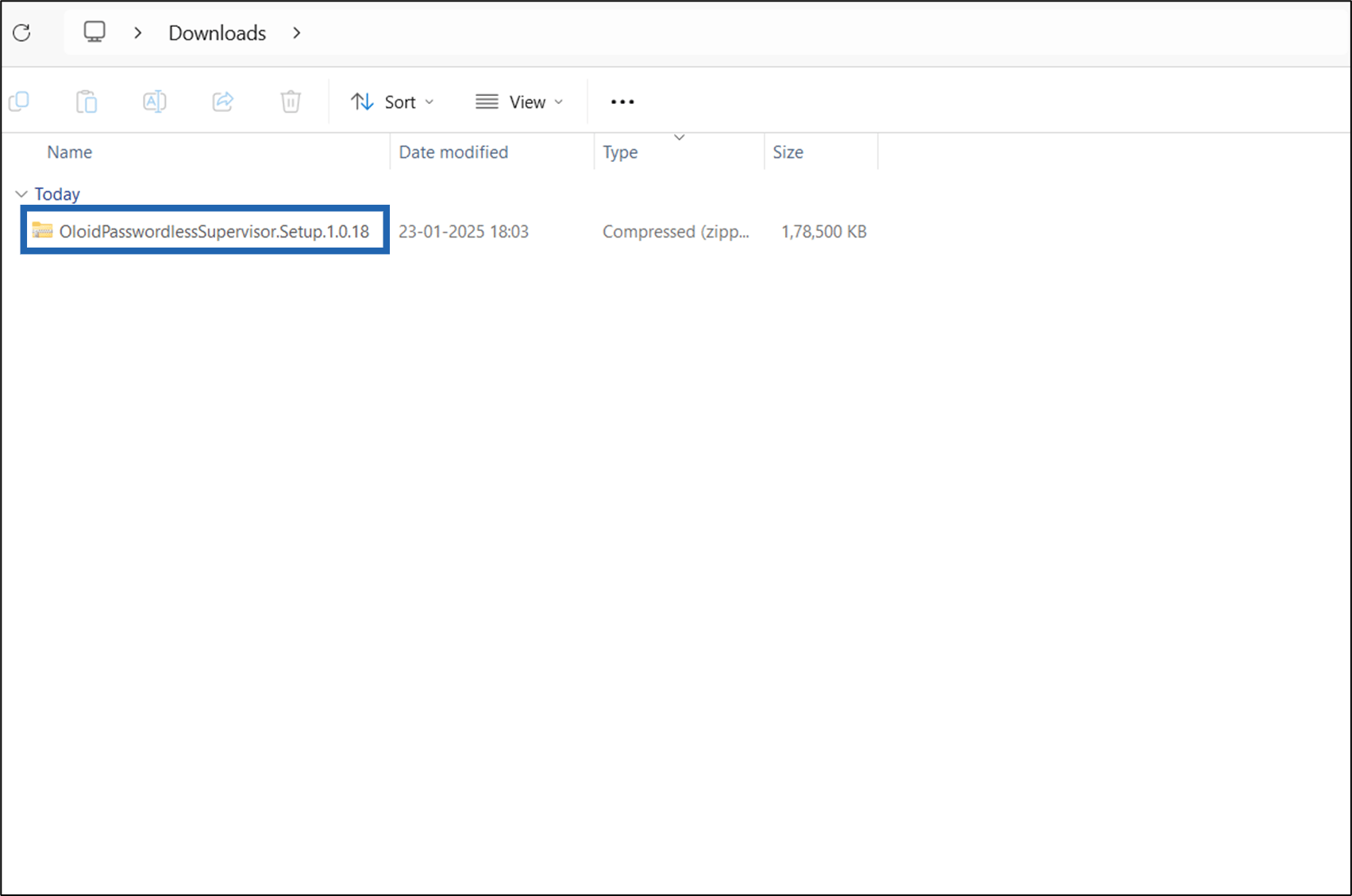
-
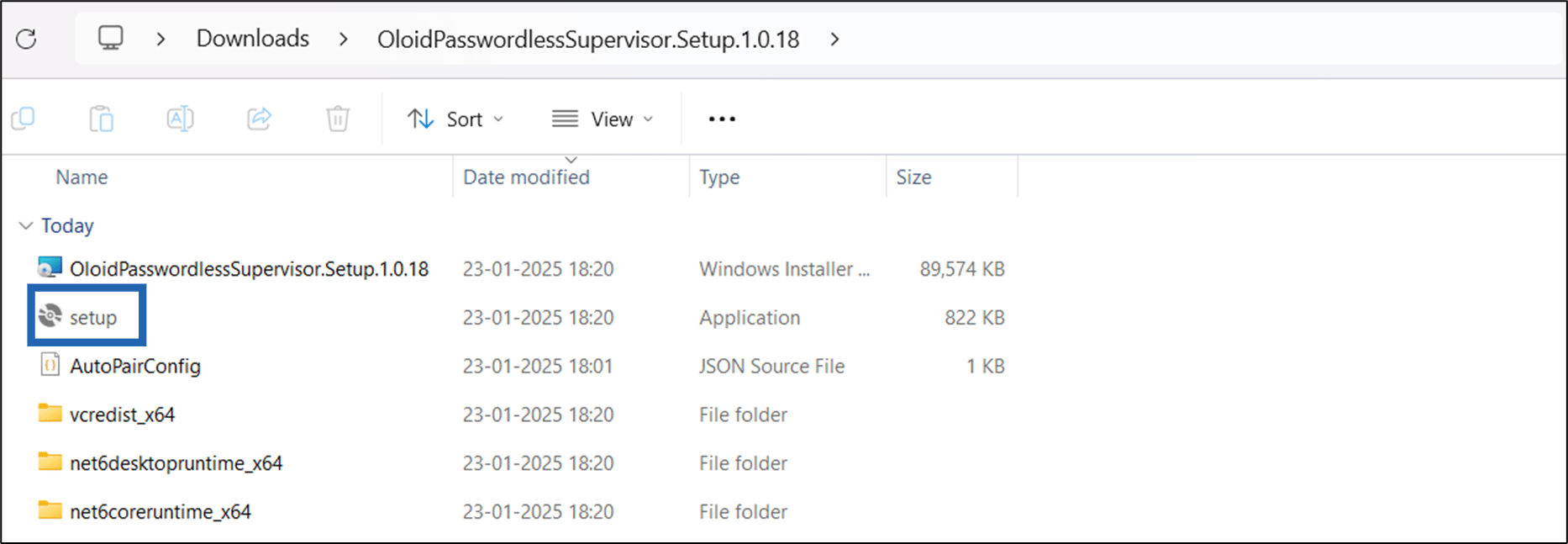
Right-click and select Extract All > OloidPasswordlessSupervisor.Setup.zip folder.
 Note: Make sure the AutoPairConfig.json file is present in the folder.
 -
Double-click on setup.exe file.
-
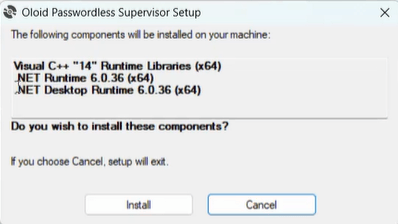
Review the listed components and click Install to proceed.
Note: If any of the files are missing, the application prompts to install the missing component.
-
On the Oloid Passwordless Supervisor Setup wizard, click Next.

-
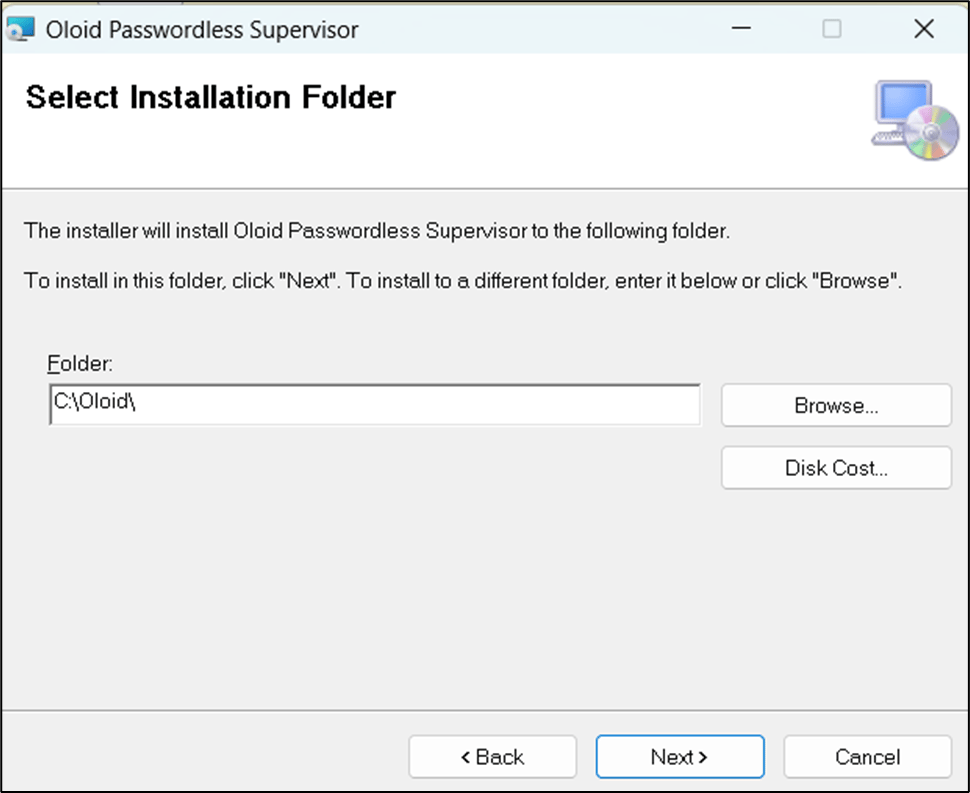
Use the default path to install the application and click Next.
-
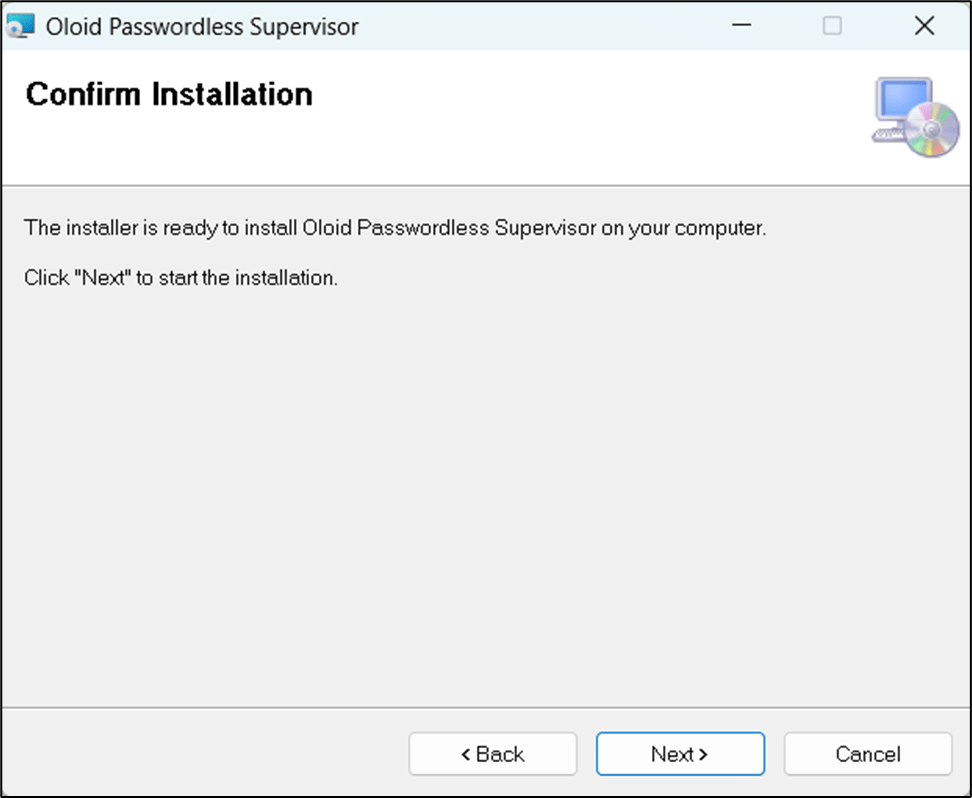
Click Next to confirm the installation.
-
Click Close after the installation is complete.
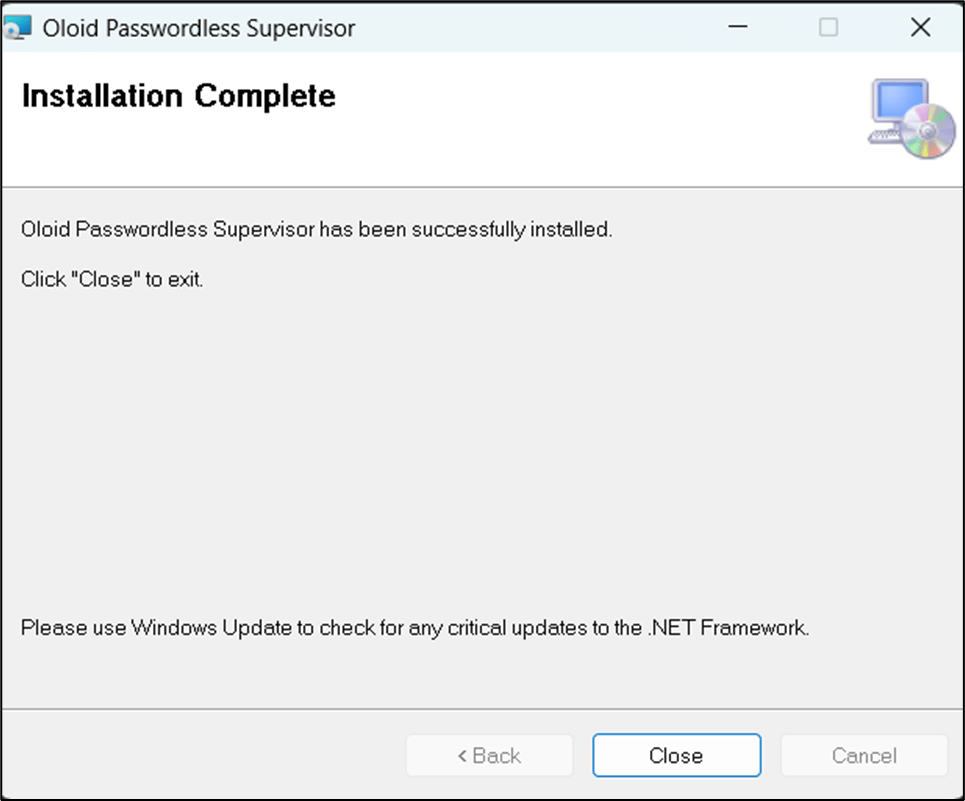
- You must restart your system.
-
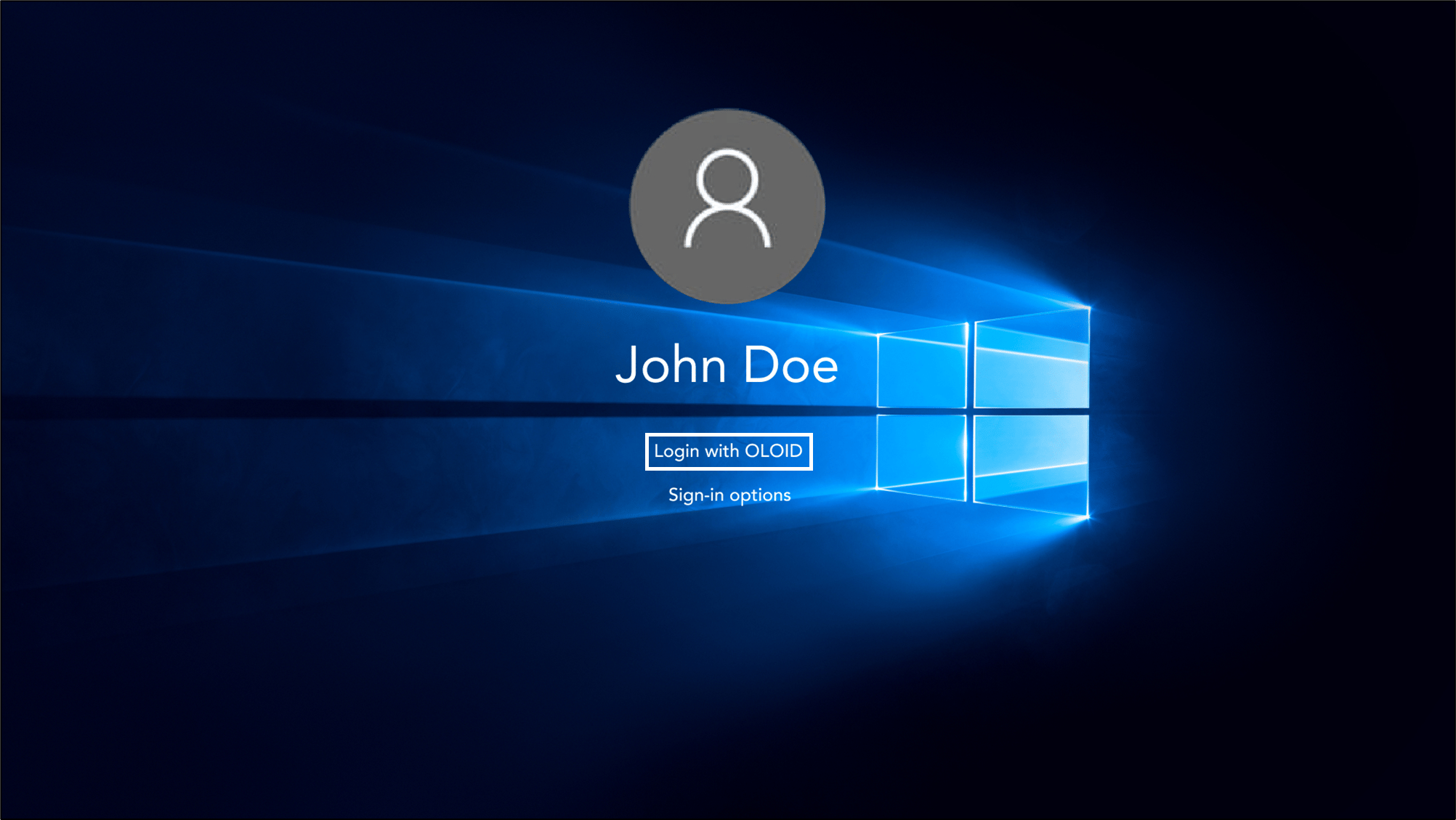
After restarting, on the Windows lock screen, click Login with OLOID.
-
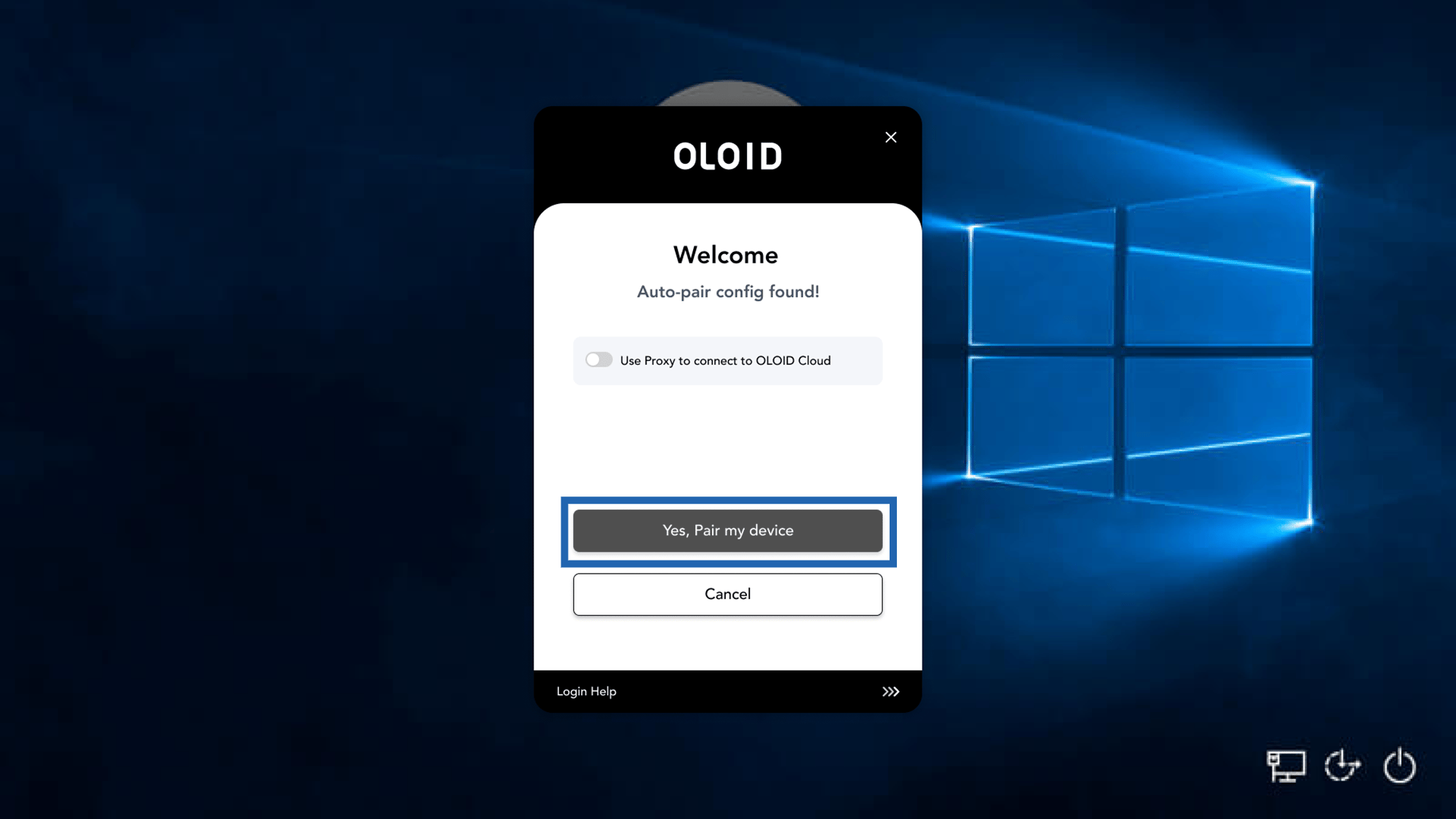
Select Yes, pair my device to auto-pair the device.