

Introduction
The Enable Badge Out option allows users to securely lock or sign out of a Windows system using a badge.Note: This feature is available only in healthcare and presence detection build.
Prerequisites
- You must create and configure Windows Login application. For more, refer to How to create and configure Windows Login application in the Tenant Admin Portal
- The badge reader must be connected to the Windows system.
Steps to Configure Badge Out Option
- Log in to the Tenant Admin Portal.
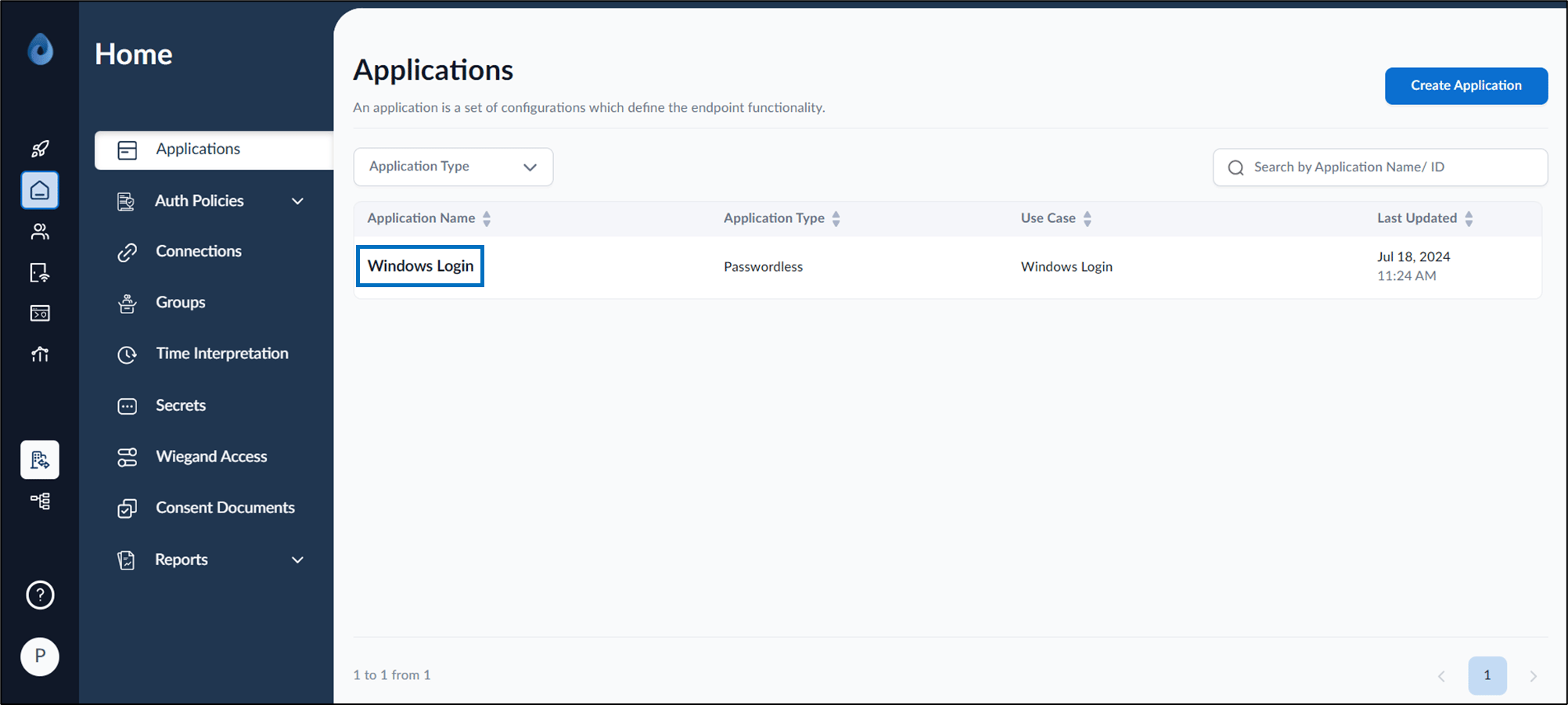
- Select the application that is configured in the Supervisor App (Windows Authenticator App).
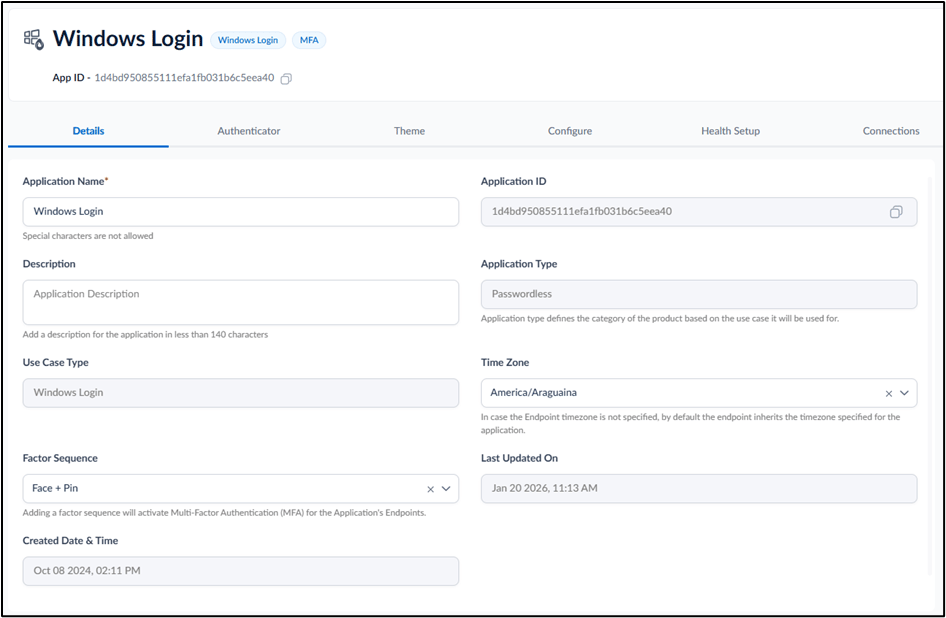
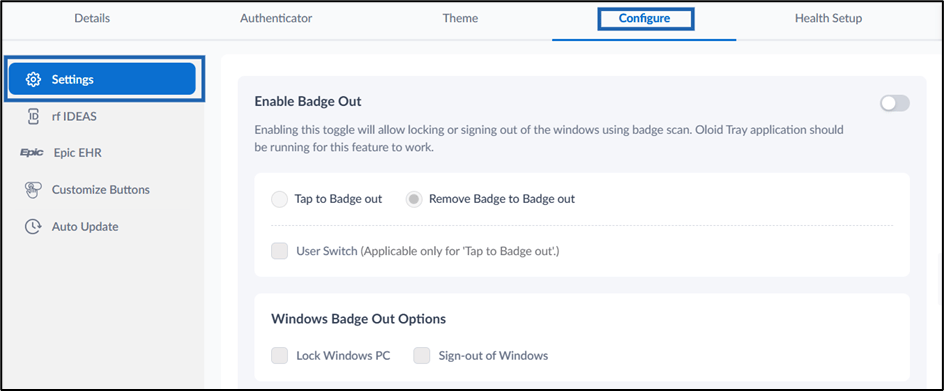
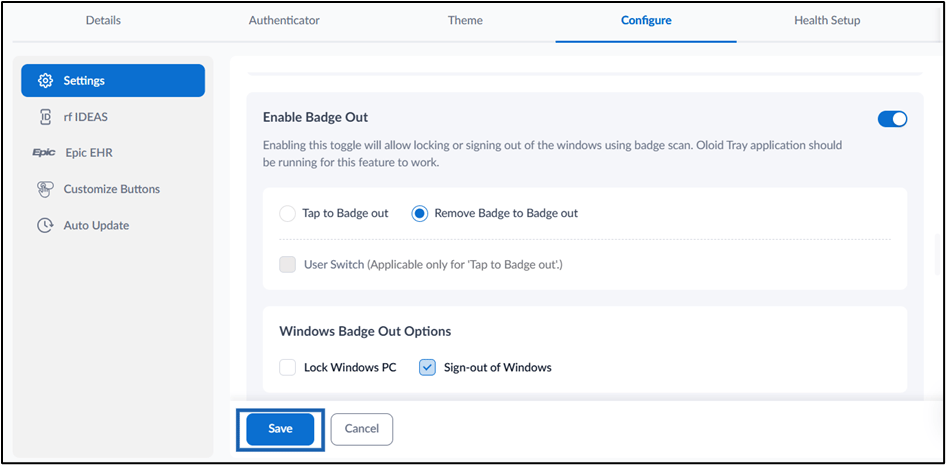
- Click Configure tab> Settings.
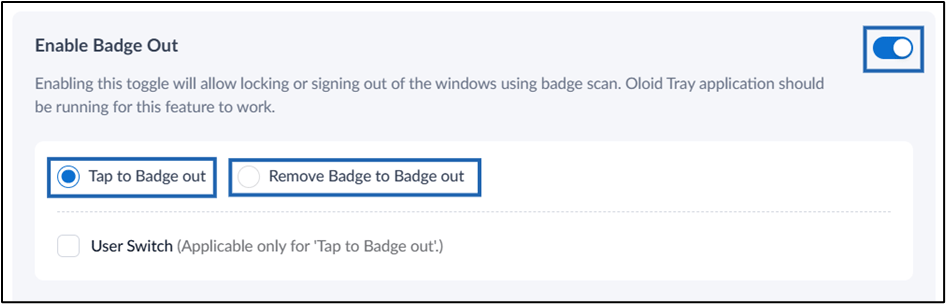
- Turn on Enable Badge Out toggle button. This option allows user to lock or sign out of a Windows system using a badge, either by tapping the badge on the reader or by removing the badge from the reader.
- Do one of the following:
- Select Tap to Badge Out option to badge out by tapping the badge on the reader.
-
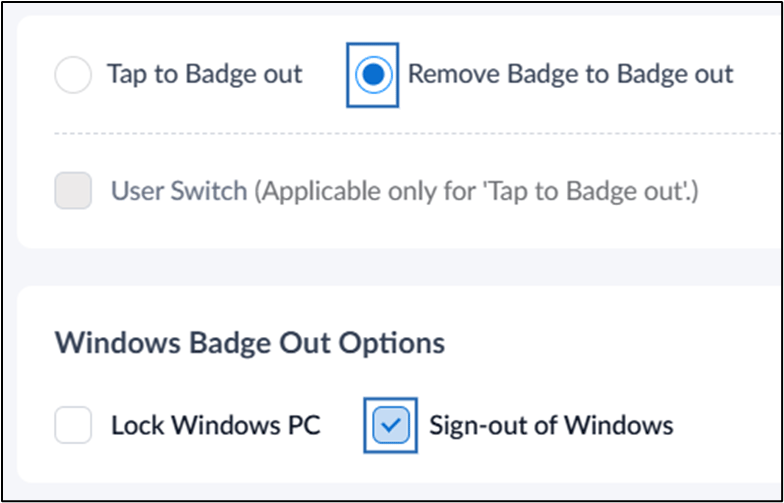
Select Remove Badge to Badge Out option to badge out.
Note: When enabled, the user is logged in by placing their badge on the reader. Removing the badge from the reader automatically locks or signs out of the system.
- Click Save.
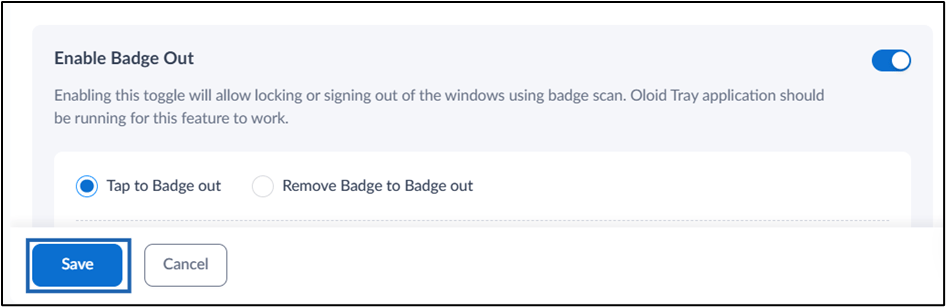
Configure Windows Badge Out Options
- Select one of the following options based on your requirement:
- Lock Windows PC:
Select this option to lock the Windows system when a user badges out. The user session remains active in the background.
- Tap to Badge Out + Lock Windows PC
When the user taps the badge on the reader, Windows is locked.
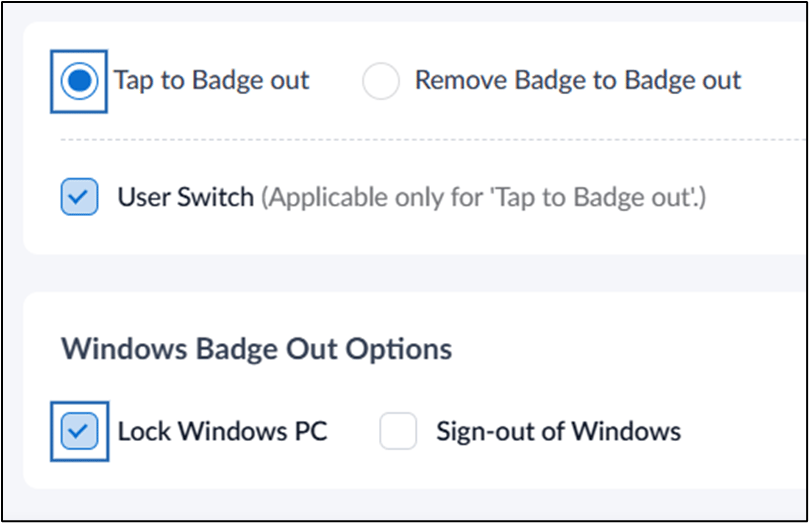
- Tap to Badge Out + Lock Windows PC
When the user taps the badge on the reader, Windows is locked.
- Lock Windows PC:
Select this option to lock the Windows system when a user badges out. The user session remains active in the background.
Note: To enable User Switch, select Tap to Badge out and Lock Windows PC, then select User Switch. When this is configured, if one user is already signed in to the Windows system and another user taps their badge on the reader, the first user’s session is locked automatically, and the second user is signed in successfully to use the system.
- Remove Badge to Badge Out + Lock Windows PC
When the user removes the badge from the reader, Windows is locked.
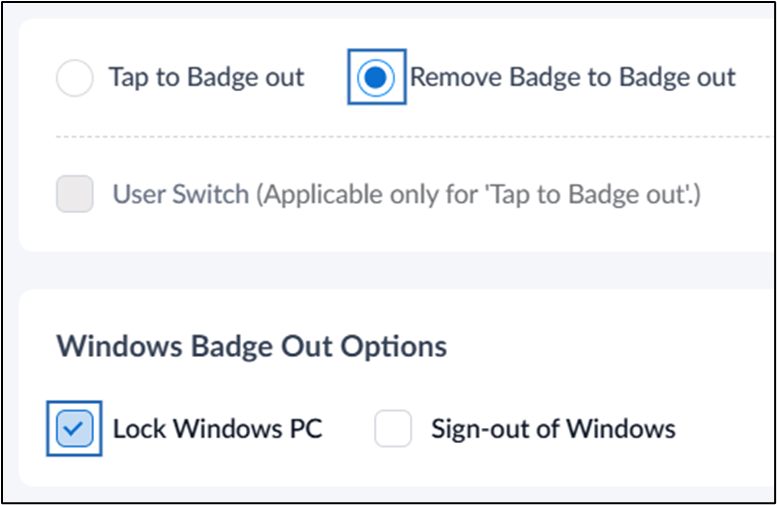
- Sign-out of Windows
- Select this option to sign the user out of Windows when a user badges out. All open applications are closed, and the user session ends.
- Tap to Badge Out + Sign out of Windows
When the user taps the badge on the reader, all running applications are closed and the user is signed out of Windows.
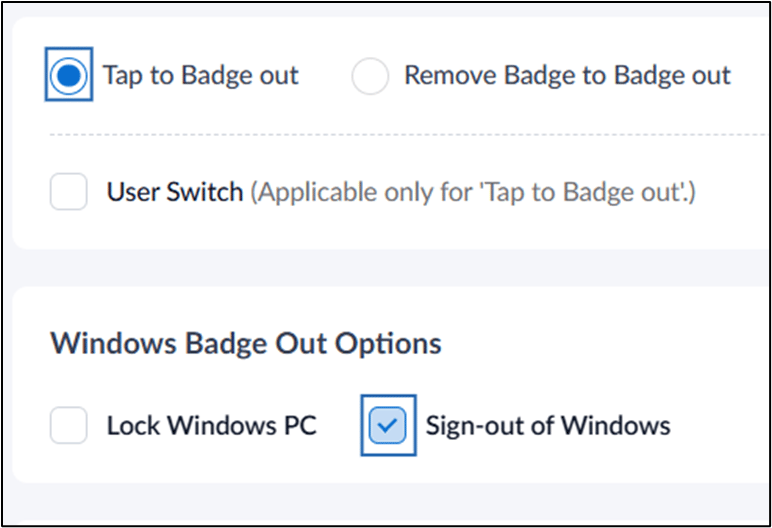
- Remove Badge to Badge Out + Sign out of Windows
When the user removes the badge from the reader, all running applications are closed and the user is signed out of Windows.
- Tap to Badge Out + Sign out of Windows
When the user taps the badge on the reader, all running applications are closed and the user is signed out of Windows.
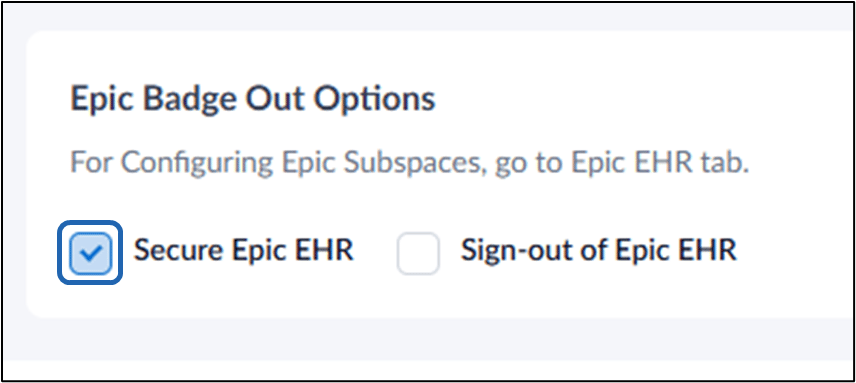
- Select the required Epic logout behavior:
- Secure Epic EHR
- Secures the Epic session without fully signing out
- Allows quick reauthentication
- Sign-out of Epic EHR
- Completely logs the user out of Epic
- Ends all active sessions
- Secure Epic EHR
- Click Save to apply the configuration.
Sync Configuration to Apply Changes
You must sync the configuration in the Supervisor App to apply the changes. For detailed steps, see How to sync configuration in Supervisor App.Note: After syncing the configuration, you must close the Supervisor App.