

Introduction
The PIN credential feature allows admins to configure PIN-based multi-factor authentication (MFA) for the Windows Login application. When enabled, users must enter a secure PIN as a secondary authentication factor after successful primary authentication.Prerequisites
- You must have Tenant Admin access to the Tenant Admin Portal.
- The Windows Login application must be created and configured in the Tenant Admin Portal. For More, refer toHow to create and configure Windows Login application in the Tenant Admin Portal
Steps to configure PIN credential
- Log in to the Tenant Admin Portal.
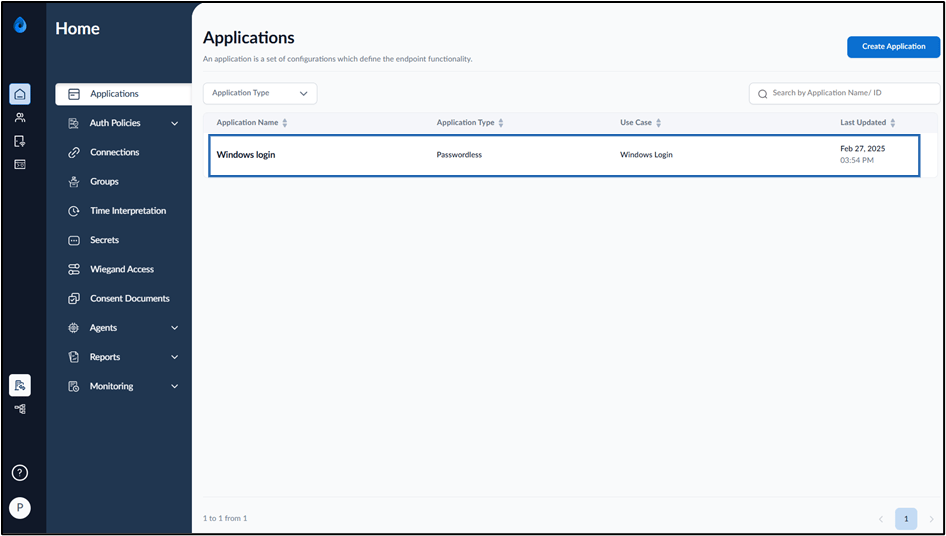
- On the Applications page, select the Windows Login application.
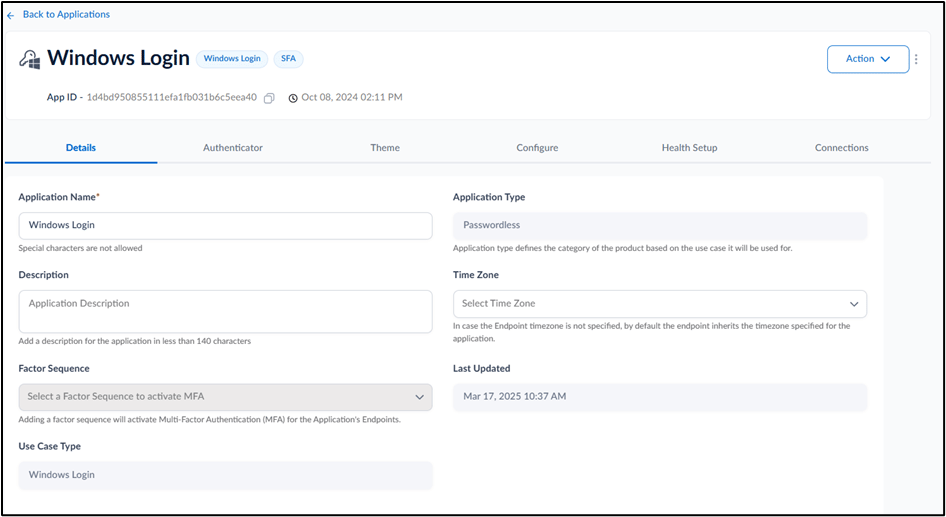
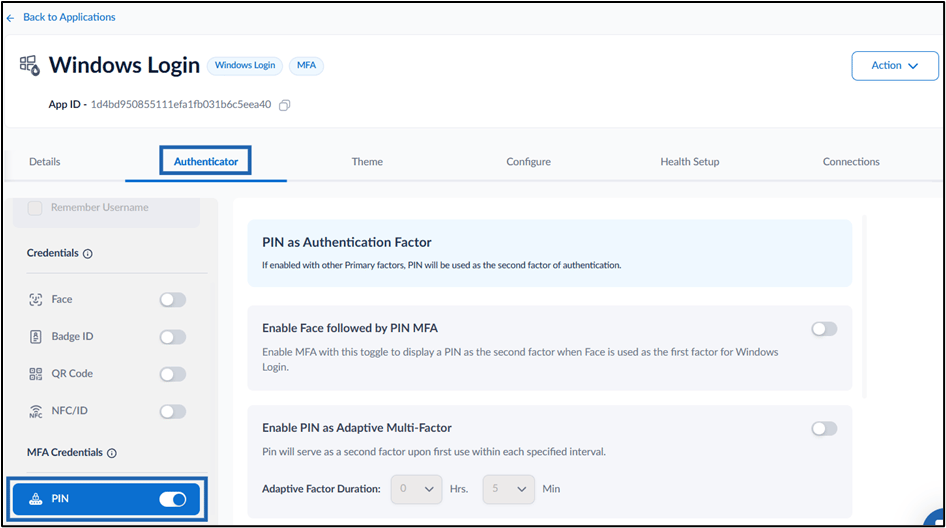
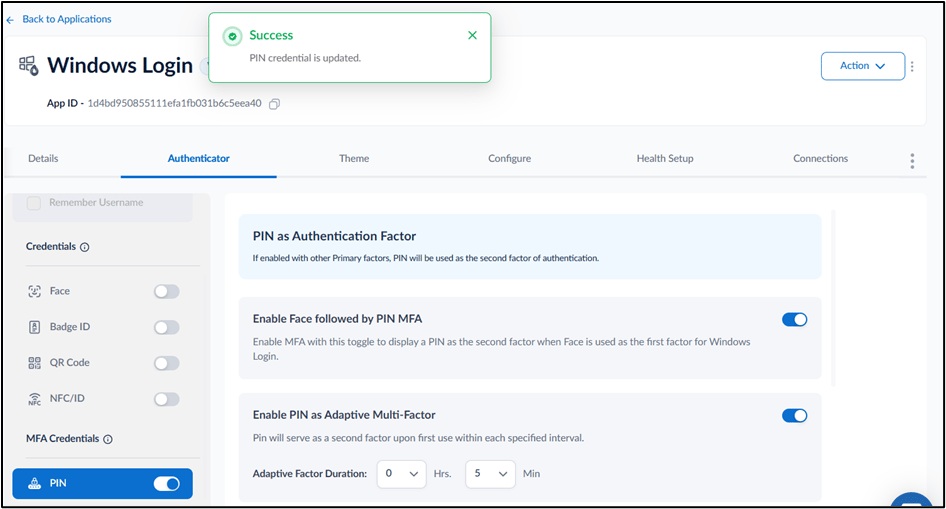
- Go to Authenticator tab.
- Turn on PIN toggle.
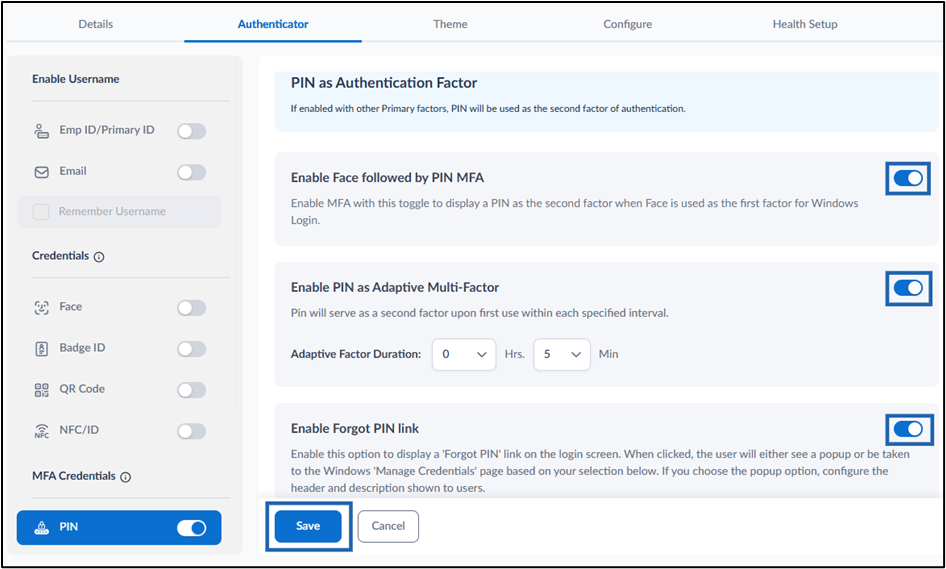
- Enable Face followed by PIN MFA toggle to enable multi-factor authentication (MFA) by requiring a PIN as the second authentication factor when Face is used as the first factor.
- Do the following configuration on Adaptive Multi-Factor which skips second factor authentication after first successful login: (Optional)
- Turn on Enable PIN as Adaptive Multi Factor toggle.
- Set Adaptive Factor Duration (in hours and minutes) to define how long the system skips prompting for second-factor authentication after a successful log in.
- Enable Forgot PIN link toggle. For more, refer to How to Enable Forgot PIN Link in Windows Login Application
Note: For setting up PIN rules, see How to Configure PIN Settings in the Tenant Admin Portal.