Introduction
This document provides step-by-step instructions to create your Windows credentials in the Windows Login app. The user gets a missing credential error message when trying to log in to Windows device.Pre-requisite
You must enable the Validate Windows Credential toggle button in Windows Login application in the Tenant Admin Portal. For more details, refer How to enable Validate Windows Credential in Windows Login applicationSteps to create your password on Windows device
-
On the Windows lock screen, do the following:
- Click Sign-in options.

- Select Windows login app.
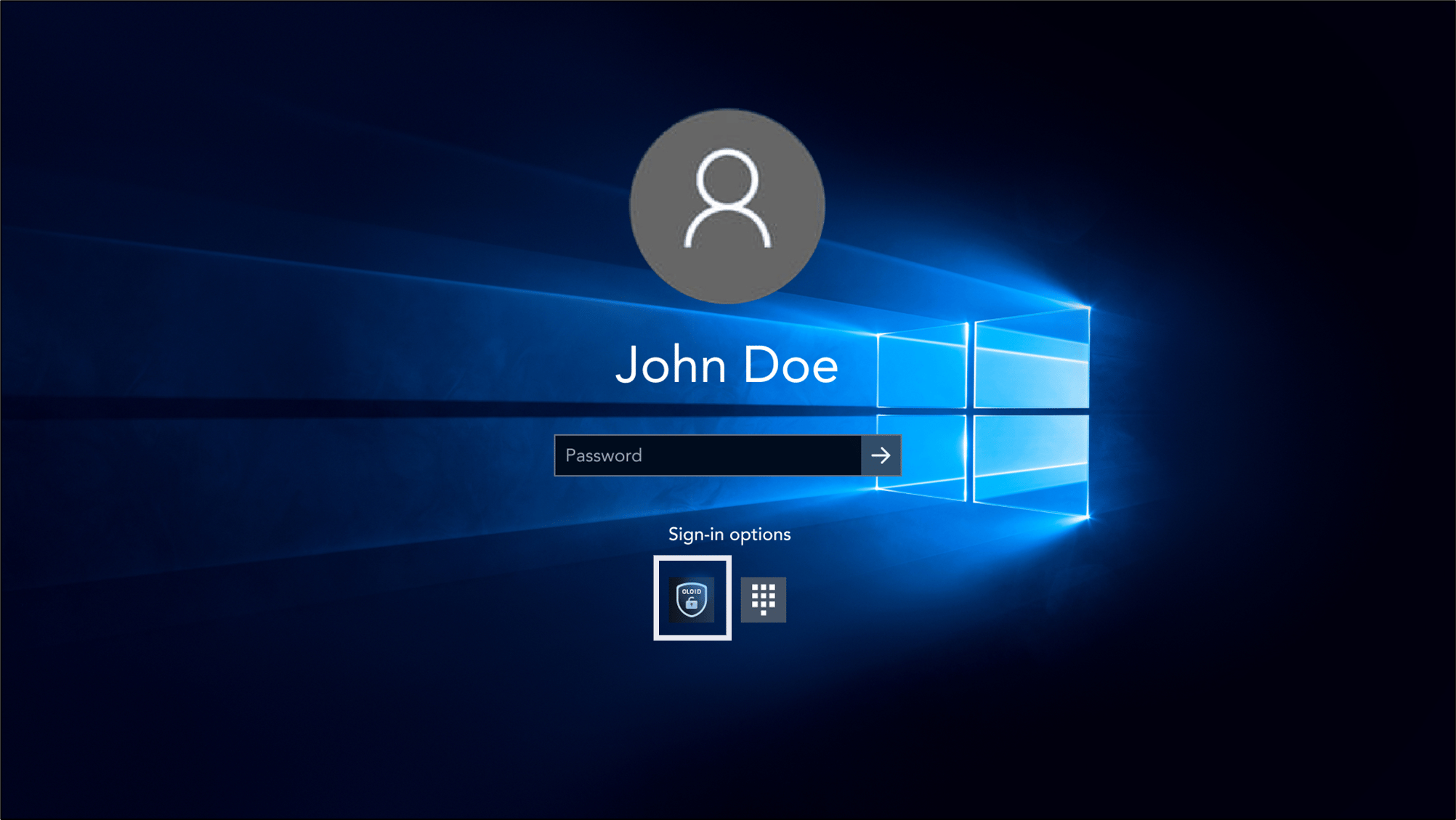
- Select Login with OLOID.
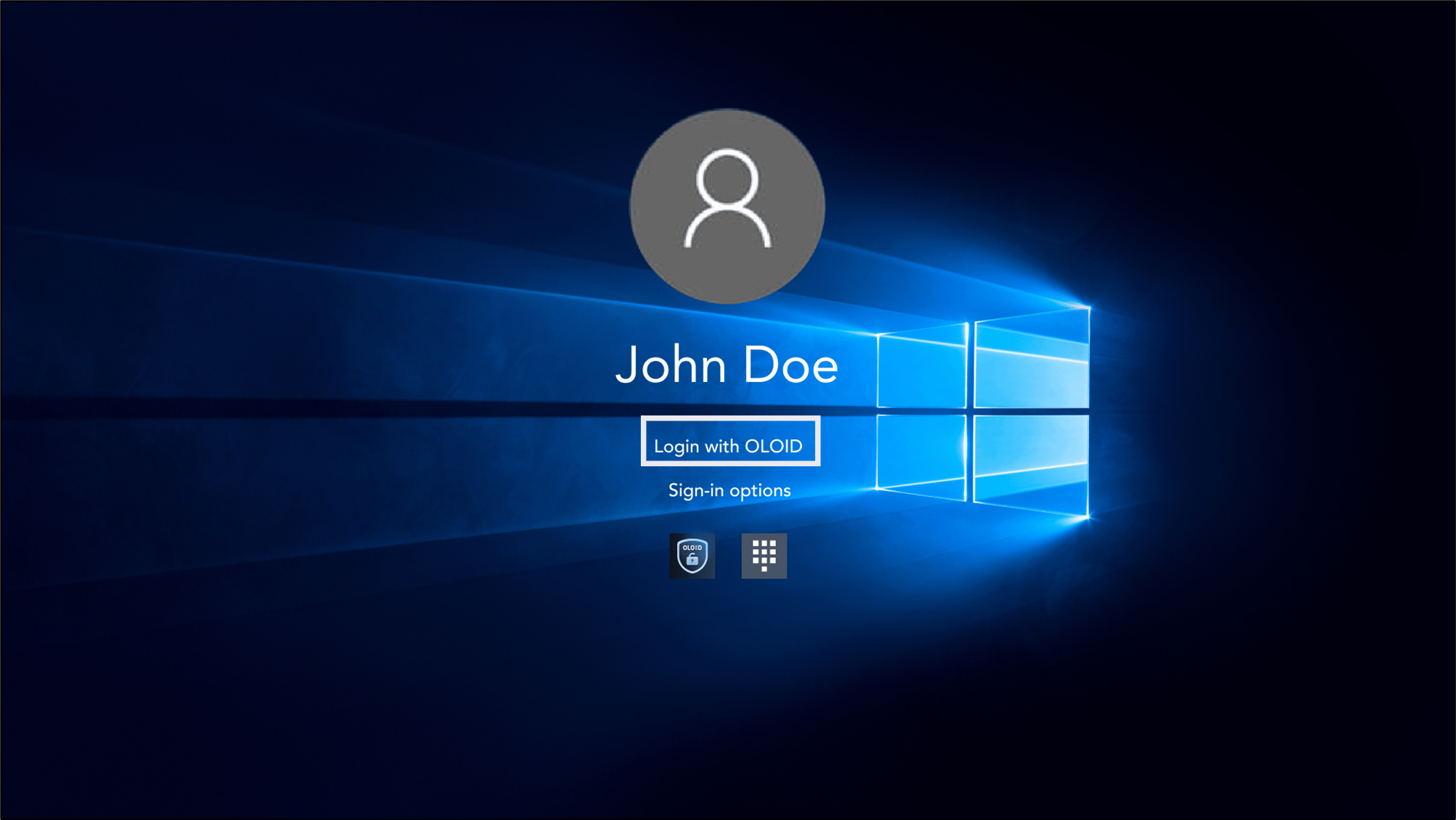
- Click Sign-in options.
-
Select your preferred authentication method.
Note: For detailed instructions about signing in to your Windows device using different authentication methods, refer User Guides sections for Windows Login Device

- After successful authentication, if your Windows credential is missing, the Missing Windows Credential screen is displayed.
-
Select Create Account to create Windows Credential.

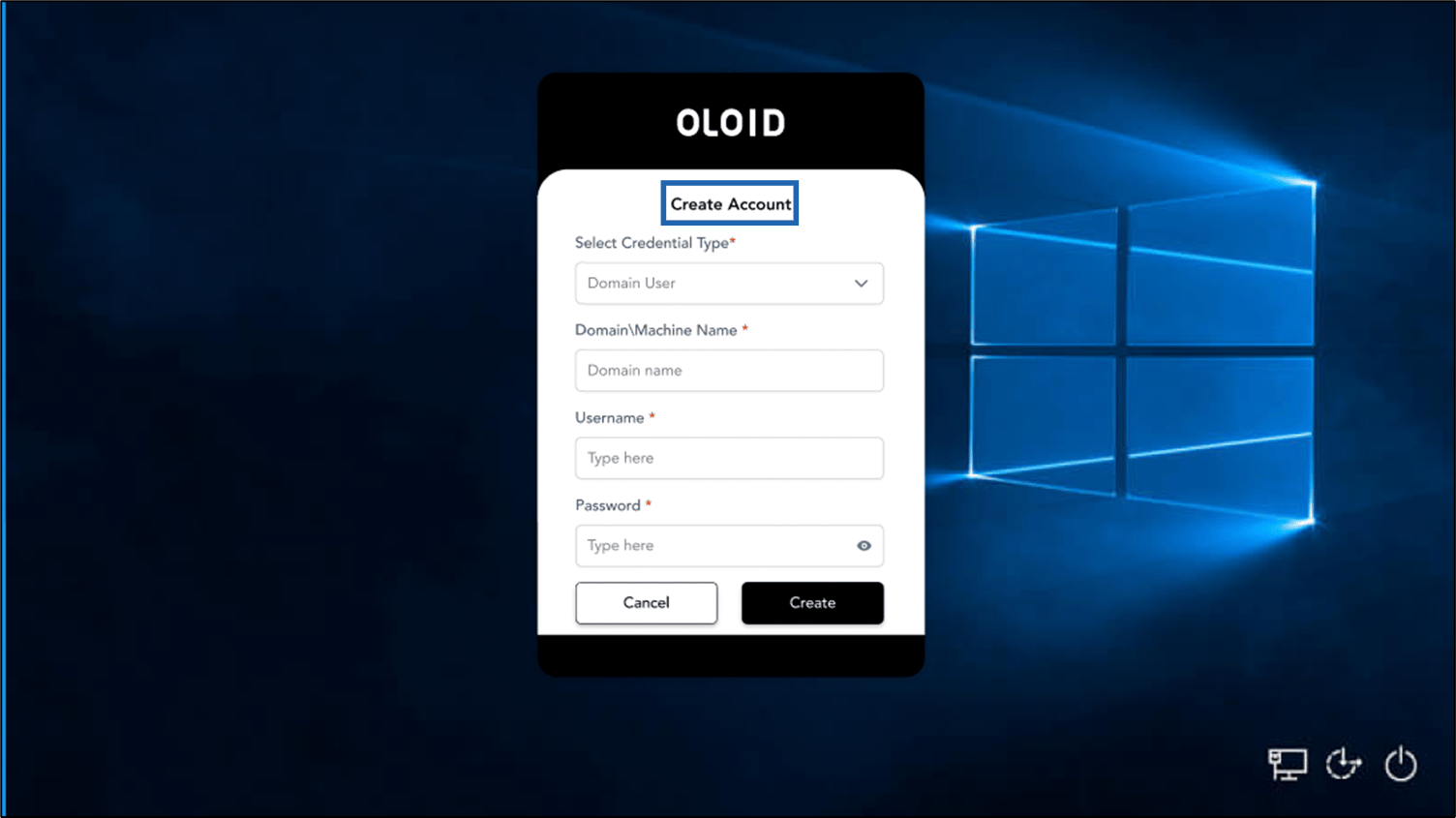
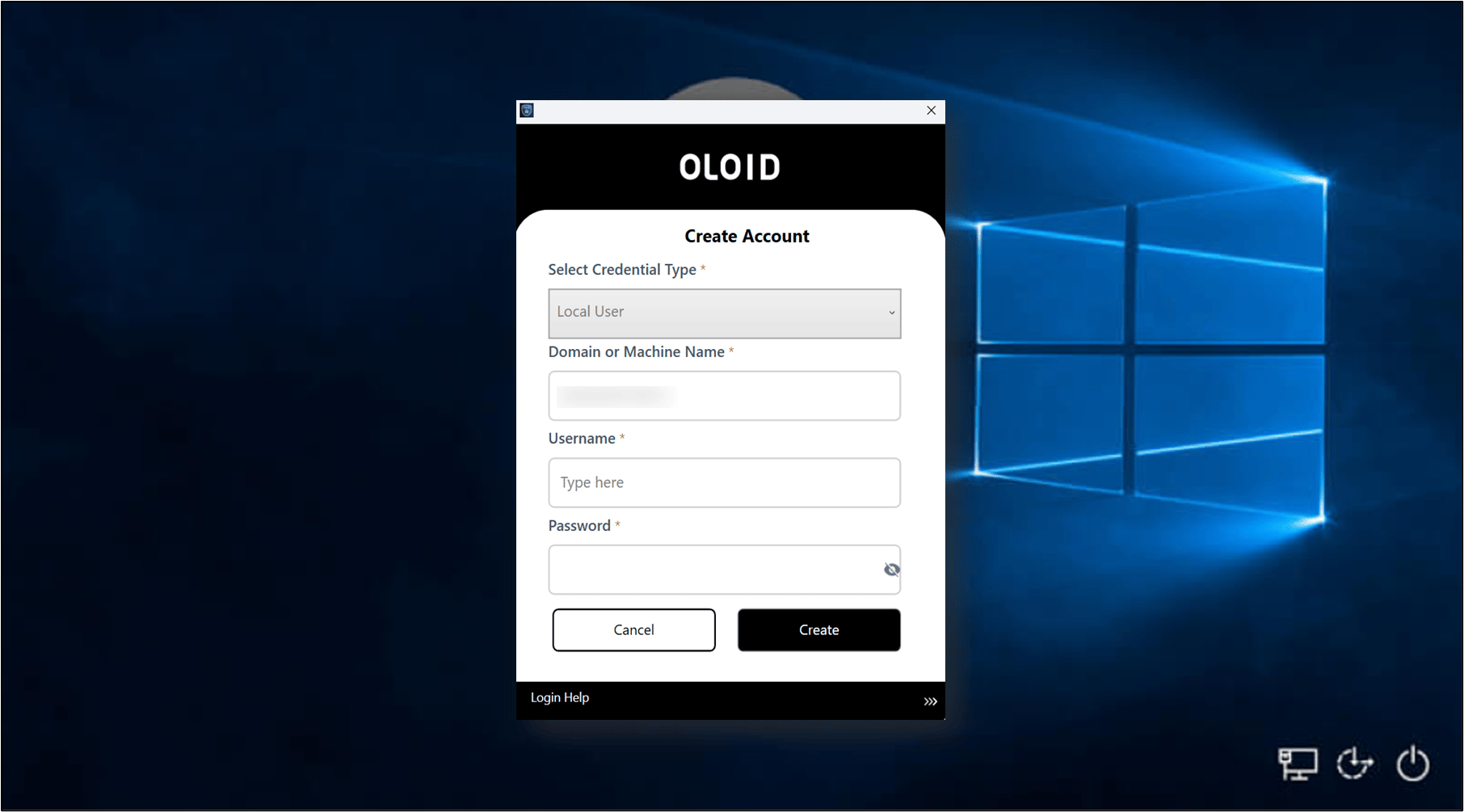
- Do the following:
Create credential for Domain User
- Select Credential Type as Domain User from the Select Credential Type drop-down list.
- Enter your Windows domain and username in the format
Domain\Username. - Enter Username in the Username field.
- Enter Password in the Password field.
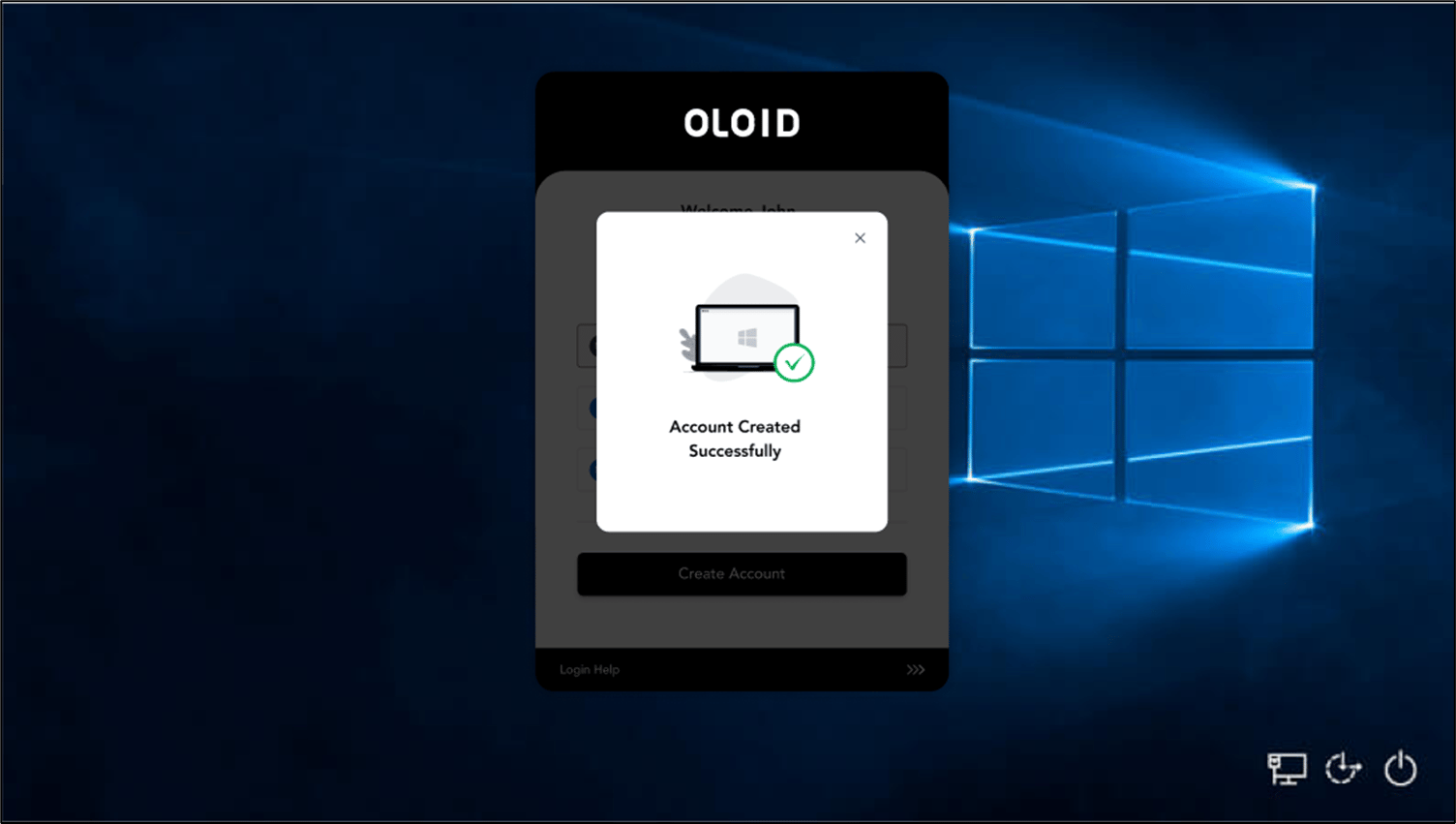
- Click Create.

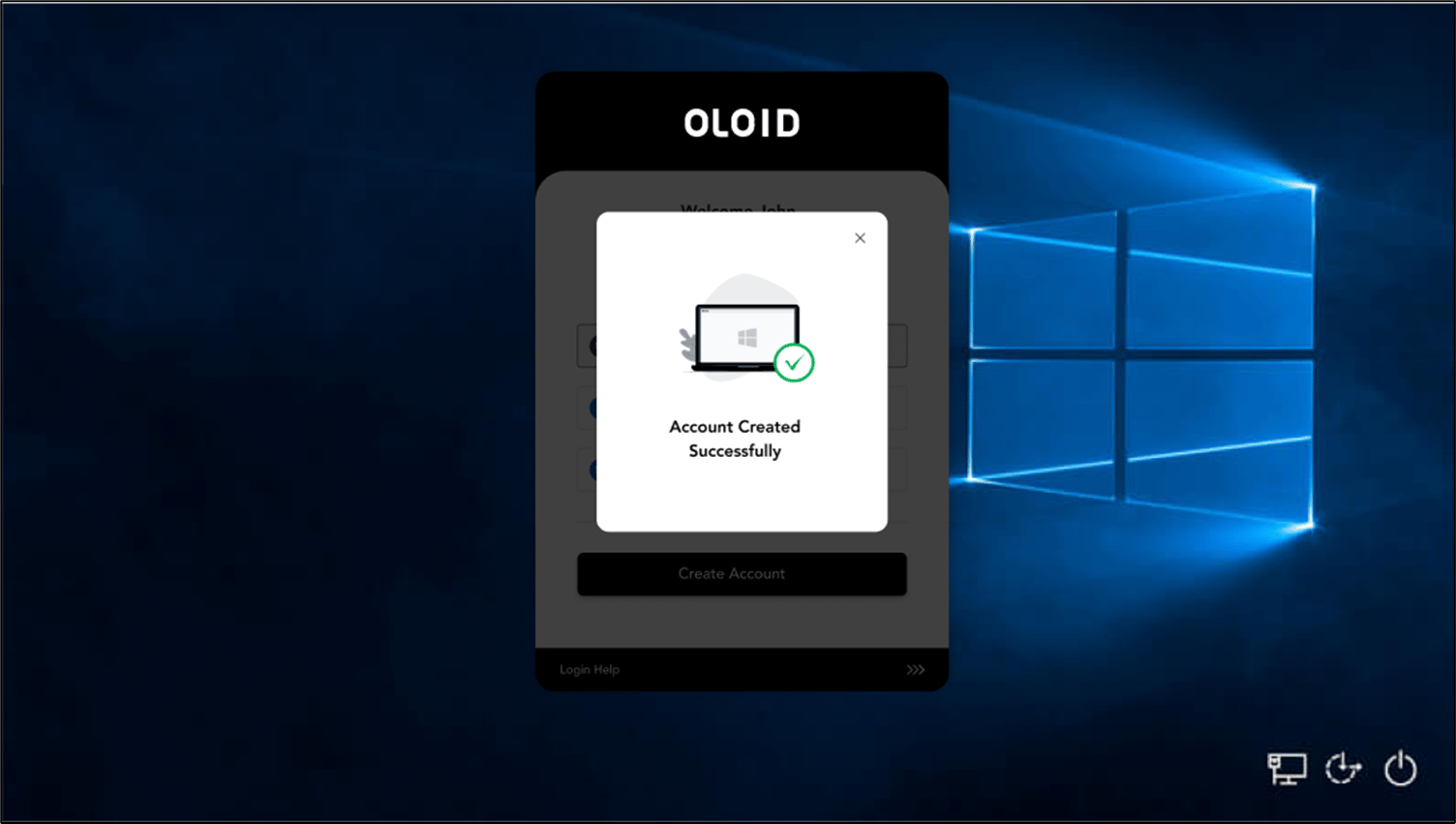
Create credential for Local User
- Select Credential Type as Local User from the Select Credential Type drop-down list.
- The Local machine name is auto-populated in the Domain/Machine Name field.
- Enter Username in the Username field.
- Enter Password in the Password field.
- Click Create.