Introduction
Enable Windows Default Domain: Allow the use of the default Windows domain for authentication. Users can enroll credentials to the default Windows domain.Prerequisite
- Email ID must be created for the user account.
- Default domain must be enabled for the application.
- Face + PIN credentials should be enabled for the user account.
Steps to Enroll Face and PIN as credentials
Users can Enroll credentials:Note: Other credentials like Badge and NFC can also be enrolled using the process mentioned here, refer: How to enroll credentials using Windows Login app
Steps to Enroll Credentials using Default Domain before authentication
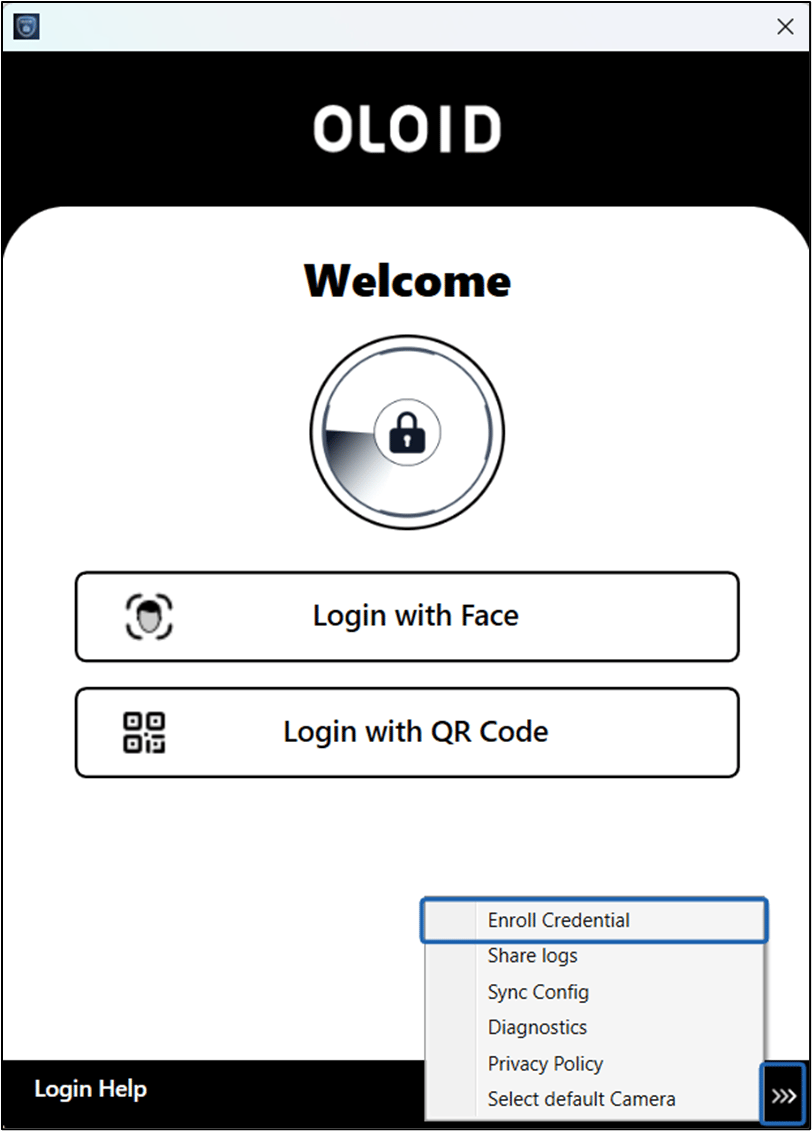
- Launch the Windows User Application.
- Click the Three Arrows icon.
- Select Enroll Credentials.
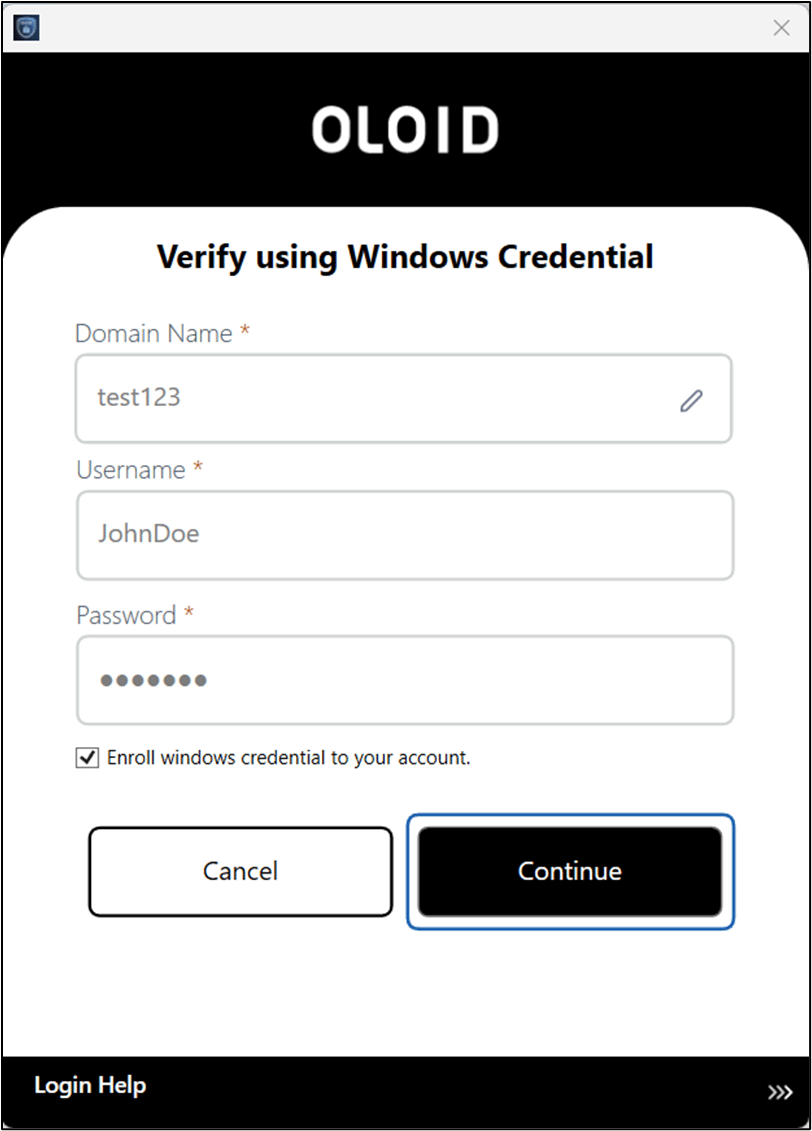
- Do the following:
- Enter Domain Name (Auto filled by default)
- Enter Username
- Enter Password
- Select the Enroll Windows Credentials to your account checkbox. (optional)
- Click Continue.
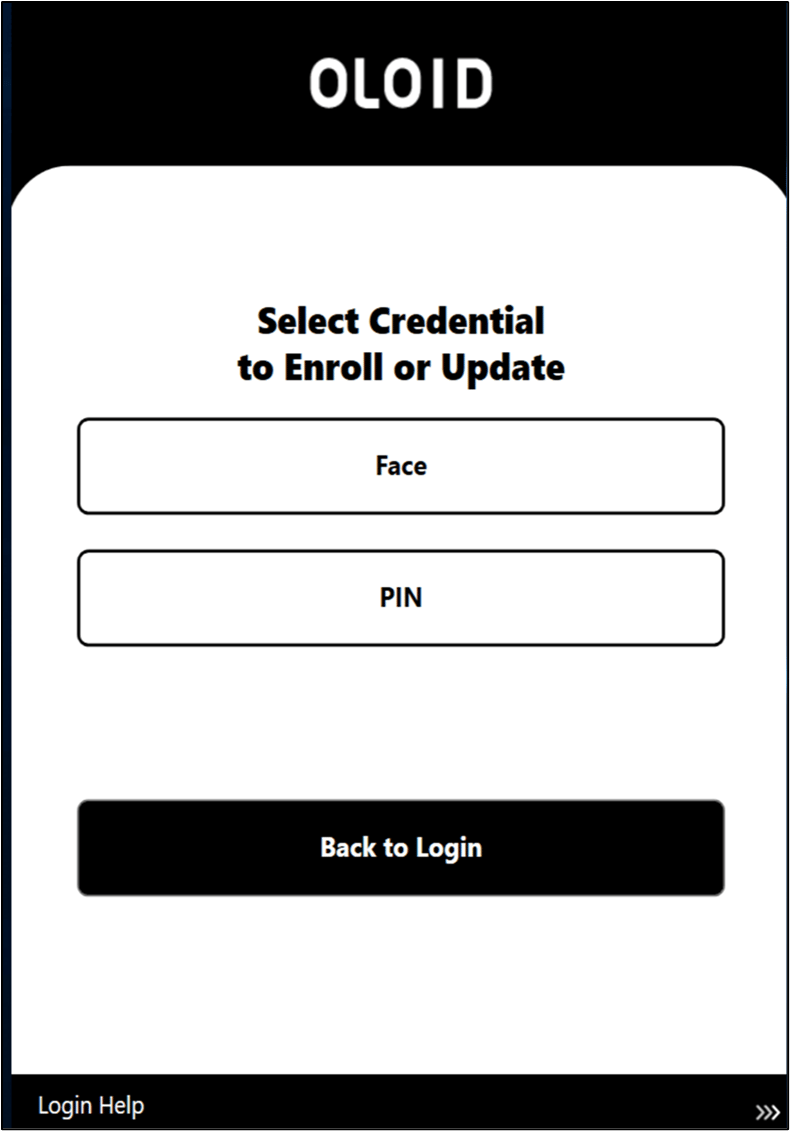
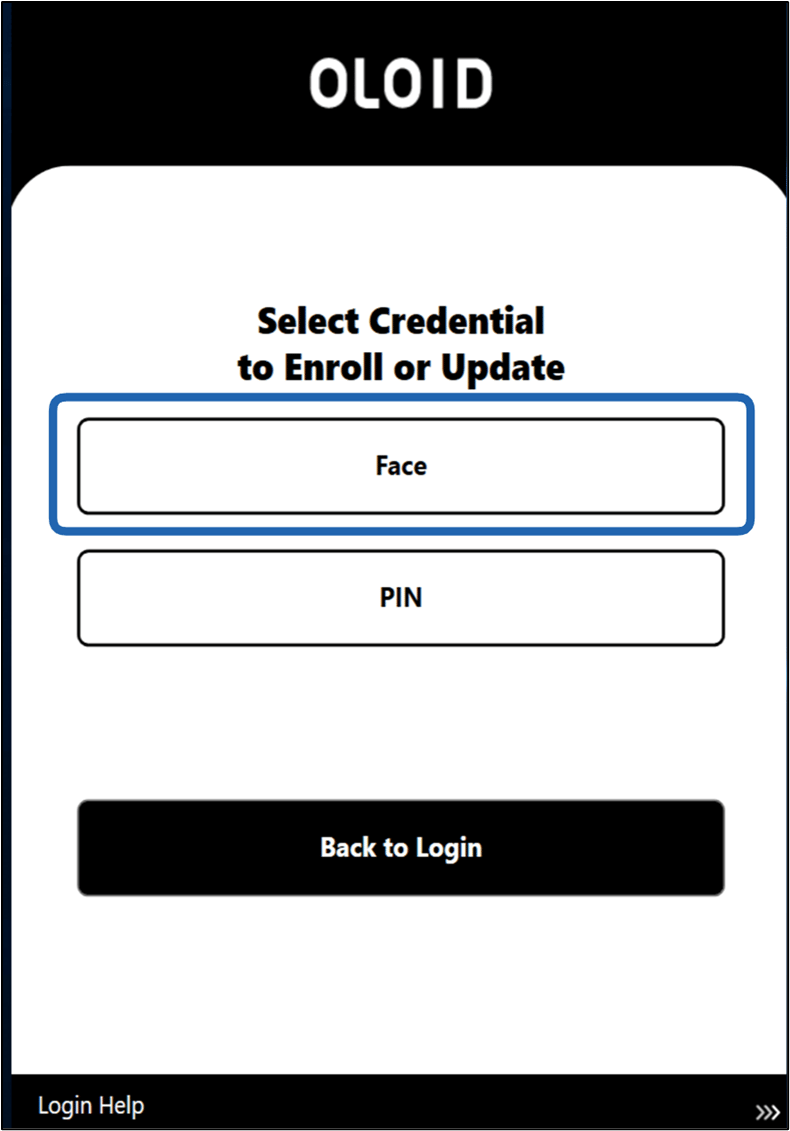
- Select Face or PIN
- For Face
- For PIN
Steps to Enroll Credentials using Default Domain during authentication
- Launch the Windows User Application.
- The Camera opens.
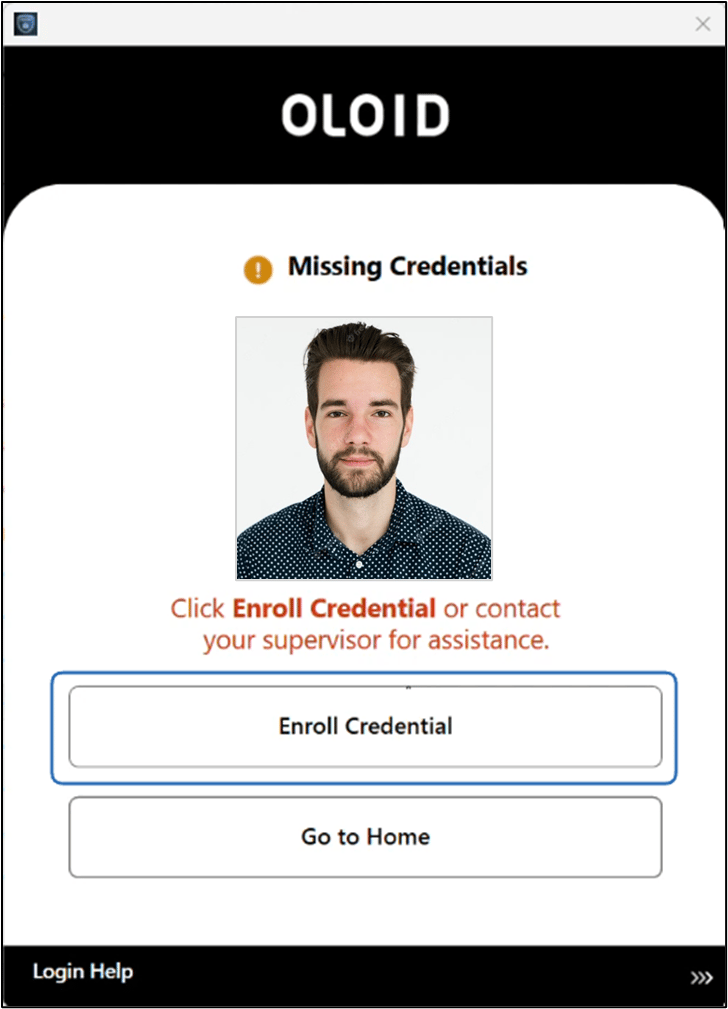
- Position your face in front of the camera and tap the Capture button to enroll your face. Missing credentials screen is displayed
- Click Manage Credentials.
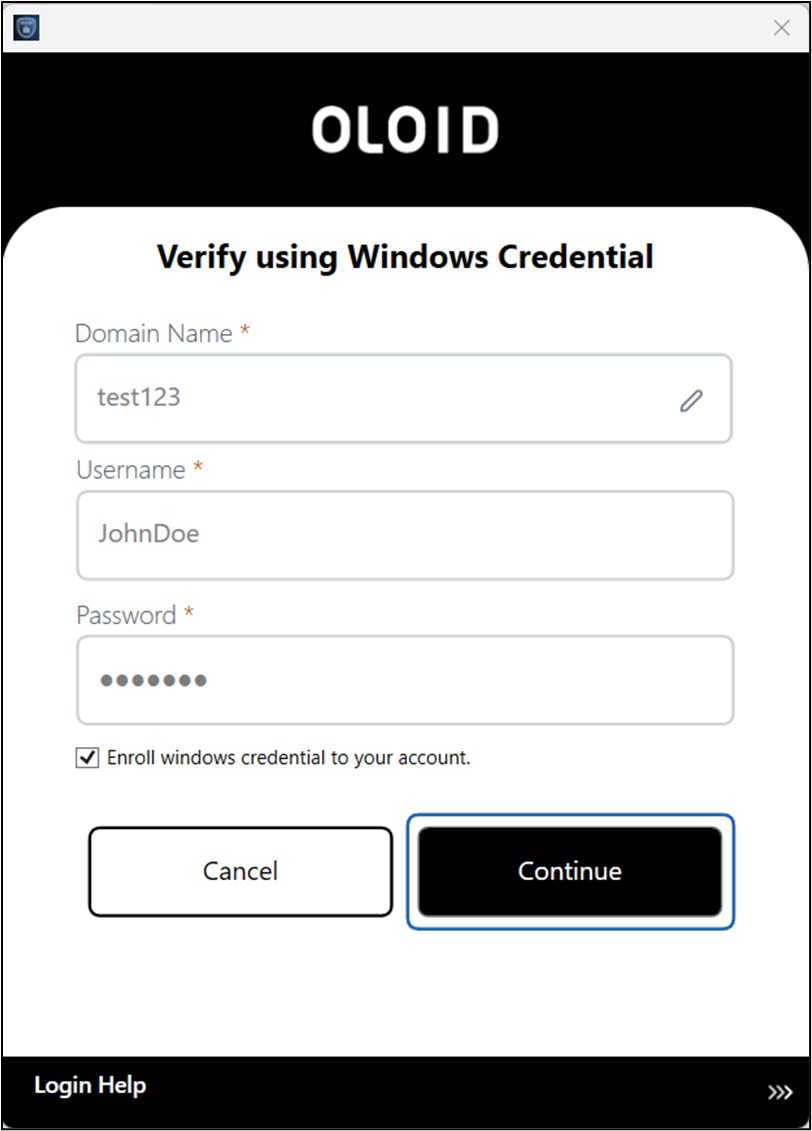
- Do the following:
- Enter Domain Name (Auto filled by default)
- Enter Username
- Enter Password
- Select the Enroll Windows Credentials to your account checkbox. (optional)
- Click Continue.
Steps to Enroll Face
- Click Face.
- The Camera turns on.
-
Position your face in front of the camera and tap the Capture button to enroll your face.
Note: If you do not tap the Capture button, the app automatically captures your face after a few seconds.

-
Do one of the following:
- Tap Yes- Submit to submit the image. The face is submitted successfully and is displayed on the details screen.
- Tap No- Retake to take the photo again.
The camera turns on to retake the photo.

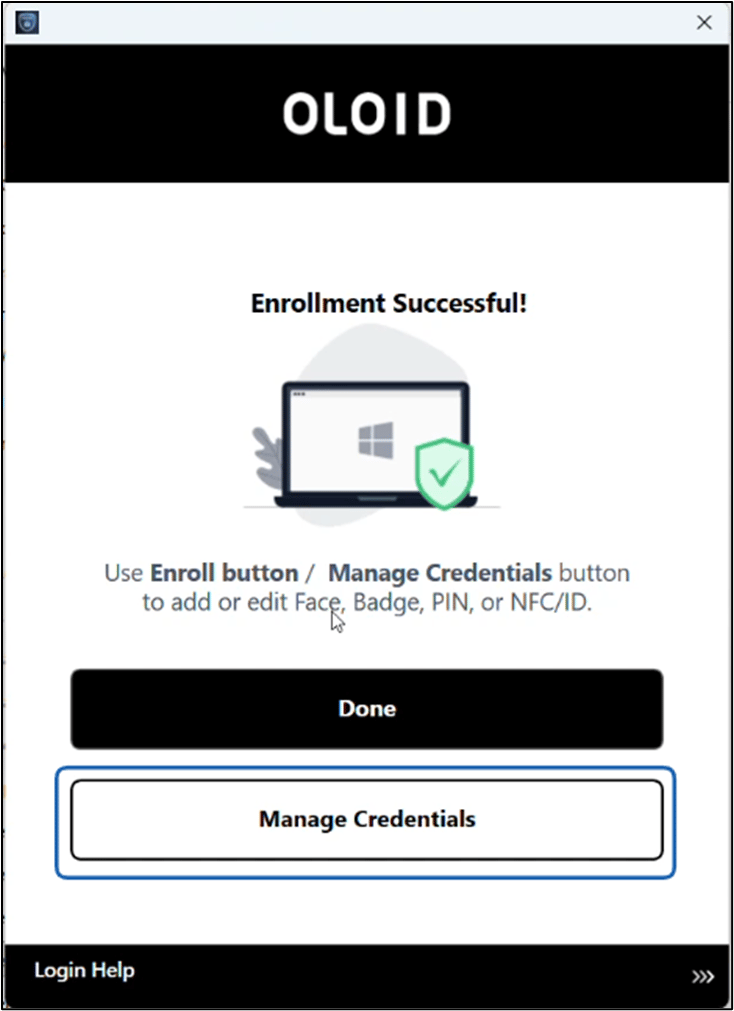
- Click Done to finish enrollment.
-
To Enroll other credentials click Enroll Button / Manage Credentials.
Note: The Manage Credentials button may have different UI lables based on the credentials enabled for the user.
Steps to Enroll PIN using Default Domain during authentication

-
Enter PIN and click Submit.
Invalid PIN message is displayed.
Note: After maximum PIN attempts have been used. User is redirected to enroll PIN.

-
Click Enroll Credential.

-
Do the following:
- Enter Domain Name (Auto filled by default)
- Enter Username
- Enter Password
- Select the Enroll Windows Credentials to your account checkbox. (optional)
- Click Continue.


To Enroll PIN
- Click PIN.
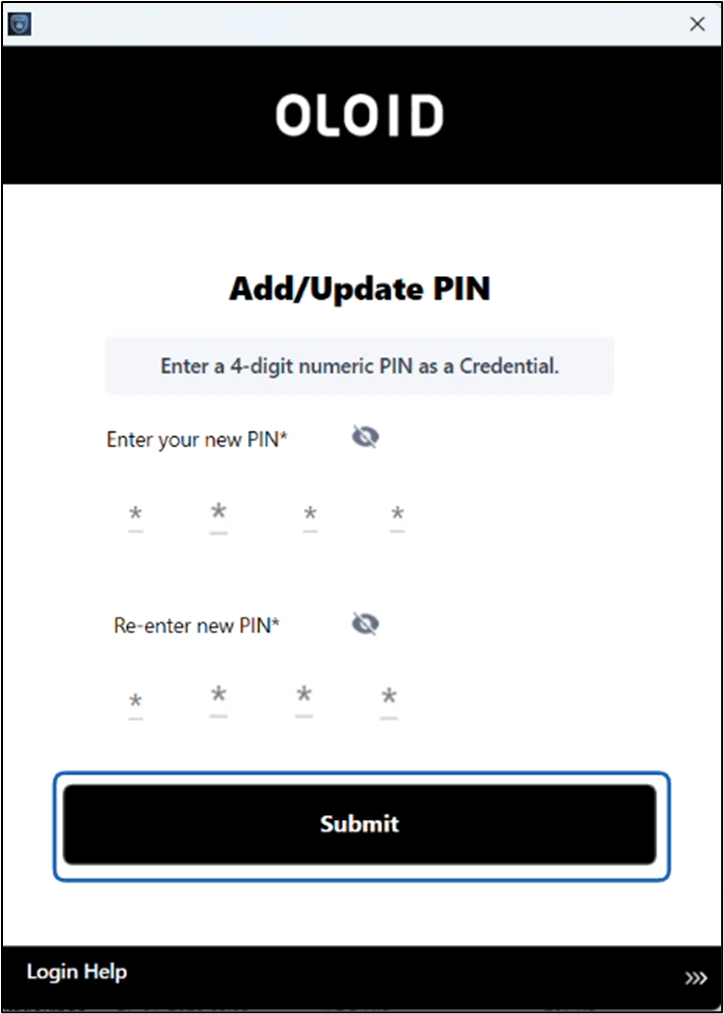
The Add/Update PIN screen is displayed.
- Enter New PIN
- Re-Enter New PIN
- Click Submit.
- Click Done to finish enrollment.