Introduction
This document explains how to sign in to Oloid Vault (Chrome / Chromium) using a QR Code credential. QR Code login provides a secure and passwordless way to access the browser through Oloid Vault (Chrome / Chromium).Prerequisite
User must have a QR Code assigned to the account.Steps to log in with QR Code
-
Open Google Chrome browser and click Oloid Vault icon located on the toolbar.

-
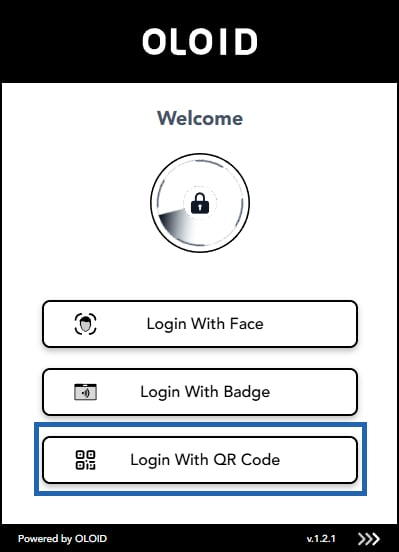
Select Login with QR Code.
Note: You can see only the authentication ways enabled for you in the application. The button name may vary depending on the application configuration. Reach out to supportteam if you do not see any authentication method.
-
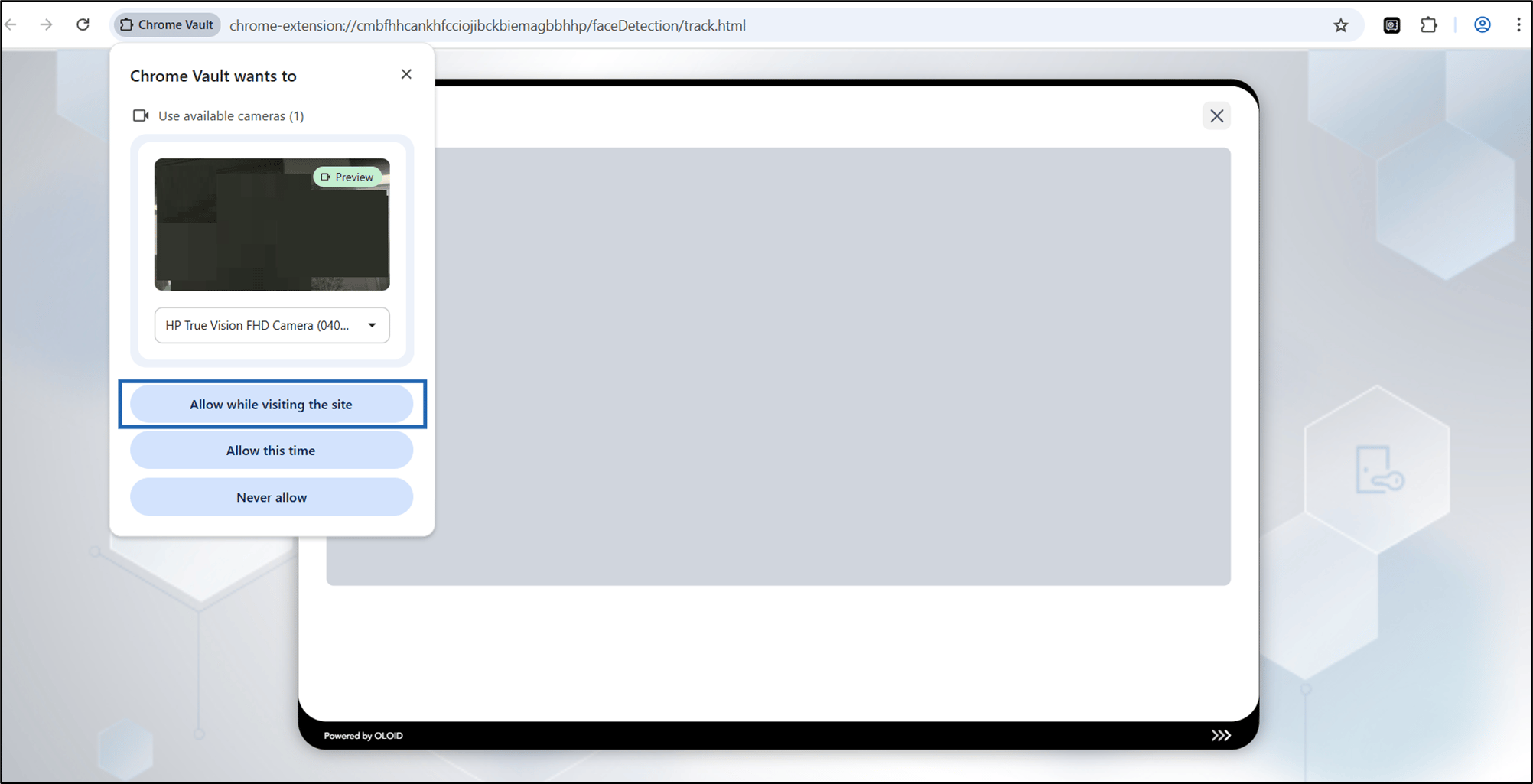
Select Allow while visiting the site to open the camera.
-
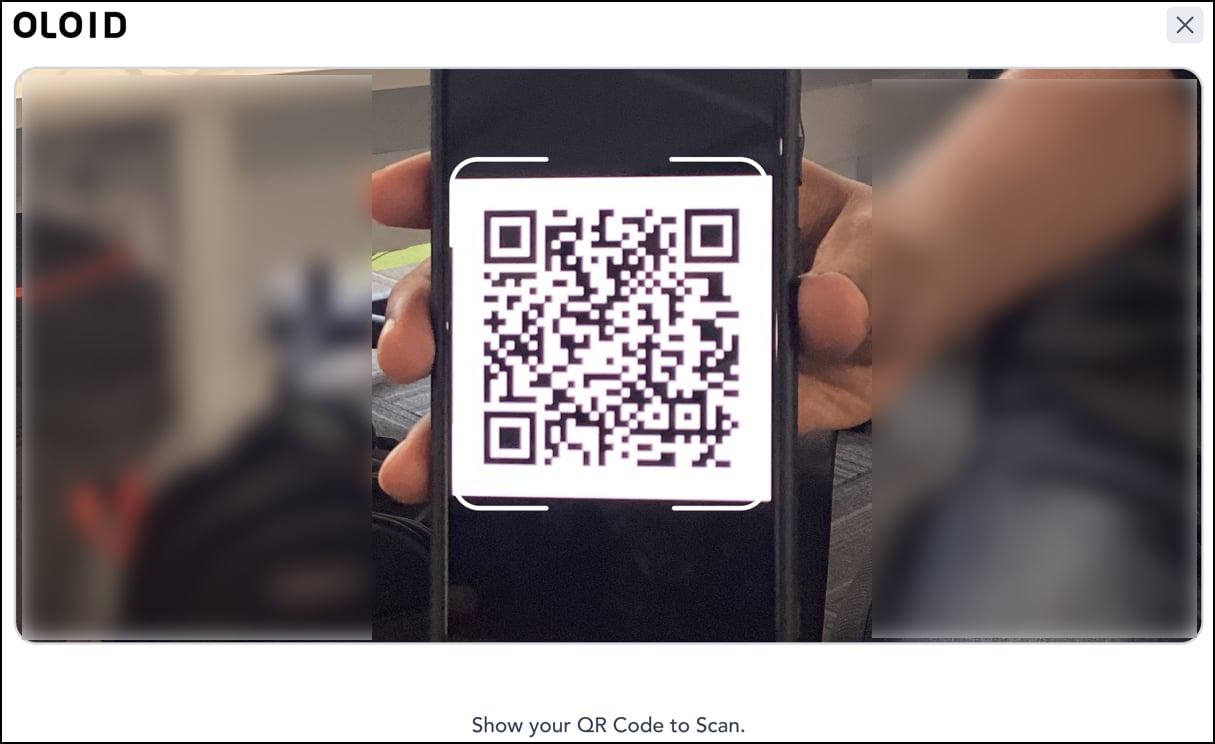
Show your QR Code in front of the camera for QR Code authentication.