Introduction
The Saving Passkeys option in the Tenant Admin Portal allows the admin to enable saving of passkeys within the Oloid Vault (Chrome / Chromium) application. Once enabled, users can securely save and use passkeys for websites that support passkey logins, ensuring a faster and passwordless authentication experience.Prerequisites
- You must have admin access to the Tenant Admin Portal.
- You must create a Chrome Vault application in the Tenant Admin Portal. To create refer, Oloid Vault (Chrome / Chromium) - How to Create and Configure Oloid Vault Application in the Tenant Admin Portal.
Steps to Enable Saving Passkeys
- Log in to the Tenant Admin Portal.
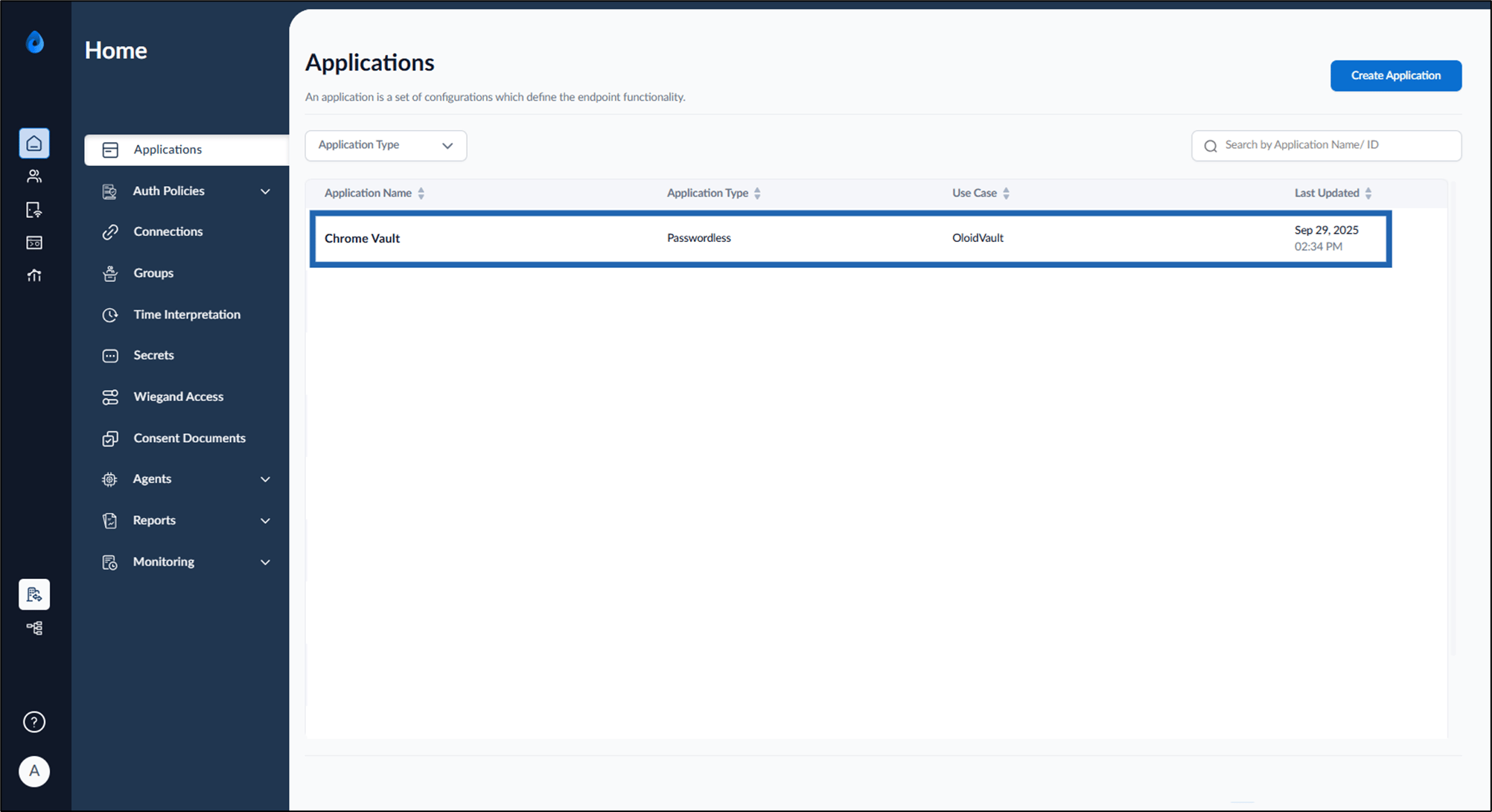
- On the Home page of the portal, click on the preferred Oloid Vault application.
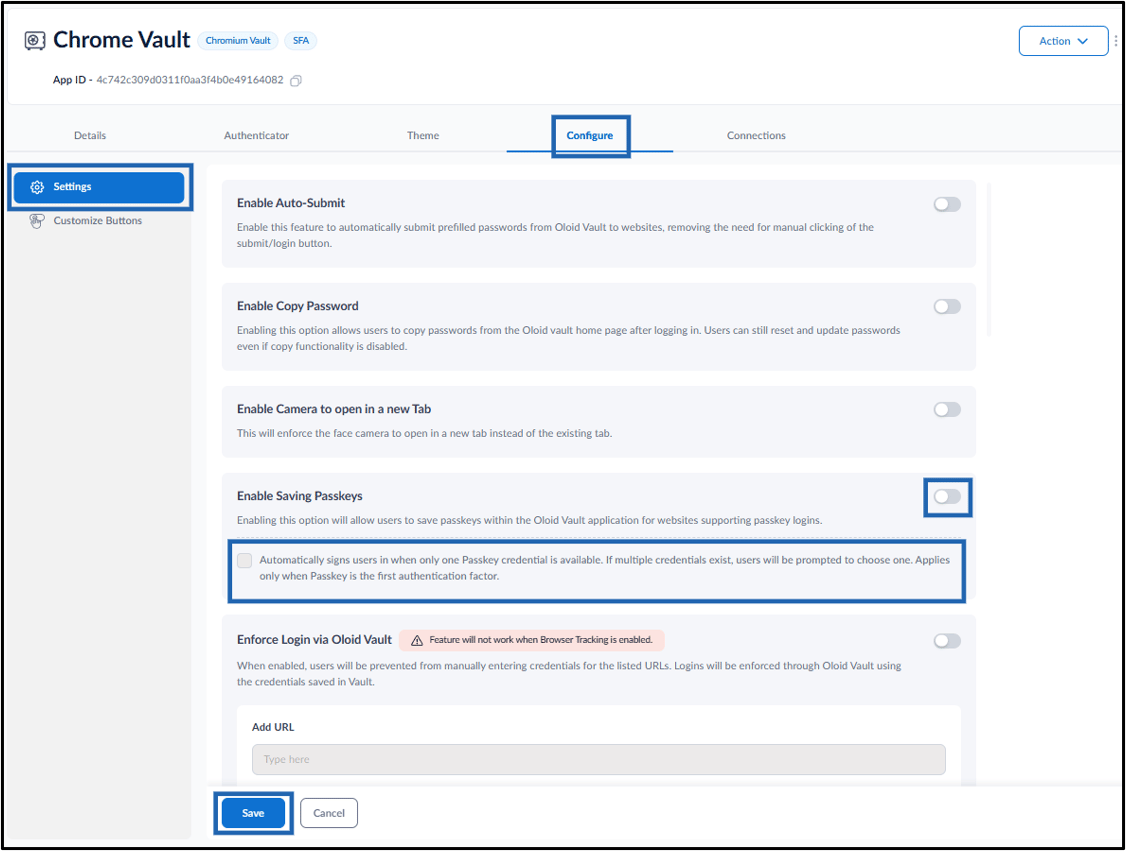
- Go to Configure tab > Settings and do the following:
- Turn on Saving Passkeys toggle to allow users to store passkeys in the Chrome Vault for websites that support passkey logins.
-
Select Automatically signs users in when only one Passkey credential is available to skip passkey selection when only one passkey is available.
Note:
- If multiple passkeys are available, the user is prompted to select the applicable passkey.
- This option applies only when Passkey is configured as the first authentication factor.
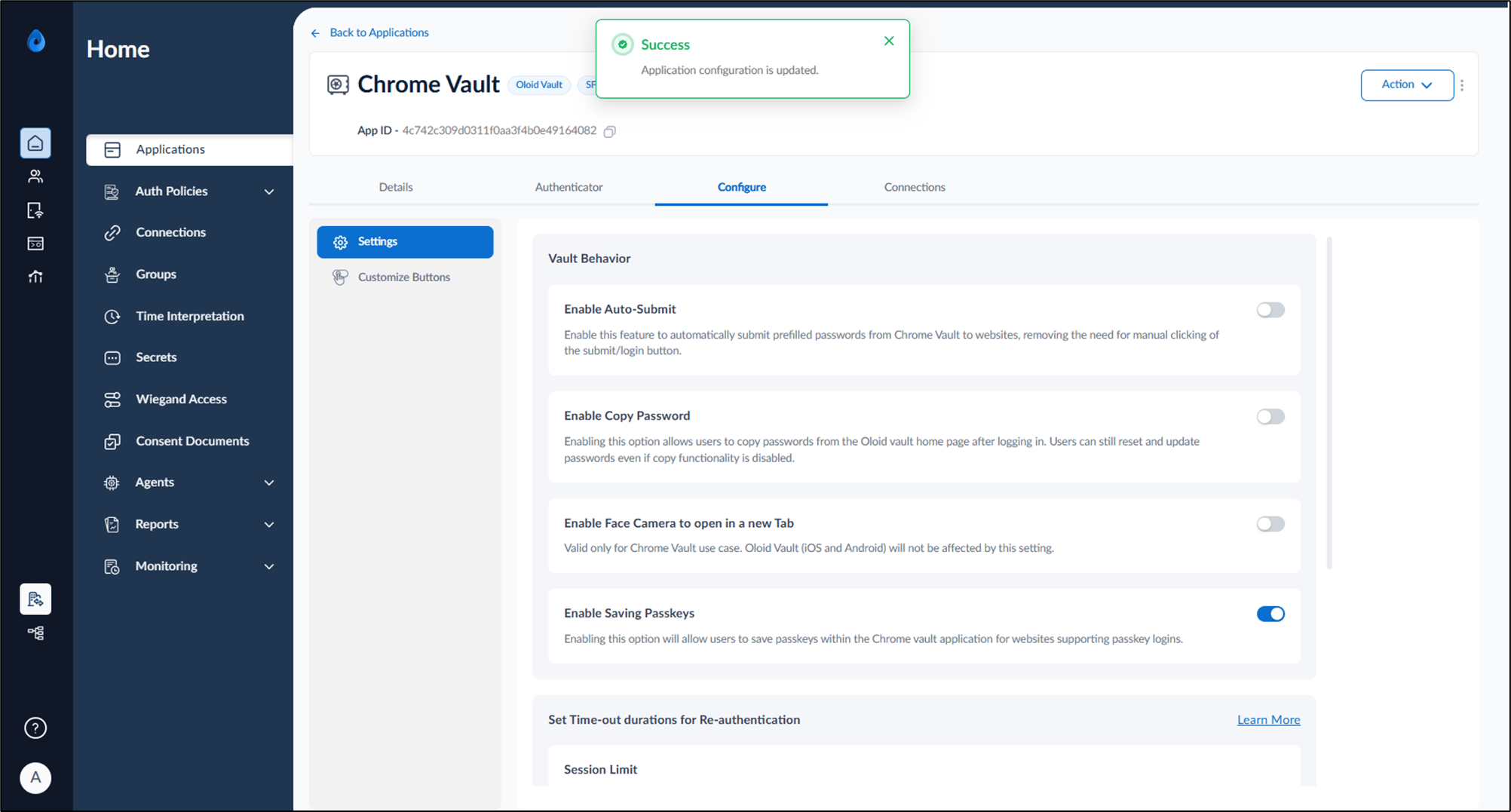
- Click Save.
Preview Screen
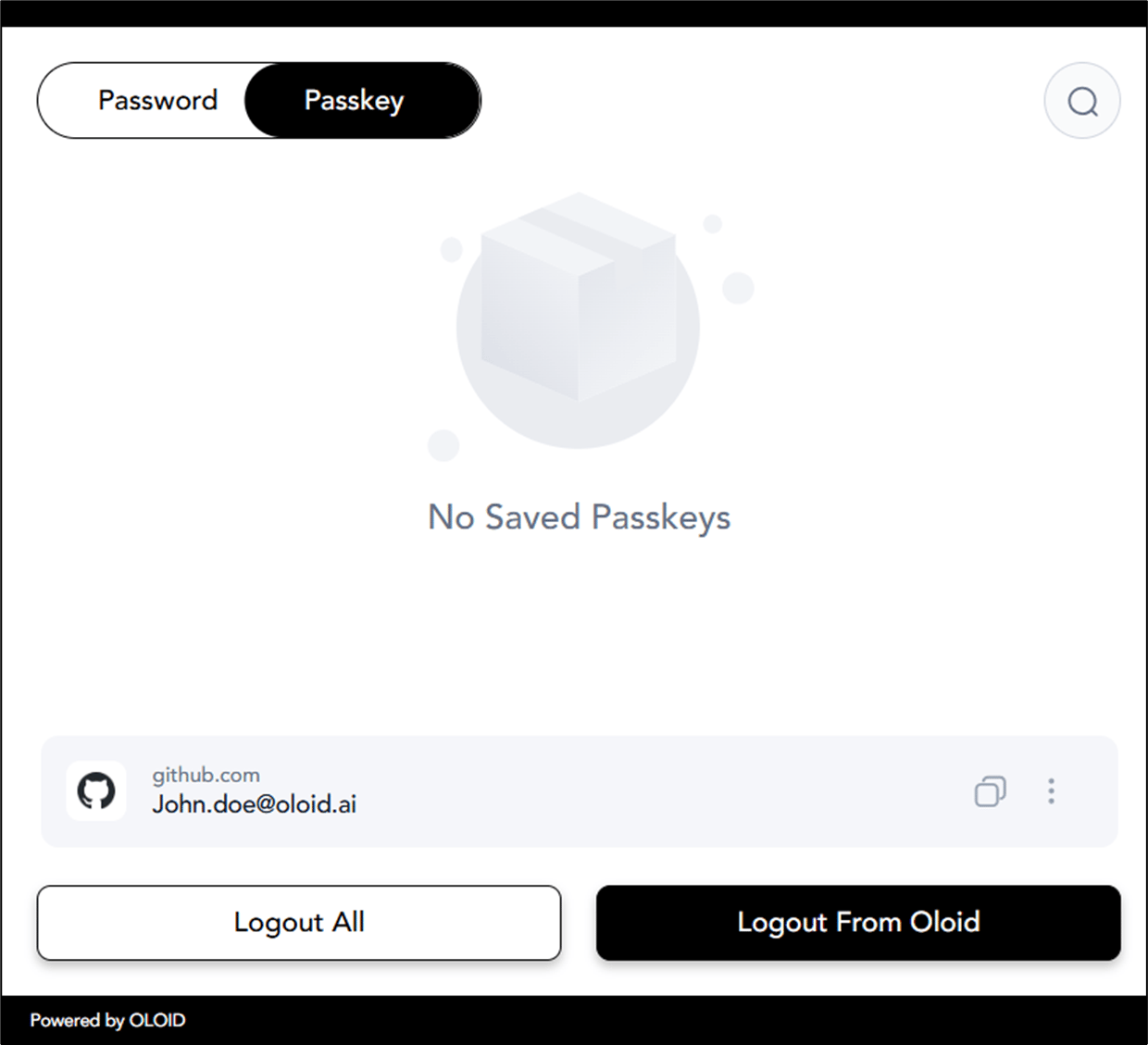
The below screenshot shows a preview of the Chrome Vault application after enabling the Saving Passkeys option.