Introduction
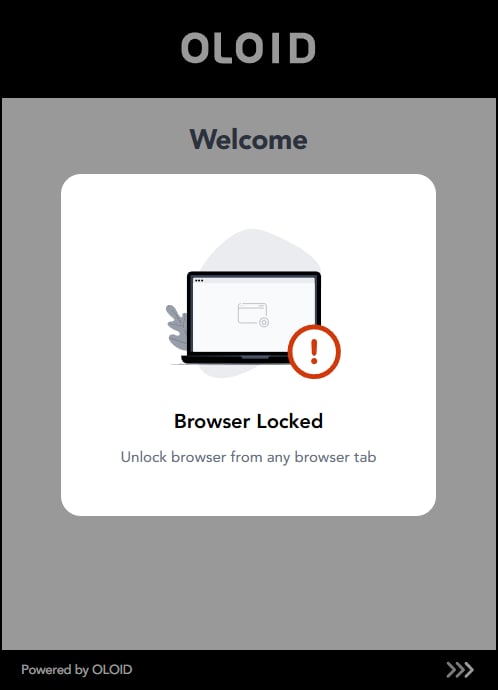
This document explains how to lock the browser using the Oloid Vault (Chrome / Chromium) app. The Browser Lock feature secures all active browser tabs and requires reauthentication to unlock them.Prerequisites
- Ensure that the Browser Lock feature is enabled in the Tenant Admin Portal. For more information, refer Lock Browser.
- You must login to the Chrome Vault. To log in refer How to log in to Chrome Vault.
Steps to Lock the Browser
- Open Chrome Vault application.
-
Click Lock Browser.
 Note: All browser tabs are locked automatically. Reauthenticate from any tab to unlock the browser. Once authentication is completed, all tabs are unlocked.