Introduction
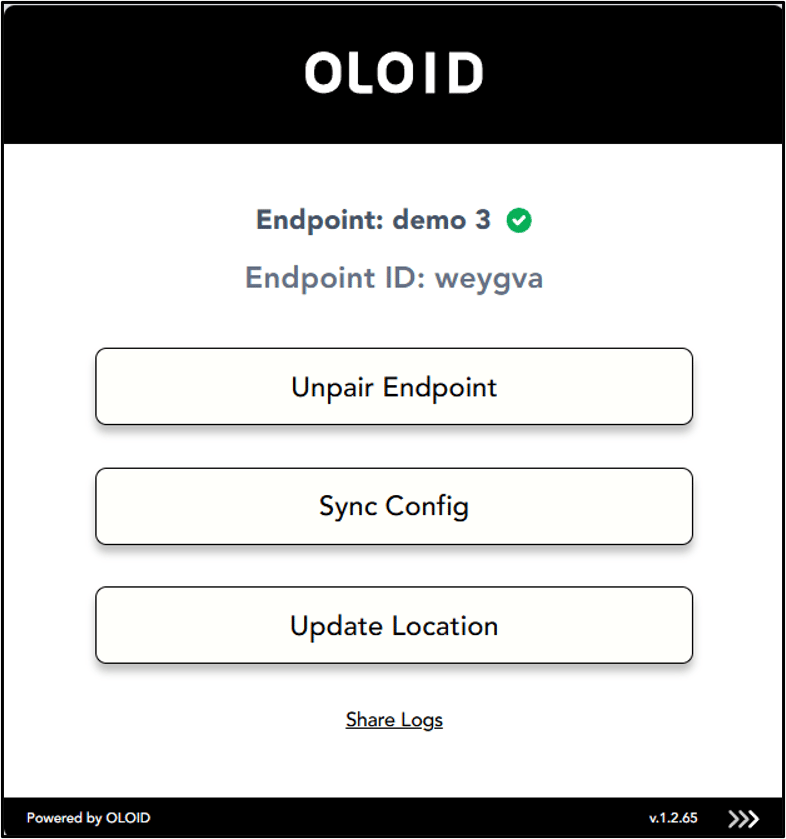
This document provides instructions for logging in to Admin Mode in Oloid Vault (Chrome/Chromium) to manage settings and configure features.Prerequisite
You must install and setup the Oloid Vault. For more details, refer Oloid Vault - How to Set Up and UseSteps to Log in to Admin Mode
- Open Google Chrome browser and click Oloid Vault icon.

- Click More option icon (

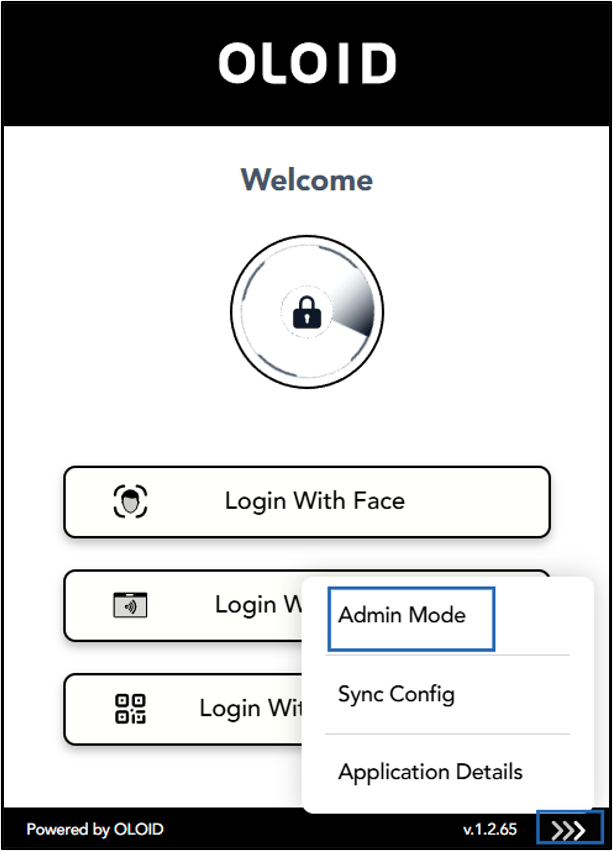
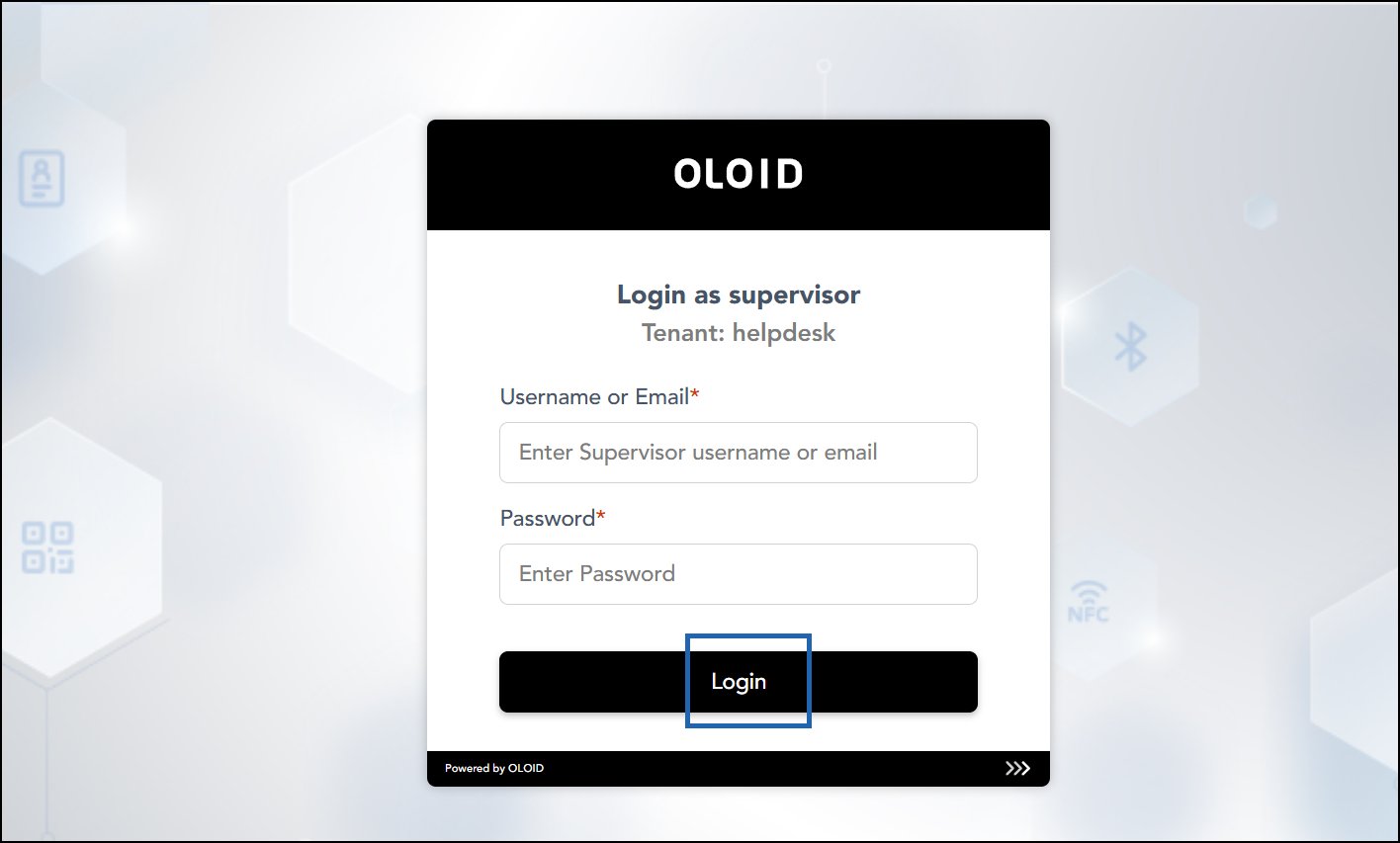
- Do the following:
- Enter Supervisor username or email ID.
- Enter Password.
- Click Login.