Introduction
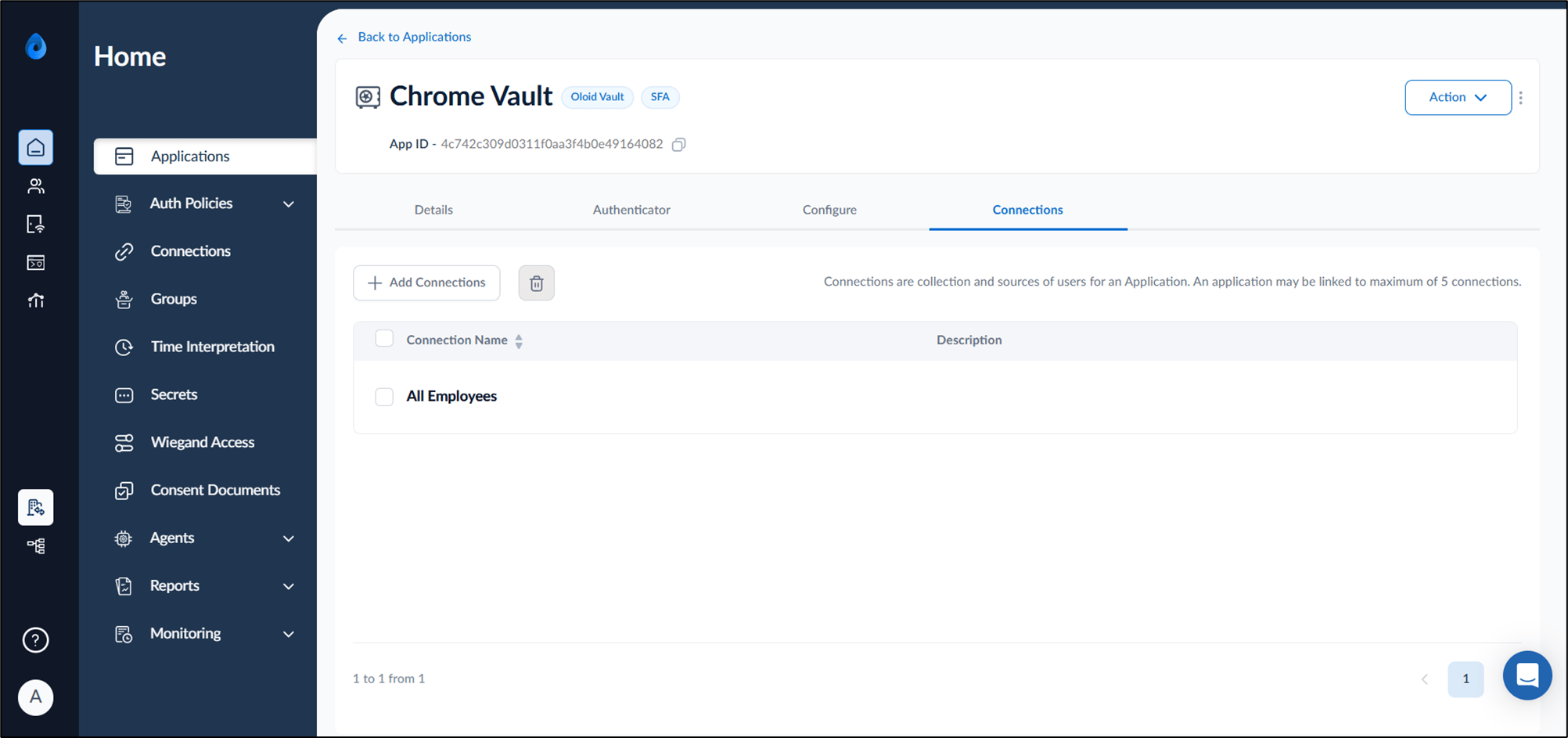
The Connections tab in the Oloid Vault (Chrome / Chromium) application allows admin to link predefined connections to the application. By adding connections, you enable the application to communicate with supported endpoints for secure authentication and access.Prerequisites
- You must have access to the Tenant Admin Portal.
- You must create a Oloid Vault (Chrome / Chromium) application in the Tenant Admin Portal. To create refer How to Create and Configure Oloid Vault (Chrome / Chromium) Application in the Tenant Admin Portal.
- You must create Connections. To create Connections. To more information, refer How to create Connections in the Tenant Admin Portal.
Steps to add Connections
- Log in to the Tenant Admin Portal.
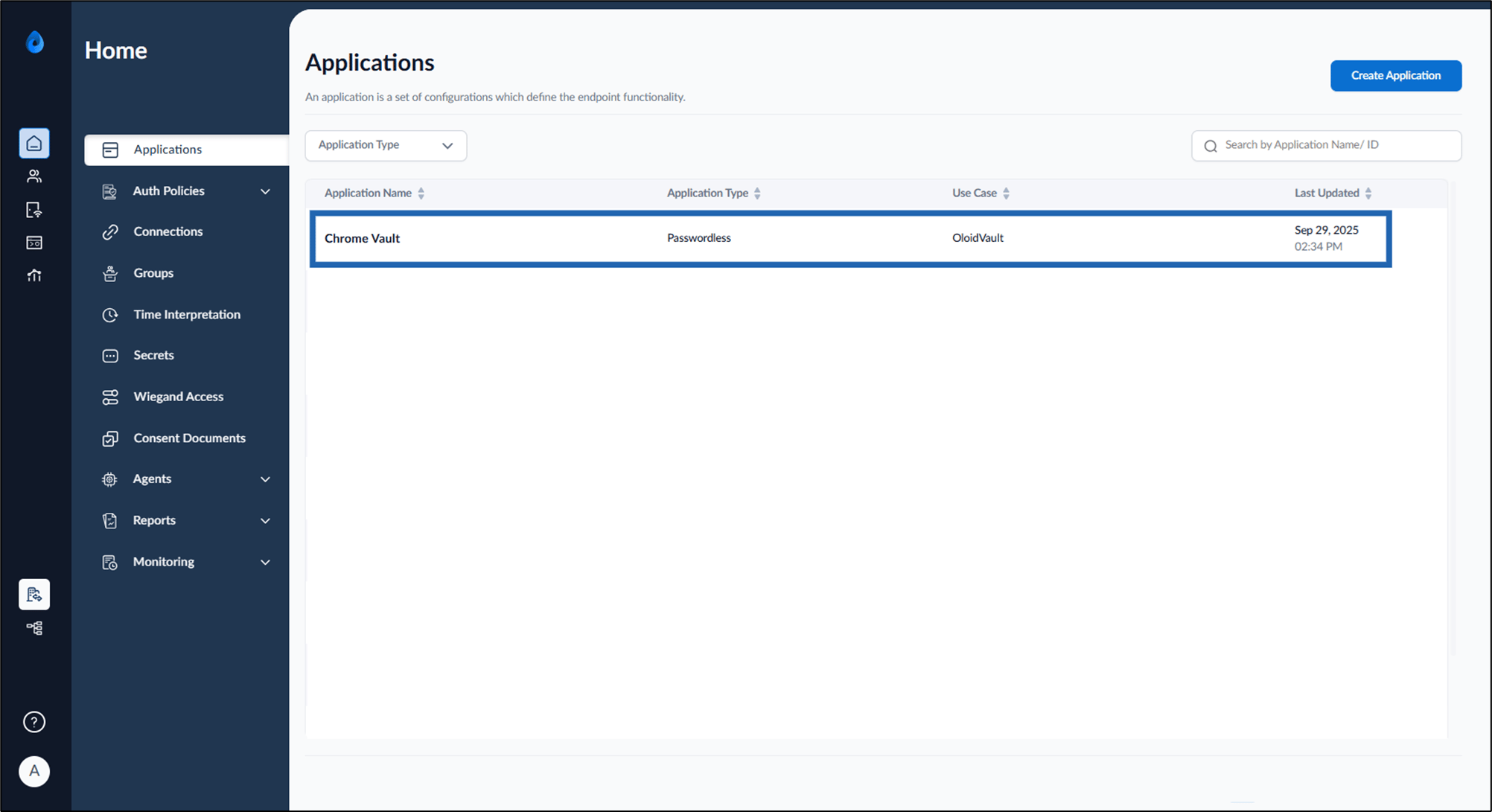
- On the Home page of the portal, click on the preferred Oloid Vault application.
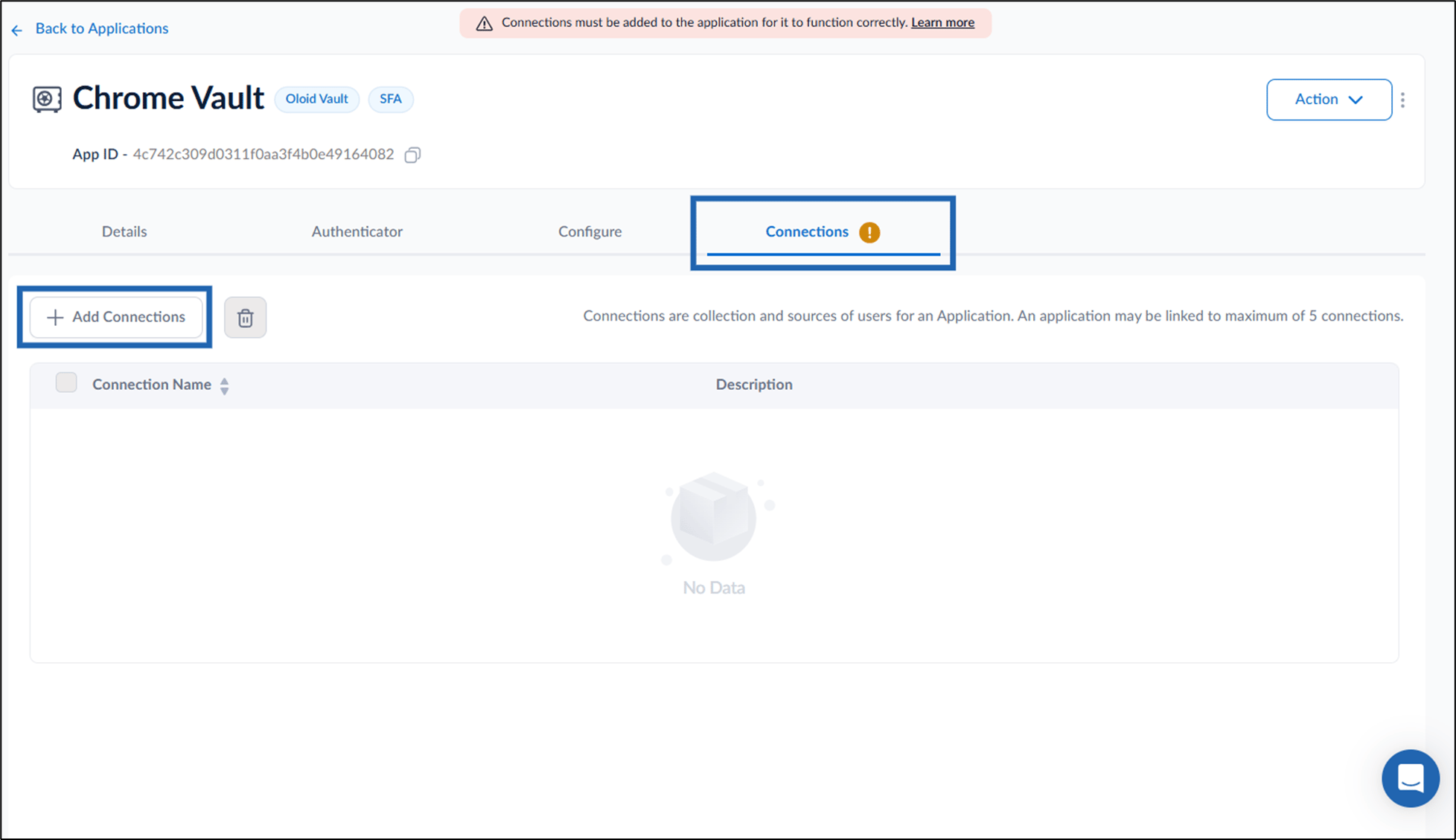
- Go to Connections tab > select Add Connections.
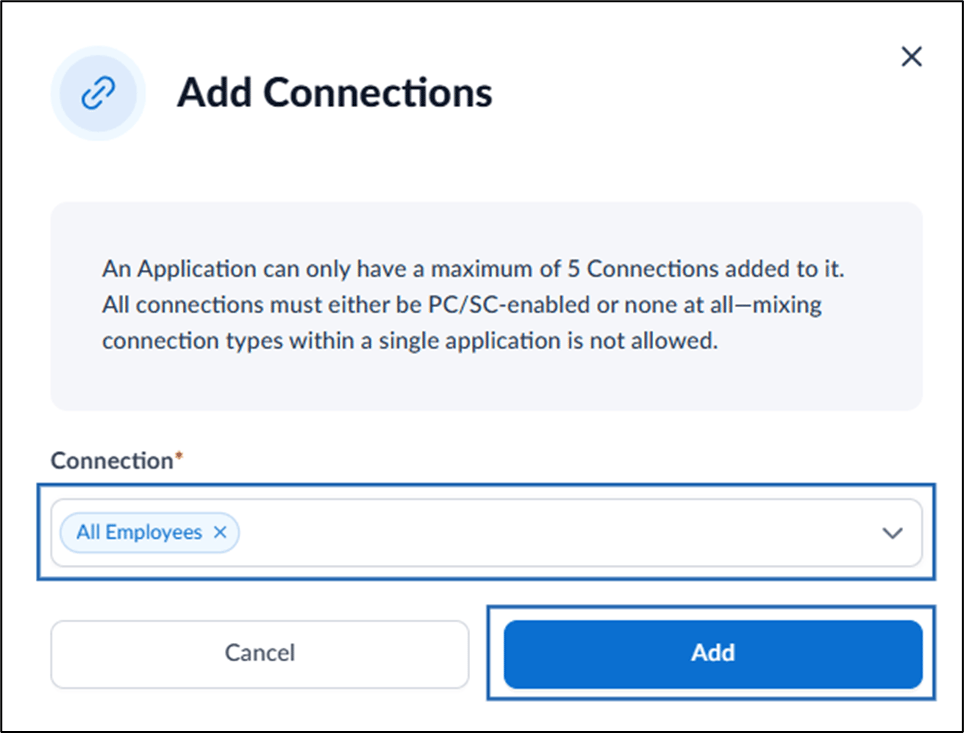
- Do the following:
- Select Connection(s) from Connection drop down list.
-
Click Add.
Note: An application can have up to 5 connections, and all must be either PC/SC-enabled or non-PC/SC. Combining different connection types is not allowed.