Introduction
This document provides instructions for syncing the configuration in Oloid Vault (Chrome/Chromium) to update the application with the latest settings and configuration.Prerequisites
- Oloid Vault (Chrome/Chromium) must be installed and set up on your device. For more information, refer to Setting up and using Chrome Vault.
- To sync the configuration from Admin Mode, you must have valid admin credentials.
Steps to Sync Configuration
You can sync configuration in Chrome Vault using the following options:Sync Config on Welcome Screen
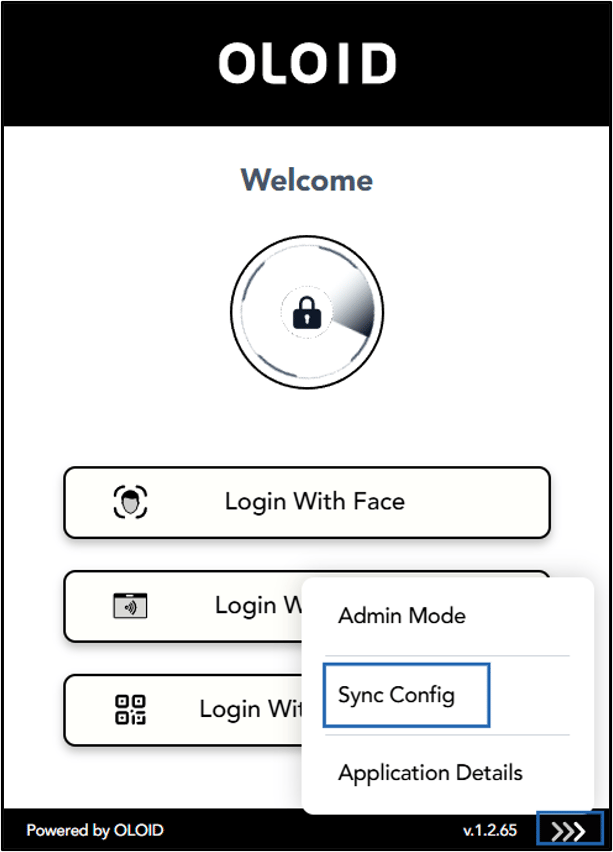
- Open Google Chrome browser and click Chrome Vault icon located on the toolbar.

- Go to More option (

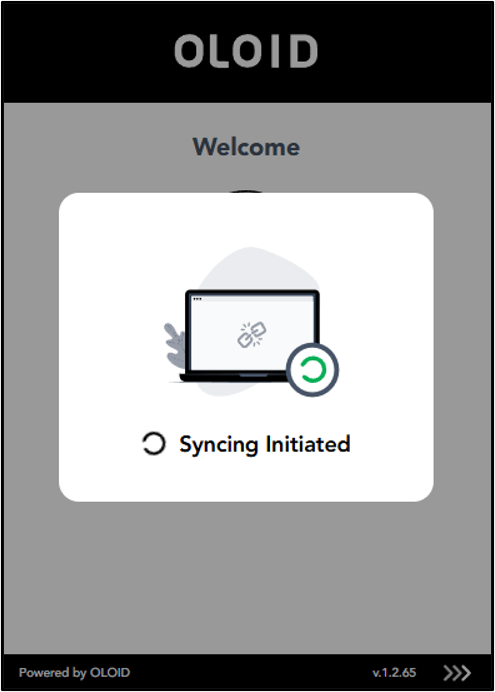
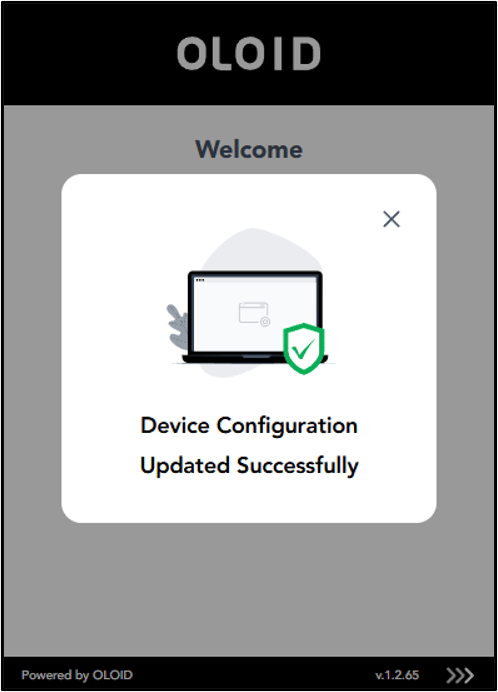
Sync Config in Admin Mode
- Log in to Admin Mode in Oloid Vault. For more details refer Oloid Vault (Chrome / Chromium) - How to Log in to Admin Mode
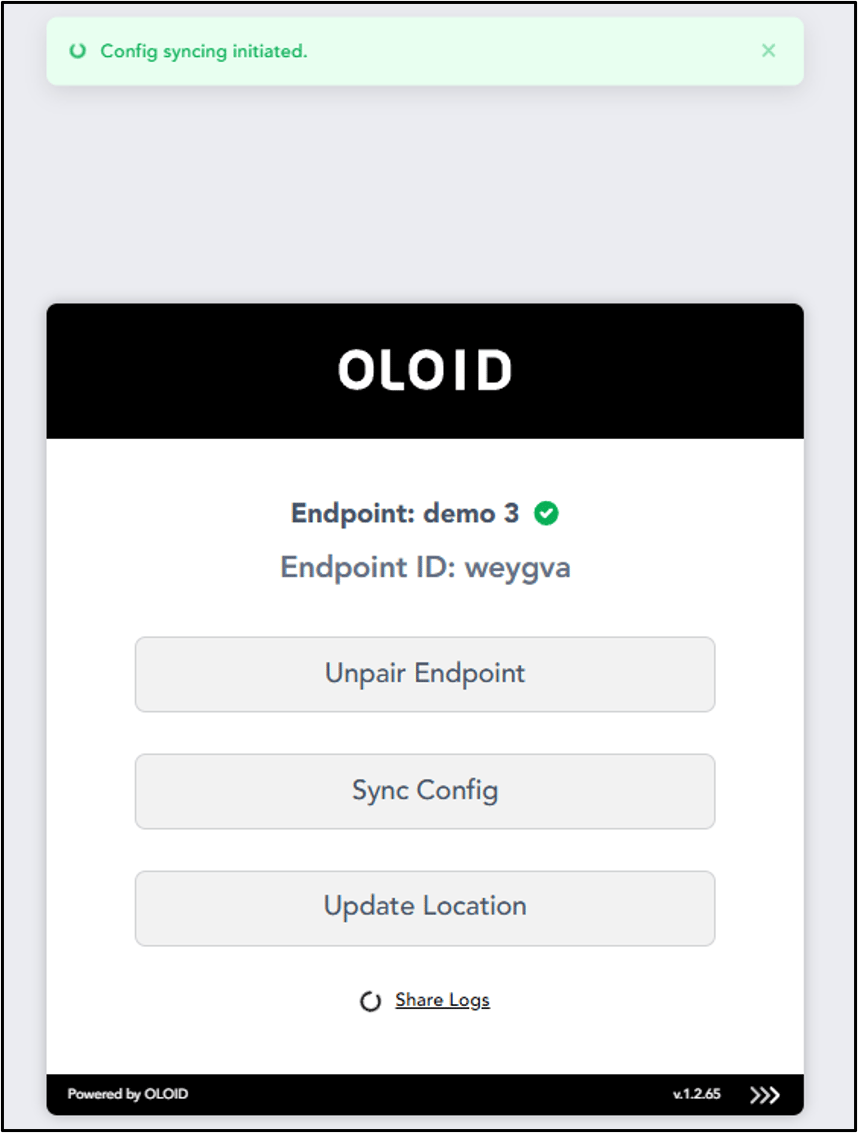
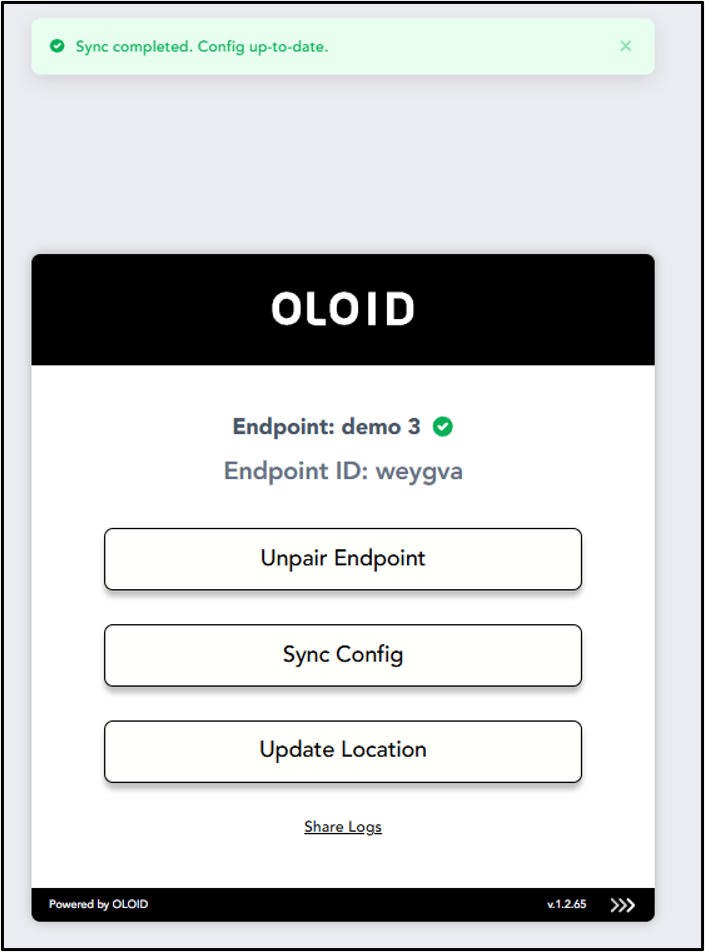
- On the configuration screen, click Sync Config.
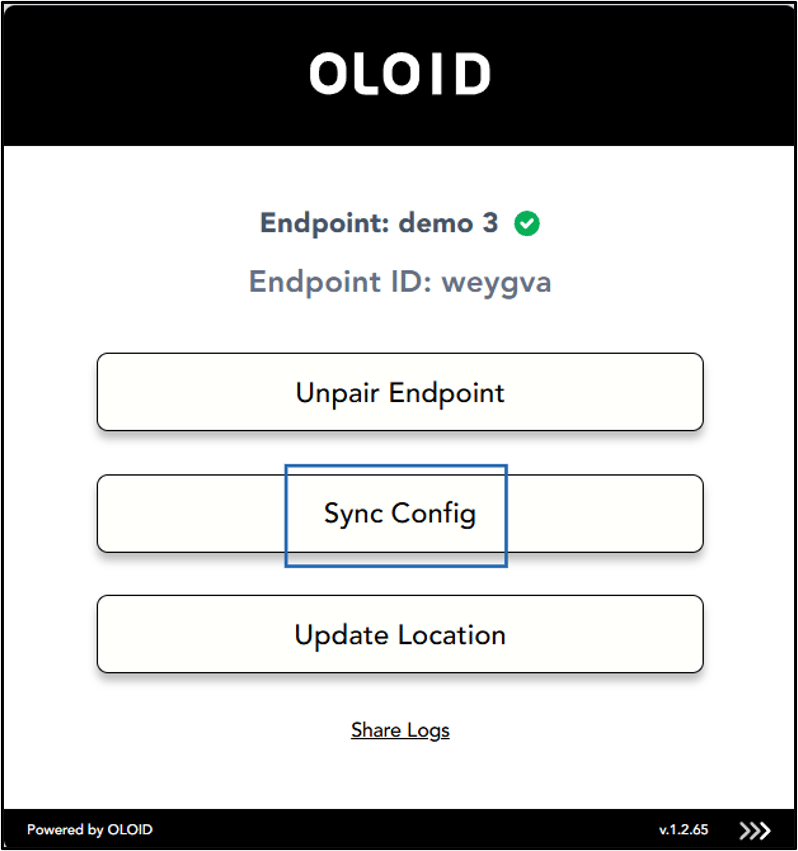
- The Syncing Configuration is initiated.