

Introduction
The Tenant Admin Portal allows admin to create Oloid Vault (Chrome / Chromium) shared password(s) that can be securely managed and shared with multiple authorized users.Prerequisite
You must have access to the Tenant Admin Portal.Steps to create Vault Shared Password
- Log in to the Tenant Admin Portal.
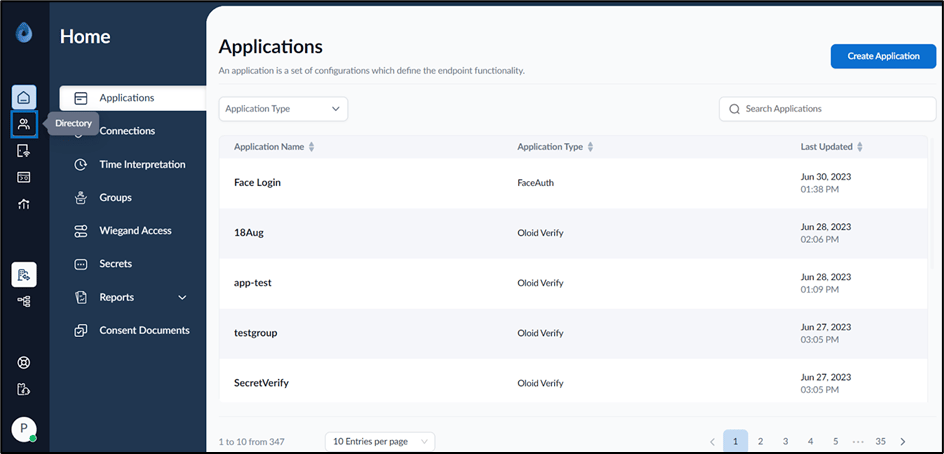
- On the home page of the portal, click Directory on the left menu panel.
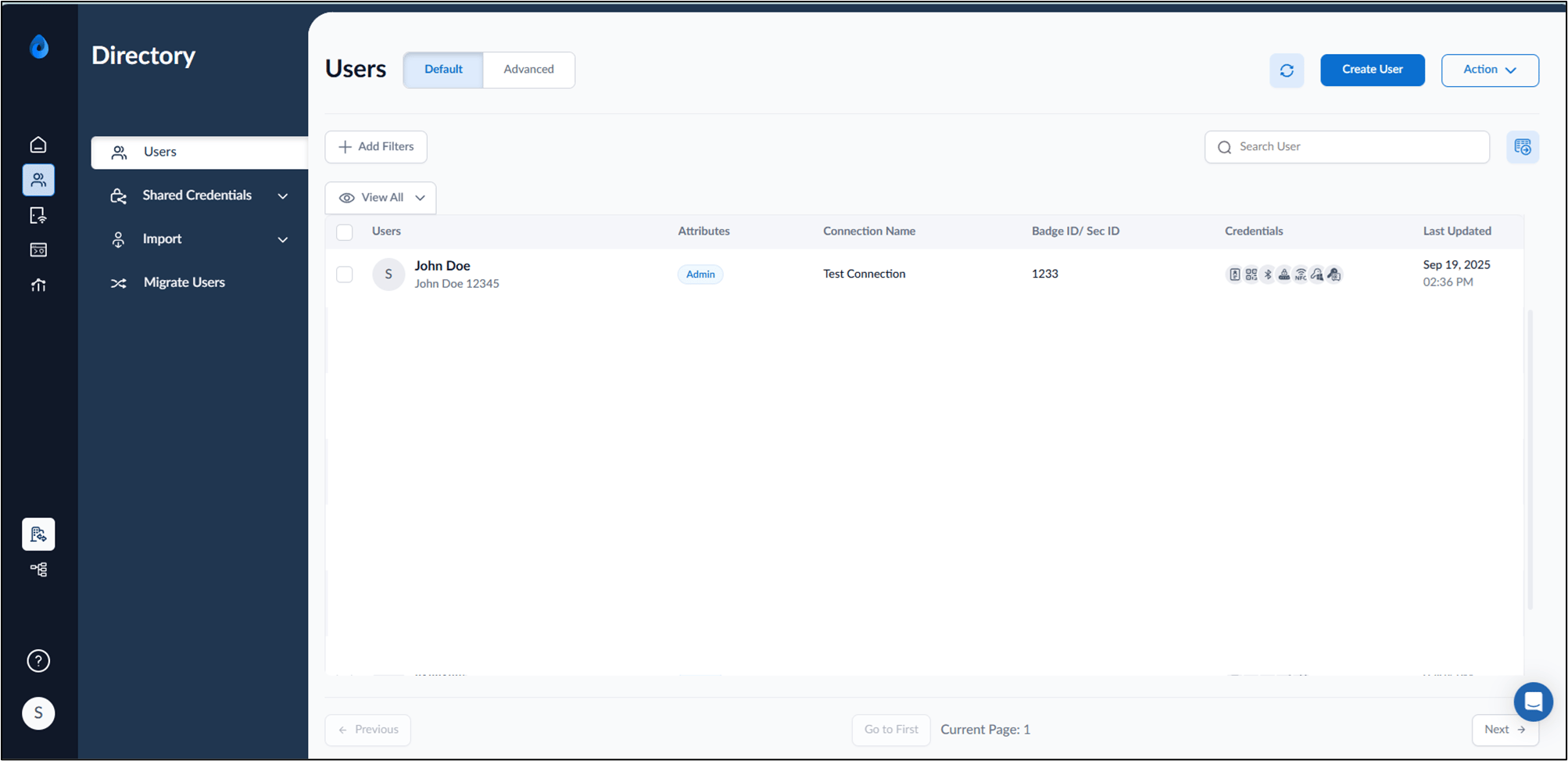
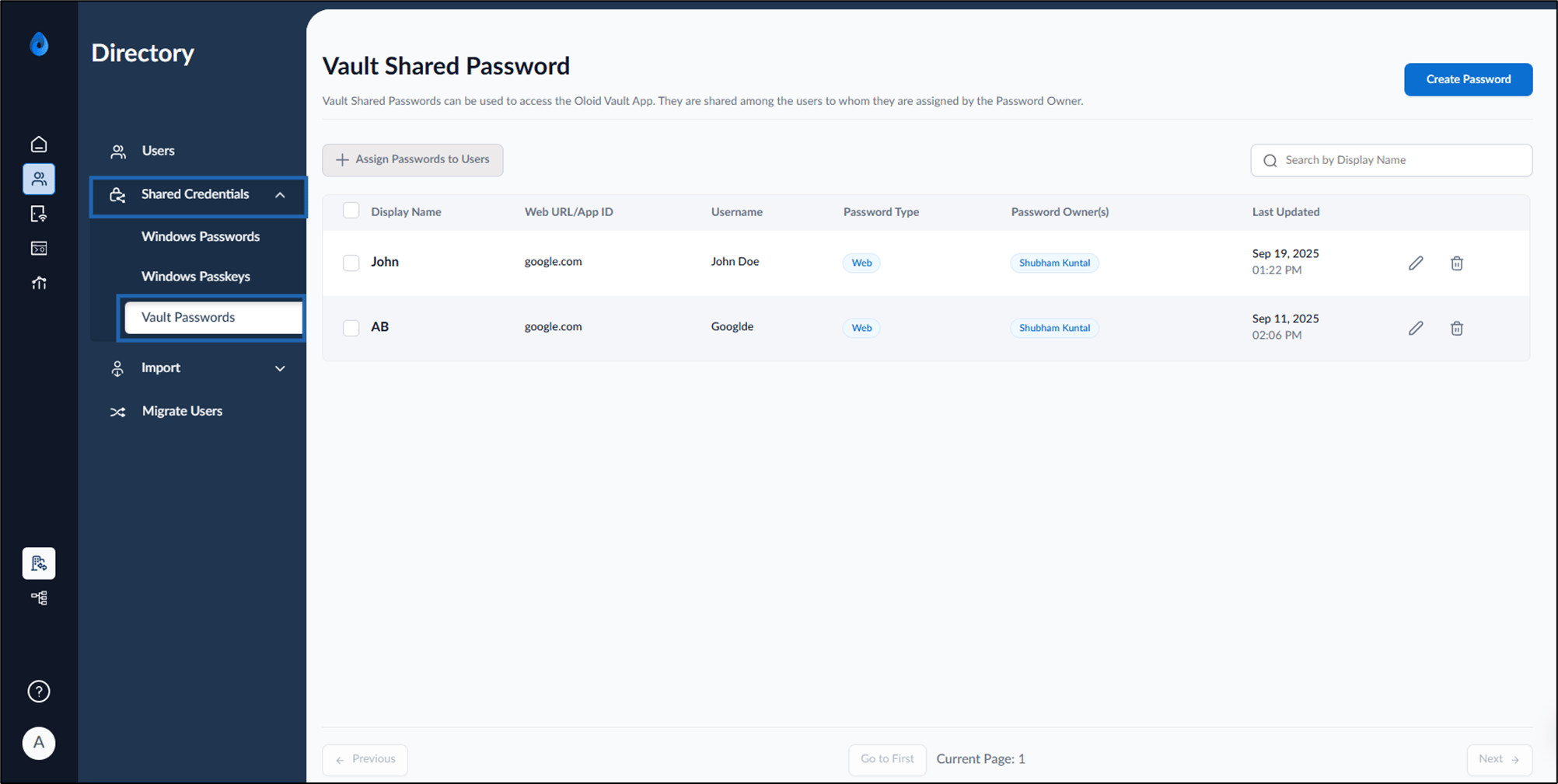
- Click Shared Credentials from the left menu panel > Vault Passwords.
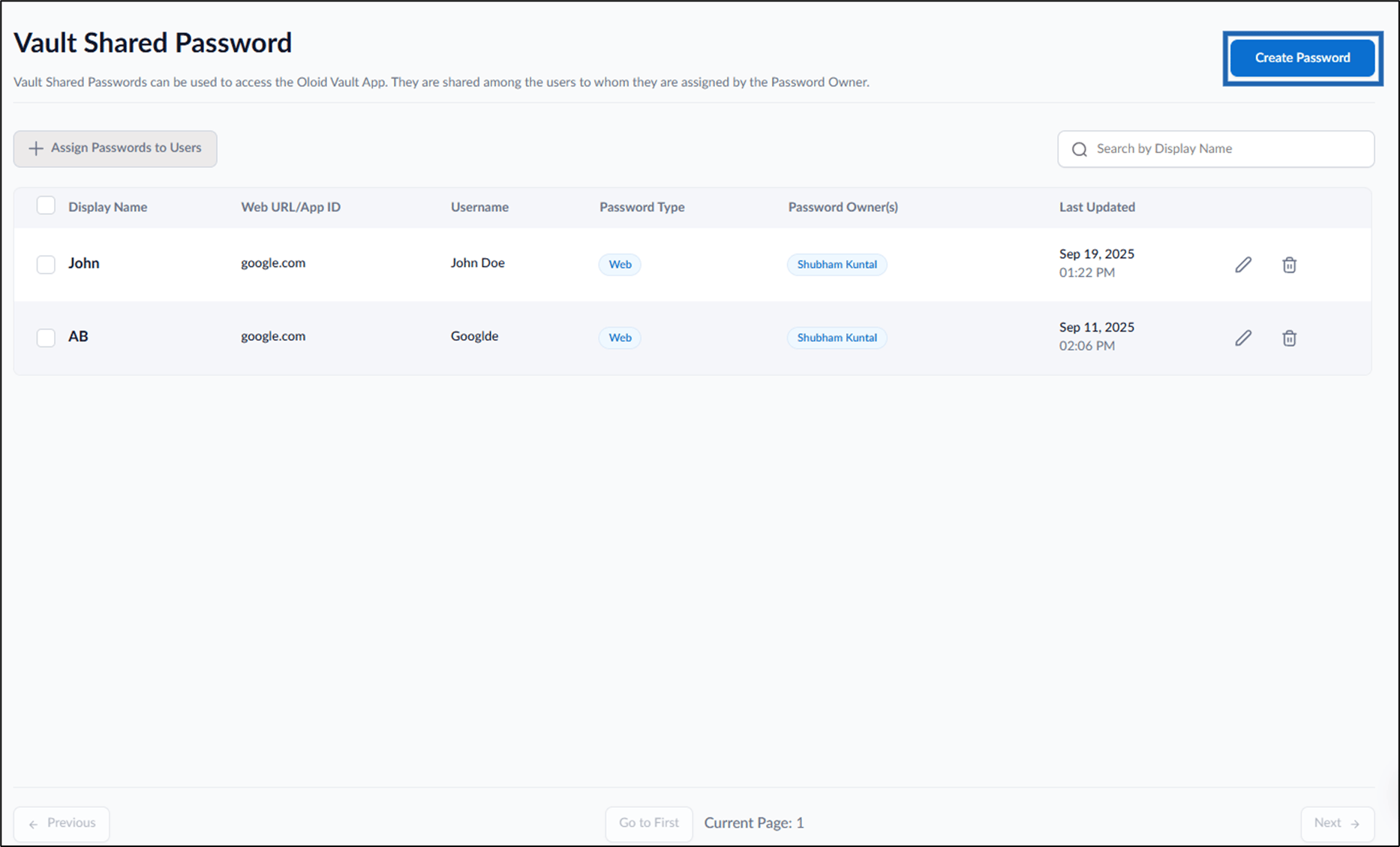
- Click Create Password.
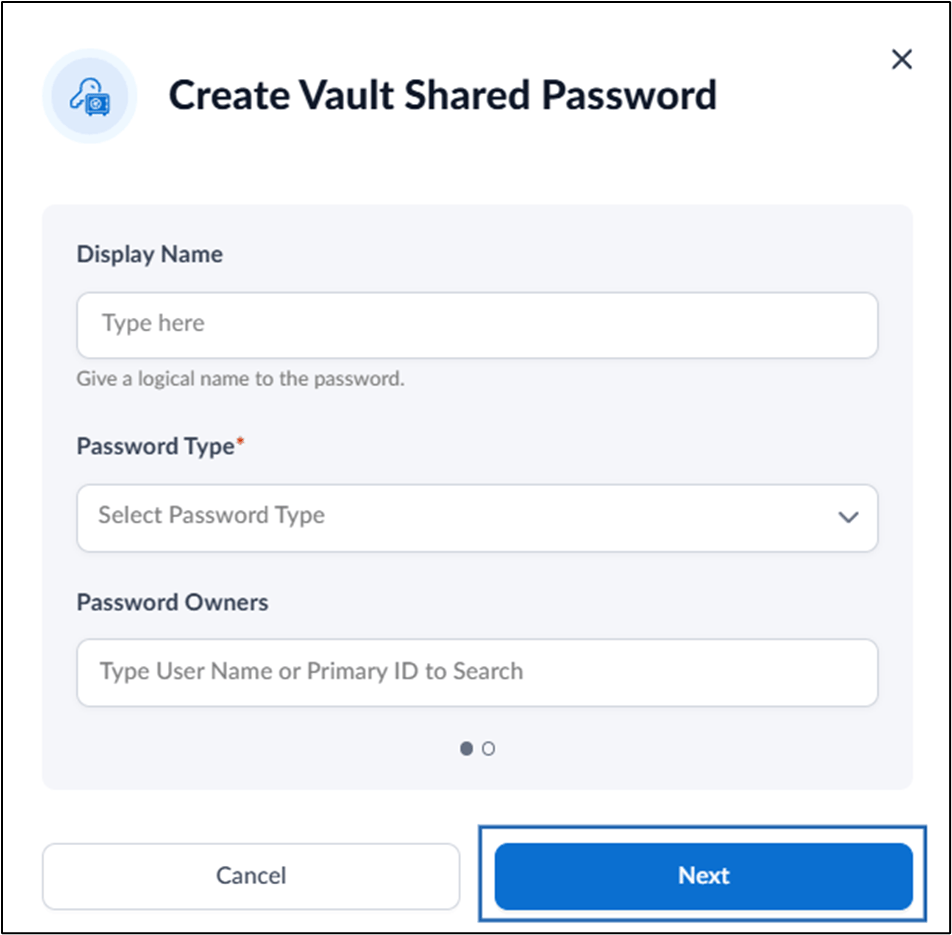
- On the pop-up box, do the following:
- Enter Display Name.
- Select Password Type as Web from the dropdown menu.
-
Enter an existing Username or Primary ID in the Password Owners field > select the user from dropdown menu.
Note: You can select multiple users in the password owner field.
-
Click Next.
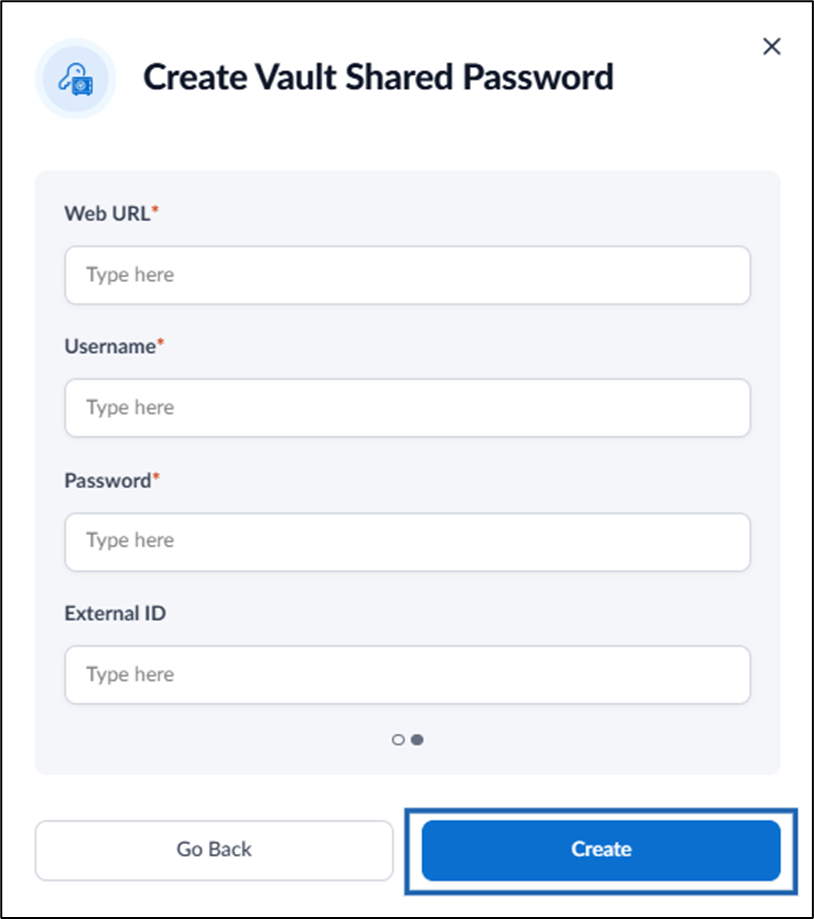
- Enter the Web URL in the text field.
- Enter the Username of your Chrome Vault account.
- Enter the Password of your Chrome Vault account.
- Enter External ID (optional).
-
Click Create.
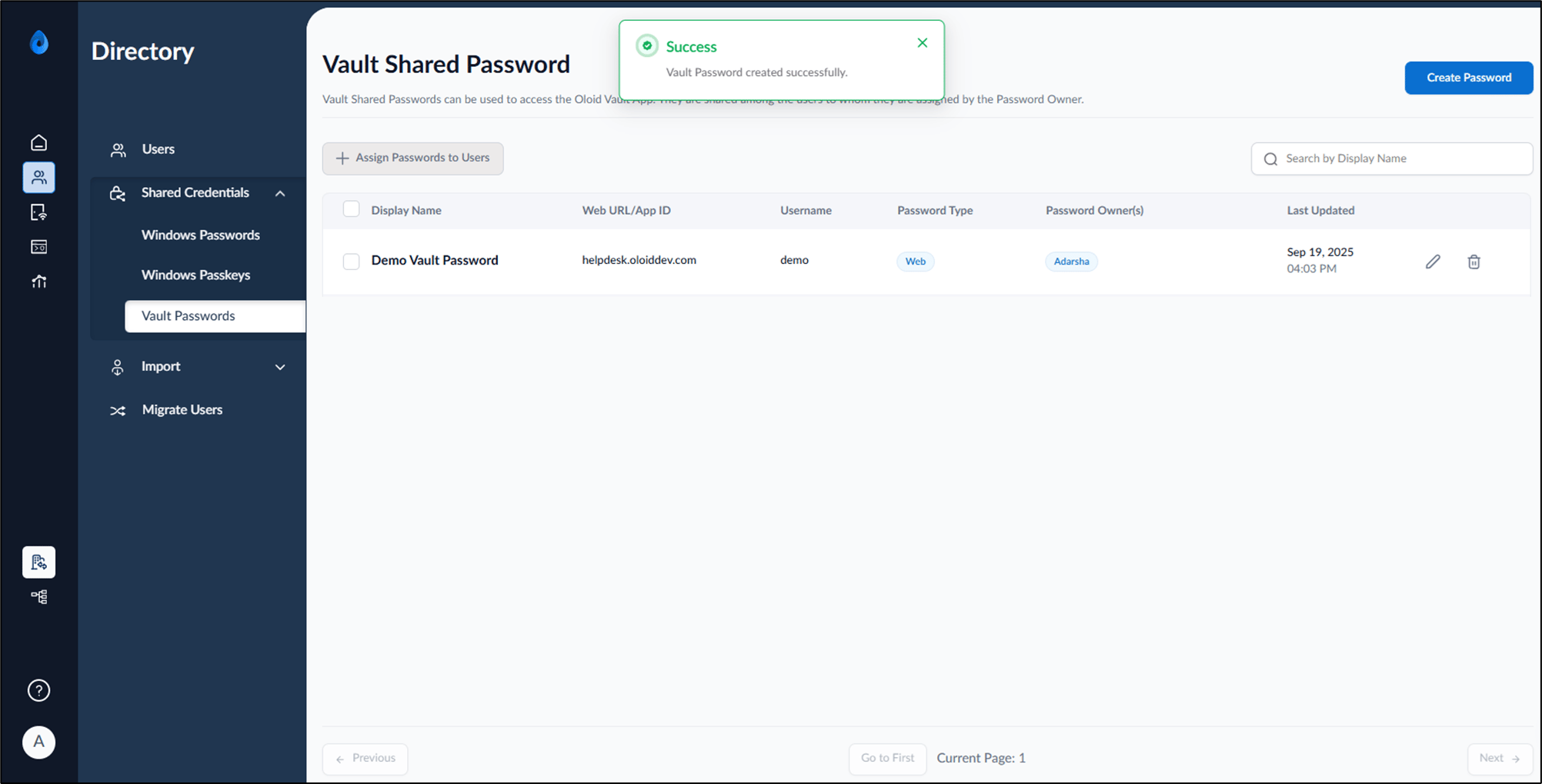
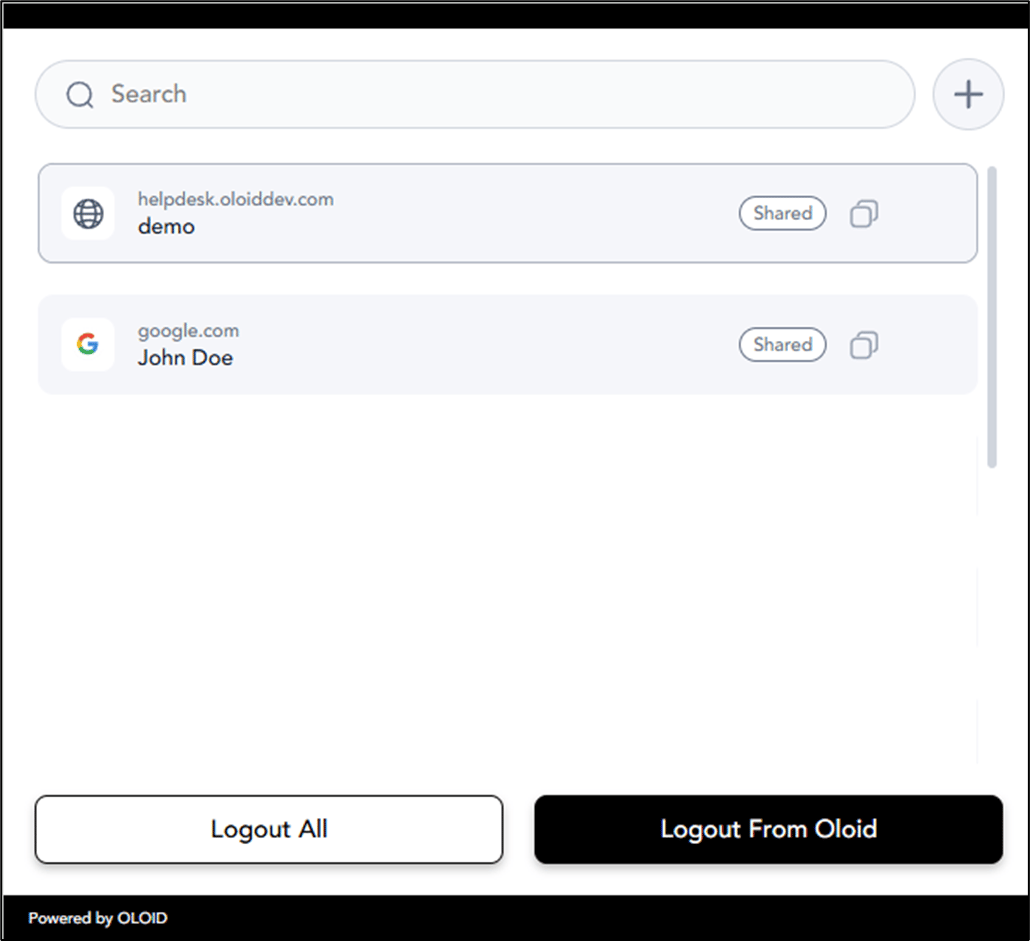
Preview Screen
| Oloid Vault shared password | Create Vault shared password | Chrome Vault shared credentials | Chromium shared password setup |