

Introduction
This document provides step-by-step instructions to install, configure and auto-pair the Oloid Vault chromium-based extension on managed Windows endpoints using ManageEngine Endpoint Central.Prerequisites
- You must have admin access to the ManageEngine Endpoint Central console.
-
You must download the AutoPairConfig.txt file from the Tenant Admin Portal. For more information, refer to Oloid Vault (Chrome / Chromium)- How to Generate Auto-Pair Config File in the Tenant Admin Portal
Note: Download the AutoPairConfig file in
.txtformat only.
Steps to Deploy Oloid Vault (Chrome/Chromium) via ManageEngine Endpoint Central
- Configure Chrome Extension Policy for Oloid Vault
- Configure Auto-pair for Oloid Vault
- Configure Target and Deploy the Oloid Vault App The Chrome Vault is deployed successfully.
Configure Chrome Extension Policy for Oloid Vault
- Log in to the ManageEngine Endpoint Central. The ManageEngine Endpoint Central home screen is displayed.
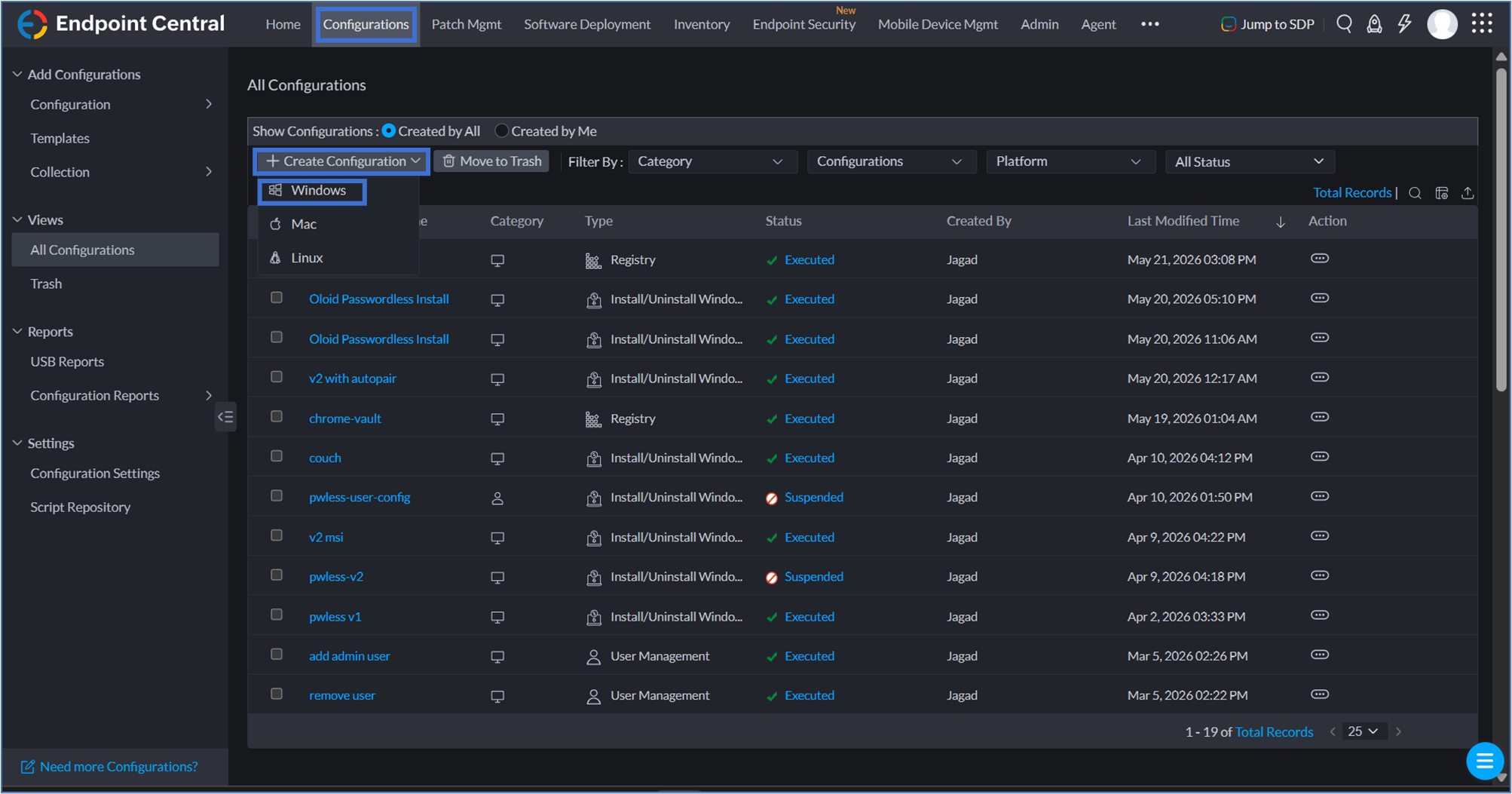
- Go to Configurations > Create Configuration > Windows.
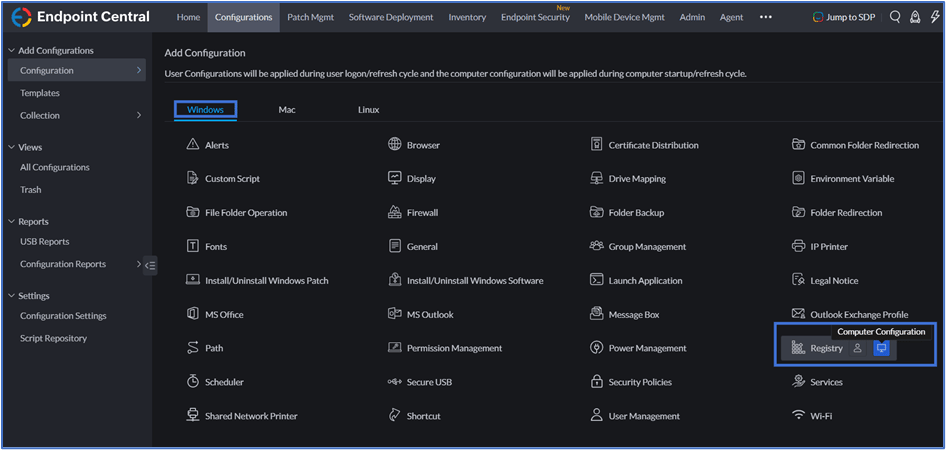
- Click Registry > Computer Configuration.
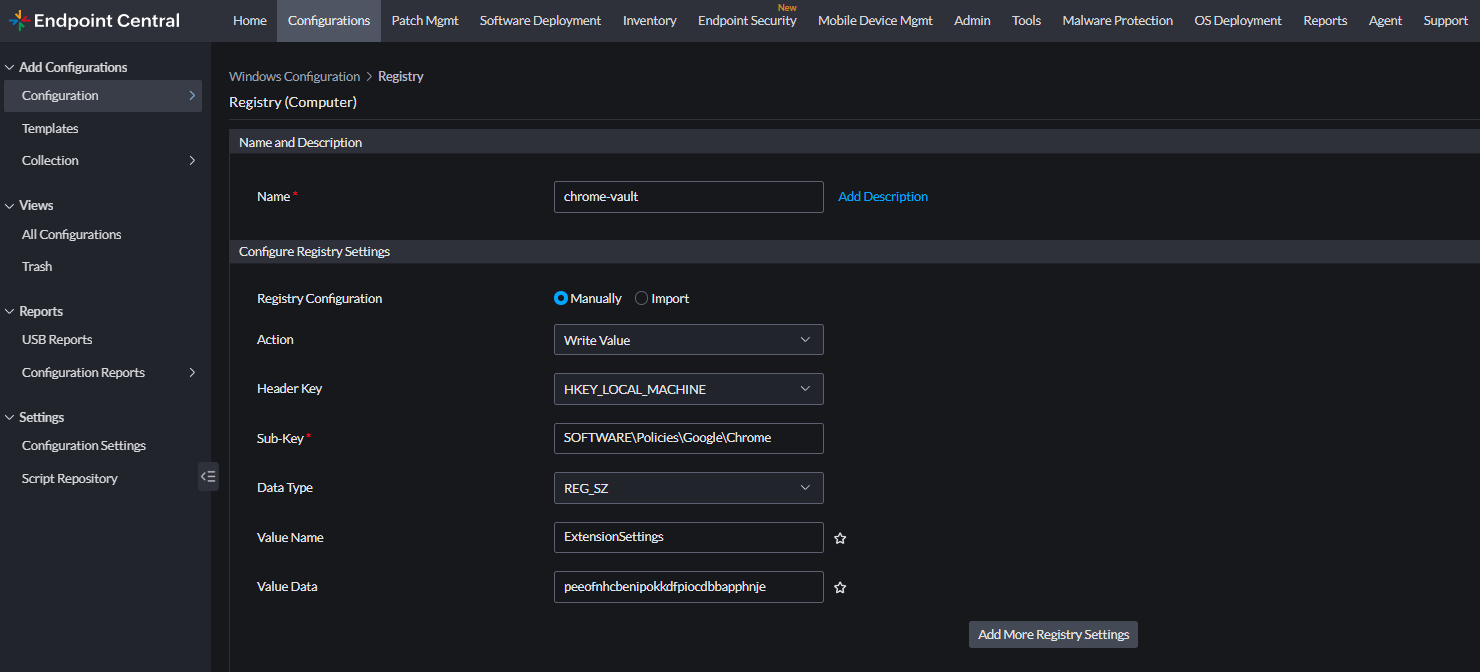
- In the Name and Description section, do the following:
- Enter the configuration name.
- Click Add Description and then enter the description in the displayed text box. (Optional)
- Ensure Manually is selected under Registry Configuration.
- Ensure Write Value is selected under Action.
- Ensure HKEY_LOCAL_MACHINE is selected under Header Key.
- In the Sub-Key field, enter
SOFTWARE\Policies\Google\Chromeas the registry sub-key path. - Ensure REG_SZ is selected under Data Type.
- In the Value Name field, enter
ExtensionSettingsas the value name. - In the Value Data field, enter the appropriate registry value for your browser:.
-
Configure Auto-pair for Oloid Vault
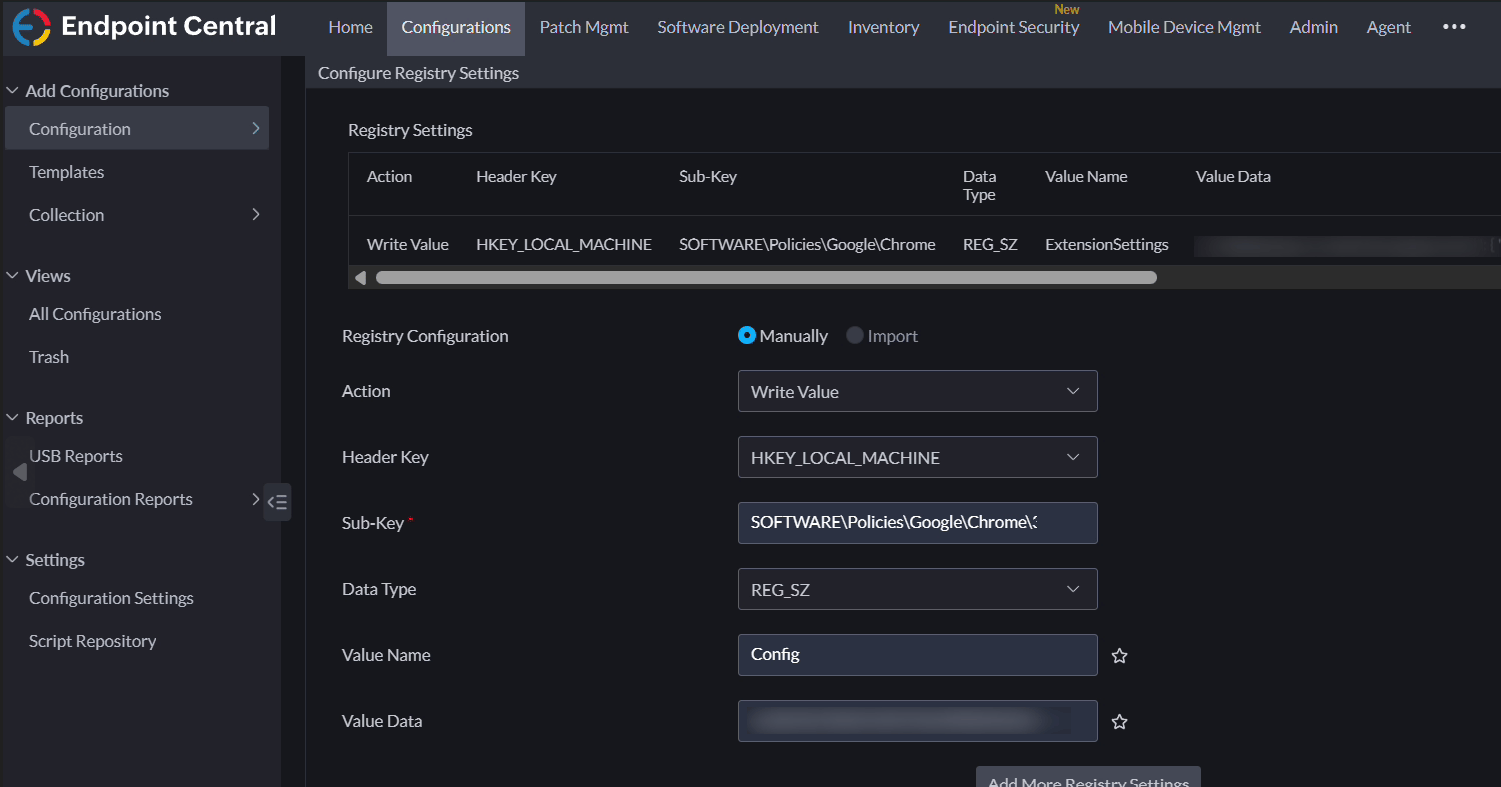
- Click Add More Registry Settings. The Registry Entry screen is displayed.
- In the Name and Description section, do the following:
- Enter the configuration name.
- Click Add Description and then enter the description in the displayed text box. (Optional)
- Ensure Manually is selected under Registry Configuration.
- Ensure Write Value is selected under Action.
- Ensure HKEY_LOCAL_MACHINE is selected under Header Key.
- In the Sub-Key field, enter the registry sub-key path for your browser:
- Ensure REG_SZ is selected under Data Type.
-
In the Value Name field, enter
Configas the value name. -
In the Value Data field, paste the auto-pair config. plain text from the downloaded file.
Note: You can download the auto-pair config. plain text from your Oloid Portal.
Configure Target and Deploy the Oloid Vault App
- Under Define Target, configure Target 1:
- Select the required Target Type from the drop-down.
-
Configure the Target settings.
 Note: The Execution Settings section is preconfigured with the recommended default settings. Do not change any options in this section.
Note: Changes may take a few minutes to apply. To deploy the changes immediately, click Deploy Immediately.

