Introduction
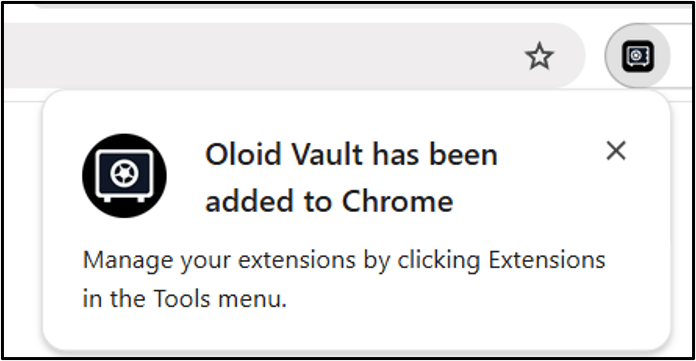
This document provides instructions to add the Oloid Vault extension to Google Chrome using the Tenant Admin Portal.Prerequisite
You must have access to the Tenant Admin Portal.Steps to Add Oloid Vault Extension
- Log in to Tenant Admin Portal.
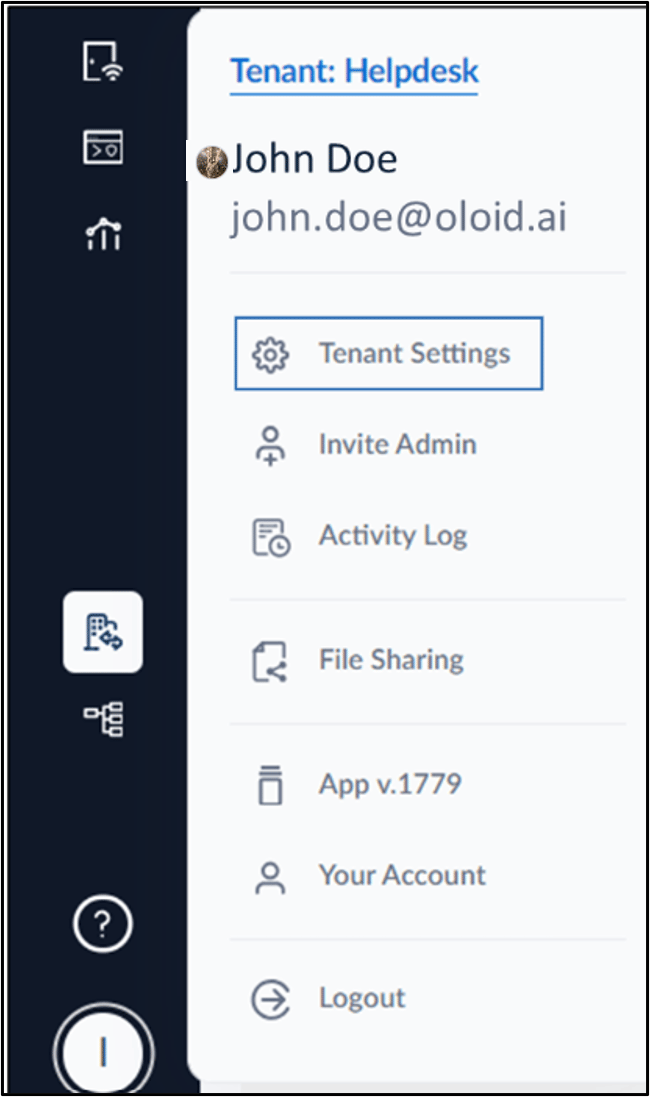
- On the homepage of the portal, click User profile icon at the bottom-left corner of the menu panel. The user profile menu is displayed.
-
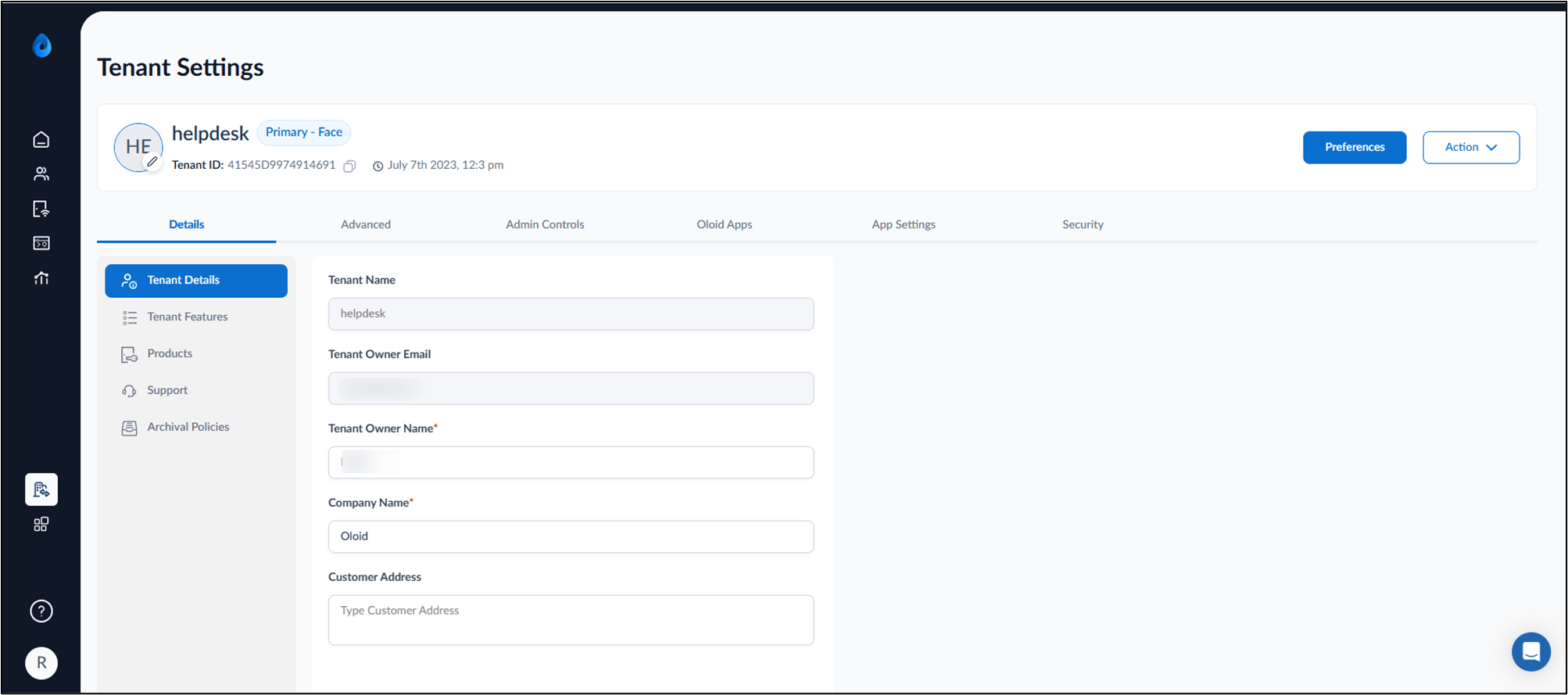
Click Tenant Settings.
-
Go to Oloid Apps tab > Click View in Chrome Web Store.
Note: To install the Oloid Vault extension in Microsoft Edge, copy the View in Chrome Web Store URL, paste it into the Microsoft Edge browser, and follow steps 5 and 6.
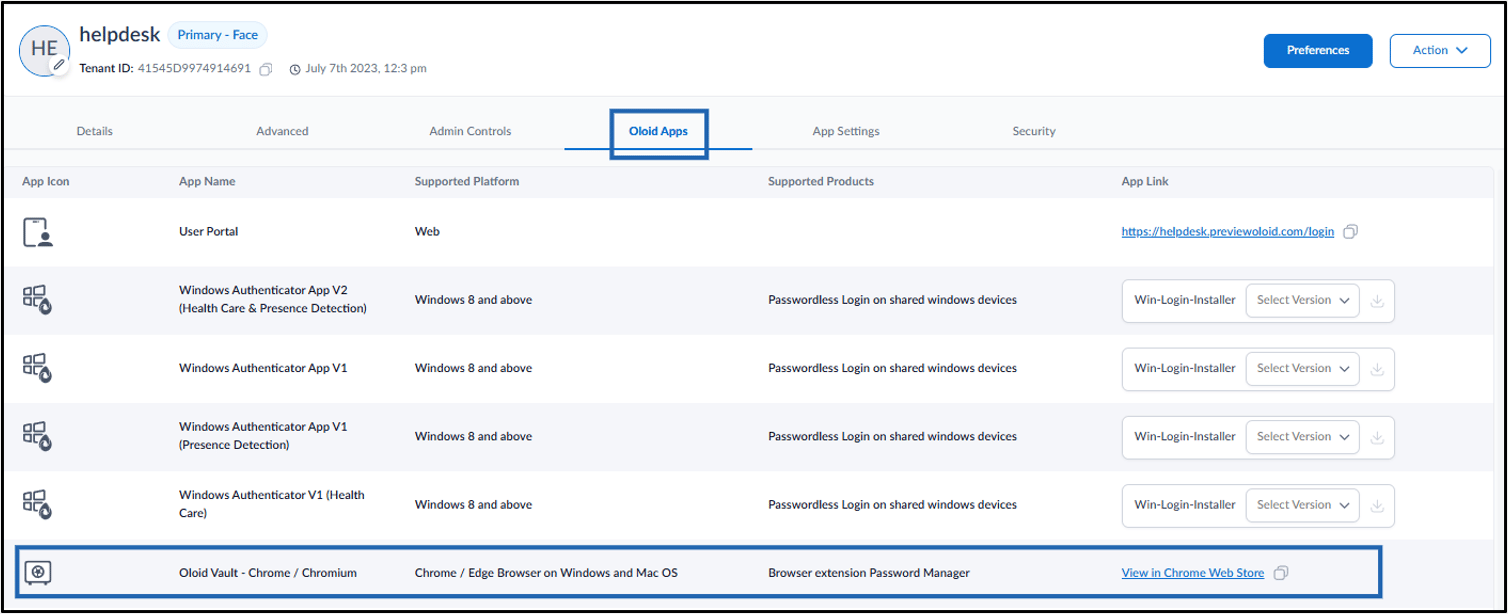
-
Click Add to Chrome.
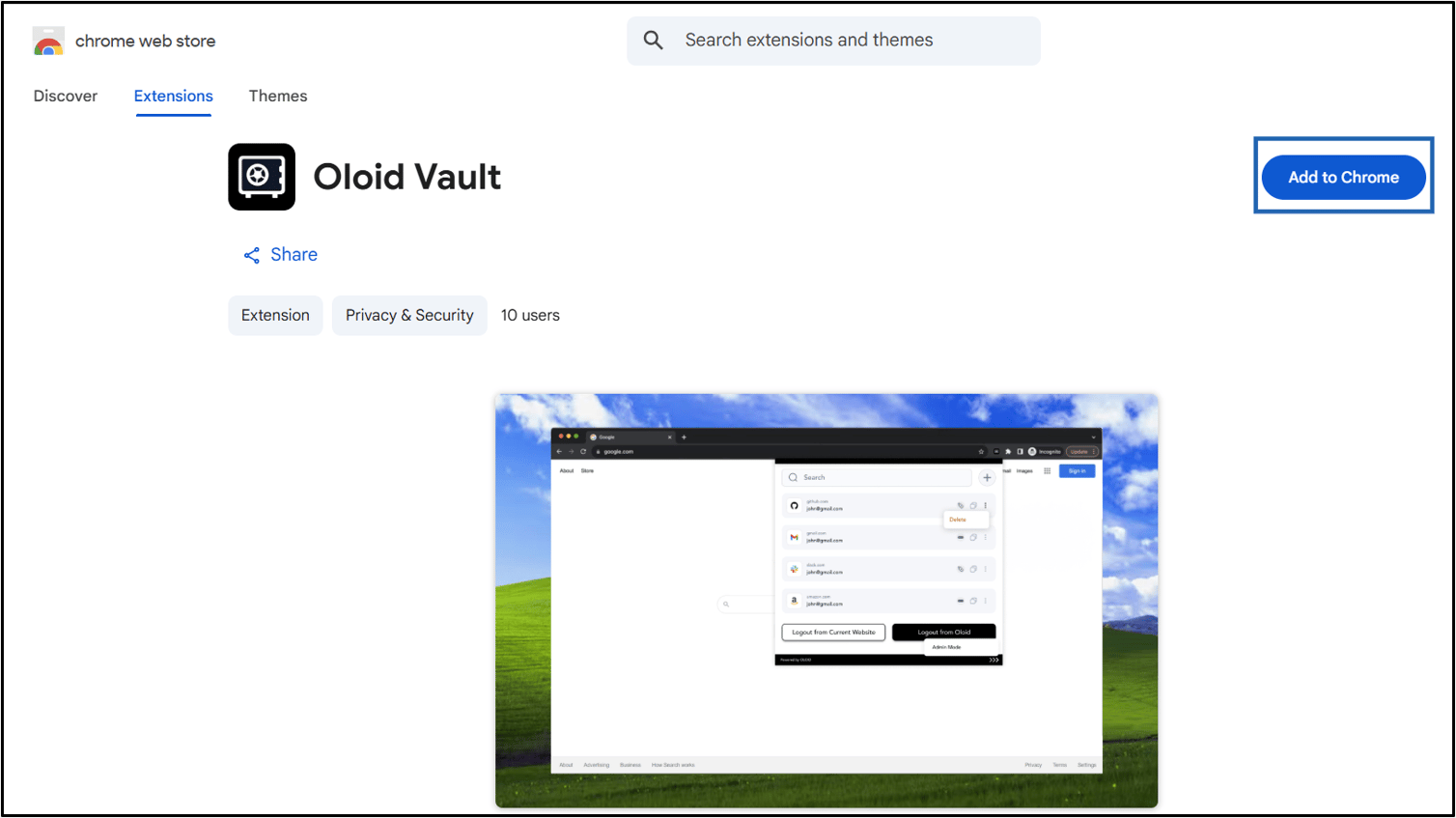
-
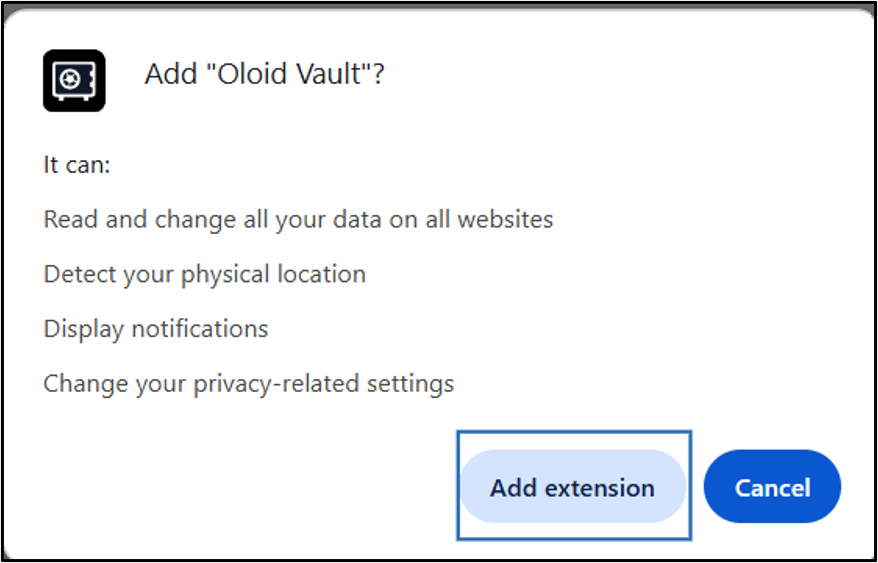
Click Add extension.