Introduction
Chrome Vault allows users to log in securely using Facial authentication. When Face authentication is enabled for the application, user can sign in by showing his face on the device camera. This method eliminates the need for manual credential entry, providing a faster and more secure login experience.Prerequisite
Your device must have a working camera with permission to access the browser.Steps to Log in to Chrome Vault using Face
-
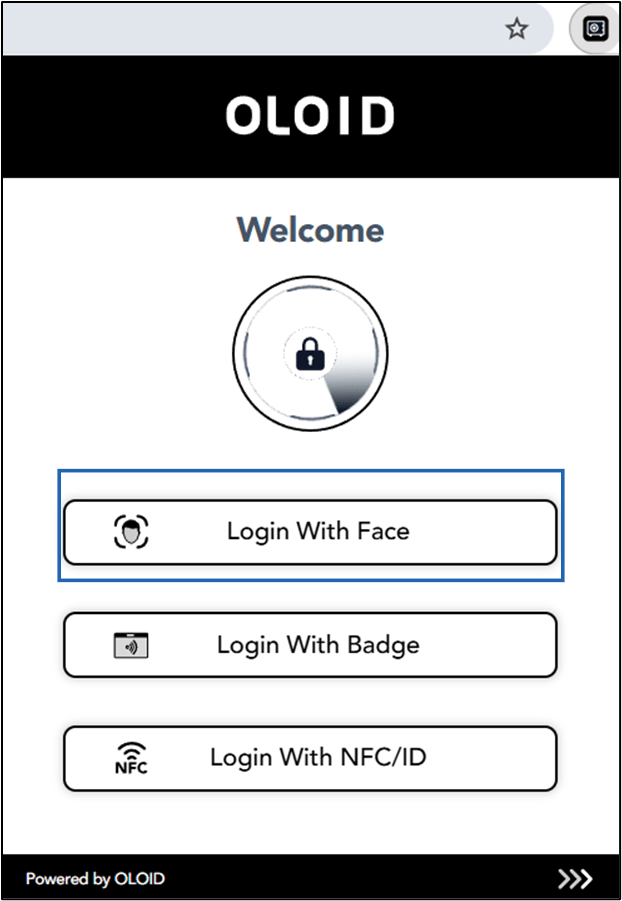
Open Google Chrome browser and click Chrome Vault icon located on the toolbar.

-
Select Login with Face.
Note: The authentication methods (Face, NFC and Badge) will be visible on the Welcome screen, only if they are enabled for the application. The button names may vary based on the application’s configuration and customization. If you do not see any authentication method available, please contact your support team for assistance.
-
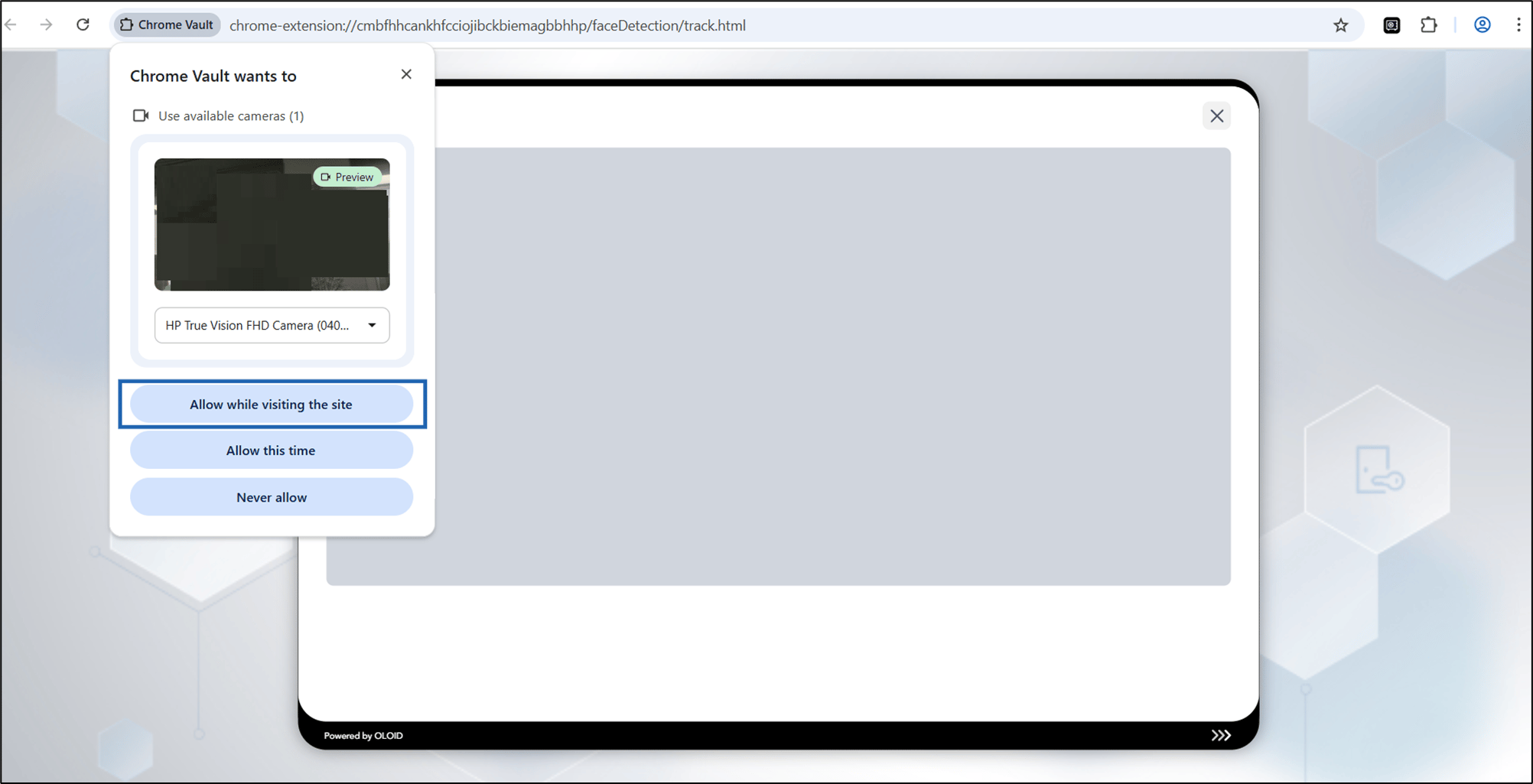
Select Allow while visiting the site to open the camera.
-
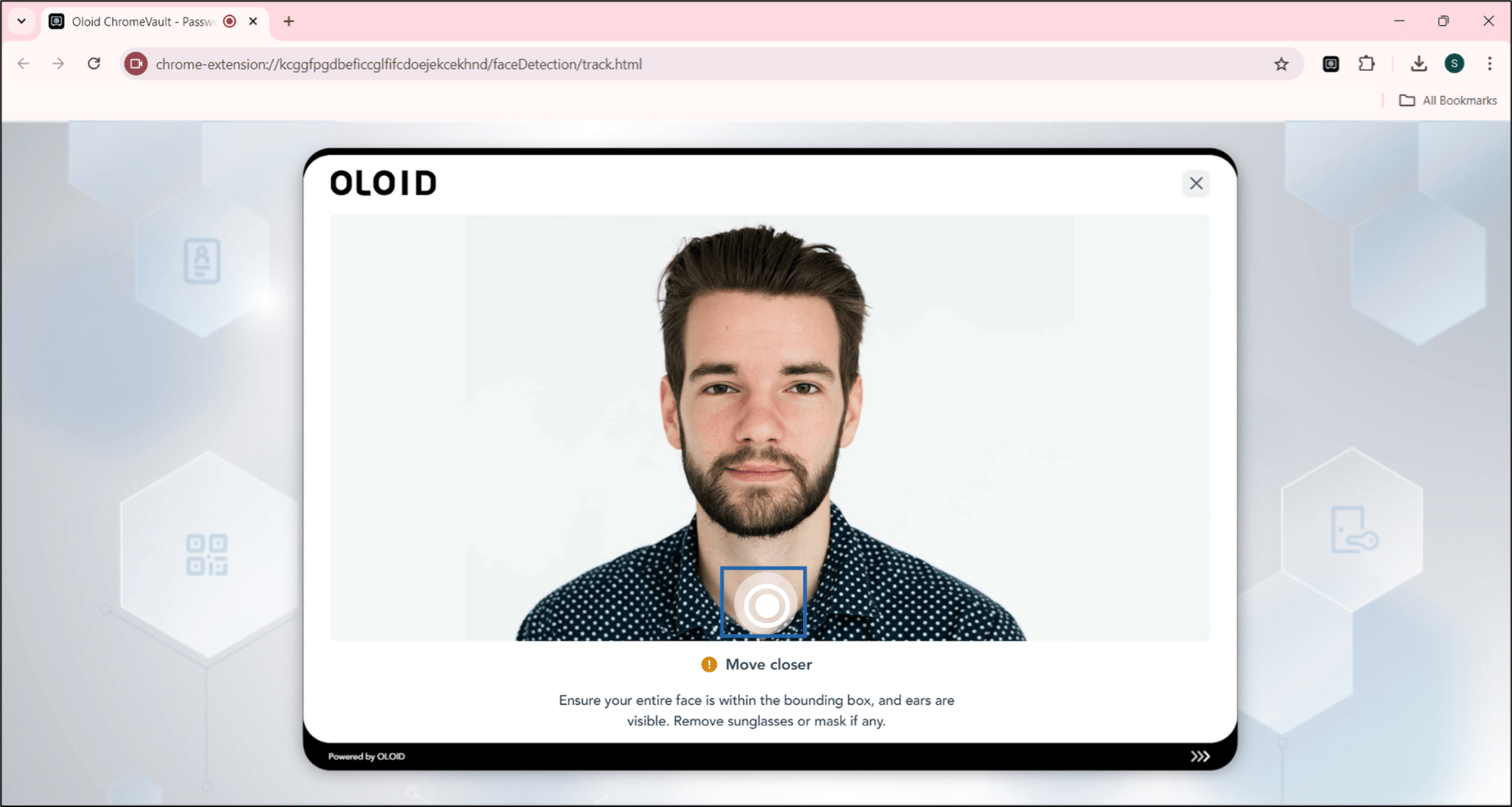
Do one of the following:
- Position yourself to face the camera for automatic capture. or
- Position yourself to face the camera > click capture button.