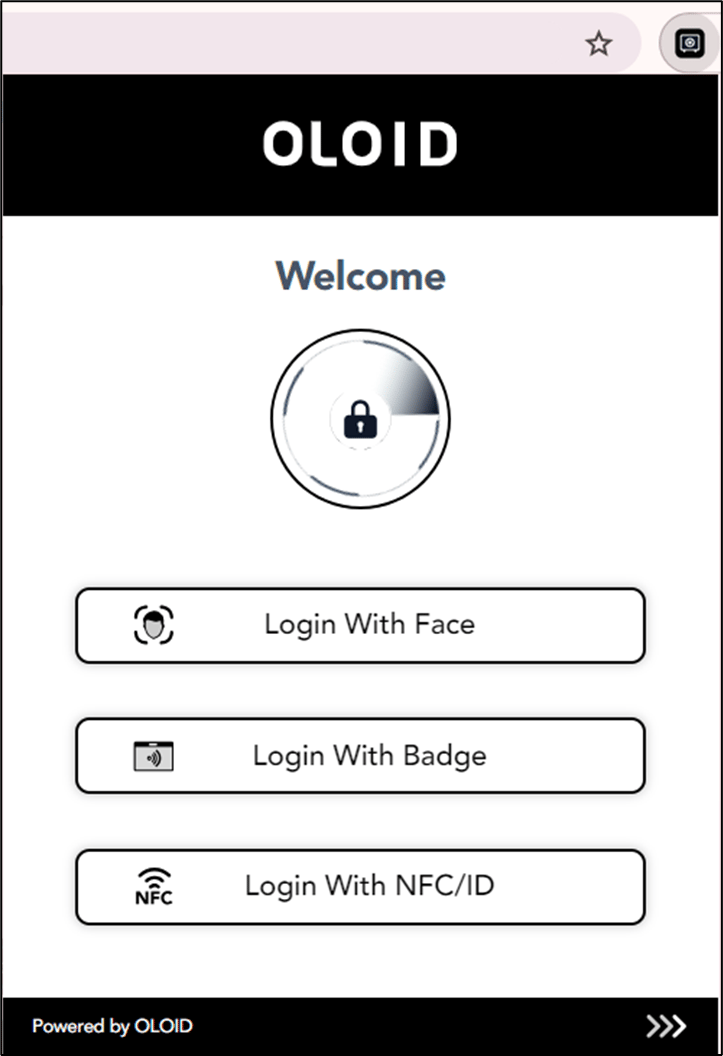
Introduction
Chrome Vault allows users to securely manage credentials. To maintain privacy and prevent unauthorized access, users can log out either from all active websites or directly from the Chrome Vault application.Prerequisite
You must login to the Chrome Vault. To log in refer How to log in to Chrome Vault.Steps to log out
- Open Chrome Vault application.
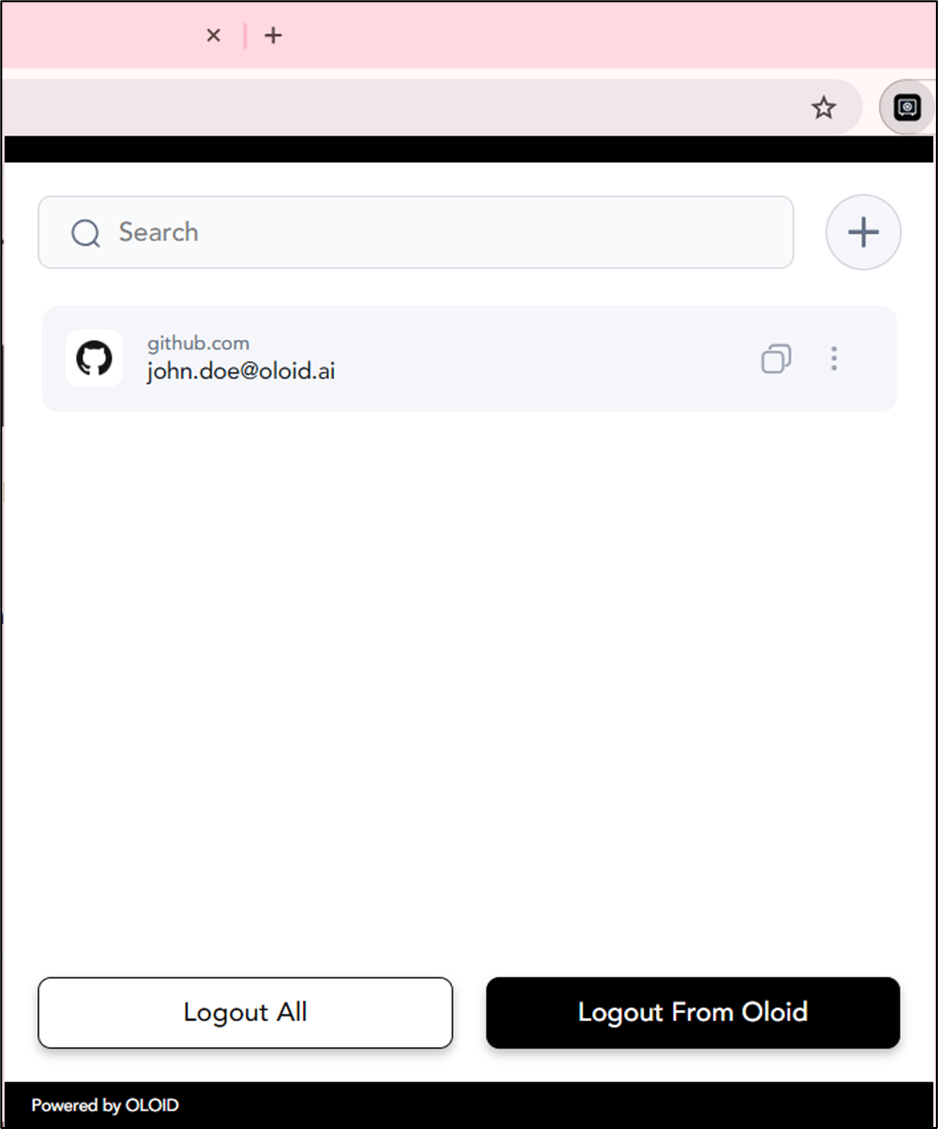
- Do one of the following:
Logout All
-
Select Logout All to log out of all websites.
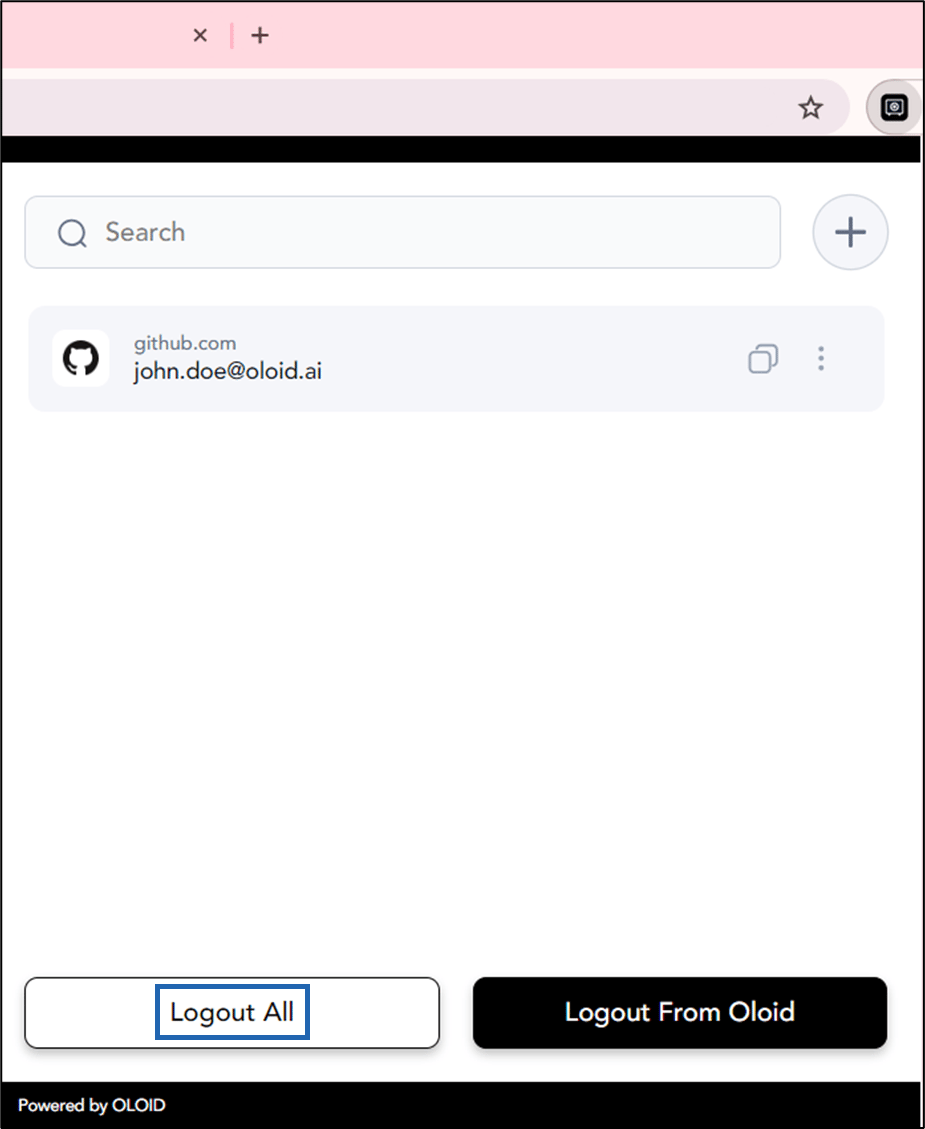
-
Select Logout All to confirm your logout.
 Note: This option will log you out of all websites you are currently signed into in your browser, and you will be redirected to the login screen.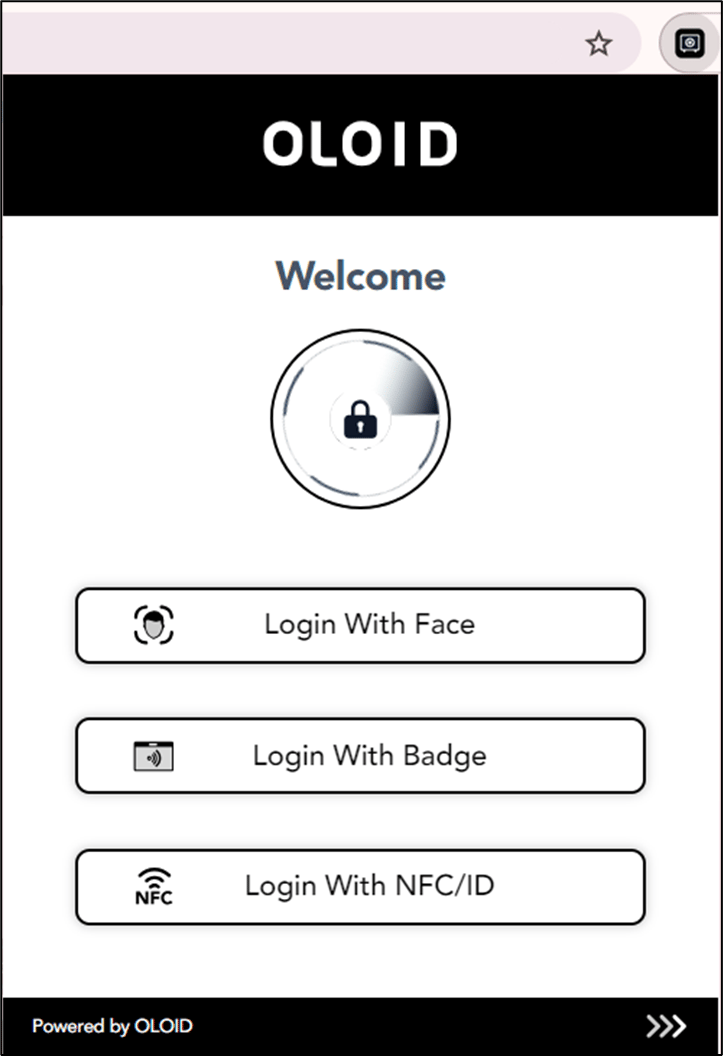
Logout from Oloid
-
Select Logout From Oloid.
 Note: This option logs you out of the Chrome Vault app and the login screen is displayed.