

Introduction
Chrome Vault lets you securely manage saved passwords in your browser. This document shows you how to update a saved password to keep your credentials current and avoid login issues.Prerequisite
The password must be saved in Chrome Vault. To save password refer How to save password in Chrome Vault.Steps to edit password
- Open Google Chrome browser and click Chrome Vault icon located on the toolbar.

- Click More options menu (
 ) on the preferred saved profile to edit it.
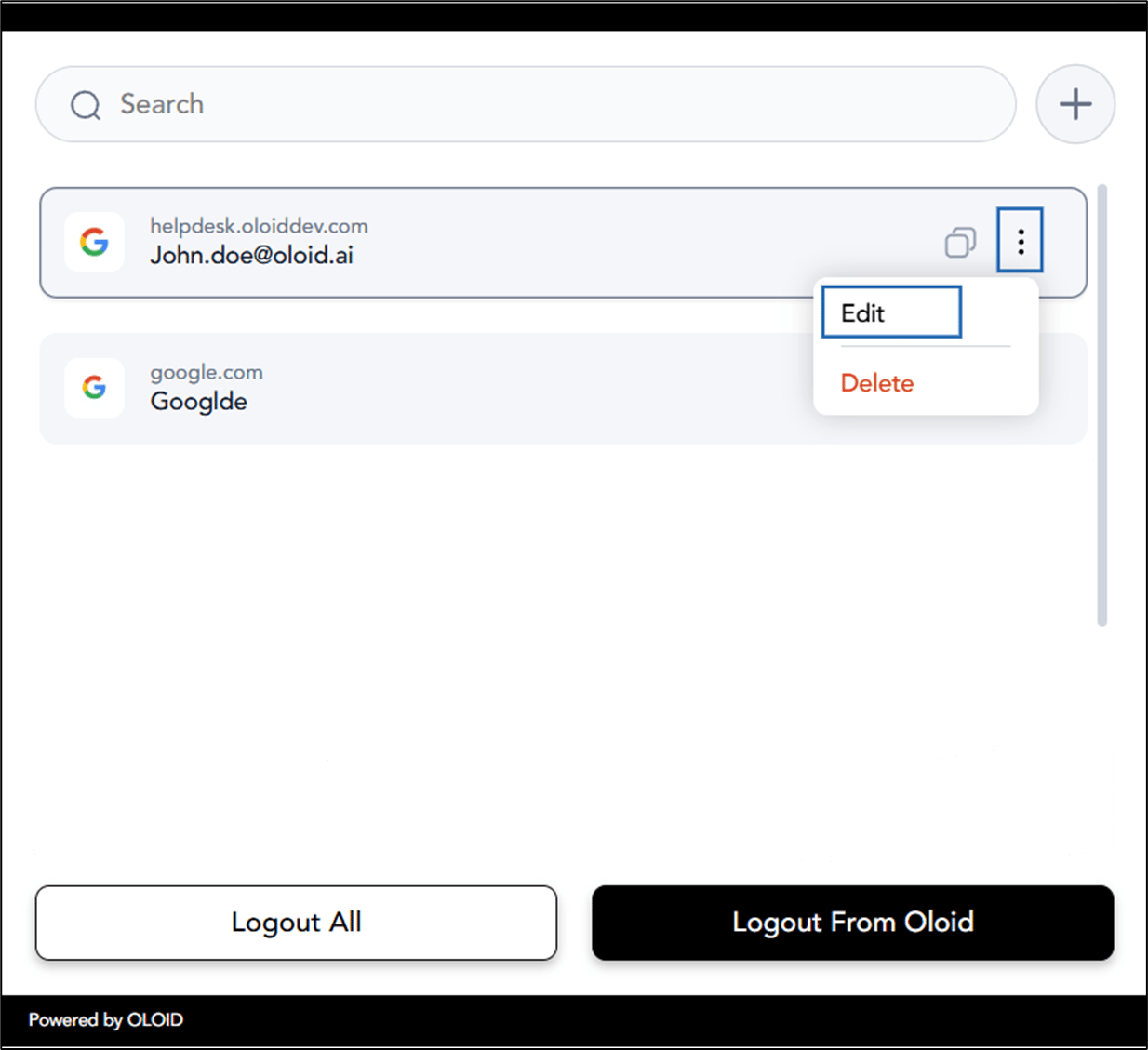
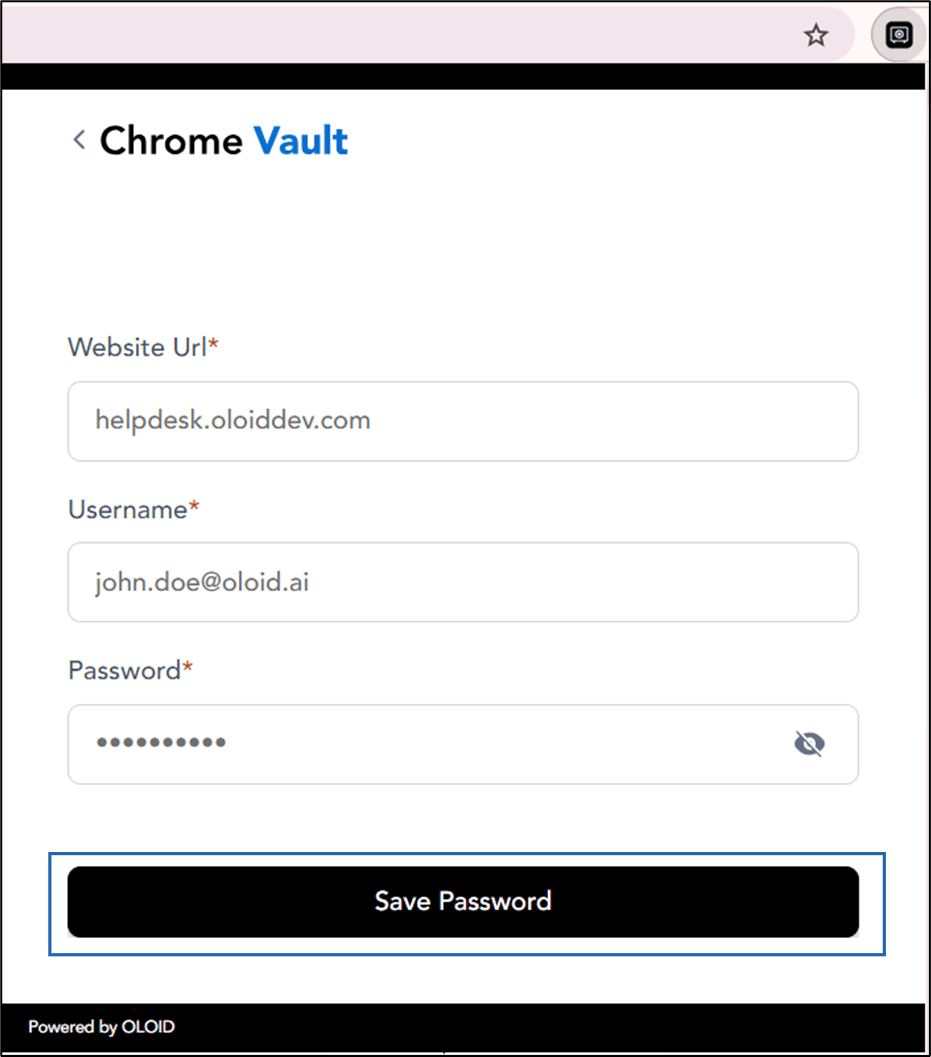
- Do the following:
- Edit the website URL (optional).
- Edit username (optional).
- Edit password.
-
Click Save Password.
 Note: You can also edit and update your password using the Update Password option. For details, see How to update password in Chrome Vault.